Automate tag assignment
This feature is in Beta.
This page explains how to create and manage tag automations, which assign governed tags to Unity Catalog tables and volumes at scale. For an overview of governed tags, see Governed tags.
An automation encodes your business rules by conditions you set, then assigns or removes governed tags on the matching assets. After creating an automation, Databricks keeps the tags accurate as your data and metadata change.
You can create an automation manually in Catalog Explorer, or use Genie to build an automation by describing your rule in natural language:
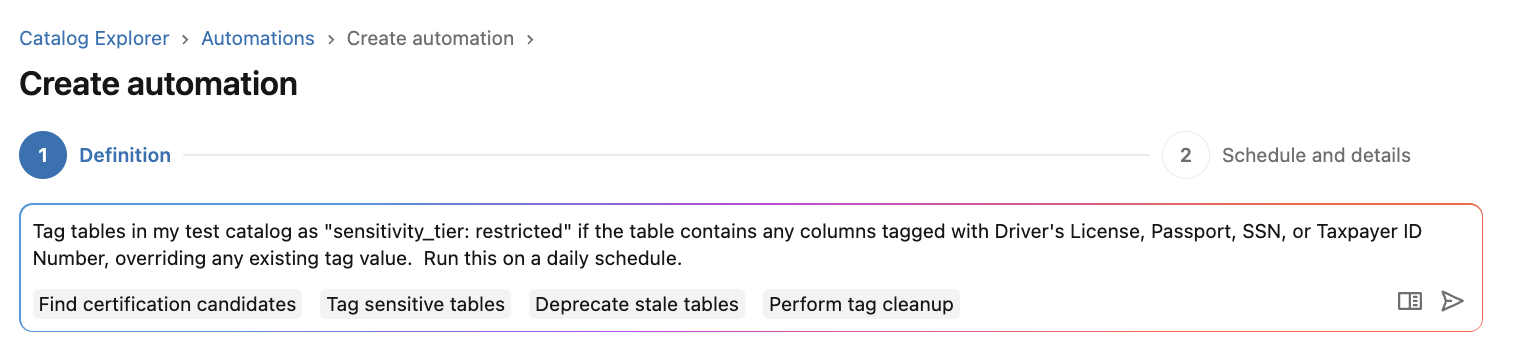
Admins automate tag assignment for a range of governance workflows, including:
- Certifying trusted data that meets your readiness criteria.
- Deprecating stale data that is no longer maintained or queried.
- Rolling up column sensitivity to a table-level sensitivity tier, as in the example above.
- Flagging assets that are missing required tags, then notifying their owners.
- Cleaning up outdated tags that no longer apply.
Because automations use governed tags, every tag they assign conforms to the same allowed values and permissions that govern manual tagging.
To automatically detect and tag sensitive data in columns, use Data Classification instead. To compare all the auto-tagging features, see Manual vs. automated tagging.
Prerequisites
Before you create an automation, make sure you have the following:
USE CATALOG,USE SCHEMA, andAPPLY TAGon the catalog in the automation's scope. These are checked at the catalog level, so narrowing an automation to specific schemas does not reduce the privileges you need.MANAGEon the catalog in the automation's scope.- The
ASSIGNpermission on every governed tag the automation assigns or removes. - The governed tags you want to assign must already exist with defined allowed values. To create governed tags, see Create and manage governed tags. For more information about governed tag permissions, see Manage permissions on governed tags.
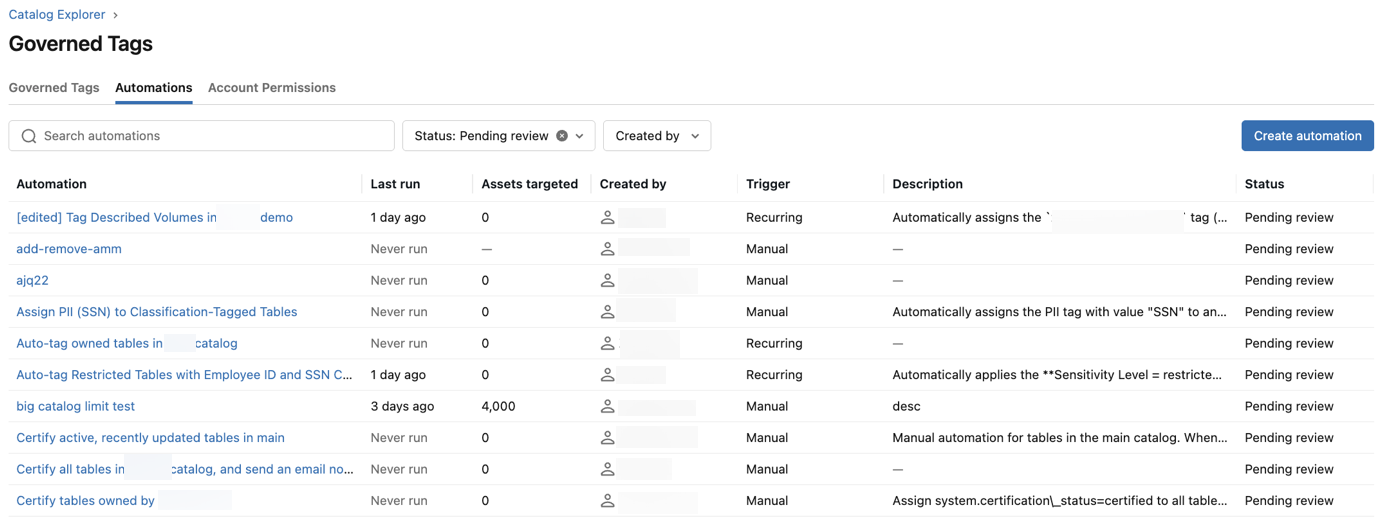
The Automations tab lists only the automations for tags where you have the ASSIGN privilege. Account admins have ASSIGN on all tags by default and can see every automation. See Manage permissions on governed tags.
Enable tag automations
Tag automations are enabled by default in most workspaces. If you don't see the Automations tab on the Governed Tags page, a workspace admin can enable the preview:
- As a workspace admin, click your username in the top bar of the workspace.
- From the menu, select Previews.
- Find the Tag automations preview and use the toggle
 to enable it.
For more information about managing previews, see Manage workspace-level previews.
Preview features are not covered by compliance certifications. In workspaces with the compliance security profile enabled, the Tag automations preview might not appear on the Previews page. For the previews you can enable in these workspaces, see the Regional support for features table on the applicable compliance standard page, listed in Compliance security profile.
Create or edit an automation
Databricks recommends describing the automation you want to Genie in natural language and letting it build the rule for you. Genie sets the scope, conditions, and action, and you can review and adjust everything before you save.
-
In Catalog Explorer, open the Governed Tags page and click the Automations tab.
-
Click Create automation.
-
In the prompt field, describe the automation you want, or start from a suggestion from Genie.
-
Review what Genie generated and adjust any part of it.
You can also fill in the form yourself:
-
In the Scope section, select a catalog, optionally narrow it to specific schemas, and choose whether the automation targets tables or volumes.
If you don't select specific schemas, the automation covers every schema in the catalog, including schemas you create later, but not
information_schema. If you select individual schemas, the automation covers only those schemas. -
In the Condition section, add the conditions an asset must match, using Match all or Match any. See Conditions reference.
-
In the Action section, select Add tag or Remove tag, choose the governed tag key and value, and select Override existing value to replace a value an asset already carries. See Notify users.
-
Continue to the Schedule and details step, then select Manual to run the automation on demand or Recurring schedule to run it automatically.
-
In the Details section, enter a name and description, then click Dry run.
Saving a new automation creates it and starts a dry run, which records the assets the automation would match without assigning any tags. Review the matched assets, and if they aren't what you expect, adjust the conditions and click Dry run again. When you're satisfied, click Enable automation.
To edit an existing automation, open it from the Automations tab and click Edit. You can change its conditions, schedule, name, and description, but not its scope or action. To change either of those, create a new automation.
Example: certify tables that meet your readiness criteria
To certify tables that pass your quality bar, create an automation that assigns the certification tag to every table that matches:
- For Condition, select Match all and add criteria so that only ready tables match:
- The owner is one of the principals responsible for production data.
- The table has a description.
- The table had more than 100 read queries in the last 30 days.
- For Action, assign the
system.certification_statustag with the valuecertified.
Example: roll up column sensitivity to a table-level sensitivity tier
To keep table-level classification in sync with sensitive columns found by Data Classification, create an automation that tags a table when any of its columns carries a sensitivity tag:
- For Condition, select Match any and add Column tag criteria so that a table matches if any of its columns carries
class.us_driver_license,class.us_passport,class.us_ssn, orclass.us_itin. - For Action, assign your table-level sensitivity tier tag with the value
restricted, and select Override existing value so that tables carrying a lower tier are updated.
Build a similar automation for each tier you use, matching the classification tags that warrant it.
Conditions reference
The following table lists the conditions you can add in the Condition section. Conditions that apply to tables only, such as Column tag and the query usage conditions, are not offered when an automation's scope targets volumes:
Condition | What it matches | Examples |
|---|---|---|
Tag and Tag value | Existing governed tags on the asset. Select from the governed tags in your account. |
|
Column tag | Governed tags on the asset's columns. Applies to tables only. | Any column carries |
Read query count and Write query count | The number of queries against the asset in the last 30 days. Applies to tables only. | Read query count equals |
Last queried | The number of days since the asset was last queried. Applies to tables only. | Last queried more than |
Created date and Last updated | The number of days since the asset was created or last altered. | Last updated more than |
Owner | The asset's owner, matched against principals you select with is one of or is not one of. Matching is on the owner itself, so selecting a group matches only assets owned by that group, not assets owned by its members. | Owner is one of your data platform admins |
Description | Whether the asset has a description, using exists or does not exist. | Description does not exist, to flag undocumented tables |
Name | Whether the asset's name contains a string, using contains or does not contain. | Name contains |
Notify users
To notify users when an automation updates assets, turn on Notify users via email in the Action section, then select who to notify:
- Asset owners: Notify each matched asset's owner.
- Specific users: Notify a list of users that you provide, regardless of who owns the matched assets. These recipients get one summary covering all matched assets.
Notifications report only on assets that were modified during a run, so a dry run doesn't send any.
Review run history
The run history on an automation's details page covers both dry runs and live runs. For each run, you can see its state, when it Started, how many Assets it matched, and its Duration. Dry runs are marked so you can tell them apart from runs that assigned tags. Click a run to see the assets it matched.
Enable or disable an automation
An automation's Status is either Pending review or Enabled:
- Pending review: The automation does not assign or remove tags. You can dry run it as often as you like.
- Enabled: The automation runs on its schedule, assigning and removing tags on matched assets.
Open an automation and click Enable automation to enable it, or Disable automation to return it to Pending review. Disabling stops the automation's schedule and prevents manual runs, but does not stop a run that is already in progress. To run an enabled automation immediately, click Run.
Limitations
Tag automations have the following limitations during Beta:
- An automation targets only tables or only volumes. To manage both tables and volumes, create a separate automation for each.
- An automation is scoped to a single catalog. It cannot span multiple catalogs or an entire metastore.
- An automation's scope covers all table types:
MANAGED,EXTERNAL,VIEW,MATERIALIZED_VIEW,STREAMING_TABLE, andFOREIGN. Automations cannot be scoped to specific table types. - Recurring automation results typically land within 24 hours. Custom or event-based schedules are not available.
- Scope and action cannot be changed after you create an automation. To change either one, create a new automation.
- Each run processes a maximum of 500 matching assets.
- An automation can assign or remove a maximum of 5 governed tags. Each governed tag can only be assigned or removed once per automation.
Troubleshooting
- The automation matches no assets. Check that the scope includes the catalog and schemas that hold your assets, and that your conditions are not too restrictive. Use a dry run to preview matches.
- A run partially failed. Tags applied to some assets but not others, usually because you lack
ASSIGNon a governed tag orAPPLY TAGon an asset. Open the run to see the outcome for each asset, fix the permission, then run the automation again. - A run is taking a long time. Larger scopes take longer to complete. If a run has not finished after a few hours, check the run history for a failure.