Set up managed disaster recovery
This page describes how to set up managed disaster recovery (DR), from an empty secondary region to a failover group that replicates continuously. For how managed DR works and what it replicates, see Managed disaster recovery.
Most of the work is storage and network configuration, which you finish before you create the failover group.
Requirements
- A workspace on the Enterprise plan in both the primary and secondary regions.
- Managed DR enabled on your account. Managed DR is gated. Apply for access through your Databricks account team.
- The Mission Critical add-on enabled on both workspaces. See Enable Mission Critical on a workspace.
- Serverless compute enabled on both workspaces. Serverless compute is available by default in most Unity Catalog-enabled workspaces. See Connect to serverless compute.
- The account admin role, with ALL PRIVILEGES on every external location used by the catalogs you plan to replicate.
How managed table data replication works
Replication of Unity Catalog managed table data uses a pull model. The replication job runs on serverless compute in the secondary region, reads from the primary region's storage, and writes to the secondary region's storage. The following diagram shows the three input/output (IO) paths used in each replication cycle, in an example with server-side data file copying. The numbers identify recurring activities within the cycle.
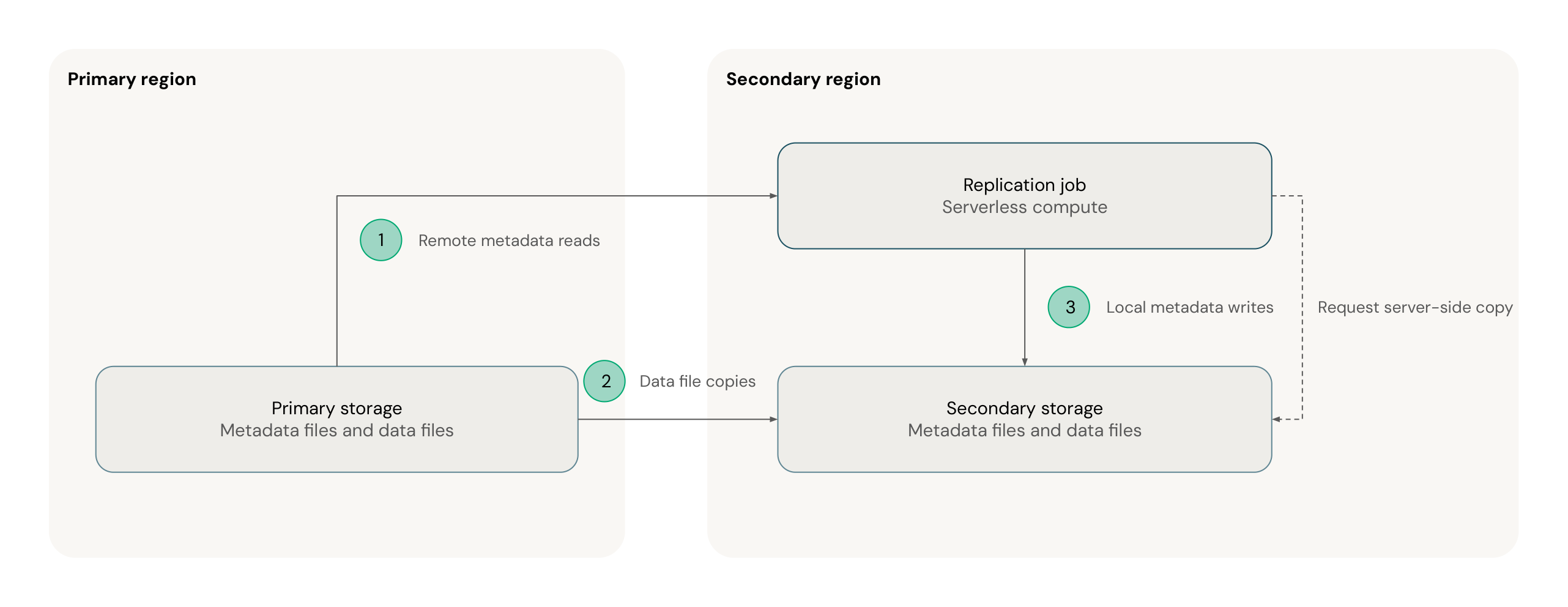
- Remote metadata reads: The job lists and reads the Delta Lake log files in the primary storage to find what changed. These reads are cross-region.
- Data file copies: The job copies data files from the primary storage to the secondary storage. This path is cross-region and carries most of the traffic. Depending on your account and storage configuration, the job either requests the copy and the cloud provider copies the data files directly between the storage locations, or the job copies the data files itself.
- Local metadata writes: The job writes new Delta Lake log files to the secondary storage. These writes stay in the secondary region.
After a failover, the roles swap: replication runs from the new primary to the new secondary, so the new secondary must be able to read the new primary's storage. For this reason, setup covers storage and network access in both directions.
Each IO path is routed differently, depending on whether you use private connectivity to your storage:
IO path | Without Private Link | With Private Link |
|---|---|---|
Remote metadata reads | Network address translation (NAT) gateway | Private Link |
Data file copies | Cloud provider backbone network | Private Link |
Local metadata writes | S3 gateway endpoint | Private Link |
Replication over Private Link must be enabled for your account. See Configure network access.
Managed DR replicates external table and external volume metadata only. It doesn't copy their data, so the cross-region storage and network setup applies to managed table data. External tables and volumes still need a storage mapping whose target is covered by an external location in the secondary metastore.
Set up managed DR
Prepare the workspaces
- Create a workspace and a Unity Catalog metastore in the secondary region, in the same Databricks account and on the same cloud as your primary. The secondary metastore must not contain catalogs that share names with the catalogs you plan to replicate.
- Configure account-level single sign-on (SSO) with all workspaces enabled, and sync identities to the account through automatic identity management (AIM) or System for Cross-domain Identity Management (SCIM), so users, groups, and service principals exist in both regions.
- Associate the account-level serverless usage policy (formerly serverless budget policy) with both the primary and secondary workspaces.
- For tables that you query by timestamp, using time travel or the change data feed, enable in-commit timestamps before you set up replication. See Limitations.
The secondary workspace doesn't need to be empty, but if you turn on workspace asset replication, Databricks deletes any existing in-scope assets in the secondary when initial replication completes. Out-of-scope assets are not affected.
Configure storage
Managed DR doesn't create your cloud storage or replicate external locations and storage credentials. You create the secondary storage and register it in Unity Catalog.
Managed DR copies each data file with one credential that can both read the source bucket and write the target bucket. Unity Catalog can produce that credential only when, in a metastore, the external locations for both buckets use storage credentials that reference the same AWS Identity and Access Management (IAM) role. If they reference different roles, cross-region replication fails with DR_INVALID_CONFIGURATION.STORAGE_COPY_CREDENTIAL.
In each metastore, primary and secondary:
- Create external locations for the S3 buckets in both the local region and the remote region.
- Assign both external locations storage credentials that reference the same IAM role.
- Give that IAM role write access to the local-region buckets and read access to the remote-region buckets.
- Assign the same grants to the external location for the local-region bucket in both metastores, so principals keep equivalent access after a failover.
The single-role requirement applies within one metastore. The primary and secondary metastores can use different IAM roles. To simplify setup, you can use one IAM role for both metastores, with read and write access to both buckets.
The following diagram shows an example with one shared storage credential per metastore and a different IAM role in each region.

Example
Your primary region is us-east-1, with data in s3://example-bucket-use1. You add us-west-2 as the secondary region.
First, configure the secondary (us-west-2):
- Create the S3 bucket
s3://example-bucket-usw2inus-west-2. - Create an IAM role,
uc-role-usw2, with write access toexample-bucket-usw2and read access toexample-bucket-use1. - In the
us-west-2metastore, create a storage credential foruc-role-usw2. Then create two external locations that use it: one fors3://example-bucket-usw2, where replicated data is written, and one fors3://example-bucket-use1, where data is read from.
This enables replication from us-east-1 to us-west-2. After a failover, replication runs in the other direction, so mirror the setup on the primary (us-east-1):
- Add read access to
example-bucket-usw2to the IAM role that the primary uses forexample-bucket-use1, for exampleuc-role-use1. - In the
us-east-1metastore, create an external location fors3://example-bucket-usw2that uses the storage credential foruc-role-use1.
When you create the failover group, you map s3://example-bucket-use1/* to s3://example-bucket-usw2/*. See Plan your storage mappings.
For the UI and SQL steps, see Create a storage credential and Create an external location.
Plan your storage mappings
A storage mapping tells managed DR which secondary path to use for each primary storage path. Managed DR decides where to place a replicated table, volume, or managed location by applying the failover group's storage mappings to its source path. You add the mappings when you create the failover group, and you can update them later.
The following diagram shows how a failover group's storage mapping relates a primary path prefix to a secondary path prefix, including their child paths.

A valid set of mappings meets two rules:
- The mappings cover every source storage path that your replicated catalogs use, including the managed locations of catalogs and schemas and the locations of external tables and volumes. A mapping matches a path exactly, or as a prefix that also covers child paths when you add the
/*suffix. Assets on an unmapped path are not replicated, and replication reportsDR_INVALID_CONFIGURATION.MISSING_LOCATION_MAPPING. - Each target path is covered by an external location in the secondary metastore, which you created in Configure storage. The failover group rejects a mapping whose target isn't under an existing external location.
For example, map s3://primary-bucket/data/* to s3://secondary-bucket/data/*.
Use a dedicated target path for replicated data. A target that overlaps existing storage in the secondary, such as another external location or the workspace's default Databricks File System (DBFS) storage, fails with DR_INVALID_CONFIGURATION.OVERLAPPING_EXTERNAL_LOCATIONS.
Configure network access
Configure network access in both directions now, because replication reverses after a failover. See How managed table data replication works.
Associate the following account-level objects with both the primary and secondary workspaces: network connectivity configuration (NCC), network policy (serverless egress), private access settings, and IP access list.
Without Private Link
Both the source and secondary storage must allow Databricks serverless network access. See Serverless compute firewall configuration.
If you restrict network access with an S3 bucket policy, each region's bucket must allow the serverless NAT IP addresses of the other region, so Unity Catalog data replication can read it. Before a failover, the source bucket must allow the secondary region's serverless NAT IP addresses. After a failover, the secondary bucket must allow the primary region's serverless NAT IP addresses.
The following diagram shows the IO paths before failover: metadata reads through a NAT gateway, data file copies over the cloud provider backbone, and local metadata writes through an S3 gateway endpoint. Configure the same access in the opposite direction for failover.

For workspace asset replication, if you restrict network access to your source storage or DBFS root, also allow the secondary region's control plane IP addresses at the source storage firewall, and the primary region's control plane IP addresses at the secondary DBFS firewall. See Inbound IPs.
With Private Link
Replicating data over Private Link is not supported by default. If you use Private Link to the S3 buckets that hold your source or replicated data, contact your Databricks account team before you continue. Otherwise, replication fails with DR_UNSUPPORTED_FEATURE.STORAGE_PRIVATE_ENDPOINT.
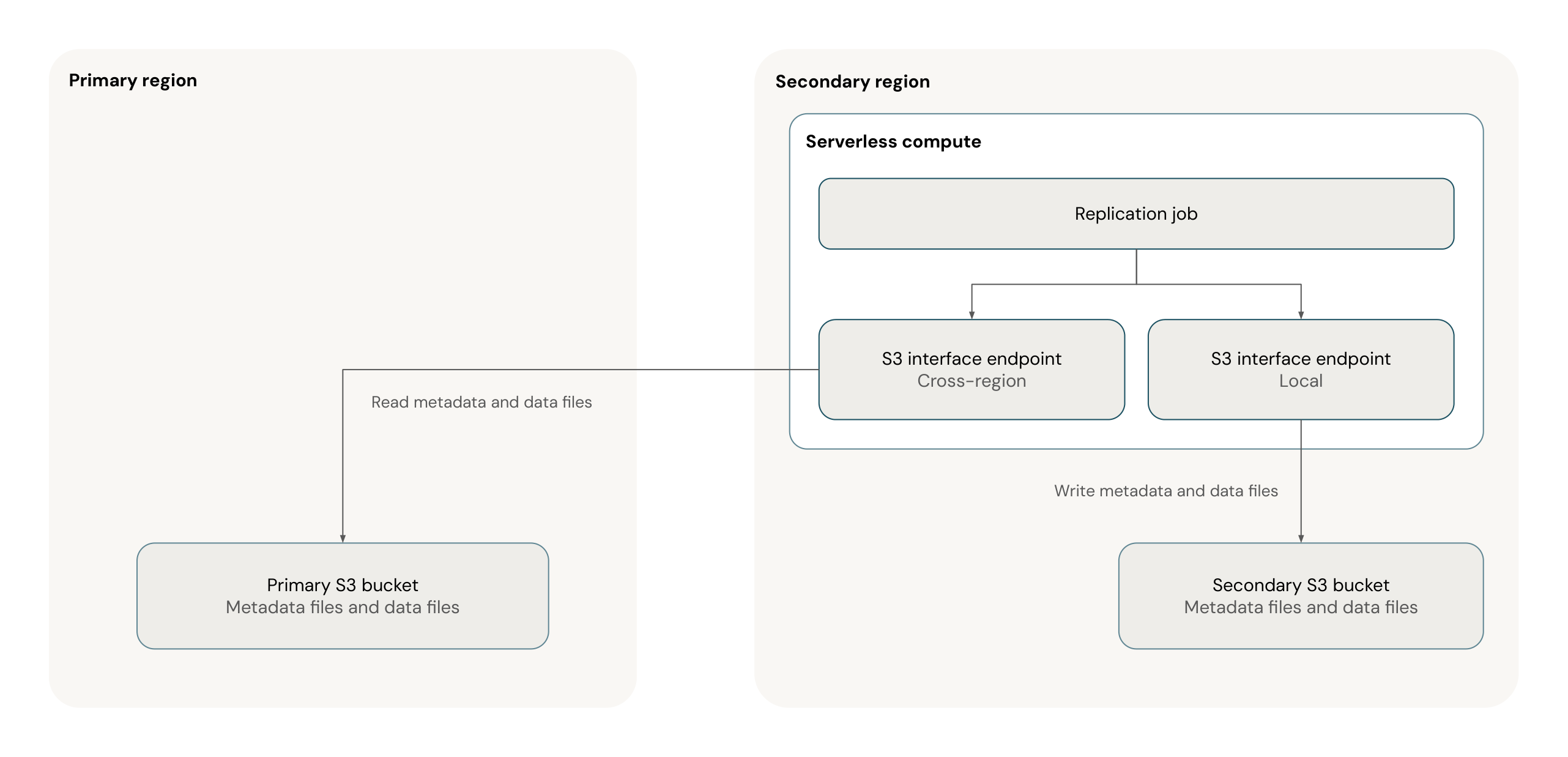
After Databricks enables replication over Private Link for your account, create a Private Link connection from the serverless network in each region to both the local-region bucket and the remote-region bucket. For the remote-region bucket, use the cross-region Private Link endpoint. If you restrict network access with an S3 bucket policy, allow these S3 interface endpoints instead of the serverless NAT IP addresses. Private Link data processing incurs additional cost. See Understand Databricks networking costs.
The following diagram shows the secondary serverless network's local and cross-region S3 interface endpoints. Configure equivalent connections from the primary region.
If you restrict network access to your source storage or DBFS root, workspace asset replication still requires the control plane IP addresses described in the previous section.
(Optional) Create a stable URL
A stable URL resolves to the current primary workspace, so clients that connect through it don't need to be reconfigured after a failover. Databricks recommends using one. Stable URLs require a custom URL provisioned for your Databricks domain (contact your account team) and account-level OAuth.
- In the account console, click Resilience.
- Click the Stable URLs tab, then Create stable URL.
- Enter a name, select the current primary workspace, and create the stable URL.
Use the stable URL instead of the original workspace URL for the Databricks web UI, JDBC and ODBC connections to SQL warehouses, and REST API requests. The original workspace URL remains valid, but after a failover it keeps pointing to the old primary.
Stable URLs are supported with front-end (inbound) Private Link. With inbound Private Link, the stable URL uses your custom URL with a stable connection ID, in the form <my-custom-url>.databricks.com/?w=stable_connection_id. See Configure inbound Private Link for workspaces with managed disaster recovery.
Clients connect through the stable URL the same way they connect to a workspace URL, with two differences: use the stable URL's host, and identify the workspace with the stable connection ID in the w query parameter. Authenticate with account-level OAuth.
- JDBC and ODBC: Set the Server hostname to the stable URL's host, then append
?w=stable_connection_idto the warehouse HTTP path, for example/sql/1.0/warehouses/<warehouse-id>?w=stable_connection_id. Get the warehouse ID from the HTTP path on the warehouse's Connection details tab (see Get connection details for a Databricks compute resource). Use the same port and driver settings as with the original workspace URL. - REST API: Send requests to the stable URL's host with the
w=stable_connection_idquery parameter, for exampleGET https://<my-custom-url>/api/2.0/clusters/list?w=stable_connection_id.
To deploy with Declarative Automation Bundles or Terraform through the stable URL, see Deploy with Declarative Automation Bundles and Terraform.
Create a failover group
- In the account console, click Resilience.
- Click the Failover groups tab, then Create failover group.
- Fill in the form:
- Failover group name: A name you choose for the failover group.
- Primary workspace: The workspace that is your primary.
- Secondary workspace: The workspace in the secondary region.
- Replicate workspace assets (optional): Off by default. Turn on to replicate workspace assets and their access control lists (ACLs) from the primary to the secondary.
- Stable URL (optional): The stable URL you created in (Optional) Create a stable URL.
- Replication scope: The catalogs to replicate. You must select a primary workspace before this field is available.
- Storage mappings: The mappings you planned in Plan your storage mappings. You can use
*as a wildcard for prefix matching.
- Click Create failover group.
Wait for initial replication
The first replication cycle copies all in-scope data to the secondary. For large workspaces, the initial workspace asset bootstrap can take up to five days. Failover becomes available when the failover group reaches ACTIVE. See Initial replication.
To run validation queries in the secondary region, Databricks recommends a separate read-only monitor workspace there. The secondary workspace can't run compute while managed DR is enabled. See Limitations.