Automatic identity management
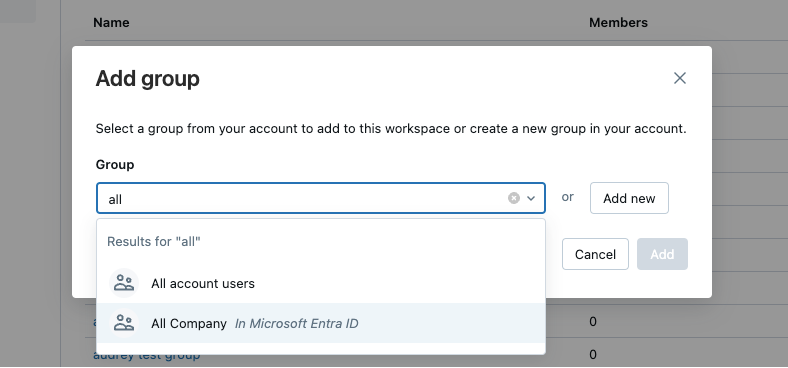
Automatic identity management enables you to seamlessly add users and groups from your identity provider into Databricks. When using Microsoft Entra ID, service principals and nested groups are also synced. When automatic identity management is enabled, you can directly search in identity federated workspaces for users and groups, and add them to your workspace. Databricks uses your identity provider as the source of record, so any changes to group memberships are respected in Databricks.
Users can also share dashboards with any user or group in your identity provider. When shared, those users and members of groups are automatically added to the Databricks account upon login. They are not added as members to the workspace that the dashboard is in. Users who do not have access to the workspace are granted access to a view-only copy of a dashboard published with shared data permissions. For more information on dashboard sharing, see Share a dashboard.
Just-in-time (JIT) provisioning is always enabled when automatic identity management is turned on, and you cannot turn it off. New users are automatically provisioned in Databricks upon first login. See Automatically provision users (JIT).
Automatic identity management is not supported in non-identity federated workspaces. For more information on identity federation, see Identity federation.
With the Identity Attribute Control List feature preview enabled, automatic identity management also syncs a fixed set of identity attributes, such as title, department, and costCenter, from your identity provider to Databricks account users. These attributes are in Beta. For more information, see Identity attributes.
User, service principal, and group statuses
When automatic identity management is enabled, users and groups from your identity provider are visible in the account console and the workspace admin settings page. When using Microsoft Entra ID, service principals are also visible. Their status reflects their activity and state between your identity provider and Databricks:
Status | Meaning |
|---|---|
Inactive: No usage | For users and service principals: identity in the identity provider that has not logged into Databricks yet. For groups: the group has not been added to a workspace. |
Active | Identity is active in Databricks. |
Active: Removed From [IdP] | Previously active in Databricks and has been deleted from the identity provider. Databricks automatically deactivates these users during the next identity sync. Cannot log in or authenticate to APIs. |
Deactivated | Identity is deactivated in the identity provider or Databricks automatically deactivated the identity after deletion from the identity provider. Cannot log in or authenticate to APIs. |
Denied | Identity has been added to the account access denylist. Databricks sets the identity to inactive. Cannot log in, use personal access tokens, or appear in sharing dialogs. See Deny identities access to your account. |
The Active: Removed From [IdP] status label includes the name of your identity provider. For example, Active: Removed From EntraID.
As a security best practice, Databricks recommends revoking personal access tokens for Deactivated and Active: Removed From [IdP] users. When users are deleted from the identity provider, Databricks automatically deactivates their accounts but does not automatically revoke tokens.
Identities that are managed using automatic identity management are shown as External in Databricks. External identities cannot be updated using the Databricks UI.
Sharing and assigning permissions
When automatic identity management is enabled, you can select users from your identity provider when sharing or assigning permissions throughout Databricks. When using Microsoft Entra ID, service principals are also available.
For groups, sharing behavior differs by asset type:
- Account-level assets: Groups are available when sharing or assigning permissions to account-level assets, such as Databricks Apps, Unity Catalog objects, AI/BI dashboards, Genie Agents, and workspace assignment.
- Workspace-level assets: To share workspace-level assets (such as notebooks, jobs, SQL warehouses, alerts, and files) with groups, workspace admins must first directly add the group to the workspace.
Automatic identity management vs SCIM provisioning
When automatic identity management is enabled, all users, groups, and group memberships sync from your identity provider to Databricks so SCIM provisioning is not necessary. If you keep SCIM provisioning running in parallel, SCIM continues to manage identities that were added using SCIM provisioning. It does not manage identities that were not added using SCIM provisioning.
Databricks recommends using automatic identity management. The table below compares features of automatic identity management with the features of SCIM provisioning.
Features | Automatic identity management | SCIM provisioning |
|---|---|---|
Sync users | ✓ | ✓ |
Sync groups | ✓ | ✓ (Direct members only) |
Sync nested groups | ✓ (Microsoft Entra ID only) | |
Sync service principals | ✓ (Microsoft Entra ID only) | |
Available by default within Databricks | ✓ | |
Requires identity federation | ✓ |
How automatic identity management matches identities
When automatic identity management syncs an identity, it matches that identity to the correct user, service principal, or group in your identity provider. The information Databricks uses to find the match depends on how the sync is triggered.
The following describes matching for Microsoft Entra ID. Databricks applies the same principle to every identity provider: it matches on a stable identifier from the identity provider when one is available, and otherwise matches on the Databricks username. The user principal name (UPN), email, and B2B guest details below are specific to Microsoft Entra ID.
Matching during sign-in
When a user signs in through single sign-on, Databricks receives a token from your identity provider, reads the username from the token, and matches the signing-in user to a Databricks account user by that username.
When the token includes a stable identifier from your identity provider, such as the Microsoft Entra ID object ID, Databricks records that identifier on the account user as its externalId and uses it as the authoritative link when a sync is keyed on the external ID, for example the external identities API or adding a user from the account console. At sign-in, though, Databricks matches the user on the username in the token, not on the stable identifier.
Matching by username
Some flows identify the user by the Databricks username instead of the external ID, such as creating or refreshing a permission context or personal access token authentication. These flows carry no Microsoft Entra ID token, or a token without full data. Databricks searches Microsoft Entra ID for a user whose user principal name (UPN) or email equals the Databricks username, and prefers a UPN match over an email match. It then updates the account user with the external IDs from the matched identity.
For example, if a Databricks user has the username alice@contoso.com, Databricks first looks for an Microsoft Entra ID user with the UPN alice@contoso.com. If no UPN matches, it looks for a user whose email is alice@contoso.com.
Matching when resolving and creating users
When you share an object with an Microsoft Entra ID identity that isn't in Databricks yet, or when the external user API is called, Databricks matches an existing Databricks user by its external ID. If no user matches, Databricks creates one just-in-time and sets the username based on how the user exists in Microsoft Entra ID:
- Users created in your tenant: Databricks uses the UPN as the username. For example, an Microsoft Entra ID user with the UPN
bob@contoso.combecomes a Databricks user with the usernamebob@contoso.com. - Users invited or synced through B2B collaboration (guests): Databricks prefers the email as the username, and falls back to the UPN when the guest object has no email. For example, a guest whose UPN is
carol_fabrikam.com#EXT#@contoso.onmicrosoft.comand whose email iscarol@fabrikam.combecomes a Databricks user with the usernamecarol@fabrikam.com.
Cases that automatic identity management can't resolve
Some identity provider configurations prevent Databricks from reliably matching the intended user. Set up your identities to avoid the following cases.
Multiple users match the same email
If more than one Microsoft Entra ID user has an email that equals the Databricks username, and none of them has a matching UPN, Databricks can't determine which user you intend. It matches one of them with no guaranteed order, so it might sync the wrong user, and syncs can flip between the matched users over time.
For example, a Databricks user has the username dana@contoso.com. In Microsoft Entra ID, two users have the email dana@contoso.com: a member account whose UPN is d.lee@fabrikam.com, and a guest account whose UPN is dana_contoso.com#EXT#@fabrikam.onmicrosoft.com. The username matches the email on both users, but matches neither UPN, so Databricks can't tell them apart and matches one of them arbitrarily.
To avoid this case, make sure the intended Microsoft Entra ID user's UPN equals the Databricks username, and don't keep multiple Microsoft Entra ID objects that share an email.
The username comes from a different tenant
A guest user can sign in with a token that carries a username from their home tenant, while the guest object in your tenant has neither a UPN nor an email that equals that username. At sign-in this still works, because the token carries that home-tenant username and Databricks matches the account user by it. A flow that matches on the Databricks username, such as a session refresh, then searches Microsoft Entra ID for a user whose UPN or email equals the username and can't find the guest object to sync. A flow that matches on the external ID, such as resolving or sharing through the external identities API or the account console, can instead create a second Databricks user that shares the guest's external ID, which you should avoid.
For example, a Databricks user has the username erin@fabrikam.com, carried from the user's home tenant. In your tenant, the guest object has the UPN erin_fabrikam.com#EXT#@contoso.onmicrosoft.com and no matching email. At sign-in, the token's username equals erin@fabrikam.com, so Databricks matches the user by username. But in a flow without a token, Databricks searches for a UPN or email equal to erin@fabrikam.com and finds no user.
To avoid this case, make sure the guest object's email equals the Databricks username, and that this email is unique within the tenant so it doesn't collide with another Microsoft Entra ID object.
How group membership sync works
When automatic identity management is enabled, Databricks refreshes user group memberships from your identity provider during activities that trigger authentication and authorization checks, for example, browser logins, token authentication, or job runs. This ensures that group-based permissions in Databricks stay synced with changes made in your identity provider.
When Databricks refreshes group memberships, it fetches transitive (nested) group memberships from your identity provider. This means that if a user is a member of Group A, and Group A is a member of Group B, Databricks recognizes the user as having membership in both groups. Databricks only fetches memberships for groups that have been added to Databricks. It does not sync or reconstruct the full parent group hierarchy from your identity provider.
Nested group sync requires Microsoft Entra ID. Okta does not support nested group sync.
Databricks refreshes group memberships on different schedules depending on the activity:
- Browser logins: Group memberships sync if more than 5 minutes have passed since the last sync.
- Other activities (for example, token authentication or running jobs): Databricks refreshes group memberships based on how long ago the last sync occurred:
- Less than 10 minutes: No refresh occurs.
- 10 to 40 minutes: Databricks triggers an asynchronous refresh in the background. The request that triggers the refresh might still use the previous group memberships. The refreshed memberships apply to subsequent requests.
- More than 40 minutes: Databricks refreshes group memberships before completing the request.
Nested groups and service principals
When automatic identity management is enabled, members of nested groups inherit permissions from provisioned groups. Permissions assigned to a parent group apply to all users and service principals who belong to the group, including those added directly to the group and those who belong through nested group memberships. However, nested groups and service principals in a group are not automatically referenceable in the account, with the exception of dashboard sharing.
Service principal sync and nested group sync require Microsoft Entra ID. Okta does not support service principal or nested group sync.
Nested group visibility
Nested groups are visible in Databricks. Consider a child group, Group-C, which is a member of a parent group, Group-P. If you add Group-P to a workspace, all identities in both Group-P and Group-C have access to the workspace. In the account admin and workspace admin UIs, Group-C appears as a member within Group-P on the group members detail page. Only the first level of nesting appears on the group detail page.
Considerations for nested groups
- Workspace access: Nested groups and service principals do not need to be directly added to a workspace to gain access. If a parent group is added to a workspace, all members of that group can access the workspace.
- Account-level assets: Groups are available when sharing or assigning permissions to account-level assets, such as Databricks Apps, Unity Catalog objects, AI/BI dashboards, Genie Agents, and workspace assignment.
- Account group and service principal limits: Nested groups and service principals that are not directly provisioned to the account don't count toward account group limits. Only groups that are explicitly provisioned to the account count toward the limits.
For example, in your identity provider, you have the following group structure:
Marketing-All(parent group)Marketing-US(child group)Marketing-EU(child group)Marketing-APAC(child group)
If a workspace admin adds Marketing-All to their workspace:
- Access granted: All members of
Marketing-Alland all its child groups (Marketing-US,Marketing-EU,Marketing-APAC) can access the workspace. For example, users and service principals inMarketing-APACcan authenticate and use the workspace. - Account provisioning: Only
Marketing-Allis provisioned to the Databricks account and counts toward account group limits. The child groups don't count toward limits unless you explicitly provision them. - Account-level assets:
Marketing-Alland all its child groups (Marketing-US,Marketing-EU,Marketing-APAC) are available when sharing or assigning permissions to account-level assets, such as dashboards and objects in Unity Catalog.
Enable automatic identity management
For setup instructions, see the guide for your identity provider:
- Configure Microsoft Entra ID for automatic identity management.
- Configure Okta for automatic identity management
Disable automatic identity management
When automatic identity management is disabled:
- Users and service principals remain: They retain access but are no longer synced with your identity provider. You can manually remove or deactivate users and service principals in the account console after disabling automatic identity management.
- Groups lose membership: Groups remain in Databricks, but all group members are removed.
- No sync with the identity provider: Changes in your identity provider (such as user removals or group updates) are not reflected in Databricks.
- No permission inheritance: Users managed by automatic identity management cannot inherit permissions from parent groups. This affects nested group-based permission models.
If you plan to disable automatic identity management, Databricks recommends setting up SCIM provisioning in advance as a fallback. SCIM can then take over identity and group synchronization.
- As an account admin, log in to the account console.
- In the sidebar, click Security.
- In the Identity provider setup tab, under Identity management, toggle Automatic identity management to Disabled.
Deny identities access to your account
The account access denylist controls which identities from your identity provider are allowed to access your Databricks account. Account admins can add specific users, groups, or service principals to the denylist to block their access. Denylist membership is transitive: if you deny a group, all members, including those in nested groups, are also denied.
For configuration instructions and a full description of denylist behavior, see Deny identities access to your account.
Control which groups are visible in your account
By default, every group from your identity provider is visible in Databricks directory search and group pickers. Group visibility filters let account admins control which groups are visible, so that only the groups you allow appear in search and can be added to policies. Whereas the denylist blocks access, group visibility filters control discoverability. Provisioning and sign-in are unchanged.
For configuration instructions and a full description of filter behavior, see Control which groups are visible in your account.
Audit automatic identity management events
When automatic identity management is enabled, you can use audit logs to track identity operations performed by the automatic identity management process.
Audit log tags for automatic identity management events
Automatic identity management uses existing audit log events but adds tags to identify operations performed automatically by the identity sync process:
- endpoint: "autoUserCreation" - Indicates the event was emitted from the automatic identity management process. This tag appears on user operations (
add,activateUser,deactivateUser,updateUser), group operations (createGroup,updateGroup,removeGroup), and group membership operations (addPrincipalToGroup,removePrincipalFromGroup). - groupMembershipType: "IdentityProvider" - Appears on group membership operations (
addPrincipalToGroup,removePrincipalFromGroup) to indicate the group membership was synced from your identity provider.
Query automatic identity management audit events
You can query the system.access.audit table to track automatic identity management operations. For example:
Track users created by automatic identity management:
SELECT
  request_params.targetUserName,
  event_time
FROM
  system.access.audit
WHERE
  action_name = "add"
  AND request_params.endpoint = "autoUserCreation"
Track group memberships synced from your identity provider:
SELECT
  request_params.targetGroupName,
  request_params.targetUserName,
  event_time
FROM
  system.access.audit
WHERE
  action_name IN ("addPrincipalToGroup", "removePrincipalFromGroup")
  AND request_params.groupMembershipType = "IdentityProvider"
For more information on the system.access.audit table, see Audit log system table reference.
Known behaviors and limitations
This section describes behaviors that might not be immediately obvious when working with automatic identity management.
Group creation and workspace assignment
When automatic identity management syncs groups from your identity provider, it automatically creates them at the account level. These events appear in audit logs as createGroup operations tagged with endpoint: "autoUserCreation". Account-level group creation is automatic, but workspace assignment is a separate manual step. Members of a synced group gain workspace access only after an account admin assigns the group to a workspace. Automatic identity management controls group membership, and the admin controls workspace access.
Group name sync is not proactive
Renaming a group in your identity provider doesn't immediately update the group name in Databricks. The group name syncs only when an account admin opens the group's detail page in the account console. Until then, the group retains its previous name in Databricks.
Automatic identity management doesn't remove SCIM-synced memberships
Automatic identity management doesn't remove group memberships that were originally synced using SCIM provisioning. This is by design to avoid breaking existing jobs and permissions that depend on those memberships. To remove stale SCIM-synced memberships, use the SCIM API to clean them up manually.
Service principal provisioning on first use
When using Microsoft Entra ID, adding a group that contains service principals to Databricks doesn't provision those service principals. Databricks provisions service principals only on first use, such as token authentication or job execution. Until a service principal authenticates or runs a job, it doesn't appear in Databricks.
Nested groups and service principals through the API and Terraform
This section applies only when using Microsoft Entra ID. Okta does not support nested group or service principal sync.
Nested groups and service principals that aren't directly provisioned to the Databricks account are visible in the account console UI but can't be retrieved or managed through the Databricks APIs or Terraform. To manage them programmatically, explicitly provision them to the account.
Permissions carry over when migrating from SCIM to automatic identity management
When you migrate from SCIM provisioning to automatic identity management, groups remain the same internal Databricks objects. Unity Catalog permissions, workspace assignments, and other settings carry over automatically. You don't lose any permissions during the migration.