Configure Microsoft Teams notifications
This feature is in Public Preview.
AI/BI dashboards support sending scheduled snapshots to Microsoft Teams channels. This allows teams to receive dashboard updates directly in their Teams workspace. This page explains how to create a Microsoft Teams app and configure a Teams channel as a notification destination. Dashboard editors can then add this notification destination as a subscriber to scheduled dashboards. For information about adding a Teams channel as a subscriber, see Subscribe a Slack or Microsoft Teams channel.
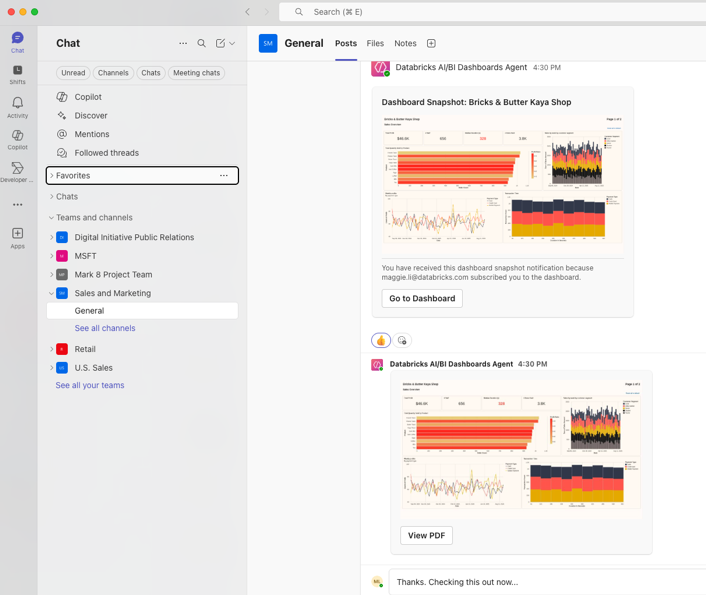
Teams subscriptions deliver dashboard snapshots that include:
- A PNG image snapshot of the dashboard visible directly in the channel
- A direct link to open the dashboard in Databricks
- A PDF snapshot attachment in the message thread
Requirements
You must have the following permissions:
- You must be a Databricks workspace admin to configure notification destinations.
- You must have the appropriate permissions to register apps and grant admin consent in Microsoft Entra ID. You must also be able to create an Azure Bot resource in the Azure Portal, and to add a Teams app and create Power Automate workflows in Microsoft Teams.
During the setup process, you collect authentication credentials from Microsoft to configure the Databricks notification destination.
After you configure the notification destination, any user with CAN EDIT permissions on a dashboard can add the Teams destination as a subscriber to schedules they manage.
Step 1: Create and configure a Microsoft Teams app
Register a Microsoft Entra ID app, create an Azure Bot associated with that app, and add a Teams app for the bot to your channel.
Earlier versions of this procedure configured permissions on the Microsoft Entra ID app associated with a Microsoft Copilot Studio agent. This is no longer supported. As of March 18, 2026, Copilot Studio automatically creates agents with managed Entra Agent IDs that you can't manually modify. Use the following steps to register your own Microsoft Entra ID app instead. For background, see Recreate Copilot Studio agents with Microsoft Entra Agent ID.
Register a Microsoft Entra ID app
- Go to the Microsoft Entra admin center.
- Click Applications > App registrations > New registration.
- Enter a name for the app and click Register.
- On the app's Overview page, copy the Application (client) ID. You need this value to create the Azure Bot and to configure the Databricks notification destination.
Configure app permissions in Microsoft Entra ID
- In the Microsoft Entra admin center, with your app registration selected, click API permissions in the left sidebar.
- Click Add a permission.
- In Microsoft APIs, click Microsoft Graph > Application permissions.
- Add the following permissions:
Files.Read.AllSites.ReadWrite.All
- Click Add permissions.
- Click Grant admin consent to grant the permissions for your organization.
Create an authentication secret
- In the Microsoft Entra admin center, with your app registration selected, click Certificates & secrets.
- Click Client secrets > New client secret.
- Enter a description and select an expiration period.
- Click Add.
- Copy the Value of the newly created secret. This value is displayed only once and you need it to configure the Databricks notification destination.
Get the tenant ID
- In the Microsoft Entra admin center, with your app registration selected, navigate to Overview.
- Copy the Directory (tenant) ID. You need this value to configure the Databricks notification destination.
Create an Azure Bot for the app
Create an Azure Bot resource that uses the Microsoft Entra ID app you registered.
- Go to the Azure Portal and click Create a resource.
- Search for
Azure Bot, select the Azure Bot card, and click Create. - Under Microsoft App ID, select Use existing app registration and enter the Application (client) ID of the app you registered.
- Complete the remaining required fields, then click Review + create > Create.
- When the deployment completes, click Go to resource.
Connect the bot to Microsoft Teams
Add the Microsoft Teams channel to the bot, then create a Teams app for the bot and add it to your channel. For the full procedure, see Connect a bot to Microsoft Teams in the Azure Bot Service documentation.
- In the Azure Bot resource, open Settings > Channels and click Microsoft Teams.
- Agree to the terms of service. On the Messaging tab, select the cloud environment for your bot, then click Apply.
- Create a Teams app for the bot, package it, and upload it to Microsoft Teams. For instructions, see Publish your bot in Teams.
- Add the Teams app to the channel where you want to receive dashboard notifications.
Get the Teams channel URL
- In Microsoft Teams, navigate to the destination channel.
- Click the hamburger menu ••• next to the channel name.
- Click Copy link. Ensure to copy the channel URL and not the Teams URL. You need this URL to configure the Databricks notification destination.
Create an incoming webhook for the channel
Microsoft retired Office 365 connectors, including the classic Incoming Webhook connector, in Microsoft Teams. Create the webhook with a Microsoft Power Automate workflow instead. For background, see Retirement of Office 365 connectors within Microsoft Teams.
- Follow the Microsoft steps to create an incoming webhook with Workflows for Microsoft Teams, using the Send webhook alerts to a channel template and selecting the destination channel.
- Copy and save the generated webhook URL. You need this URL to configure the Databricks notification destination.
Step 2: Configure the notification destination in Databricks
Create a notification destination in your Databricks workspace that points to your Microsoft Teams channel.
-
Log in to your Databricks workspace.
-
Click your username in the upper right corner of the workspace.
-
Select Settings from the dropdown.
-
In the Workspace admin section, click the Notifications tab.
-
Click Manage in the Notification destinations section.
-
Click Add destination.
-
Select Microsoft Teams from the destination type dropdown.
-
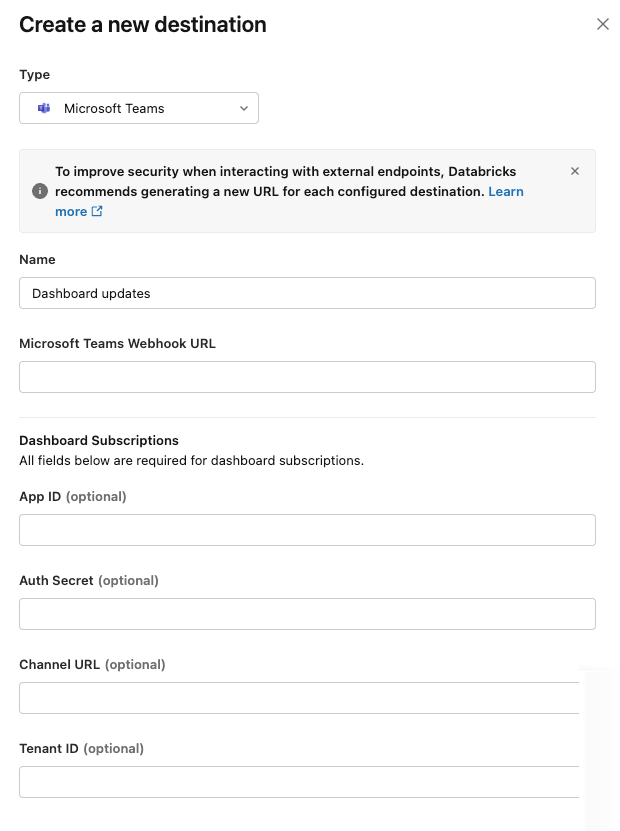
Enter the following information:
- Name: A descriptive name for this Teams channel destination
- Microsoft teams Webhook URL: The webhook URL from the Teams incoming webhook
- App ID: The Application (client) ID from your Microsoft Entra ID app registration
- Auth Secret: The client secret value from Microsoft Entra ID
- Channel URL: The channel URL from Microsoft Teams
- Tenant ID: The Directory (tenant) ID from Microsoft Entra ID
-
Click Create.
Users can now add this Teams notification destination as a subscriber to dashboard schedules.
For instructions on subscribing Teams channels to dashboard schedules, see Subscribe a Slack or Microsoft Teams channel.
Troubleshooting
Use the following to troubleshoot common errors with Microsoft Teams notifications.
Missing PDF attachment
If the Teams notification appears without a PDF attachment, verify that:
- The Application (client) ID is correctly configured in the notification destination
- The auth secret is valid and has not expired
- The app has been granted the required
Files.Read.AllandSites.ReadWrite.Allpermissions in Microsoft Entra ID - Admin consent has been granted for the API permissions
Notification not appearing
If notifications do not appear in your Teams channel:
- Verify the webhook URL is correct and matches the destination channel
- Verify the auth secret uses the client secret value from Microsoft Entra ID and not the secret ID
- Check that the Teams app for the bot has been added to the destination channel
- Ensure the channel URL is correct
- Verify the tenant ID matches your Microsoft organization
- Confirm the schedule is active and not paused
Next steps
- Subscribe Teams channels to dashboard schedules. See Subscribe a Slack or Microsoft Teams channel
- Configure Slack notification destinations. See Configure Slack notifications
- Configure email notification destinations. See Manage notification destinations