Manage AI/BI dashboard workspace themes
Workspace admins can set a default theme for AI/BI dashboards to keep colors, fonts, and layout consistent across an organization. Creating, updating, and deleting the workspace theme affects new and existing dashboards differently. To apply a workspace theme to an individual dashboard, see Apply a workspace theme.
Workspace theme overview
As a workspace admin, you can define a default theme for AI/BI dashboards in your workspace. Only workspace admins can create, update, or delete it.
A workspace theme includes:
- Fonts: family, color, size, weight, and case, per text category
- Canvas: background color
- Widget: background, border, selection color, corner radius, padding, margin, shadow, and title alignment
- Visualization: axis and grid line colors
- Textbox: vertical alignment
- Color palette: continuous gradient and categorical colors
New dashboards use the workspace theme by default. Authors can select another preset theme, create a custom theme, or edit the workspace theme, which converts it to a custom theme for that dashboard.
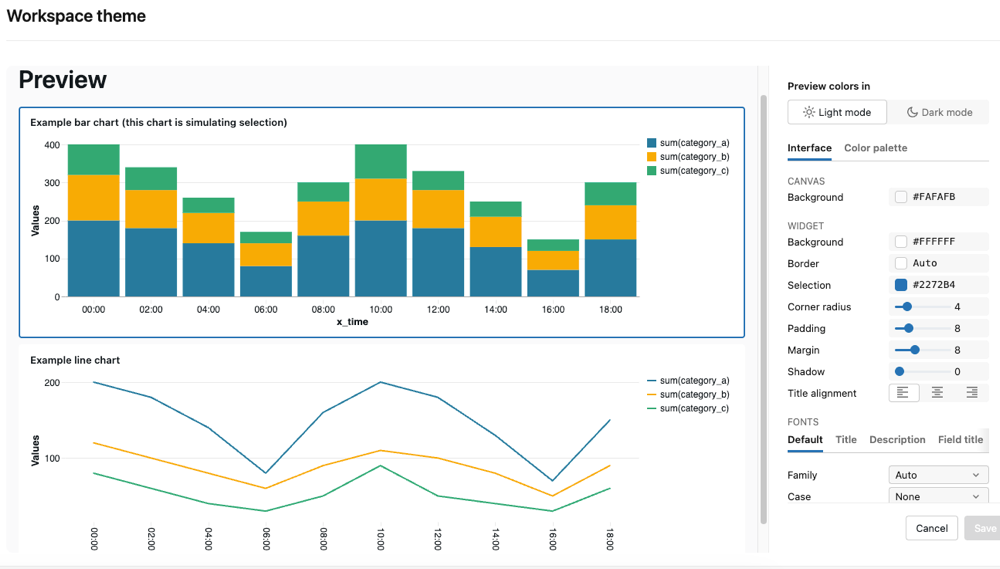
Theme lifecycle and dashboard impact
Understanding how workspace theme changes affect existing dashboards helps you manage theme updates without disrupting published content.
New dashboards
All new dashboards automatically inherit the workspace theme if one is configured. If no workspace theme exists, new dashboards use the default Databricks theme.
Existing dashboards
Existing dashboards can opt in to the workspace theme through the theme settings. When a dashboard author applies the workspace theme, the dashboard receives a snapshot of the current theme configuration.
Theme updates
When you update the workspace theme, existing dashboards that previously applied the workspace theme aren't automatically updated. Instead, they retain the version of the theme they had when it was last applied. This prevents unexpected visual changes to published dashboards.
Dashboard authors manually reapply the updated workspace theme to adopt the new settings.
Theme deletion
When you delete the workspace theme, existing dashboards that use it aren't affected. They automatically retain the theme as a custom theme to ensure published dashboards maintain their appearance.
Create or update the workspace theme
To create or update the workspace theme:
-
Click your username in the top bar and select Settings.
-
Select Appearance > AI/BI > Theme.
- If no theme exists, the button appears as Add.
- If a theme exists, the button appears as Edit.
-
Click the button to open the full-page theme editor.
-
Use the Preview colors in toggle to preview your changes in Light mode or Dark mode.
-
Customize settings across the Interface and Color palette tabs. See Theme settings reference for what each setting does.
-
Click Save to apply the workspace theme.
New dashboards automatically inherit the saved theme. See Theme lifecycle and dashboard impact for how updates affect existing dashboards.
Delete the workspace theme
To delete the workspace theme:
-
Click your username in the top bar and select Settings.
-
Select Appearance > AI/BI > Theme.
-
Click Edit to open the theme editor.
-
Click Delete or the delete option in the editor.
-
In the confirmation dialog, click Remove to confirm deletion.
New dashboards default to the Databricks theme. See Theme deletion for how this affects existing dashboards.
Theme settings reference
The theme editor is organized into two tabs.
Interface tab
To adjust the following settings, select the Interface tab in the theme editor.
Canvas
Control the appearance of the dashboard canvas, the area behind all widgets.
Setting | Description |
|---|---|
Background | Set the dashboard canvas background color. |
Widget
Control the appearance and spacing of individual widgets.
Setting | Description |
|---|---|
Background | Set the widget background color. |
Border | Set the widget border color, or select Auto. |
Selection | Set the highlight color for selected elements. |
Corner radius | Adjust the corner radius of widgets. |
Padding | Adjust the inner spacing of widgets. |
Margin | Adjust the outer spacing between widgets. |
Shadow | Adjust the widget drop shadow intensity. |
Title alignment | Choose left, center, or right alignment for widget titles. |
Fonts
Configure font properties for each text category. Select a tab to apply settings to that element type: Default, Title, Description, Field title, or Field value.
Setting | Description |
|---|---|
Family | Choose a font family, or select Auto to use the default. To use a locally installed font, select Use local font and enter the font name exactly as it is installed on the viewer's machine (for example, |
Case | Set the text case transformation, or select None to leave text as-is. |
Size | Adjust the font size, or select Auto to use the default. |
Weight | Set the font weight, or select Auto to use the default. |
Color | Set the font color. |
Visualization
Set the axis and grid line colors used in chart visualizations.
Setting | Description |
|---|---|
Axis color | Set the axis line color, or select Auto. |
Grid color | Set the grid line color, or select Auto. |
Textbox
Control how content is aligned within text widgets.
Setting | Description |
|---|---|
Vertical alignment | Choose top, middle, or bottom alignment for text widget content. |
Color palette tab
To adjust the following settings, select the Color palette tab in the theme editor.
Setting | Description |
|---|---|
Continuous gradient | Choose the gradient style for continuous color scales, or select Auto. |
Categorical colors | Define the ordered list of colors used for categorical data series. Click |
Color mappings | Assign a specific color to a value so it appears consistently across every widget on the dashboard. See Consistent colors across widgets. |
 to add a color or
  to remove one.
Manage themes using the Settings API
Manage workspace themes programmatically using the Settings API. The API supports retrieving, updating, and deleting workspace themes.
For more information, see the Settings API reference.