AI Search usage policies
This feature is in Public Preview.
You can apply a usage policy to an AI Search endpoint or index to track its serverless spending by team or project.
Usage policies enable administrators to group and filter billing records across all Databricks serverless products, and provide a dedicated UI for tracking spending. Usage policies are created by workspace admins and can be applied to AI Search endpoints and indexes. For general information and details about how to create and manage usage policies, see Attribute usage with serverless usage policies.
For general information on how to manage your costs when using AI Search, see AI Search cost management guide.
Apply a usage policy to an endpoint
You can apply a usage policy when you create an endpoint, or you can edit the endpoint later to apply a policy.
Apply usage policy at endpoint creation
- Databricks UI
- Python SDK
- REST API
Follow these steps to create an AI Search endpoint and apply a usage policy:
-
In the left sidebar, click Compute.
-
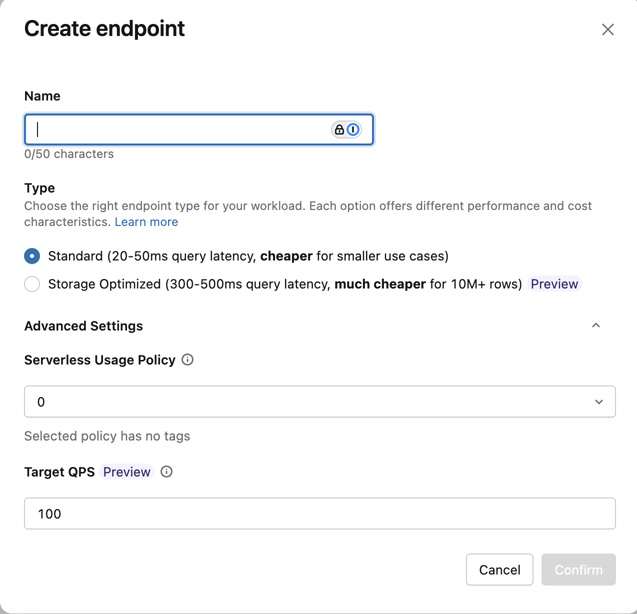
Click the AI Search tab and click Create.
-
Click the arrow to the right of Advanced Settings to open that section of the dialog.
-
Select a policy from the Usage Policy dropdown menu.
-
Click Confirm.
client.create_endpoint(
   name="vector_search_endpoint_name",
   endpoint_type="STANDARD",
   budget_policy_id="12345678-1234-1234-1234-1234567890ab",
)

client.update_endpoint_budget_policy(
   name="vector_search_endpoint_name",
   budget_policy_id="12345678-1234-1234-1234-1234567890ab",
)
{
  "budget_policy_id": "12345678-1234-1234-1234-1234567890ab"
}
Edit a usage policy for an endpoint
To edit a usage policy for an endpoint using the Databricks UI:
-
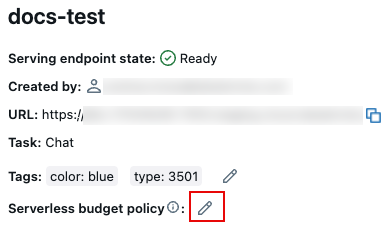
On the endpoint page, click the pencil icon.
-
Select a policy from the dropdown menu and click Save.
To edit a policy using the Python SDK or the REST API, see the tabs under Apply usage policy at endpoint creation.
Apply a usage policy to an index
You can apply a usage policy when you create an index, or you can edit the index later to apply a policy.
Apply usage policy at index creation
- Databricks UI
- Python SDK
- REST API
When creating an AI Search index in the Databricks UI, you can select a usage policy from the Usage Policy dropdown under Advanced settings in the index creation dialog. See Create index using the UI.
from databricks.ai_search.client import AISearchClient

client = AISearchClient()

client.create_delta_sync_index(
    endpoint_name="vector_search_endpoint_name",
    index_name="index_name",
    source_table_name="catalog.schema.table",
    primary_key="id",
    pipeline_type="TRIGGERED",
    budget_policy_id="12345678-1234-1234-1234-1234567890ab",
)
{
  "name": "index_name",
  "endpoint_name": "vector_search_endpoint_name",
  "primary_key": "id",
  "index_type": "DELTA_SYNC",
  "delta_sync_index_spec": {
    "source_table": "catalog.schema.table",
    "pipeline_type": "TRIGGERED",
    "budget_policy_id": "12345678-1234-1234-1234-1234567890ab"
  }
}
Edit a usage policy for an index
To edit a usage policy for an index using the Python SDK:
client.update_index_budget_policy(
    index_name="index_name",
    budget_policy_id="12345678-1234-1234-1234-1234567890ab",
)
Query spending by usage policy
To query spending by usage policy, you must have the usage policy ID. To get the usage policy ID using the UI, follow these steps as an admin user:
- Click your username in the top bar of the Databricks workspace and click Settings.
- Click Compute.
- Next to Serverless usage policies, click Manage.
- Select a serverless usage policy. The usage policy ID appears in the upper-right section, About this policy.
To get the usage policy ID using the REST API, see List policies.
The following query aggregates spending by the usage policy ID. Replace <INSERT USAGE POLICY ID> with the usage policy ID.
WITH vector_search_usage_by_budget_policy (
 SELECT *,
        CASE WHEN usage_type = "STORAGE_SPACE" THEN 'storage'
             ELSE 'serving'
       END as workload_type
   FROM system.billing.usage
  WHERE billing_origin_product = 'VECTOR_SEARCH'
  AND usage_metadata.endpoint_name IS NOT NULL
  AND usage_metadata.budget_policy_id = '<INSERT USAGE POLICY ID>'
),
daily_usage_by_budget_policy AS (
 SELECT workspace_id,
      cloud,
      usage_date,
      workload_type,
      usage_metadata.endpoint_name as vector_search_endpoint,
      CASE WHEN workload_type = 'serving' THEN SUM(usage_quantity)
           ELSE null
           END as dbus,
      CASE WHEN workload_type = 'storage' THEN SUM(usage_quantity)
           ELSE null
           END as dsus
FROM vector_search_usage_by_budget_policy
GROUP BY all
ORDER BY 1,2,3,4,5,6 DESC
)
SELECT * FROM daily_usage_by_budget_policy
Limitations
For AI Search, usage policies have the following limitations:
- Usage policies do not enforce spending limits for AI Search.