Create an external location with automated setup
This page describes how to connect to an AWS S3 bucket in Databricks. When using this automated setup, Databricks provisions both the cloud resources in your AWS account and the securable objects in your Databricks account to represent them. This is the recommended method for most deployments and provides built-in approval workflows for users who need AWS admin authorization.
When using the automated setup, Databricks provisions both the cloud resources in your AWS account and the securable objects in your Databricks account that represent them.
In your AWS account, the following resources are provisioned:
- IAM role with a least-privilege access policy scoped to your specified bucket and access level
- Cross-account trust policy correctly configured for the Databricks cross-account role
In your Databricks account, the following configuration objects are created:
- A storage credential that represents the IAM role used to access the S3 bucket
- An external location registered in Unity Catalog, mapped to your specified bucket. Auto Loader and File Events are enabled automatically.
Automated setup uses AWS IAM temporary delegation to automatically set up the configuration for your external location and provision all required resources. All automated actions are logged in AWS CloudTrail. After setup completes, the temporary delegation authorization expires automatically. Databricks does not retain standing access to your AWS account.
Requirements
- Your S3 bucket must already exist in your AWS account.
- Do not use dot notation in S3 bucket names (for example,
incorrect.bucket.name.notation). - External location paths must use standard ASCII characters only.
- Your bucket cannot have S3 access control lists (ACLs) enabled.
- Avoid path conflicts with paths registered to other metastores to prevent write consistency issues.
You must have at least one of the following Databricks permissions:
- Workspace admin
- Metastore admin
- Account admin with access to the workspace
CREATE STORAGE CREDENTIALandCREATE EXTERNAL LOCATIONprivileges on the metastore (non-admin)
You do not need AWS IAM permissions to initiate setup. If you have sufficient AWS permissions, you can approve the delegation request directly. If you do not, you can request approval from your AWS admin within the setup flow.
AWS administrators need the iam:AcceptDelegationRequest permission in AWS IAM to approve temporary delegation requests. See Approve requests as an administrator.
Create the external location
- In the sidebar, click
 Catalog.
 - Click Connect > External locations.
- Click Create external location.
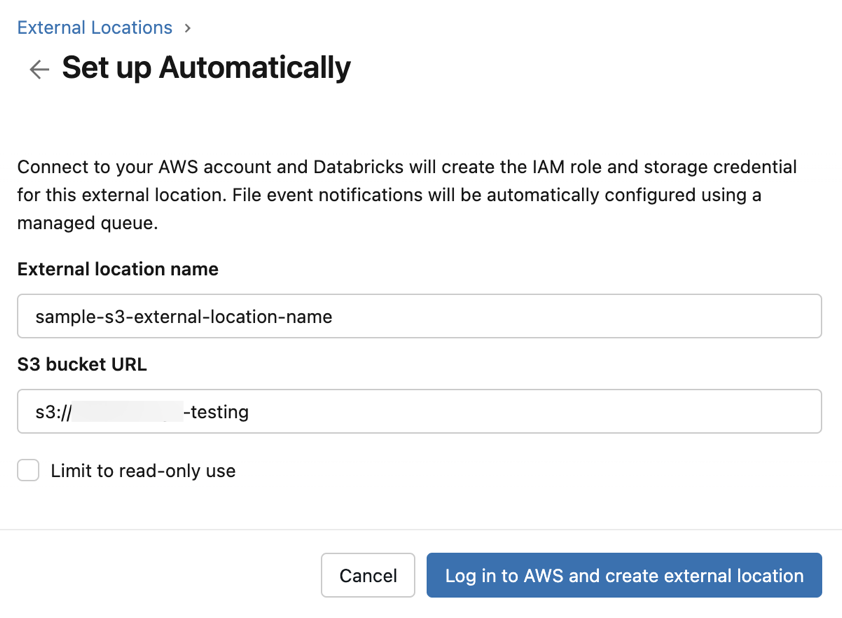
- Select Set up Automatically, then click Next.
- For External location name, enter a name for the external location to be created.
- For S3 bucket URL, enter the S3 path to your bucket. If you select Limit to read-only use, Databricks can read from the bucket only. Otherwise, Databricks can read from and write to the bucket.
-
Click Log into AWS and create external location.
-
In the Review AWS Resources dialog, confirm the resources that will be created in your AWS account. Click Initiate external location creation.
-
In a new window, Databricks prompts you to log in to AWS to verify your permissions.
- If you have sufficient AWS permissions, review and approve the temporary delegation request by clicking Allow access. Databricks proceeds automatically.
- If you do not have sufficient AWS permissions, you are prompted to request approval from your AWS administrator by clicking Request approval. On the next screen, add a Business justification note before clicking Request approval. AWS provides a link and request ID that you can share with your AWS administrator for approval.
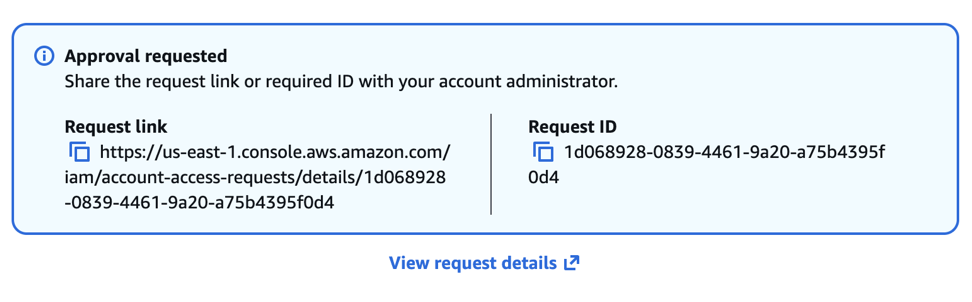
You can close the window while you wait for your administrator to approve the request. To approve a request as an AWS administrator, see Approve requests as an administrator.
-
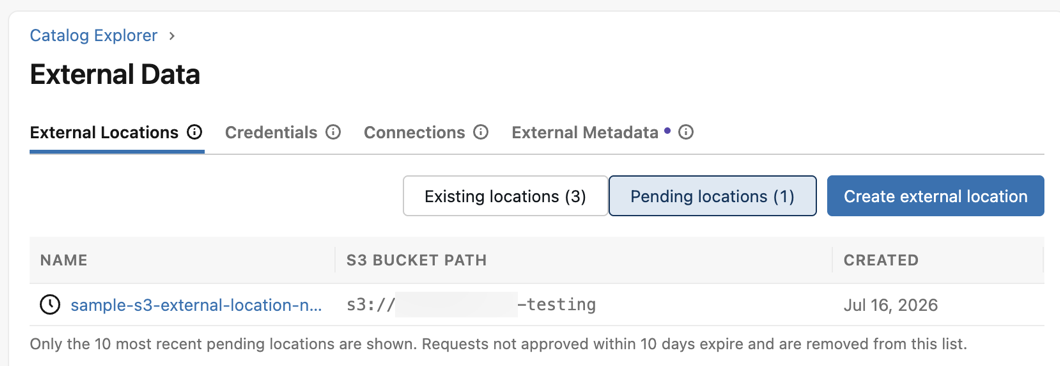
While you wait, the pending location is listed under Pending locations. See View external location status.
- After the delegation request is approved, the setup dialog shows confirmation of the approval.
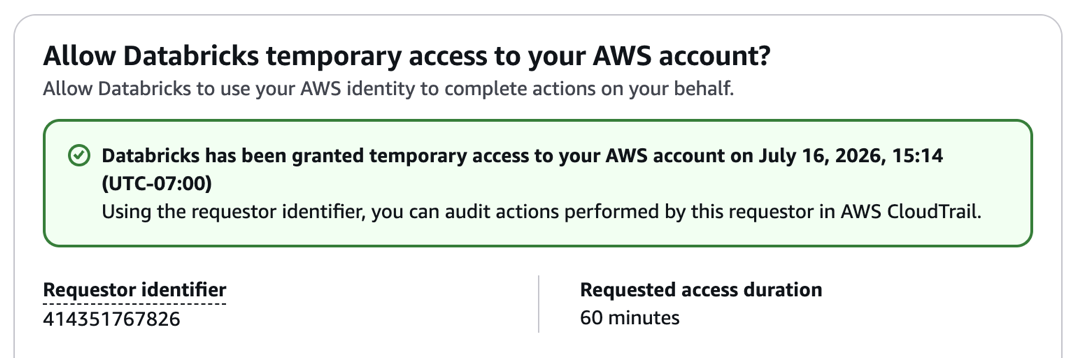
- Databricks provisions all required resources. This might take up to eight minutes. When provisioning is complete, the external location appears under Existing locations.
View external location status
After you create the external location, you can track its status under the Pending locations tab in Catalog Explorer > External Data > External Locations. Setup might take up to eight minutes. Possible statuses include:
- Pending approval: Your request for temporary AWS access is pending approval from your AWS administrator. After approval, Databricks resumes setup automatically.
- Available: Setup was successful. The external location is ready to use.
- Failed: Setup encountered an issue. Common scenarios include:
- The delegation request expired because no action was taken within seven days. Retry setup to generate a new delegation request.
- Your AWS administrator declined the delegation request. Review permission requirements with your administrator and retry.
- For other failures, click the external location to view a detailed error message.
Verify the external location
After setup, validate that Databricks can access your bucket:
- In Catalog Explorer, click Connect > External locations.
- Click the external location you created.
- Click Test connection.
- Optionally, bind the external location to specific workspaces. See Assign an external location to specific workspaces.
- Grant privileges to users and groups as needed. Common privileges include
CREATE EXTERNAL TABLE,CREATE EXTERNAL VOLUME, andCREATE MANAGED LOCATION.
Approve requests as an administrator
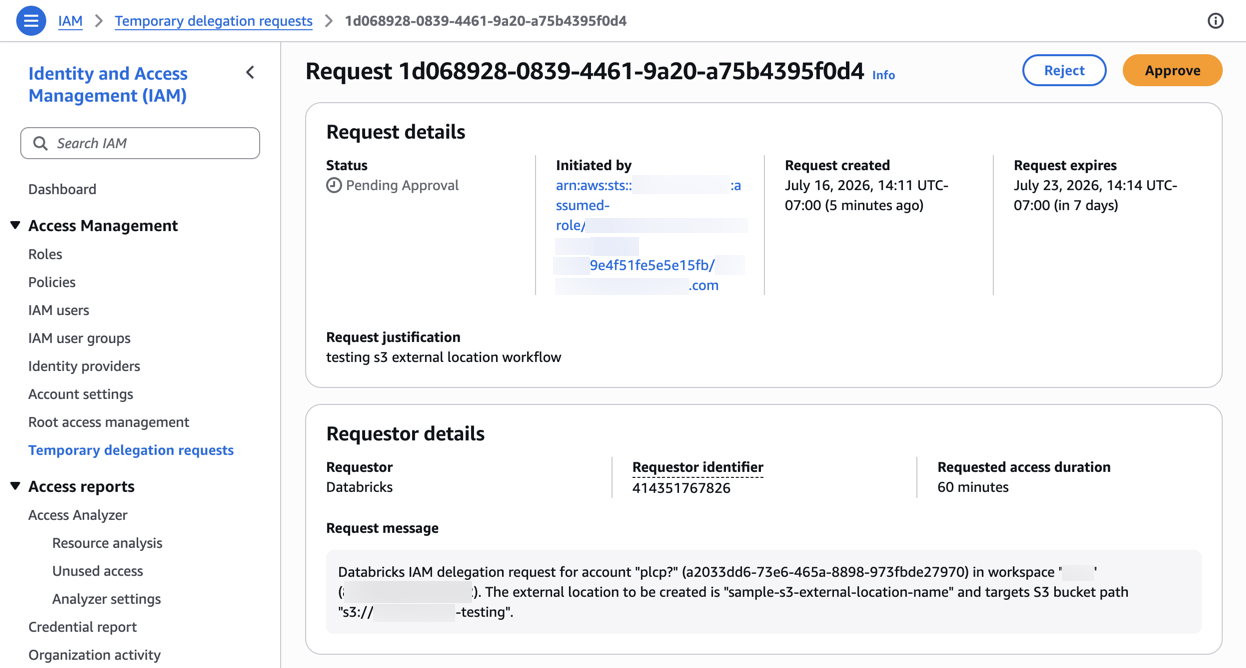
When a user without sufficient AWS permissions initiates automated setup, Databricks submits a temporary delegation request to your AWS account. All requests appear in the Temporary delegation requests tab of the AWS IAM console, where an administrator can review and act on them. Each request expires after seven days if no action is taken.
Approving a temporary delegation request requires the iam:AcceptDelegationRequest permission in AWS IAM.
To approve a request, open the Temporary delegation requests tab in the IAM console and select the request. Review the request details, including the requestor, business justification, target S3 bucket path, and requested access duration, then click Approve. To deny the request instead, click Reject. After you approve the request, Databricks resumes the external location setup automatically.