Image widgets
Image widgets let you add a standalone image, such as a logo, diagram, or other branded visual, to a dashboard. Unlike an image inside a text widget, an image widget displays the image on its own and resizes it to fit the widget across draft mode, published mode, exports, and embedded dashboards.
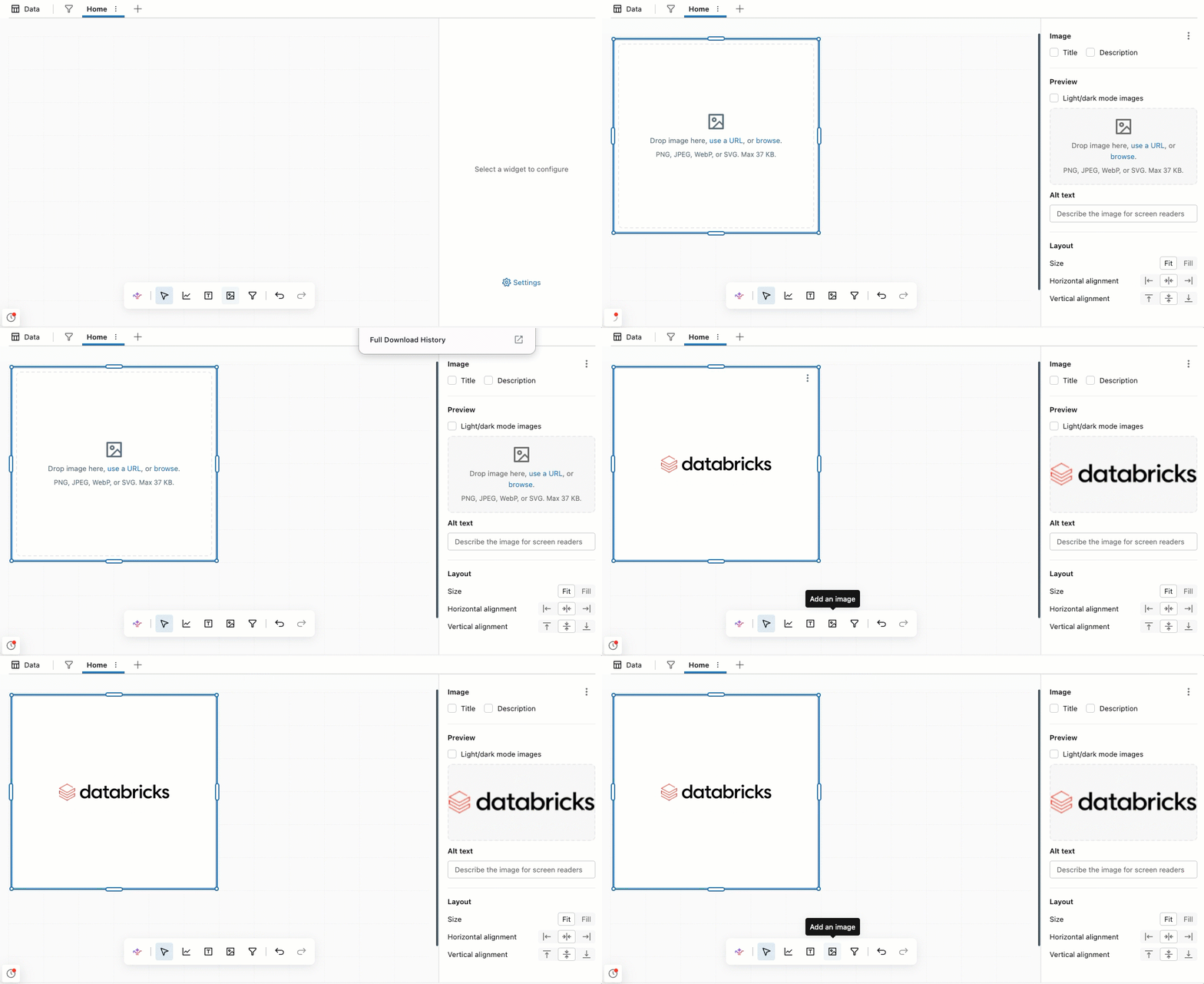
Add an image widget
Drag an Image widget from the widget toolbar onto the canvas, then add your image. You can drag and drop an image file from your device directly into the widget, or use one of the other sources in Image sources.
Image sources
Image widgets support the same image sources as text widgets: a direct upload, a Databricks volume path, or a publicly hosted URL. For the volume path and public URL formats, and the permissions required for volume-hosted images, see Image paths and URLs.
Direct uploads are stored in the dashboard definition and are limited to 50,000 characters when encoded, which is approximately 37 KB. For a larger image, use a volume path or a publicly hosted URL.
Image widgets support PNG, JPEG/JPG, and SVG files.
Control how the image displays
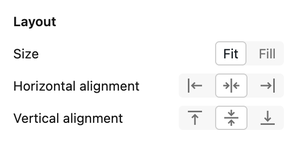
By default, the image is scaled to fit the widget and centered. Choose how the image fills the widget:
- Fit: Scales the image to fit within the widget while preserving its aspect ratio. The image is never cropped, and no scroll bar appears. This is the default.
- Fill: Scales the image to fill the width of the widget. A scroll bar appears for content that overflows the widget.
- Alignment: Use the alignment tools to justify your image within the widget.
Add an image widget with Genie Code
Genie Code for dashboard authoring can add image widgets for you. Ask it to add an image, and it creates an image widget on the canvas. See Use Genie Code for dashboard authoring.