Share a dashboard
This article explains how to publish a dashboard and share it with users in your workspace or account.
What are shared data permissions?
Shared data permissions allow you to share your dashboard with anyone in your Databricks account, regardless of whether they have explicit access to underlying data and compute required to populate and update the dashboard.
When you publish a dashboard, you must choose one of the following settings:
- Share data permission (default): Viewers run queries using the publisher's data permissions. This allows users to view the dashboard even if they do not have direct access to the underlying data. This might expose data to users who have not been granted direct access to it.
- Individual data permission:
- Viewers run queries using their own credentials. Their data permissions determine what results they can see, and they must have access to the underlying data. Workspace membership is not required. Account users with appropriate data permissions can view the dashboard.
- Compute access is always granted by the publisher’s credentials.
To effectively share insights from a dashboard, viewers must be able to access both the underlying data and the compute resources used to run the supporting queries. If you choose not to share with your data permissions, you must verify that viewers have the necessary permissions to access the data displayed on the dashboard. Use Share data permissions when sharing dashboards with users who do not have access to the underlying data or compute.
For draft dashboards, the viewer's data permissions are always applied, even if the dashboard is published with shared data permissions.
The following table summarizes the access and limitations granted by each publishing option.
Publishing option | Who runs queries | Data access determined by | Who can view | Best for |
|---|---|---|---|---|
Share data permissions (default) | Publisher | Publisher’s permissions | Users and groups explicitly granted access. Users must be registered with the account, but do not require workspace access. | Consistent experience for users without workspace access |
Individual data permissions | Each viewer | Viewer’s own permissions | Users explicitly granted dashboard access who have data permissions to the underlying data. Workspace membership is not required. | Users with direct data permissions, including account users who do not require workspace membership |
Who can access your dashboard?
You can share dashboards with users and groups in your Databricks account or workspace. Workspace users with the Databricks SQL entitlement, can be assigned varying levels of permissions that control how they interact with your dashboards. Users with the Consumer access entitlement and account users are limited to view-only access to your dashboard. They can view and run the dashboard, but they cannot edit it or the underlying datasets that support it. This access level aligns with view-only roles in other data visualization systems, with the added benefit of not requiring a special license.
Workspace user access
Workspace members are granted entitlements that control how they interact with the Databricks workspace.
Users with the Databricks SQL entitlement can be granted permission to access draft and published dashboards.
- Can access both draft and published versions of a dashboard. They must have at least CAN EDIT permission in order to modify and republish a draft. To view all permission levels and associated abilities, see Dashboard ACLs.
Users with the Consumer access entitlement are restricted to read-and-run-only access. They can run the dashboard, apply filters, interact with visualizations, and share the dashboard URL with other workspace users. They cannot create or edit a dashboard or change its sharing settings. To learn more about the Consumer access entitlement, see Manage entitlements.
Dashboards inherit the workspace permissions set on the enclosing folder. By default, dashboards are stored in the /Workspace/Users/<username> directory. Anyone who has access to the enclosing folder can also access your dashboard. Only workspace admins can change ownership of a dashboard. See AI/BI administration guide.
Account user access
Registered members of your Databricks account without workspace access can be granted access to a view-only copy of a dashboard. They use the publisher's credentials to access compute resources and should be assigned appropriate permissions to access the underlying data. Members without access to the workspace cannot access the draft version of the dashboard and do not see the Databricks workspace navigational elements in the left sidebar or near the top of the screen. The following image shows an account user's view as they navigate to different shared dashboards.

For members of your account to access shared dashboards, an administrator must first register them with your Databricks account. Dashboard account-level sharing supports email and one-time passcode authentication, and unified login with single sign-on (SSO). This step restricts access to the shared dashboard to only designated members of the account, rather than allowing anyone with the link to view it. See AI/BI administration guide.
Account users who are not members of a workspace cannot access dashboard data from workspace-bound securables, such as workspace-bound catalogs, even if they have permissions to the underlying tables or catalogs. Workspace-bound objects require workspace access by design. Dashboard widgets that query workspace-bound securables do not display data for account users.
To learn more about how account-user access compares to Consumer access, see Consumer access vs account users.
Publish a dashboard
Before you can share a dashboard, you must publish it. Publishing creates a snapshot of your dashboard that viewers can access. The published version remains unchanged until you publish again, even if you continue editing the draft.
To publish a dashboard:
- Open the draft dashboard.
- Click Publish in the upper-right corner of the dashboard.
- Choose one of the following data permission options:
- Share data permissions (default): Viewers run queries using the publisher's data permissions. Use this option to share with users who do not have access to the underlying data. The Publisher Credential field shows the selected credential, which defaults to your user account. To publish using a service principal's credentials instead, click the kebab menu next to this option and select a service principal.
- Individual data permissions: Viewers run queries using their own credentials. Use this option when viewers should see data based on their own permissions.
- Click Publish.
After you publish, the Sharing dialog opens automatically, allowing you to immediately share the published dashboard.
Share a published dashboard
Published dashboards can be shared with the following:
- Specific users and groups in your workspace
- Specific users and groups in your Databricks account
- All users in your Databricks account
If you want to share with everyone in your Databricks account, use the sharing setting: Anyone in my account can view. If you want to share with everyone in your workspace, use the system group: All workspace users.
Use the following steps to share your dashboard:
-
Open a draft or published dashboard.
-
Click Share, then use the Sharing dialog to set permissions for users and groups in your account.
- At the top of the dialog, enter users and groups that you want to share with. You can assign specific permission levels, such as CAN EDIT and CAN MANAGE. Then, click Add.
- To quickly assign view access for anyone in your Databricks account, use the Sharing settings option at the bottom of the Sharing dialog.
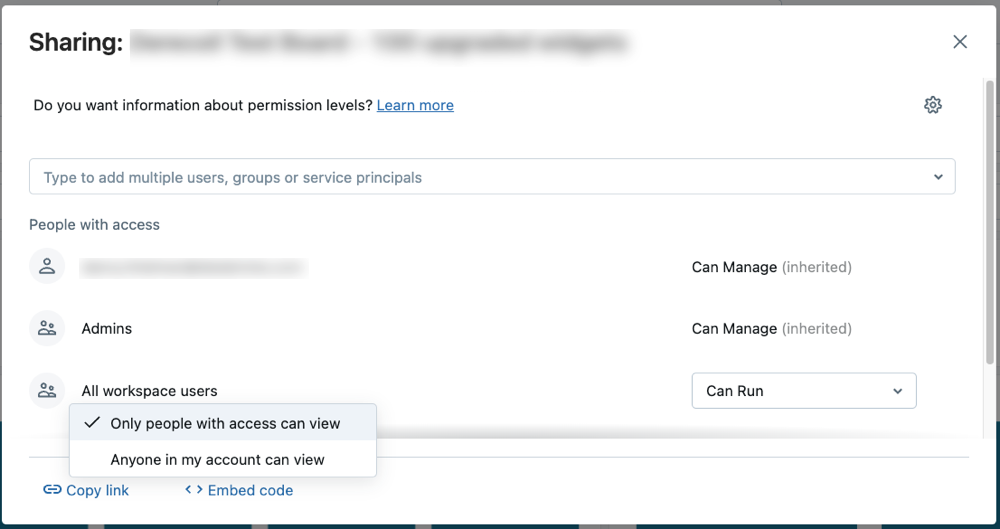
Users need access to the workspace to manage or edit a dashboard. Workspace admins can add users to the workspace. See Manage users.
noteUsers who do not have access to the workspace are limited to CAN RUN permissions. If you grant elevated permissions, such as CAN EDIT, to a user who does not have workspace access, those permissions appear in the Sharing dialog, but their actual permissions are limited to CAN RUN. Elevated permissions cannot be applied unless the user is added to the workspace. If the user is assigned a higher permission level and is later added to the workspace, they can interact with dashboards according to the assigned permission. See Dashboard ACLs for more information on dashboard permission levels.
-
Share the link with users.
- Click Copy link near the bottom of the Sharing dialog to copy a shareable URL for the published dashboard.
- Optionally, you can embed your dashboard in a different website or application.
Use a service principal to publish and share dashboards
Use the REST API to publish and share dashboards with shared data permissions associated with a service principal. When users run API calls with the service principal's token, they access data under the service principal's permissions. This setup lets users who lack direct data or compute permissions view the dashboard and run queries, as long as they're registered with your Databricks account.
To publish a dashboard with service principal credentials, you first authenticate as the service principal to obtain an OAuth access token, then use that token to call the dashboard publish API endpoint with embed_credentials set to true. The dashboard is published with the service principal's credentials embedded, allowing viewers to access the dashboard without requiring direct permissions to the underlying data or compute resources.
For step-by-step instructions and API examples, see Publish a dashboard with service principal credentials. For additional details about using the REST API to manage dashboards, see Lakeview in the REST API reference.
Download a published dashboard
After a published dashboard loads, use the following steps to download it as a PDF:
- Click the
 near the upper-right corner of the dashboard.
 - Click Download as PDF.
Manage dashboard permissions
You can securely share dashboards with anyone in your account. For users who are assigned to your workspace, you can grant access and set varying permission levels as you would with other workspace objects. For users who are not assigned to your workspace, you can share dashboards at the account level, allowing registered users to view and run your dashboard.
For details on how admins can set up your account for sharing at the account level, see AI/BI administration guide.
For information about permission levels on dashboards, see Dashboard ACLs.
Transfer dashboard ownership
Only workspace admins can transfer ownership of a dashboard. To change the owner of a dashboard, a workspace admin can use the dashboard permissions dialog or the Lakeview REST API. See Transfer ownership of a dashboard.
Dashboard ownership does not grant special privileges. The owner has the same access as any user with CAN MANAGE permission on the dashboard.