Configure access request destinations
This page explains where access requests can be sent and how to configure them. For an overview of request for access (RFA), including how users request access and how requests are tracked and reviewed, see Access requests.
To configure access requests with Slack, Microsoft Teams, or a different webhook, a workspace admin must first configure them as notification destinations. See Manage notification destinations.
Destination types
Destinations can be any of the following:
-
A redirect URL to your organization's external access request system. Users are immediately routed to the URL instead of seeing the in-product request form. You can pass through parameters for more scalable configuration using a custom URL at the metastore level. See Use a custom URL for catalog objects.
-
Email addresses
Access request emails are sent from
noreply@databricks.com. -
Slack channels
-
Microsoft Teams channels
-
Webhook endpoints. For the request payload, see Integrate a webhook destination.
Access request destinations can be configured on the following objects in Unity Catalog: metastores, catalogs, schemas, tables, views, volumes, functions, models, storage credentials, service credentials, external locations, and connections.
Configure access request destinations for a metastore
Request for access is enabled on all metastores with requests sent to the object owner's email address by default. In the metastore's access request settings, you can turn off routing to object owners' email addresses, and you can configure a metastore-level destination instead.
To update the access request settings for a metastore, you must be a metastore admin:
-
In your Databricks workspace, click
 Catalog.
-
At the top of the Catalog pane, click the
 gear icon and select Metastore.
-
On the Details tab, click the edit icon next to Access requests.

-
Under Send access requests to object owners' emails?, select Yes or No. By default, Yes is selected. This setting applies to every object that doesn't have an explicitly configured destination. It doesn't apply to objects that are owned by a group or service principal.
-
Under Where should requests be sent?, select the metastore-level destination:
- Email & Webhooks: Send requests to up to 5 email addresses and up to 5 external channels, such as Slack channels, Microsoft Teams channels, or webhook endpoints.
- Redirect URL: Send users to your organization's external access request system. Users are redirected to the URL instead of seeing the in-product request form. To send users to a different URL for each catalog object, see Use a custom URL for catalog objects.
- None: Don't set a metastore-level destination.
noteEven if you select No for object owners' emails or None for the metastore-level destination, access requests can still be routed within the metastore. Object owners and users with the
MANAGEprivilege can configure destinations on the objects that they manage. See Configure access request destinations on specific objects.
-
Click Save.
The redirect URL and the custom URL are shared by every workspace that is attached to the metastore.
Use a custom URL for catalog objects
A custom URL sends users to a different URL for each catalog object by passing the securable name, ID, and type to your access request system. You configure the custom URL one time on the metastore, eliminating the need to configure separate URLs for every object. Objects outside of a catalog, such as the metastore, external locations, connections, and credentials, use the redirect URL as written.
To add a custom URL, follow the preceding steps, selecting No under Send access requests to object owners' emails? and Redirect URL under Where should requests be sent?. After you enter the redirect URL, continue with the following steps:
- Click Add a custom URL for catalog objects and type the URL template with bracketed parameters. To add a parameter, you may also select from the available parameters in the dropdown.
- Review the Preview, which shows the resolved URL for sample objects.
- Click Save.
The custom URL supports the following parameters. If a URL can't be built from the custom URL, or if the result exceeds 4,096 characters, the redirect URL is used instead.
{catalog}: The catalog name.{catalog.schema}: The catalog and schema names.{catalog.schema.object}: The full name of the object.{securable_type}: The securable type of the object, such asTABLEorSCHEMA.{securable_id}: The ID of the object. Your access request system can use the ID to look up the object's tags with the Entity Tag Assignments API.
Custom URL example
In this example, the redirect URL is https://requests.example.com/new and the custom URL is the following:
https://requests.example.com/new?object={catalog.schema.object}&type={securable_type}&id={securable_id}
A user requests access to | The user is sent to |
|---|---|
Table |
|
Volume |
|
Schema |
|
Catalog |
|
External location |
|
The metastore |
|
Limitations
- The redirect URL and the custom URL each cannot exceed 2,048 characters.
- URLs can contain only printable ASCII characters, with no spaces or backslashes. Percent-encode other characters.
- Braces are allowed only around a parameter.
- Catalogs and schemas can't have their own custom URL.
Configure access request destinations on specific objects
Object owners, users with the MANAGE privilege on the object, and metastore admins can set explicit destinations on an object.
You can deny MANAGE ACCESS CONTROL to prevent object owners and users with MANAGE from setting destinations. Metastore admins are not affected. See ABAC DENY policies (Beta).
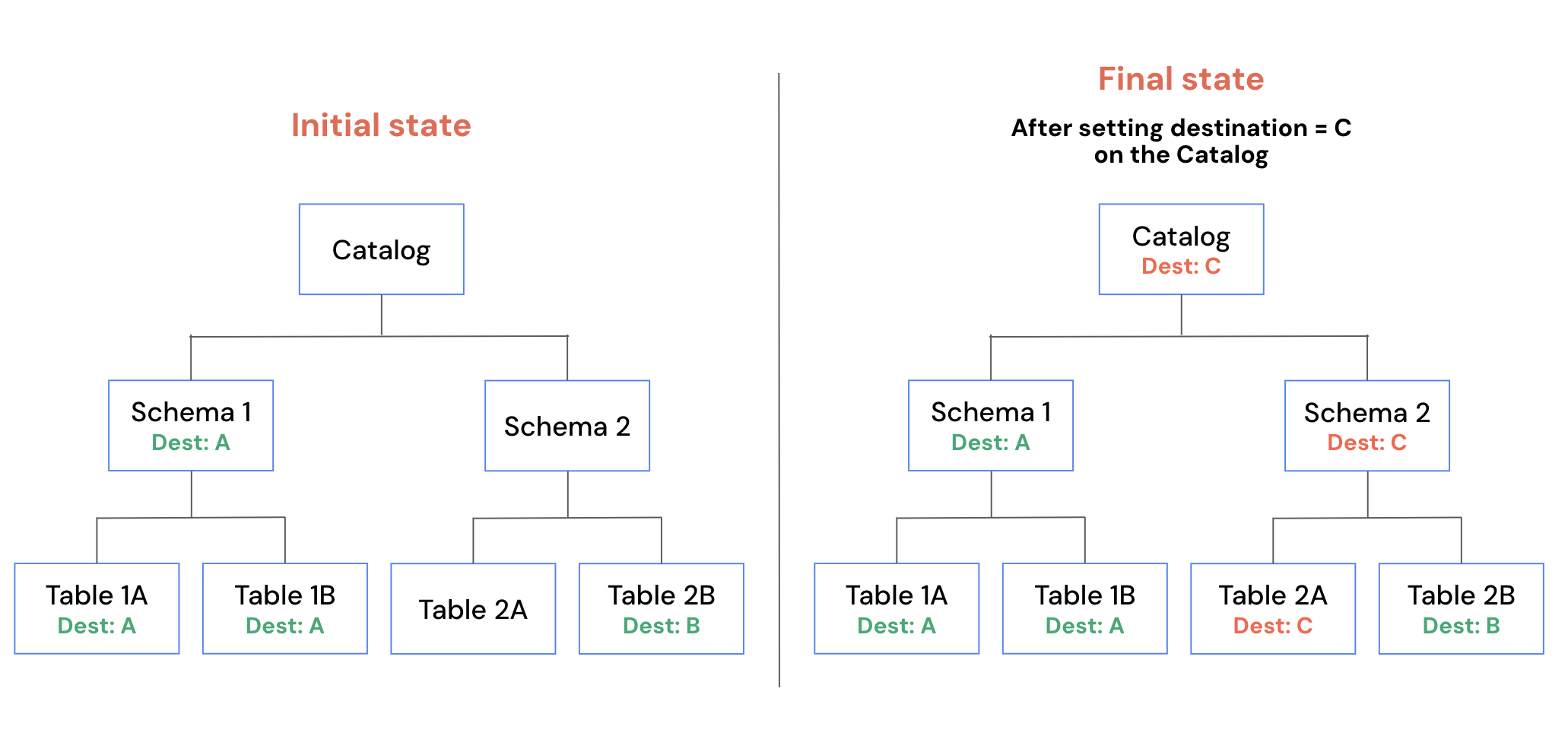
If an object has an explicit destination set, it overrides destinations inherited from parent objects. The explicit destination is also inherited by child objects that don't have their own destination set. See How destinations are resolved.
You can configure destinations using Catalog Explorer, the REST API, or Terraform.
- Catalog Explorer
- REST API
- Terraform
-
In your Databricks workspace, click
Catalog. -
Select a securable object.
-
Click the
 kebab menu and select Manage access request destinations.
-
Select one or more email or external destinations, configure a redirect URL, or select None if you don't want to set a destination on the object. If a URL is selected, no other destination types can be added.

-
Click Save.
Use the Access Request Destinations API to set destinations on a securable. PATCH replaces the destinations on the securable. If none were previously set, it creates them.
curl -X PATCH \
  https://<workspace-url>/api/3.0/rfa/destinations \
  -H "Authorization: Bearer $DATABRICKS_TOKEN" \
  -H "Content-Type: application/json" \
  -d '{
    "destinations": [
      { "destination_id": "data-access@example.com", "destination_type": "EMAIL" }
    ],
    "securable": {
      "type": "TABLE",
      "full_name": "main.sales.orders"
    }
  }'
Use the databricks_rfa_access_request_destinations resource.
resource "databricks_rfa_access_request_destinations" "orders" {
  destinations = [
    {
      destination_id   = "data-access@example.com"
      destination_type = "EMAIL"
    }
  ]
  securable = {
    type      = "TABLE"
    full_name = "main.sales.orders"
  }
}
If a metastore has a custom URL, use the access request settings in the UI to make changes. Updating the metastore's destinations with the REST API or Terraform may trigger undesirable behavior. See Configure access request destinations for a metastore.
Integrate a webhook destination
When a request routes to a webhook destination, Databricks sends a payload like the following:
{
  "requesterName": "<first-name> <last-name>",
  "objectName": "<catalog>.<schema>.<table>",
  "objectType": "Table",
  "privileges": "SELECT",
  "principalName": "<user-name>",
  "onBehalfOf": "<user-name> (<email>)",
  "onBehalfOfType": "User Principal",
  "comment": "I need access to run queries on this table.",
  "databricksWorkspaceUrl": "https://<account>.databricks.com/explore/data/<catalog>/<schema>/<table>?o=<workspace-id>&activeTab=permissions&showGrantModal=true&requestedPrivileges=SELECT"
}
For user principals, onBehalfOf includes the email in parentheses after the name when an email is available. For group requests, onBehalfOf is the group name and onBehalfOfType is Group.
For information on how to integrate webhooks with common tools, see the following:
How destinations are resolved
Databricks resolves the request destination for a given object in the following order:
- Object-level explicit destination: If the object has an explicit destination set, the request is sent there.
- Object owner's email: If the object owner is an individual user, the request is sent to their email address.
- Parent object destination: If the object owner is a group or service principal, Databricks traverses up the object hierarchy and uses the first explicit destination or individual owner's email found.
- Metastore-level destination: If no destination is found in the object hierarchy, the request falls back to the metastore-level destination. If no metastore-level destination is set, users cannot request access to the object. See Configure access request destinations for a metastore.
Because of this order, a destination configured at a higher level of the Unity Catalog object hierarchy is inherited by all child objects that don't have their own destination set. An explicit destination on an object overrides destinations inherited from parent objects.