Share data behind a firewall with SecureConnect
SecureConnect simplifies networking for data sharing, allowing data providers to share to different recipients without allowlisting each recipient in their storage networking rules. Additionally, SecureConnect allows providers to share from cloud storage behind a private endpoint.
How SecureConnect works
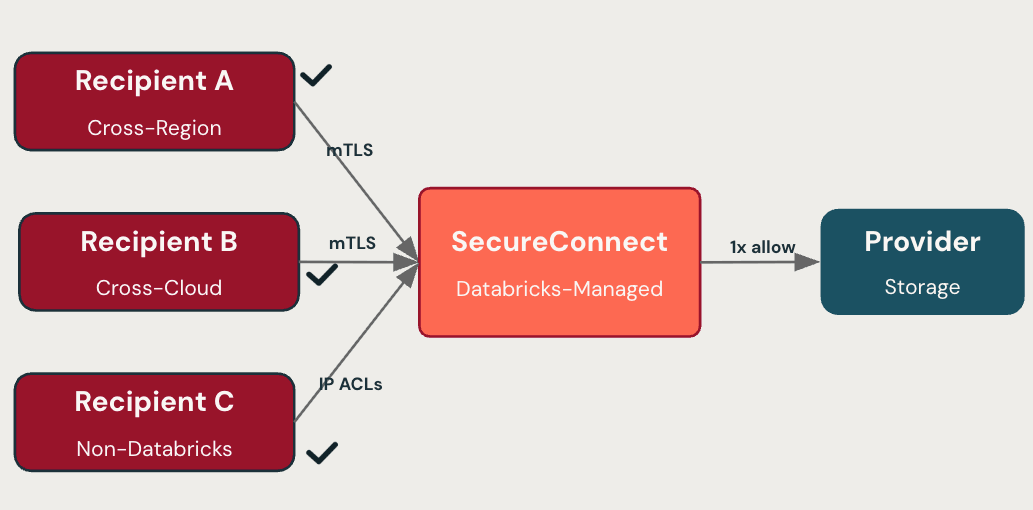
To use SecureConnect, a provider makes a one-time configuration that allows Databricks recipients to access the provider's storage behind a firewall or private endpoint. Databricks then routes recipient requests through a managed proxy, so the provider does not need to update their storage firewall when adding a new recipient.
Recipients access shared data using their existing OpenSharing setup:
- Databricks recipients on serverless compute access shares with no per-provider firewall changes.
- Databricks recipients on classic compute and open recipients allowlist a single set of Databricks control plane IPs for the provider's region.
To optimize performance, recipients on serverless compute in the same region as the provider's storage read from the storage directly, rather than through the managed proxy. Cross-region and cross-cloud recipients, and recipients on classic compute, read through the managed proxy. This difference affects how networking usage is billed. See Billing.
Without SecureConnect, a provider must add each recipient's network identifier to their storage firewall, coordinating with the recipient and a cloud platform administrator for every new recipient.
SecureConnect also applies to data products shared through Databricks Marketplace and to data shared into clean rooms, because both are built on OpenSharing.
Set up SecureConnect as a provider
Setting up SecureConnect involves configuring your storage firewall to allow access and enabling SecureConnect for your metastores and recipients.
Step 1: Configure your storage firewall
The following instructions assume that your shared assets and provider metastore are in the same region. For the lowest networking costs, keep the region of your shared assets the same as your provider metastore region.
SecureConnect accesses your storage from the serverless data plane over your cloud provider's network, not the public internet.
How you configure access depends on how your storage is protected.
Regardless of the option you choose, verify that your storage allows the Databricks control plane for your region, in addition to any SecureConnect configuration. Unity Catalog reaches your storage from the control plane for metadata operations, so a firewall that blocks the control plane blocks those operations. For the control plane IP addresses for your region, see Outbound IPs from Databricks control plane.
Option 1: Storage without a firewall or private endpoint
If your storage is not behind a firewall or private endpoint, no configuration is required.
Option 2: Storage behind a firewall
Allow access by adding the Databricks serverless network identifier to your storage firewall. If your storage is behind a private endpoint, see the following section.
Configure your S3 bucket policies to include the VPCE OrgPath. See Configure S3 bucket access using VPCE OrgPath.
Option 3: Storage behind a private endpoint
Use this option if your shared storage is behind a private endpoint.
An account admin must configure a network connectivity configuration (NCC) and attach it to the metastore that hosts your shared data. For more about NCCs, see What is a network connectivity configuration (NCC)?.
An NCC attached to a workspace can't be attached to a metastore. An NCC applied to a metastore for OpenSharing applies to all shares attached to the metastore.
Create an NCC and a private endpoint rule for your S3 bucket but do not attach the NCC to a workspace. In US and CA regions, create private endpoint rules for both the s3 and s3-fips endpoint services. SecureConnect may deliver shared data through FIPS, so the s3-fips endpoint service (for example, com.amazonaws.{region}.s3-fips) is required in these regions, in addition to s3.
See Configure private connectivity to AWS-managed resources for NCC and PrivateLink setup.
Attach the NCC to your OpenSharing metastore:
- As a Databricks account administrator, go to the account console.
- In the sidebar, click
 Catalog.
 - Click the name of the OpenSharing metastore to open its details.
- Under OpenSharing Network connectivity configuration (NCC) click Edit.
- Search for and select the NCC you created for OpenSharing.
- Click Save.
Step 2: Enable SecureConnect on a metastore
A metastore administrator can configure the metastore so new recipients automatically use SecureConnect. By default, new and existing recipients are not enrolled in SecureConnect. You must configure existing recipients separately. See Step 3: Enable SecureConnect for individual recipients.
To enable SecureConnect on a metastore:
-
In your Databricks workspace, click
Catalog to open Catalog Explorer. -
At the top of the Catalog pane, click the
 gear icon and select OpenSharing.
Alternatively, in the upper-right corner, click Share > OpenSharing.
-
Click Settings in the upper-right corner.
-
Turn on the setting for Enable SecureConnect for new recipients.
-
Click Save.
Step 3: Enable SecureConnect for individual recipients
Recipient owners, and users with the USE_RECIPIENT privilege, toggle SecureConnect on or off for each recipient. SecureConnect is disabled on a recipient by default, unless the metastore was set to enable it for all new recipients when the recipient was created.
To configure SecureConnect on a recipient:
-
In your Databricks workspace, click
Catalog. -
At the top of the Catalog pane, click the
gear icon and select OpenSharing.Alternatively, in the upper-right corner, click Share > OpenSharing.
-
On the Shared by me tab, click the Recipients tab.
-
Turn on SecureConnect for each desired recipient.
(Optional) Step 4: Restrict open recipient access with IP ACLs
For open recipients, you can restrict which client IP addresses are allowed to reach SecureConnect using IP access lists. IP ACLs apply only to open recipients.
With SecureConnect, IP ACLs apply to both OpenSharing endpoint access and storage access. Without SecureConnect, IP ACLs restrict only OpenSharing endpoint access; storage URLs remain reachable from any client IP.
For setup instructions, see Restrict OpenSharing recipient access using IP access lists (Databricks-to-Open sharing).
IP ACL changes for SecureConnect-enabled open recipients can take up to 10 minutes to take effect.
Supported sharing scenarios
Any unsupported feature falls back to direct access from the recipient compute to the storage. The provider must manually grant access to recipient IPs in their storage firewall. See What is the OpenSharing Databricks-to-Databricks protocol? or What is the Databricks-to-Open sharing protocol?.
SecureConnect supports sharing to recipients regardless of the cloud they run on, for both Databricks-to-Databricks and Databricks-to-open sharing.
mTLS to SecureConnect is supported for only Databricks recipients using serverless compute to access the shared data.
Feature support
Feature | D2O (token) | D2O (OIDC)* | D2O (Iceberg) | D2D (serverless) | D2D (classic) |
|---|---|---|---|---|---|
Tables with history and without partitions | ✓ | ✓ | ✗ | ✓ ** | ✓ ** |
Tables without history or with partitions | ✓ | ✓ | ✗ | ✓ | ✓ |
Views | ✓ | ✓ | ✗ | ✓ *** | ✓ |
Foreign tables | ✓ | ✓ | ✗ | ✓ | ✓ |
Materialized views | ✓ | ✓ | ✗ | ✓ *** | ✓ |
Streaming tables | ✓ | ✓ | ✗ | ✓ *** | ✓ |
Volumes | ✗ | ✗ | ✗ | ✗ | ✗ |
Notebooks | ✗ | ✗ | ✗ | ✗ | ✗ |
AI models | ✗ | ✗ | ✗ | ✗ | ✗ |
* OIDC sharing does not currently work when the recipient is also on Databricks.
** Cloud token optimization is not available for SecureConnect.
*** These assets are materialized and filtered on the provider side. See Do recipients have direct access to the underlying data in shared views, materialized views, and streaming tables?.
Limitations
- Your assets can't be backed by Cloudflare R2 storage.
- SecureConnect can't be used with recipients that read shared data using SAP HANA, because SAP HANA does not support the Databricks pre-signed URLs that SecureConnect uses to deliver shared data.
- SecureConnect is not available on AWS GovCloud.
For recipient-side limitations, such as mTLS support and Databricks-to-Open sharing restrictions, see Limitations.
Billing
Providers are billed for data transfer (egress) when recipients access shared data through SecureConnect. For rates, see Data transfer and connectivity pricing, or contact your Databricks account team.
Databricks is expanding SecureConnect networking billing to more charge types and access scenarios, including charges for recipients. To understand how you might be billed, see Expanded networking billing for OpenSharing SecureConnect.
Per-recipient usage is attributed through the recipient_id field in the billing system table, so providers can break down billable SecureConnect usage by recipient. See Billable usage system table reference.
The following query returns SecureConnect data egress (in GB) for each recipient over the last 7 days:
SELECT
  usage_records.usage_metadata.recipient_id,
  SUM(usage_records.usage_quantity) AS total_usage_gb
FROM system.billing.usage usage_records
WHERE
  usage_records.billing_origin_product = 'NETWORKING'
  AND usage_records.usage_metadata.associated_product = 'DATA_SHARING'
  AND usage_records.usage_metadata.networking_client = 'EXTERNAL_CLIENT'
  AND usage_records.usage_date >= CURRENT_DATE() - INTERVAL 7 DAYS
GROUP BY
  usage_records.usage_metadata.recipient_id
ORDER BY
  total_usage_gb DESC
To convert usage to cost, join against the pricing system table. See Pricing system table reference.