Preview and refine results in Lakeflow Designer
As you build a visual data prep, Lakeflow Designer previews each operator's results so you can check your work without running the whole workflow. This page describes how to read and control previews, run part or all of the visual data prep, save operator results with checkpoints, and refine data directly in the results table.
Use the output pane
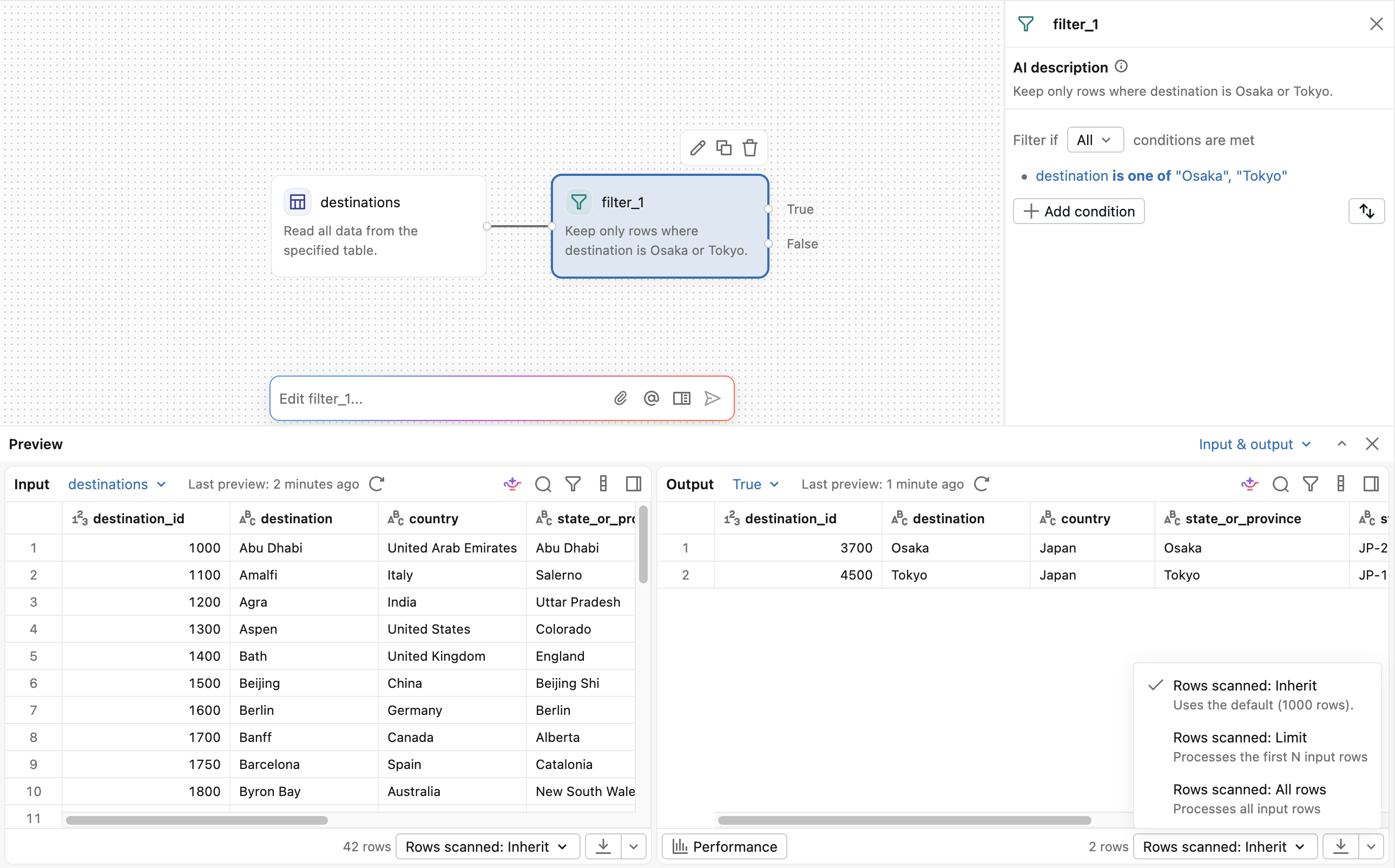
Select any operator to see its results in the output pane at the bottom of the screen. For most operator types, the input data is on the left and the output data is on the right. Operators that produce non-table results, such as plots, HTML, or images, render those outputs directly in the output pane.
Use the view control in the output pane to switch between input and output (the default), input only, or output only. In the combined view, drag the divider to resize the input and output panes.
If the selected operator's run has performance data, click Performance in the output pane to open the full query profile.
Control how much data previews process
Designer previews operators automatically. By default, operators process the first 1,000 input rows for previews. To change the default, use the Preview menu in the canvas toolbar and select First N rows to enter a new limit, or select All rows. Select Apply to all operators to clear each operator's Rows scanned override so it uses the current default.
Use the Rows scanned menu in the output pane to override the default for an individual operator:
- Rows scanned: Inherit: Uses the default from the Preview menu.
- Rows scanned: Limit: Processes the first N input rows. Enter the row limit in the field next to the menu.
- Rows scanned: All rows: Processes all input rows.
When a preview processes all rows, the canvas shows the operator's exact output row count. For operators with multiple outputs, hover over the row-count badge to see counts by output.
Generating a preview with Rows scanned: All rows reruns the operator and its upstream operators on the full dataset and can take a long time.
Preview limits don't apply to scheduled jobs or to Run all.
Run the full visual data prep
Click Run all to run every operator on the canvas against the full dataset in a single action, without previewing each operator individually. Designer runs the entire visual data prep file and updates the results for each operator, then shows each operator's exact output row count beneath it on the canvas.
The Run menu holds more actions for running the whole visual data prep:
- Click
 in the file header and select Run.
 - Choose an action:
- Run all: Run the entire visual data prep.
- Interrupt execution: Stop a running visual data prep.
- Go to last run operator: Focus the most recently run operator.
- Clear > Clear all operator outputs: Remove displayed results.
- Clear > Clear state and run all: Clear compute state and rerun the visual data prep.
Clearing requires permission to edit the visual data prep file.
Run up to an operator
Right-click an operator and select Run up to this operator to run it and its upstream operators against the full dataset, without preview row limits. Downstream operators and disconnected branches don't run.
Configure operator checkpoints
Checkpoints save an operator's results so previews can reuse them without rerunning upstream operators. In the operator's configuration pane, open Operator settings and select Checkpoint:
- Auto: Designer chooses which results to save. This is the default for new operators.
- On: Save this operator's results.
- Off: Don't save this operator's results.
Changing this setting requires permission to edit the visual data prep file, run it, and generate previews. Previews can reuse saved results within the same compute session. Run all, Run up to this operator, and scheduled jobs recompute results.
If checkpointing is unavailable or fails, Auto continues without it. With On, the preview or run fails.
Transform data directly in the results table
In addition to adding operators to transform your data, you can prepare your data by acting on it directly in the results table. In-preview edits change the preview sample only and collect as Pending changes. They don't alter your data or your workflow until you apply them.
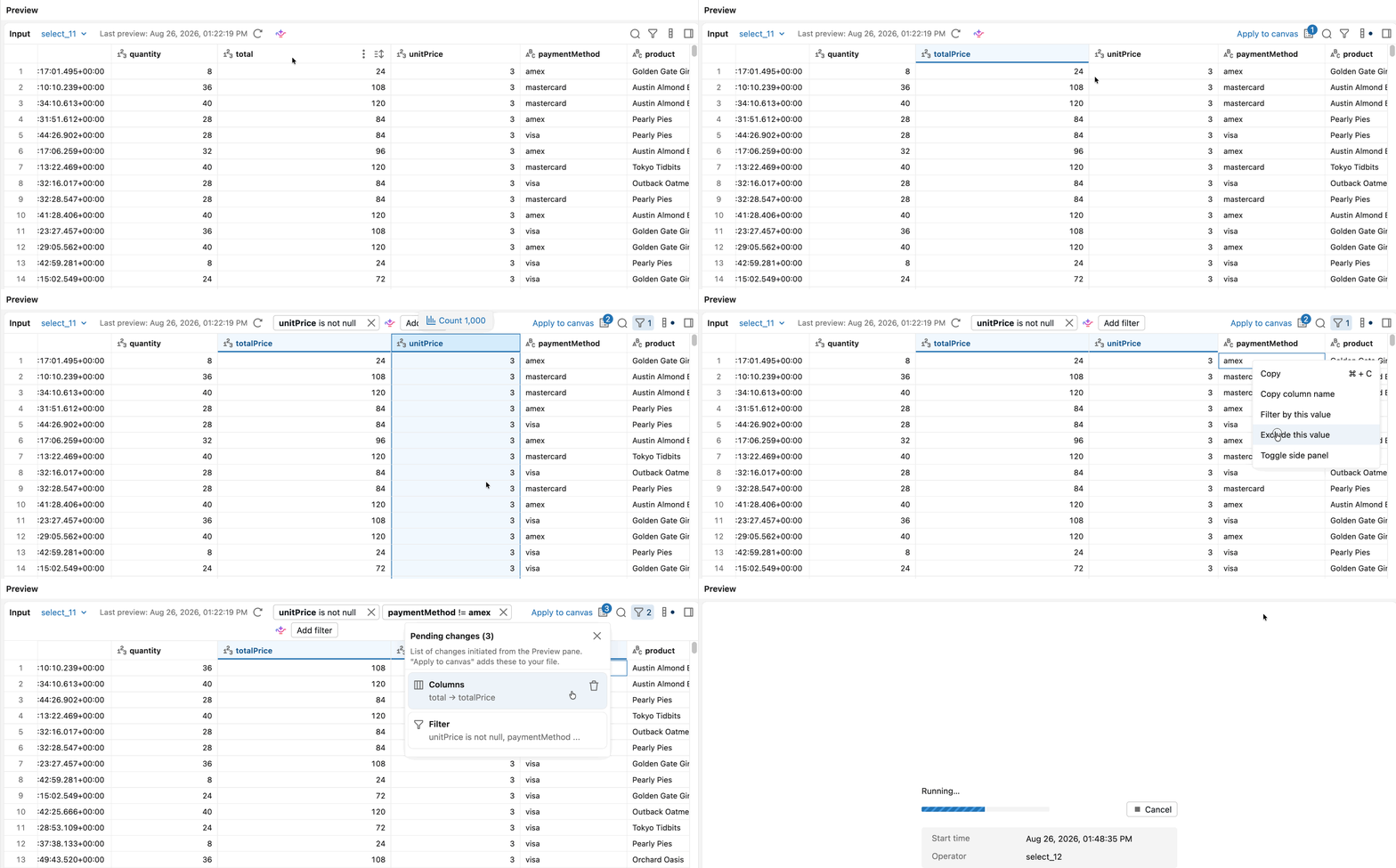
The following actions are supported in the data preview:
- Insert a column: Select Insert column, then enter a name and an expression.
- Change a column's type: Select Change type and choose the target type.
- Remove null rows: Select Remove nulls to drop rows where the column is null.
- Filter rows: Add one or more filter conditions on the column.
- Rename a column: Double-click the column header and enter a new name.
- Hide, reorder, or remove columns: Hide or remove a column, or drag column headers to reorder them.
- Sort rows: Add a sort direction on the column. Sorting on more columns adds to the sort order.
- Remove duplicate rows: Select Remove duplicates, then choose the columns to compare.
Review and apply pending changes
Staged edits collect in the Pending changes pane. Open it to review or remove an edit before you apply it. To change a staged new column, double-click it in the preview and update its name or expression.
To add the staged edits to your workflow, select Apply to canvas. Lakeflow Designer adds operators for the staged edits, in the order you staged them. Each kind of edit maps to the following operator type:
If you switch the preview to process the full dataset while you have pending changes, Lakeflow Designer prompts you to apply them first so your staged edits aren't lost.
Inspect the data profile
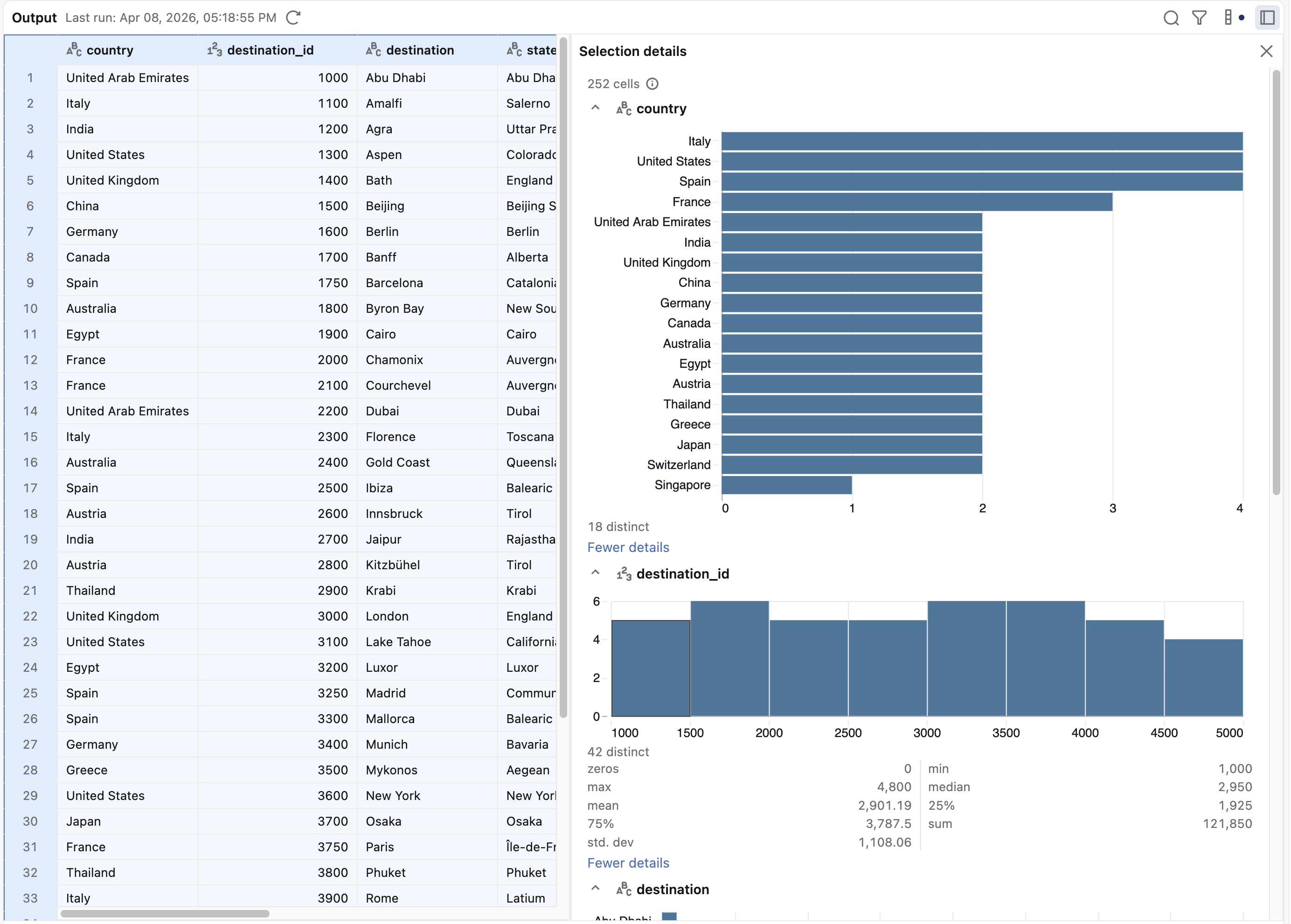
To see details about part of your output, select the data you want to inspect, then click the  sidebar button in the top-right corner of the output pane to open the details pane.
Download results
Use the download control in the output pane to export preview results to a file:
- Displayed rows: Download the rows shown in the preview, as CSV or Excel.
- All rows: Download the full dataset. Available when you have permission to run the workflow. Excel export of all rows requires serverless compute.
Your workspace administrator can turn off downloads.