Deploy a Databricks app
After you create and develop your Databricks app, deploy it to make it accessible in the Databricks workspace. Deployment builds your app, installs dependencies, and runs it using the configuration defined in your project files. You can deploy apps using the Databricks UI or the Databricks CLI.
If you create an app from a template, Databricks deploys it automatically when you first create it. However, you can still re-deploy it later after you make changes. See Create a Databricks app from a template.
Deployment logic
Databricks Apps supports deploying applications that use either Python, Node.js, or a combination of both. This allows for flexible architectures, such as a Node.js frontend with a Python backend.
During deployment, the build process checks for a package.json file at the root of your app directory to determine whether Node.js is used. If present, it includes Node-specific build steps alongside Python steps. The deployment logic follows this pattern:
If package.json is present:
- Install Node.js dependencies. If
pnpm-lock.yamlis present, runpnpm install --frozen-lockfile; otherwise, runnpm install. See Define Node.js dependencies. - Install Python dependencies:
- If
requirements.txtexists, runpip install -r requirements.txt - If
requirements.txtdoesn't exist and bothpyproject.tomlanduv.lockexist, runuv syncto install dependencies
- If
- Run the
buildscript if one is defined inpackage.json(npm run buildorpnpm run build). - Run the command specified in
app.yaml. Fornpmapps, if no command is specified, Databricks runsnpm run start.pnpmapps must specify a command inapp.yaml.
For npm apps, if no command is specified in app.yaml, Databricks executes npm run start, even if the app includes Python code. To run both Python and Node.js processes, define a custom start script that uses a tool like concurrently to launch both. For example: concurrently "npm run start:node" "python my_app.py".
If package.json is not present:
- Install Python dependencies:
- If
requirements.txtexists, runpip install -r requirements.txt - If
requirements.txtdoesn't exist and bothpyproject.tomlanduv.lockexist, runuv syncto install dependencies
- If
- Run the command specified in
app.yaml, orpython <my-app>.pyif no command is specified
Prepare for deployment
Before you deploy your app, verify that your project includes the necessary components:
- Main script - Your entry point file, such as
app.pyorapp.js. - Optional
app.yamlfile - If your app requires a custom command or environment variables, include anapp.yamlfile to configure execution. See Configure Databricks app execution withapp.yaml. - Dependencies - Make sure all dependencies are available. See Manage dependencies for a Databricks app.
- Secrets or environment values - If you use the
envsection inapp.yaml, verify that the referenced secrets or external sources are correctly configured and accessible. See Add resources to a Databricks app.
In addition, make sure the app service principal has access to the source code folder.
Choose a deployment source
You can deploy Databricks apps from the following sources:
- Workspace folder - Upload app files to a workspace folder and deploy from there. This is the standard deployment method. See Deploy from a workspace folder.
- Git repository - Configure a Git repository for an app and deploy directly without uploading files to the workspace. The app reads code from the configured Git reference (branch, tag, or commit) each time you deploy. See Deploy from a Git repository.
You can switch between workspace and Git sources for the same app at any time. See Update or redeploy the app.
Deploy the app
The following sections describe how to deploy from a workspace folder or directly from a Git repository.
Deploy from a workspace folder
- Databricks UI
- Databricks CLI
To deploy an app from the Databricks UI:
- Upload the app files to your Databricks workspace. For instructions, see Import a file.
- In your Databricks workspace, click the
 app switcher and select Databricks Apps.
 - Select your app in the Name column.
- Click Deploy and select the folder in your workspace where you uploaded the app files.
- Click Select, then Deploy.
To deploy an app using the CLI:
-
Open a terminal and navigate to the directory that contains your app files.
-
Upload your app files to the Databricks workspace using the
synccommand. Replace the path with the workspace location where you want to upload the files.Bashdatabricks sync --watch . /Workspace/Users/my-email@org.com/my-appThe
--watchflag keeps the sync process running and automatically uploads changes when you modify files locally. To exclude specific files or directories from syncing, add them to a.gitignorefile in your local app directory. Common files to exclude arenode_modules/,.env,__pycache__/,.DS_Store, and any large data files or build artifacts. -
Verify the upload by viewing the files in your workspace. Click the
app switcher > Analytics and AI, then click  Workspace and navigate to the directory you created for your app.
 -
Deploy the app by running the following command. Replace the app name and source code path with your values.
Bashdatabricks apps deploy my-app-name \
--source-code-path /Workspace/Users/my-email@org.com/my-appThe CLI displays deployment progress and confirms when the app is running.
Deploy from a Git repository
To deploy an app from a Git repository, add the repository at the app level, then specify the Git reference when you deploy it. Your Git repository must contain the app files, including app.yaml, dependencies, and entry point. All major Git providers are supported, including GitHub, GitLab, and Bitbucket. You can also deploy Git-backed apps using the UI, CLI, API, or Declarative Automation Bundles.
- Databricks UI
- Databricks CLI
To configure and deploy an app from Git:
- Upload your app files to a Git repository.
- In your Databricks workspace, click the app switcher and select Databricks Apps.
- Either select an existing app to edit, or click + Create app and then Create a custom app. See Create a custom Databricks app.
- In the Configure Git step, enter the Git repository URL (for example,
https://github.com/org/repo) and select a Git provider. - For a new app, enter the Git reference (branch, tag, or commit). For GitHub or Azure DevOps repositories, if a branch is selected, optionally enable Auto deploy on push events. See Enable automatic Git deployments.
- Click Create app or Save to return to the app overview page.
- For private repositories, the app's service principal must have a Git credential configured. On the app overview page, click Configure Git credential. You must have
CAN MANAGEpermissions on the app's service principal to add a Git credential. Public repositories don't require a Git credential. For instructions for each provider, see Connect your Git provider to Databricks.
Then, deploy the app:
- On the app overview page, click Deploy.
- Select From Git.
- For Git reference, enter the branch name, tag, or commit SHA (for example,
main,v1.0.0, or a commit hash). - For Reference type, specify the type of reference, such as a branch, tag, or commit.
- (Optional) For Source code path, enter a path to a specific directory within the repository. The app treats that directory as the top-level directory and can't access files outside of it. If you don't specify a path, Databricks uses the repository root.
- (Optional) To deploy automatically on every commit to the branch, enable Auto deploy on push events. You must set a Branch to watch. Optionally, you can include a Source code path to set a path other than the repo root. See Enable automatic Git deployments.
- Click Deploy.
To deploy an app from Git using the CLI:
-
Upload your app files to a Git repository.
-
Configure the Git repository on the app when you create the app, or add it to an existing app. Supported providers include
gitHub,gitHubEnterprise,gitLab,gitLabEnterpriseEdition,bitbucketCloud,bitbucketServer,azureDevOpsServices, andawsCodeCommit.To create a new app with a Git repository configured, use the create command:
Bashdatabricks apps create my-app \
--git-url https://github.com/org/repo --git-provider gitHubTo add or update a Git repository on an existing app, use the update command:
Bashdatabricks apps update my-app \
--git-url https://github.com/org/repo --git-provider gitHubSet
--git-urland--git-providertogether (Databricks CLI 1.14.0 and above). -
For private repositories, configure a Git credential for the app's service principal. You must have
CAN MANAGEpermissions on the app's service principal to add a Git credential. Public repositories don't require a Git credential.To add a Git credential to the app's service principal using the CLI, run:
Bashdatabricks git-credentials create --json '{
"git_provider": "gitHub",
"git_email": "your-email@example.com",
"personal_access_token": "YOUR_TOKEN",
"principal_id": YOUR_SP_ID,
"name": "GitHub credentials for SP"
}'Replace
YOUR_SP_IDwith the app's service principal ID. For instructions to get a personal access token for each provider, see Connect your Git provider to Databricks. -
Deploy the app by specifying the Git reference. Use exactly one of
--git-branch,--git-tag, or--git-commit. Optionally, add--git-source-code-pathto deploy from a subdirectory within the repository.Bashdatabricks apps deploy my-app --git-branch mainTo deploy a specific tag or commit:
Bashdatabricks apps deploy my-app --git-tag v1.0.0Bashdatabricks apps deploy my-app --git-commit abc123def456To deploy from a subdirectory within the repository:
Bashdatabricks apps deploy my-app --git-branch main --git-source-code-path apps/my-appThe CLI displays deployment progress and confirms when the app is running.
-
To redeploy automatically on every push instead of running
deploymanually, enable automatic Git deployments.
For branch or tag references, Databricks deploys the most recent commit from that branch or tag. For commit SHA references, Databricks always deploys that specific commit. If the service principal's Git credential is invalid or expired, the deployment fails.
Apps created before Git deployment became generally available don't automatically grant creators CAN MANAGE permissions on the app's service principal. If you need to add a Git credential to an older app, ask a workspace admin to grant you CAN MANAGE permissions on the service principal.
Service principals support one Git credential per provider. If you update the credential elsewhere, such as through the account console, it replaces the existing credential for that provider.
Enable automatic Git deployments
GitHub and Azure DevOps are the supported providers for automatic deployments.
When you enable automatic deployments, Databricks registers a webhook (called a service hook on Azure DevOps) on your Git repository and redeploys your app each time the configured branch receives a new commit. Your deployed app stays in sync with your repository without any manual steps.
Automatic deployments require the following setup, which depends on your Git provider:
- GitHub
- Azure DevOps
- The Databricks GitHub app must be installed on the repository.
- The repository must be private. Databricks doesn't support automatic deployments from public repositories.
- The app's service principal must have a Git credential with access to the repository. See Connect your Git provider to Databricks.
Repositories are limited to 20 webhooks (250 for GitHub Enterprise).
Azure DevOps uses a service hook (rather than a Databricks-owned app) to trigger deployments. Databricks creates the service hook using the Git credential of the user who enables automatic deployments, so:
- The user enabling automatic deployments must have a Git credential configured for the Azure DevOps repository. See Connect your Git provider to Databricks.
- That credential must have the Edit subscriptions permission for service hooks in the Azure DevOps project. A credential that can only view the project can't create the service hook.
To enable automatic deployments, configure GitHub or Azure DevOps as the Git provider and enable Auto deploy on push events. You can do this in either of the following places:
- The Configure Git step of the Create custom app wizard. See Create a custom Databricks app.
- The Auto-deployment badge in an existing app or by reconfiguring App Settings. Follow the steps in Deploy from a Git repository.
The Git reference must be a branch name. Tags aren't compatible with automatic deployments.
If the app's service principal doesn't have a Git credential for the repository, Databricks prompts you to add one when you enable automatic deployments. Authorizing access enables automatic deployments, but you must manually redeploy the app to start them.
To disable automatic deployments, click the Auto-deployment badge in an existing app and disable Auto deploy on push events. You can also reconfigure the settings in App Settings.
Enforce Git-only deployments
Workspace admins can require all apps in a workspace to deploy from Git repositories. Go to Settings > Development > Apps and turn on Only allow app deployments from Git. This setting is off by default.
When you enforce Git deployments:
- Users must configure a Git repository before creating an app.
- Users can only deploy from Git, not from workspace folders.
- Databricks disables app templates in the workspace.
- Users can't remove a Git repository from apps that have one.
- Existing apps continue to run, but users can't deploy or start them again unless the app has a Git repository.
Post-deployment behavior
After deployment completes, Databricks starts your app based on the defined command in your app.yaml file or defaults to running python app.py. The app overview page shows the current status and provides access to logs, deployment history, and environment information.
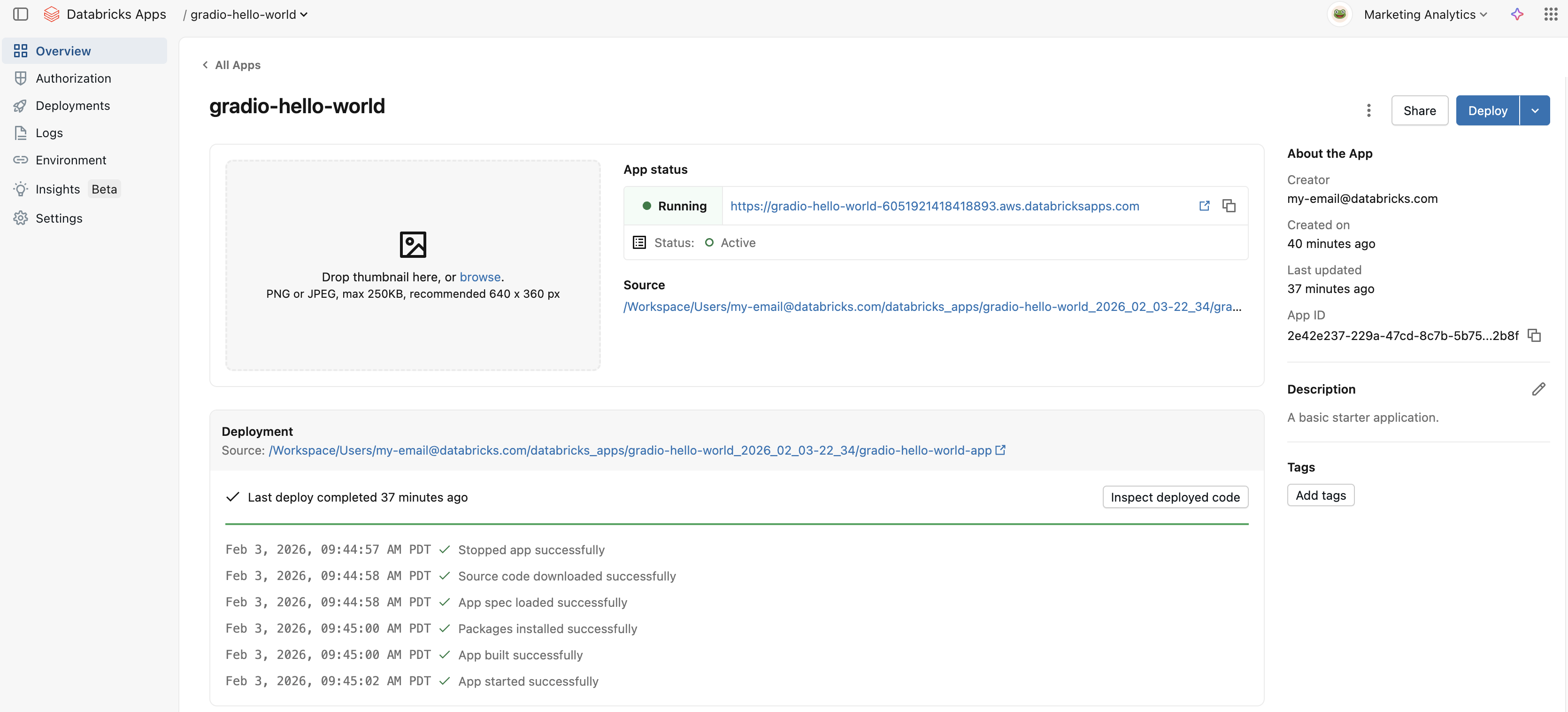
To view the deployed app's output, click the app link.
Go to the Logs tab for debugging and runtime monitoring. See Logging and Monitoring for Databricks Apps.
Update or redeploy the app
Redeploy your app after making changes to source code or configuration. Redeploying applies your latest updates without recreating the app. You can redeploy from either the workspace or Git repository at any time.
Redeploy from a workspace folder
To redeploy from a workspace folder:
- Update your app files in the workspace folder.
- Select the app and click Deploy.
- If the source code path changed or you're switching from a Git source, click the arrow next to Deploy and select Deploy using a different source.
Redeploy from a Git repository
To redeploy from a Git repository:
- Push your changes to the Git repository.
- In your Databricks workspace, select your app and click Deploy. If the Git reference changed or you're switching from a workspace source, click the arrow next to Deploy and select Deploy using a different source.
To update the Git repository using the CLI or API, use the create-update command. Removing the Git repository from the app enforces deployment from the workspace.
Changing the Git repository or switching between deployment sources (Git and workspace) deletes all Git credentials for the app's service principal. Changing only the Git reference doesn't delete credentials. You must reconfigure credentials before deploying from Git again.
Roll back to a previous version
Databricks Apps has no single rollback action. To roll back, redeploy a previous stable version of your app. The steps depend on whether your app deploys from a Git repository or a workspace folder. To choose a version to roll back to, review your app's deployment history on the Deployments tab of the app details page. See View the details for a Databricks app.
To list an app's deployments from the CLI, run the following:
databricks apps list-deployments my-app
Roll back a Git-backed app
If your app deploys from a Git repository, redeploy the earlier commit or tag that contains the version you want. Because Git pins the exact source, this is the most reliable way to roll back.
- Databricks UI
- Databricks CLI
- In your Databricks workspace, click the app switcher and select Databricks Apps, then select your app.
- Click the arrow next to Deploy and select Deploy using a different source.
- In the Create deployment dialog, select the From Git tab.
- For Git reference, enter the branch name, tag, or commit SHA (for example,
main,v1.0.0, or a commit hash). - For Reference type, specify the type of reference, such as a branch, tag, or commit.
- For Source code path, enter the path to your app code in the repository.
- Click Deploy.
To redeploy an earlier commit, run the following:
databricks apps deploy my-app --json '{"git_source": {"commit": "<old-commit-sha>"}}'
To redeploy a tag instead, run the following:
databricks apps deploy my-app --json '{"git_source": {"tag": "v1.0.0"}}'
Databricks recommends deploying production apps from Git so that every version maps to a specific commit or tag that you can redeploy. See Best practices for Databricks Apps.
Roll back a workspace-source app
If your app deploys from a workspace folder, redeploy a stable version of your source. Keep your app source under version control and redeploy a stable commit or tag, as described in Roll back a Git-backed app. If you deploy from a workspace folder that isn't under version control, restore a stable copy of your source to the folder and redeploy it:
- Replace the files in your workspace folder with the version you want to roll back to.
- Select the app, click Deploy, and deploy from that folder.
To identify the last successful deployment and when it ran, use the Deployments tab or databricks apps list-deployments. Databricks recommends pinning dependency versions and deploying from Git so that rollbacks are repeatable. See Best practices for Databricks Apps.
For the full list of app deployment commands, see apps command group.
Troubleshoot deployment issues
If your app fails to deploy or doesn't run as expected, try the following troubleshooting steps:
- Check logs for error messages or runtime output.
- Validate
app.yamlsyntax and settings. - Verify that secrets and environment variables in the
envsection resolve properly. - Confirm that all required dependencies are included or installed.
- If your workspace uses Private Link or restricted egress network policies, verify that the required domains are allowlisted. Missing egress allowlist entries are a common cause of deployment failures in Private Link environments. See Deploy apps in Private Link environments.
For Git repository deployments:
- For private repositories, verify that the app's service principal has a Git credential configured.
- Verify that the Git repository URL is correct and that the Git reference (branch, tag, or commit) exists in the repository.
- If a workspace admin enforces Git-only deployments, you can't deploy or start an app unless it has a Git repository configured.
- If you deploy from the CLI, API, or Declarative Automation Bundles, create the app first, then add the Git credential to the app's service principal.