Debug code using Databricks Connect for the Databricks IDE extension
This article describes how to use the Databricks Connect integration in the Databricks IDE extension to run and debug individual Python (.py) files. For information about the extension, see Databricks IDE extension.
The Databricks Connect integration also allows you to run and debug notebook cells. See Run and debug notebook cells with Databricks Connect using the Databricks IDE extension.
Requirements
Before you can use Databricks Connect from within the Databricks IDE extension, you must first meet the Databricks Connect requirements. These requirements include things such as a Unity Catalog-enabled workspace and compute requirements. When you set up your Python environment using the extension, the correct version of Python is installed for you. See Set up your Python environment and Databricks Connect.
Set up your Python environment and install Databricks Connect
You can use the extension to easily set up a local Python environment that matches your target compute. It builds a local .venv (managed by uv) whose Python version and package set match the runtime or serverless version, and installs a compatible version of Databricks Connect as part of the setup.
In the Configuration view of the extension, click Set up Python environment and select compute. For details, including the Databricks CLI alternative, see Set up your Python environment and Databricks Connect.
After Databricks Connect is installed, if the red Databricks Connect disabled button appears in the Visual Studio Code status bar, click it and complete the on-screen instructions to enable it. When the Databricks Connect enabled button appears, you are ready to use Databricks Connect.
If you use Poetry, you can synchronize your pyproject.toml and poetry.lock files with the installed Databricks Connect package (and its dependencies) by running the following command. Be sure to replace 16.4.1 with the version of the Databricks Connect package that matches the one that was installed by the Databricks IDE extension for your project.
poetry add databricks-connect==16.4.1
Run or debug your Python code
After you enable Databricks Connect, run or debug your Python file (.py):
-
In your project, open the Python file that you want to run or debug.
-
Set any debugging breakpoints within the Python file.
-
Click the Run on Databricks icon next to the list of editor tabs, and then click Debug current file with Databricks Connect.
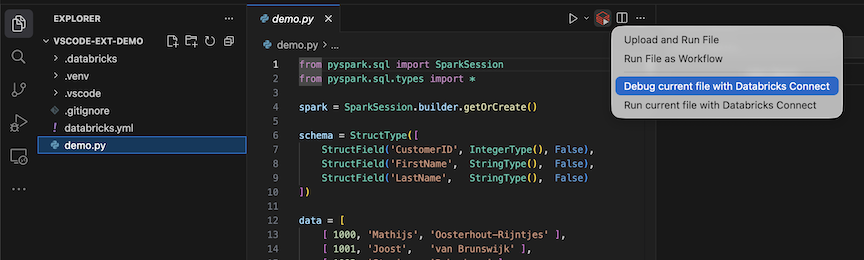
The output appears in the Debug Console pane.
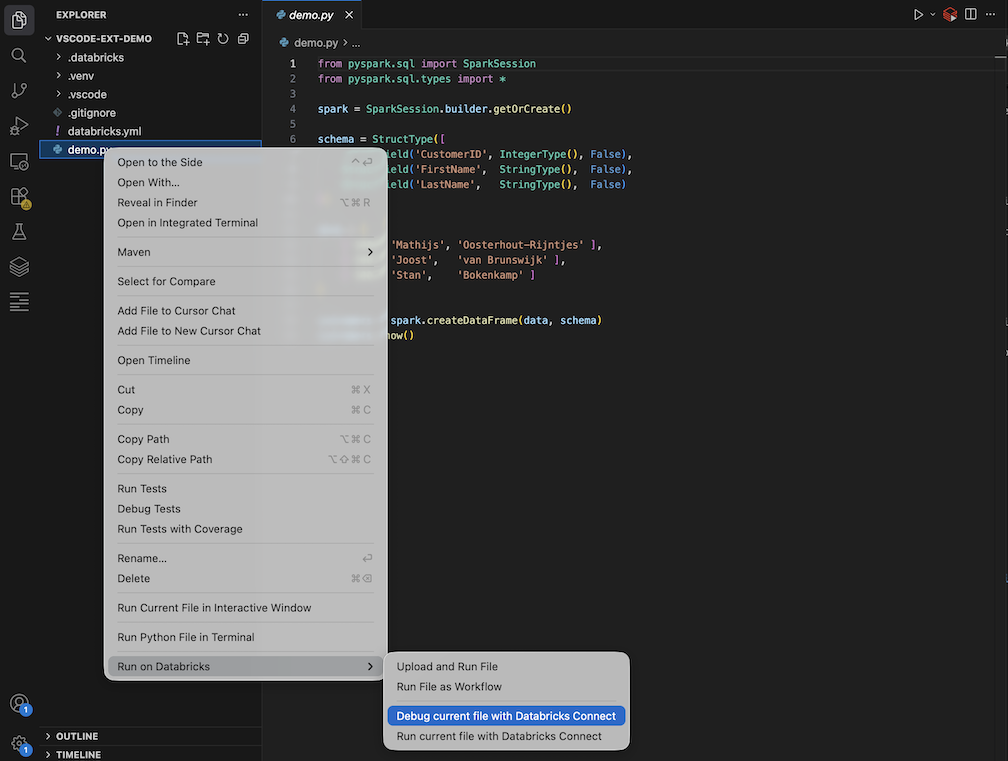
You can also right-click the
.pyfile, and then click Run on Databricks > Debug current file with Databricks Connect.