Discover page
The Discover page is a curated browsing experience for your organization to discover data assets and insights in Databricks. Discover has an intuitive interface that showcases your assets and insights without requiring deep technical knowledge of catalog hierarchies. Consumers browse assets organized by domains and subdomains, search for data, and explore AI-recommended assets.
Personas
The Discover page supports two personas:
- Curators: Create and manage domains, assign assets to them, and customize the Discover page and domain pages. For Pages, a curator can edit, publish, and manage any Page in a domain. To create and manage domains, see Domains and subdomains.
- Consumers: Use the Discover page to find curated assets organized by domain or asset type, and explore AI-recommended assets. For Pages, a consumer can create and publish Pages, and view, comment on, and suggest edits to published Pages in a domain they can access. See Steps for consumers.
What is Databricks Discover?
Databricks Discover is a centralized discovery page that enables:
- Browse by domains, a business-aligned organization layer where curators organize data assets (for example, tables, dashboards, and Genie Agents) and business terminology and concepts (Pages) to meet business needs.
- Custom curation capabilities where curators can customize and highlight specific assets in their organization or domain.
- AI-powered recommendations to surface popular and valuable datasets to enable curation at scale.
- Unified discovery experience across tables, dashboards, queries, notebooks, and more.
To create and manage domains and customize the Discover page, see Domains and subdomains.
Access the Discover page
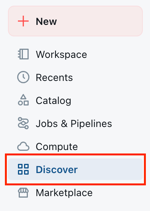
In the sidebar, click  Discover to access the Discover page.
Steps for consumers
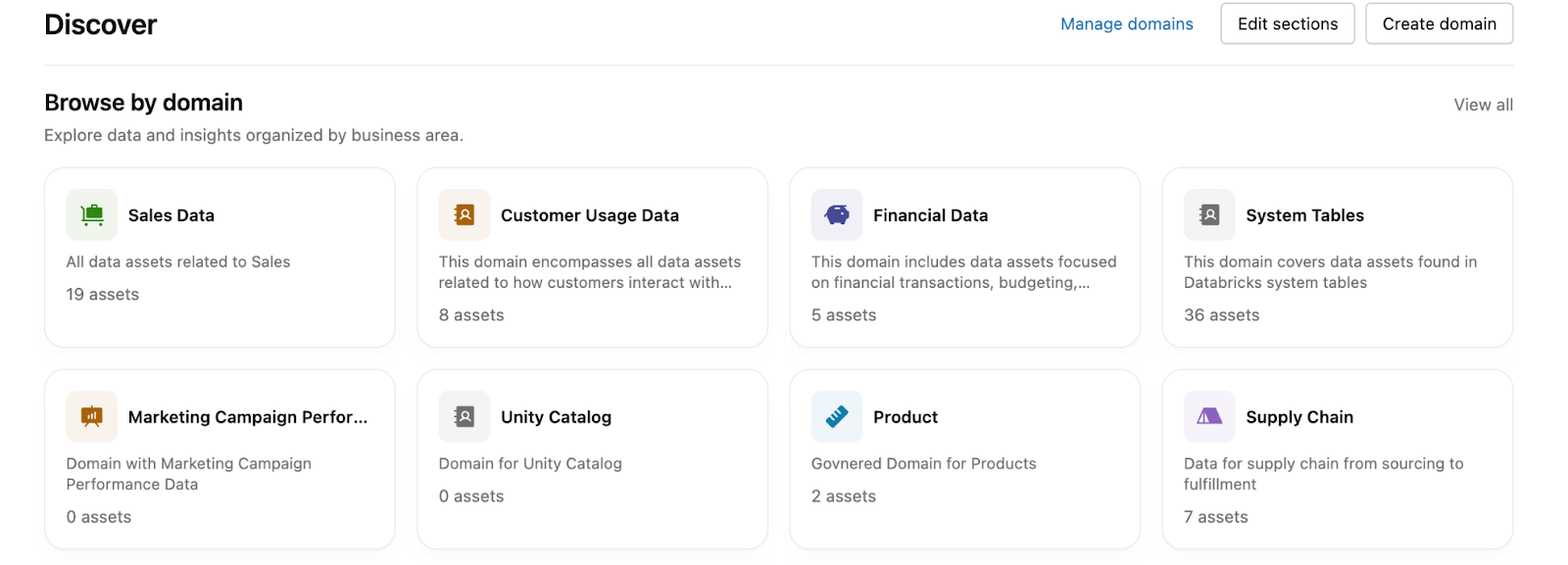
Browse by domain
Click a card under Browse by domain.
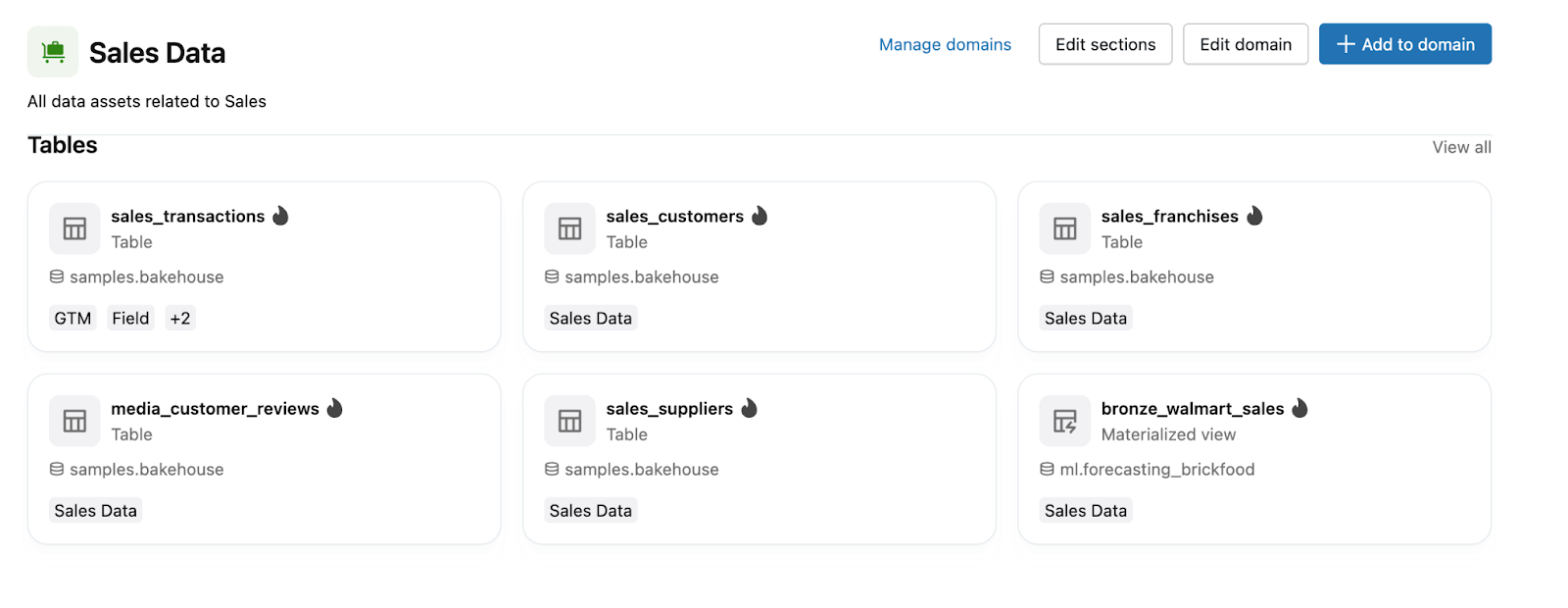
You can now see the assets in the domain.
Genie-recommended domains
Domains group related data and AI assets around a business area or use case. The Discover page generates Genie-recommended domains from patterns across your organization's assets. These domains require a curator to review a Genie-recommended domain and publish it to make it available to everyone. To create and publish domains, see Domains and subdomains.
Browse by subdomain
If a domain has subdomains, a Subdomains section appears on the domain page. Click a subdomain card to filter the domain's assets down to that subdomain. Assets in a subdomain also appear on the parent domain page. Subdomains narrow the view; they do not hide assets from the parent.
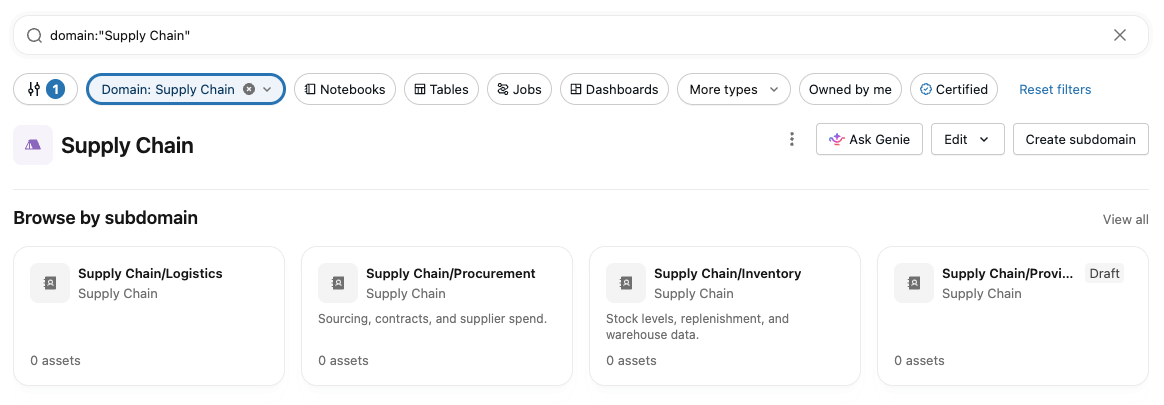
In global search, the Domain filter includes both domains and subdomains, so you can scope results to a specific subdomain the same way you scope to a domain. When search results include an asset that belongs to a subdomain, the asset's domain and subdomain membership is shown on the result. The Domain filter returns both assets assigned directly to a domain and those that inherit a domain from a parent catalog or schema.
Browse by asset type
On the Discover page, scroll down to view different sections by asset type, such as Dashboards and Tables.
Click View all under any asset type to browse all assets of that type, including Certified assets and Assets suggested by AI.
Browse and search Pages
This feature is in Beta. Account admins can control access to this feature from the account console Previews page. See Manage Databricks previews.
If your organization uses Pages, Pages that define business concepts appear in a Pages section on the Discover page and on each domain page.
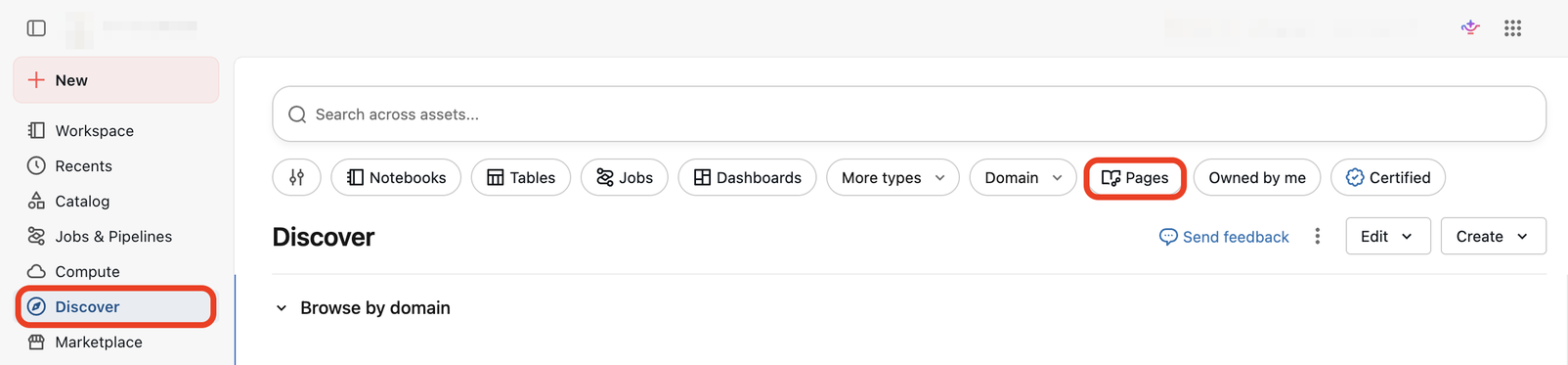
From here, you filter results to a particular domain or subdomain, or use the search bar to look for a specific Page. Click into any Page to read its definition, structured fields, and any related assets or sources. Anyone with access to the parent domain can comment on or suggest edits to a published Page.
To learn how to author Pages and how Genie One uses them, see Pages.
Account-scoped Discover
This feature is in Beta. Account admins can control access to account-scoped Discover from the Account settings tab of the account console Settings page. It's on by default. When it's turned off, the Scope dropdown doesn't appear, and Discover shows only assets in the current workspace. Changes apply to new sessions.
By default, the Discover page shows the assets in your current workspace. With account-scoped Discover, you can browse and search assets across all of the workspaces and metastores in your account, without switching workspaces. This helps you find relevant data in workspaces you don't usually work in. Account-scoped Discover has some limitations. See Limitations.
For accounts with many workspaces, account-scoped results can take longer to load.
Switch between workspace and account scope
On the Discover page, use the Scope dropdown to switch between the current workspace and all workspaces in your account:
- Current workspace: Discover shows only the assets in the workspace you're signed in to.
- All workspaces: Discover shows assets from every workspace and metastore in your account that you have permission to access, including in search results.

What you can see
Account-scoped Discover respects your existing permissions, so you see only the assets you're authorized to discover and access across your account. Switching to account scope doesn't change your existing access permissions.
Open an asset from another workspace
Each result shows the workspace or metastore that the asset belongs to. When you click an asset:
- If the asset is accessible from your current workspace, it opens in the current workspace, in the same browser tab.
- If the asset is in another workspace, it opens in that workspace in a new browser tab. You might need to sign in to the target workspace.
- If the asset is accessible from multiple other workspaces, you're prompted to select a workspace, and the asset opens in that workspace in a new browser tab.
Provide feedback
- In the Databricks workspace, click your user icon, then click Send feedback.
- Describe your feedback or issue in detail.
- Submit your feedback directly to the Databricks product team.
Limitations
Account-scoped Discover has the following limitations:
- Curating domains and custom sections with assets from other workspaces isn't available. To add assets from other workspaces to a domain, or to create custom sections with those assets, you must do so from those workspaces. See Domains and subdomains.
- Asset names and file paths aren't replicated across regions, so you can't find assets in another region by searching for their name or file path.
Next steps
After discovering datasets using the Discover page:
- Create and manage domains and subdomains to organize assets by business purpose.
- Create and maintain governed Pages for the key terminology in your business areas.
- Explore detailed table information, lineage, and relationships in Catalog Explorer.
- Learn more about tags and how to use them to organize your data assets.
- Query data using notebooks or the SQL editor.
- Review table insights to understand how data is being used in your workspace.
- Understand Unity Catalog privileges to manage access to datasets.