Connect agents to third-party tools with MCP Services

Beta

This feature is in Beta. Account admins can control access to this feature from the account console Previews page. See Manage Databricks previews.

An MCP Service is a Unity Catalog securable that registers an external MCP server and governs how agents use it. You address it by its three-level name, catalog.schema.mcp_service, and invoke it through Unity AI Gateway, the control plane for governing AI traffic.

Registering an MCP server as a Unity Catalog securable means you manage it with the same primitives that protect your other Unity Catalog assets. These include grants to control who can invoke it, tool selection to limit which tools it exposes, service policies to allow or deny individual tool calls, and audit and usage logging to track every invocation.

There are two ways to use MCP Services:

Approach

Use when

Use a Databricks-provided MCP Service

You want a common software-as-a-service (SaaS) tool—Slack, GitHub, Google Drive, and more—with zero setup. No server to host and no connection to create.

Register your own external MCP server

You have a self-hosted or third-party MCP server to govern as a Unity Catalog securable.

MCP Services connect agents to external services. For Databricks data, use managed MCP servers; to host your own tools, use a custom MCP server.

See it end to end

For a complete worked example—register the GitHub MCP server, restrict its tools, block destructive calls with a service policy, and audit usage—follow Tutorial: Govern a coding agent's GitHub MCP access.

How it works

An agent calls an MCP Service by its Unity AI Gateway URL, and every call flows through the same governed path:

An agent configured with an MCP Service URL invokes the service through Unity AI Gateway. The gateway authorizes the call against the MCP Service in Unity Catalog, which enforces the EXECUTE grant, tool selection, and service policies, then proxies the request through a Unity Catalog HTTP connection with managed credentials to the external MCP server, such as GitHub or Slack. Usage, audit, and trace records land in system tables.

  1. Invoke: The agent sends an MCP request to the service's Unity AI Gateway URL, authenticated with the caller's Databricks identity.
  2. Authorize and govern: The gateway checks that the caller has EXECUTE on the MCP Service in Unity Catalog. The service exposes only the tools you selected and evaluates any attached service policy, which can allow, deny, require approval for, or transform the call.
  3. Proxy with managed credentials: The request is forwarded to the external MCP server through the service's HTTP connection. Databricks stores the credentials and handles OAuth flows and token refresh, so the agent never sees them.
  4. Log usage, audit, and traces: Every invocation is recorded in system tables, so you can monitor usage and audit activity over time.

Requirements

  • A workspace enabled for Unity Catalog.
  • To govern an external MCP server as an MCP Service, the Unity AI Gateway Beta and the Managed MCP Servers preview enabled for your account. See Manage Databricks previews.

Databricks-provided MCP Services

Databricks provides ready-to-use MCP Services in the system.ai schema for common SaaS applications, so agents can reach these tools without hosting or registering your own MCP server. Each one is a built-in MCP Service that you address by its Unity Catalog name. To give an agent access, grant EXECUTE on the service (for example, system.ai.github)—no connection setup required. Built-in services ship with platform-managed tools and a built-in service policy, such as one to block write operations. You govern them with grants rather than with custom tool selection or policy functions.

MCP Service

Connects to

system.ai.slack

Slack

system.ai.github

GitHub

system.ai.atlassian

Jira and Confluence

system.ai.google_drive

Google Drive

system.ai.google_calendar

Google Calendar

system.ai.gmail

Gmail

system.ai.sharepoint

Microsoft SharePoint

For Google Drive, Gmail, Google Calendar, or SharePoint, these built-in services handle OAuth for you, with no app registration required.

Register an external MCP server

Register your own external MCP server as an MCP Service in five steps:

  1. Create a Unity Catalog connection to the MCP server.
  2. Create the MCP Service from that connection.
  3. Authenticate, if the connection uses per-user OAuth.
  4. Grant access to your teammates.
  5. Invoke the service, then govern it with tool selection and service policies.

The external MCP server must use the Streamable HTTP transport mechanism. You need these permissions:

  • To create the connection, CREATE CONNECTION on the schema where you create it.
  • To create an MCP Service, USE CATALOG and USE SCHEMA on the parent catalog and schema, CREATE SERVICE on the schema, and USE CONNECTION on the connection that the MCP Service references.
  • To invoke an MCP Service, EXECUTE on the MCP Service, USE CATALOG and USE SCHEMA on its parent catalog and schema, and assignment to the workspace where you issue the request.
warning

Invoking an MCP Service requires no privilege on the underlying connectionEXECUTE on the MCP Service is sufficient. Don't grant USE CONNECTION to end users: it lets them call the external server directly through the connection, or register their own MCP Service on it, bypassing the tool selection, service policies, and auditing of your MCP Service. Reserve connection access for service authors and administrators.

Create a connection

An MCP Service references a Unity Catalog HTTP connection that securely stores the external server's endpoint and credentials. Databricks runs a managed proxy in front of it to handle authentication and token refresh, so you don't embed credentials in your agent or client code.

Create the connection at the schema level so it's governed alongside the MCP Service. You can set it up ahead of time with the steps below, or create one while you create the MCP Service by clicking Create new connection. Metastore-level connections are supported but not recommended.

Choose one of two ways:

For any MCP server, including self-hosted or third-party servers:

  1. Go to Catalog > Connections > Create connection.
  2. Select HTTP as the connection type.
  3. Enter the MCP server URL.
  4. Choose an authentication type: bearer token, OAuth M2M, OAuth U2M, or Dynamic Client Registration. For setup details, see Create a connection to the external service.

For managed-OAuth providers—Glean, GitHub, Atlassian, and Slack—Databricks manages the credentials, so you don't register your own OAuth app. See Managed OAuth providers.

Create the MCP Service

You can create an MCP Service from the UI or with the REST API. The Beta does not support SQL DDL for MCP Services.

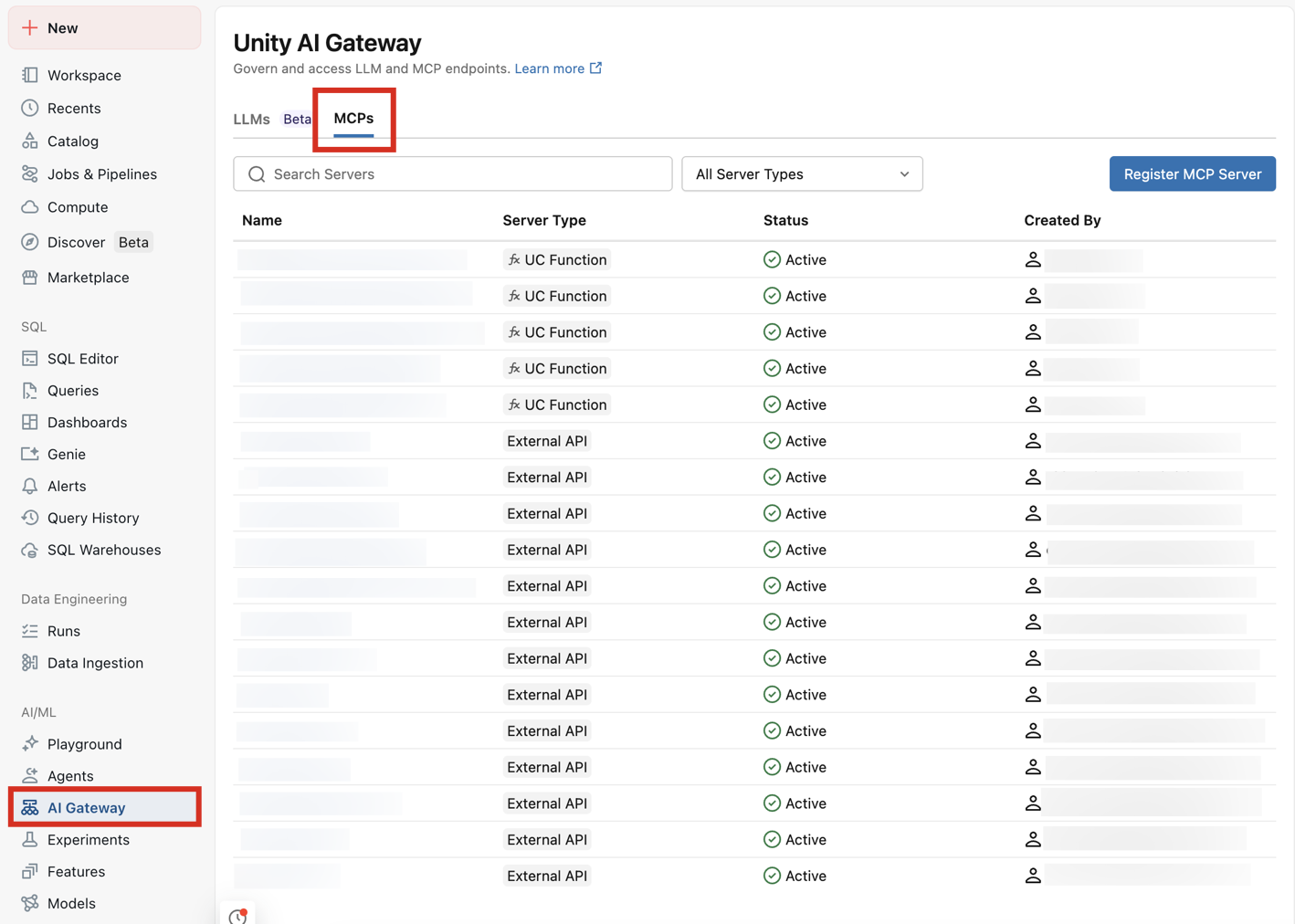
  1. In your Databricks workspace, go to AI Gateway > MCPs > Register MCP Server, or go to Catalog, select a schema, and click Create > MCP Service.
  2. Enter the catalog, schema, and a name for the MCP Service. The name can't be changed after creation.
  3. Select an existing HTTP connection to the MCP server, or click Create new connection to create one. Browse under a schema to select a schema-level connection; to use a metastore-level connection, turn off Browse under a schema.
  4. Under Tools, select which tools to make available. See Select which tools are exposed.
  5. Optionally, add a comment that describes the MCP Service.
  6. Click Create. The MCP Service is published to the catalog and schema you specified.

Authenticate

If the MCP Service references a connection that uses per-user OAuth, complete a one-time login before the first call:

  1. Open the MCP Service detail page in Catalog Explorer.
  2. Click Login and complete the provider's OAuth consent flow.
  3. After you sign in, the detail page automatically shows the list of discovered tools.

Unity Catalog stores the token against your identity. If you call the MCP Service before logging in, AI Gateway returns an error prompting you to authenticate.

Grant access to teammates

By default, only the MCP Service owner can invoke it. Grant EXECUTE to let other users, groups, or service principals invoke the service. A single EXECUTE grant covers all of the service's tools.

  1. Open the MCP Service in Catalog Explorer, or go to AI Gateway > MCPs and select the service.
  2. Go to the Permissions tab.
  3. Click Grant.
  4. Select the users, groups, or service principals to give access to.
  5. Select the EXECUTE privilege.
  6. Click Grant.

Invoke an MCP Service

Try an MCP Service in AI Playground, from the command line, or from your agent or client code.

Test the MCP Service

Test an MCP Service's tools in the UI without writing code:

  1. Go to AI Playground in your Databricks workspace.
  2. Select a model with the Tools enabled label.
  3. Click Tools > + Add tool and select MCP Servers.
  4. Select External MCP servers, then select the MCP Service.
  5. Chat with the model to see how it calls the MCP Service's tools.

You can also test from Genie Code — see Add MCP servers to the Assistant.

Use from agent code or a coding agent

Govern an MCP Service

Select which tools are exposed

By default, an MCP Service makes available all of the tools the MCP server provides. To make available only a subset, select the tools when you create the MCP Service, or update the selection later. Each selector is matched against tool names: a pattern ending in * is a prefix match (get_* matches get_me and get_issue), and any other value is an exact match (search_repositories matches only that tool).

In the create flow, under Tools:

  • Select Select manually to select each tool individually.
  • Select Advanced to enter selection patterns, using the prefix and exact-match rules described above.
  • Turn on Automatically include tools added to this server in the future to make new tools available as the MCP server adds them.

Tools that you don't select don't appear in tools/list, and the MCP Service rejects a tools/call for an unselected tool:

JSON
{ "code": -32003, "message": "Tool not allowed by MCP service configuration." }

Apply a service policy

A service policy evaluates each tool call before it runs (ON CALL) and, optionally, its result (ON RESULT). A policy can allow, deny, require human approval, or transform the request—for example, to block destructive operations or redact PII—without changing which tools are available. Service policies are part of AI governance in Unity Catalog.

To write a policy function and attach it to an MCP Service, see Service policies for AI securables and Create and attach a service policy.

Set rate limits

Limit how frequently agents can call an MCP Service to control cost and protect the external server. See Configure rate limits for AI services using Unity AI Gateway.

Monitor usage

Unity AI Gateway records activity for every MCP Service in Unity Catalog system tables:

  • Usage: call volume, errors, and latency in system.ai_gateway.usage (filter service_type = 'MCP_SERVICE'). See Model usage for Unity AI Gateway services.
  • Audit: control-plane changes (createMcpService, updateMcpService, deleteMcpService) and each invocation (mcpCall) in system.access.audit. See Audit log system table reference.
  • Traces: tool-call requests, responses, and policy decisions are captured by trace logging, which is enabled once at the account level and shared across all MCP Services.
  • Dashboard: external MCP server traffic appears in the built-in Unity AI Gateway usage dashboard. See Built-in usage dashboard.

For all Unity Catalog system tables, see System tables reference. For an overview of governing AI traffic, see AI governance in Unity Catalog.

Authentication and security

Databricks uses managed MCP proxies and Unity Catalog HTTP connections to securely handle authentication to external MCP servers.

  • Shared principal authentication: All users share the same credentials when accessing the external service. This includes Bearer token, OAuth Machine-to-Machine (M2M), and OAuth User-to-Machine Shared authentication. Use this when the external service doesn't require user-specific access, or when a single service account is sufficient.
  • Per-user authentication (OAuth U2M Per User): Each user authenticates with their own credentials. The external service receives requests on behalf of the individual user, enabling user-specific access control, auditing, and accountability. Use this when accessing user-specific resources, such as a user's GitHub repositories, Slack messages, or calendar.

Databricks handles OAuth flows and token refresh, so end users don't see tokens. You view and manage your external MCP connections alongside your LLM endpoints from Unity AI Gateway. For detailed configuration instructions for each authentication method, see HTTP connections.

Limitations

During the Beta, the following limitations apply to MCP Services:

  • SQL DDL for MCP Services (for example, CREATE MCP SERVICE) is not available. Create and manage MCP Services with the UI or the REST API.
  • You can register only external MCP servers as your own MCP Service. Registering Genie, Apps, or Unity Catalog entity sources as an MCP Service is not currently supported. Databricks also provides built-in MCP Services for common SaaS apps.
  • Tool selection supports prefix (get_*) and exact-match patterns. Exclusion patterns (for example, !delete_*) are not supported.
  • Unity Catalog Global Search does not surface MCP Services.

External MCP server connections also have the following limitations:

  • External MCP servers are only available in regions where Model Serving is supported, including use in AI Playground, Genie Code, and Chat in Genie. See Model serving features availability.

Next steps