Navigate Genie Code
Genie Code is available as a chat pane on most Databricks pages and as a full page command center. You can open and manage multiple chats, adjust settings, add customizations, share and branch chats, attach files, and select a level of effort.
To learn what Genie Code can do, see Genie Code features and capabilities.
Genie Code chat pane
To open the Genie Code pane, click  in the upper-right corner of the page.
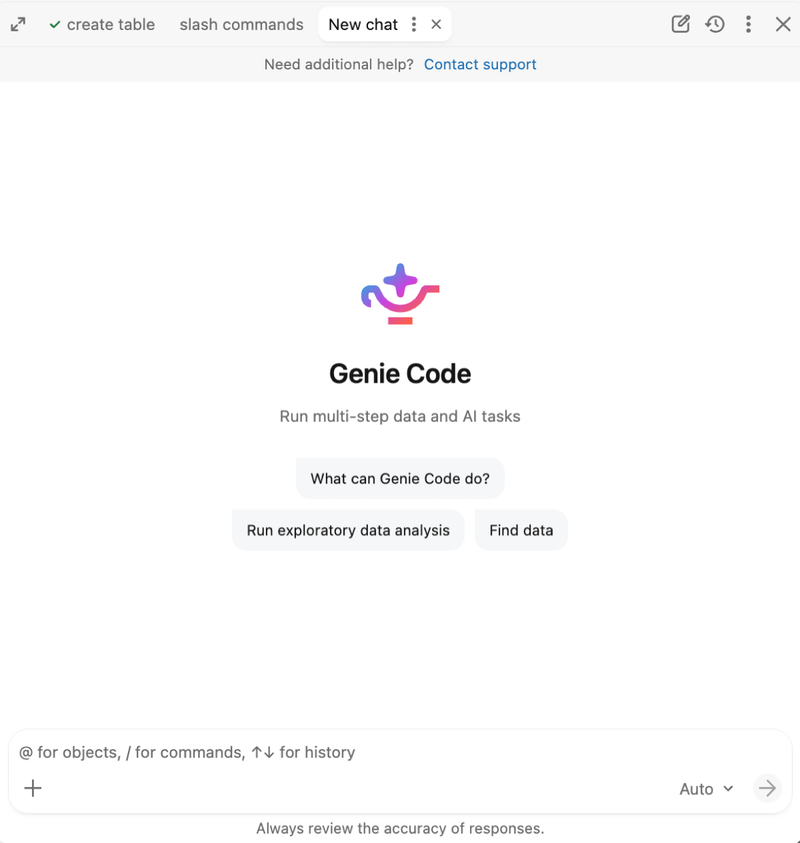
Enter a prompt in the text box at the bottom of the pane, then press Enter or click  . You can:
- Click the
 plus icon to attach files, reference context, or add connections.
 - Enter @ to select resources for Genie Code to reference.
- Enter / to select and run a slash command.
- Choose how Genie Code balances response quality and cost. See Select a level of effort.
If you prompt Genie Code to help with code, it leads you through running, accepting, or rejecting the changes it proposes.
Genie Code pane controls
The Genie Code pane header has the following controls:
Control | Description |
|---|---|
| Start a new chat in a new tab. |
| View past chats and reopen one in a tab. |
| Access |
| Collapse the Genie Code pane. |
Work with multiple chats as tabs
The Genie Code pane shows your open chats as tabs along the top of the pane. You can run more than one task at a time and move between chats without losing your place.
- Switch chats: Click a tab to make that chat active. A chat keeps running in the background when you switch tabs, so you can start a long task in one chat and continue working in another.
- Open a new chat: Click
 New chat to start a chat in a new tab.
 - Reopen a past chat: Click
 Chat history and select a chat to open it in a tab.
 - Manage a chat: Use the
 kebab menu on an active tab to manage the chat, or click
  to close the tab.
Full page Genie Code
Genie Code has a full page command center experience where the active chat is shown prominently, surfacing assets like notebooks and files alongside it as tabs when needed. You can start work directly from Genie Code, run multiple chats in parallel, switch between chats while they continue running in the background, and personalize how Genie Code works with skills, instructions, and MCP servers.
Full page Genie Code is the recommended experience for starting work from scratch or running multiple tasks in parallel. If you are primarily working with an existing asset, such as debugging a notebook, monitoring an endpoint, or exploring a table in Unity Catalog, the chat pane is a convenient alternative.
Open full page Genie Code
You can open full page Genie Code in either of the following ways:
-
On your workspace home page, select
Code in the prompt box, enter a prompt, and submit it. Full page Genie Code opens and starts working on your prompt.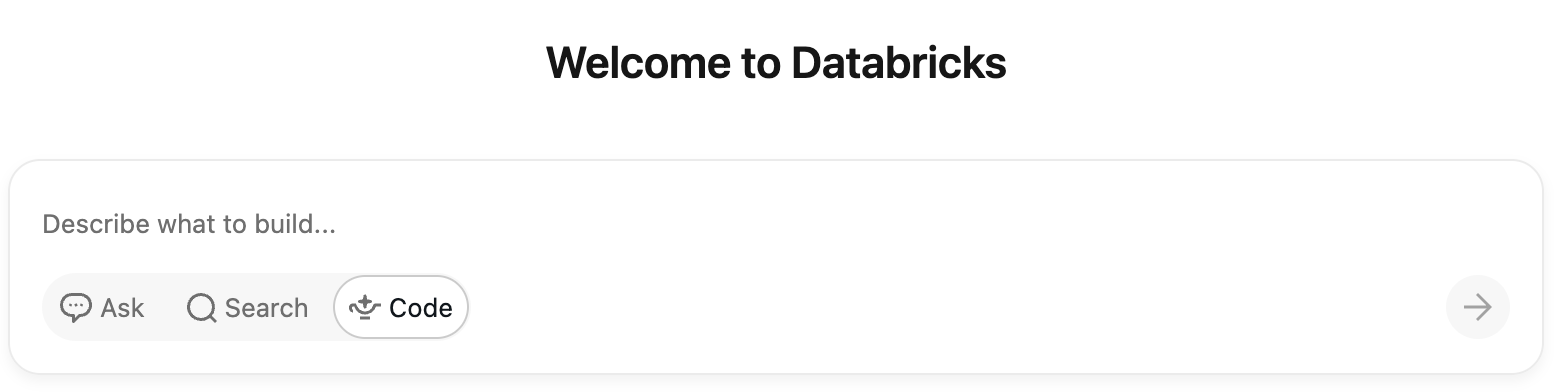
-
In the Genie Code chat pane, click
 Maximize.
Start a new chat and describe what you want Genie Code to do. Genie Code works on the task directly in the chat, running analysis and making changes as it goes. When it needs to edit or run a specific asset such as a notebook or file, that asset opens as a tab alongside the chat so you can review it. For some assets, such as AI/BI dashboards, Genie Code might navigate to that page to make edits and keep the chat in the side pane.
Overview of full page Genie Code
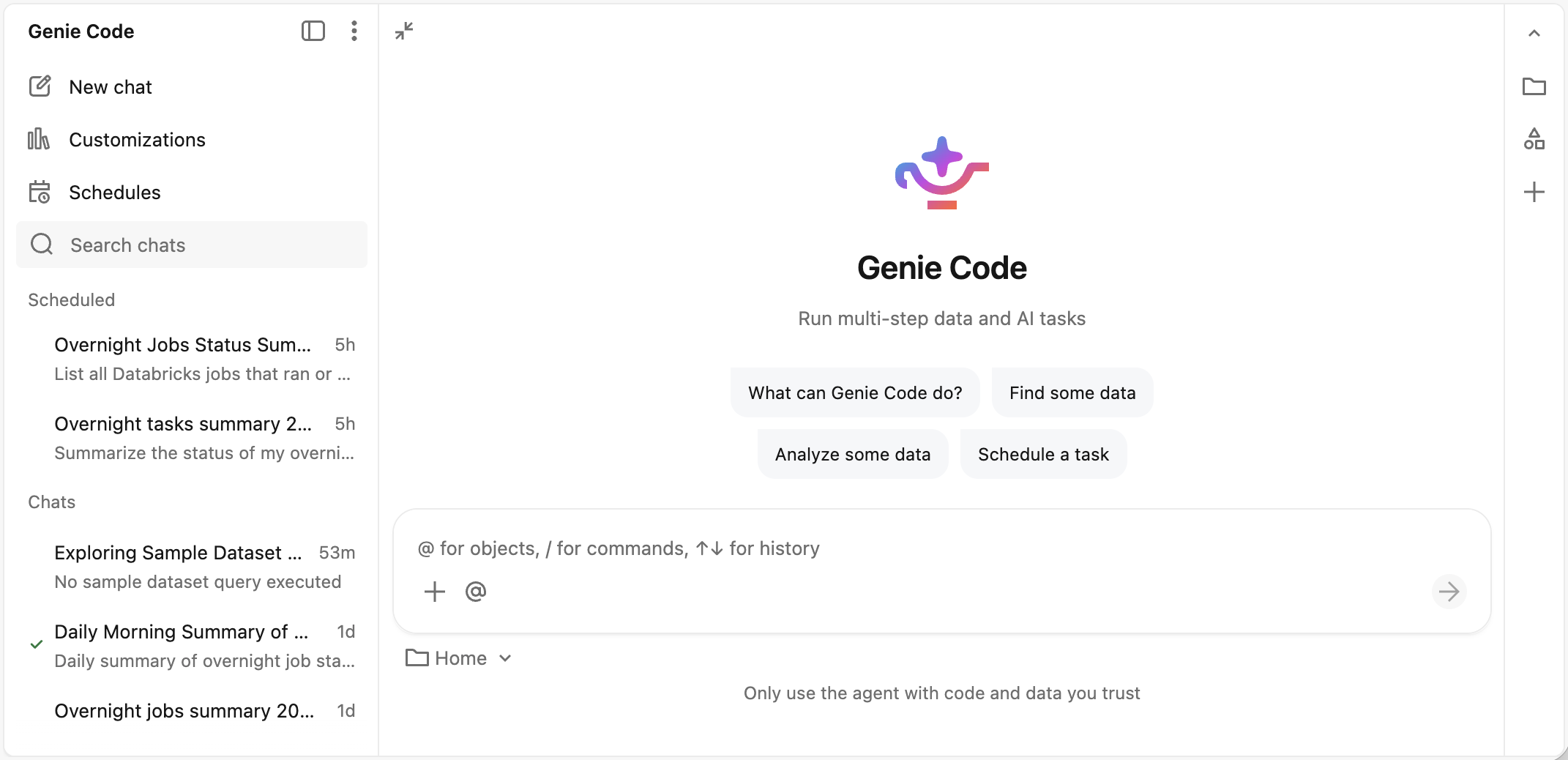
 Close chat bar: Collapse the full page Genie Code chat sidebar.
- More options: Access Genie Code settings, get help, and send feedback to Databricks.
- New chat: Start a new Genie Code chat.
 Customization: Manage skills, instructions, and MCP servers to personalize how Genie Code works.
 Schedules: Manage scheduled tasks.
 Search: Search your Genie Code chats to quickly find previous chats and continue work.
- Scheduled tasks list: Most recent run of each scheduled task is shown here.
- Chat list: Shows all your Genie Code chats. Each entry shows the chat title and when the last prompt was sent.
- To switch chats, click any entry. You can switch while Genie Code is still working, whether it is running in the chat or editing a notebook.
- To manage a chat, hover over it and click the kebab menu. You can share, make a copy, rename, or delete the chat.
- Chat view: The active chat, where Genie Code performs work. Assets Genie Code produces open as tabs alongside the chat, or redirect to the asset page.
Genie Code settings
To open Genie Code settings, click the More menu from the chat pane header, then click  Settings. Or, from full page Genie Code, click the More options menu, then click Settings. The settings pane includes the following:
Setting | Description |
|---|---|
Toggle panel view | Choose whether to use Genie Code in a Docked pane view or a Side pane view. |
Serverless usage policy | Set the serverless usage policy for running code that Genie Code generates in the chat output. |
Actions | Set how Genie Code asks for approval before it uses a tool. See Approve tool actions. |
Approve tool actions
When Genie Code needs to use a tool, like running code, editing a notebook, or querying a table, it either asks for your approval or, in auto-approve mode, lets an AI classifier decide. You can approve each request individually, or set an approval mode that applies to the rest of your current chat or to all future chats.
Approve a single request
When Genie Code requests permission to use a tool, click Allow to approve the action or Skip to refuse it.
To change how Genie Code handles future approval requests in the current chat, select one of the following from the same prompt:
Option | Behavior |
|---|---|
Ask every time | Genie Code asks for approval every time it uses a tool. |
Allow in current chat | Genie Code can use the requested tool for the rest of the current chat without asking. |
Always allow | Genie Code can use the requested tool in every chat without asking. |
Auto-approve (Recommended) | Genie Code automatically approves tool actions for the rest of the current chat. An AI classifier checks each action against your request and blocks any actions that fall outside its scope. |
Set a default approval mode
When you use Genie Code for the first time, the default mode for every chat is Auto-approve. To change the approval mode, set a new default in the Genie Code settings. Click in the Genie Code pane header to open settings.
Choose one of the following:
-
Ask first: Approve each tool when it runs. Per-tool overrides still apply.
-
Auto-approve: An AI classifier reviews each proposed action against your stated intent and approves or blocks each one, minimizing manual approvals while blocking actions that go beyond your intent.
importantAuto-approve is a productivity feature, not a security boundary. The classifier is a best-effort heuristic that can be wrong. It might approve unsafe actions or block safe ones. Do not rely on it to enforce security, compliance, or access-control requirements. Keep auto-approve off when working with production data, sensitive workspaces, or shared resources where the consequences of an incorrect approval matter. You remain responsible for reviewing Genie Code's results.
When auto-approve is on, Genie Code approves the actions needed to carry out your request on resources you own or have referenced. For example, it runs read-only queries, edits your own files and notebooks, writes to tables you own, and runs jobs or pipelines you've already referenced. It also completes an action you explicitly ask for even when that action changes or removes data, such as dropping a table you name or deleting rows from a table you're working in. Auto-approve follows your intent, so it doesn't withhold an action only because the action is destructive.
Genie Code blocks actions that go beyond your request: a destructive change to data you didn't identify (for example, dropping a table you never mentioned), an operation more destructive than your request implies (for example, adding CASCADE to a DROP), or an action that escalates scope or affects shared resources (such as production deployments, permission and secret changes, calls that send data to third parties, and risky source control operations like force pushes).
When an action is blocked, Genie Code receives the reason and adapts, for example by retrying with a narrower scope.
Genie Code customizations
To open Genie Code customizations, click the More menu from the chat pane header, then click Customizations. Or, from full page Genie Code, click Customizations. The customizations pane includes the following tabs:
Customization | Description |
|---|---|
Skills | Add reusable user and workspace skills that Genie Code can apply to tasks. |
Instructions | Add user and workspace instructions that guide how Genie Code responds. |
Connectors | Connect to external tools using MCP servers and built-in connectors. |
Share a chat
You can share Genie Code chats with other users, groups, or service principals.
To share a chat:
-
From full page Genie Code, the chat pane, or chat history, hover over the chat you want to share and click the
kebab menu. -
Click
 Share.
 -
In the share dialog, add the users, groups, or service principals to share with. Recipients receive Can View permission on the chat. See Genie Code chat ACLs.
-
(Optional) Check Email new users to send an email notification to newly added users.
-
(Optional) To share a direct link to the chat, click
 Copy link at the bottom of the share dialog.
 -
Click Add to share the conversation.
Branch and edit chats
Genie Code can branch a chat into a separate thread or edit it in place so you can revise a chat or explore a different direction. You can fork a chat from a point you choose, ask a side question with /btw, or edit an earlier message to regenerate the chat. See Branch and edit Genie Code chats.
Attach files
To attach files as context for the current chat, click the plus icon in the prompt box or drag and drop files into the prompt box.
Genie Code supports the following file types: .png, .jpg, .jpeg, .gif, .webp, .pdf, .csv, .xlsx, .xls, .json, and .jsonl.
By default, Genie Code uses attached files only in the current chat and does not save them to the workspace file system. To keep a file, ask Genie Code to save it to your workspace.
Select a level of effort
The selector in the prompt box shows the current level of effort and lets you change it for a conversation:
- Auto (default, recommended): This level provides the highest quality for any task.
- Low: This level lowers the cost for simpler tasks.
Genie Code saves your selection for the conversation. If no levels are available, the selector does not appear.
Give feedback on Genie Code answers
Let Databricks know whether Genie Code answers are useful:
- Hover just below the Genie Code answer.
- Click the Useful
 or Not useful
  button.