Genie Code scheduled tasks
This page covers scheduling Genie Code prompts to run as interactive chats on a recurring basis. If you want to run Genie Code as part of a Lakeflow job workflow, see Genie Code task for jobs.
Create scheduled tasks to run Genie Code prompts on a schedule, so you can turn recurring analysis into a background task. For example, you can have Genie Code summarize your overnight job results every morning, review your assigned Jira tickets and start working on them, or re-run a weekly investigation without prompting it each time.
Each task executes your prompt as a full Genie Code session and produces a new chat. The chat appears in your chat list, and you can open it to review the results or continue the conversation, like any other Genie Code chat.
Create a scheduled task
Use any of the following methods to create a scheduled task:
-
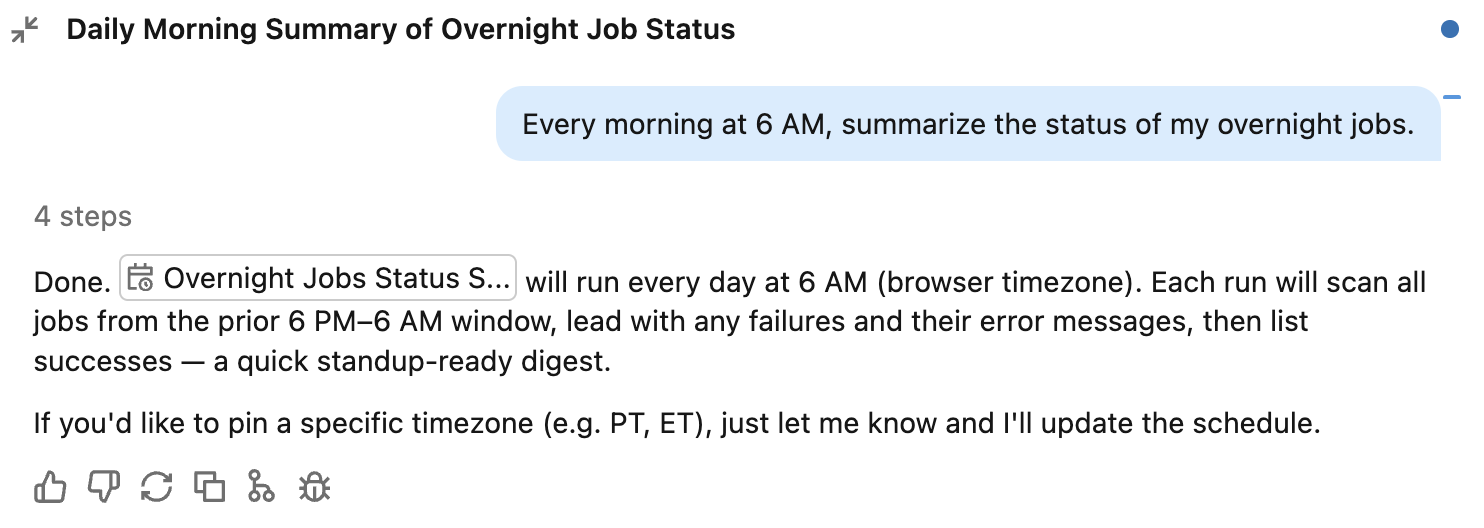
Describe it in chat: Ask Genie Code in natural language to run a task on a schedule, for example: "Every morning at 6 AM, summarize the status of my overnight jobs." Genie Code might ask clarifying questions, such as the time to run, then creates the scheduled task.
-
Start from a suggested task: In full page Genie Code, click
 Schedules to open the scheduled tasks pane, then click a suggested task to send its prompt to Genie Code. You can also open the scheduled tasks pane from the
  kebab menu in the Genie Code side pane.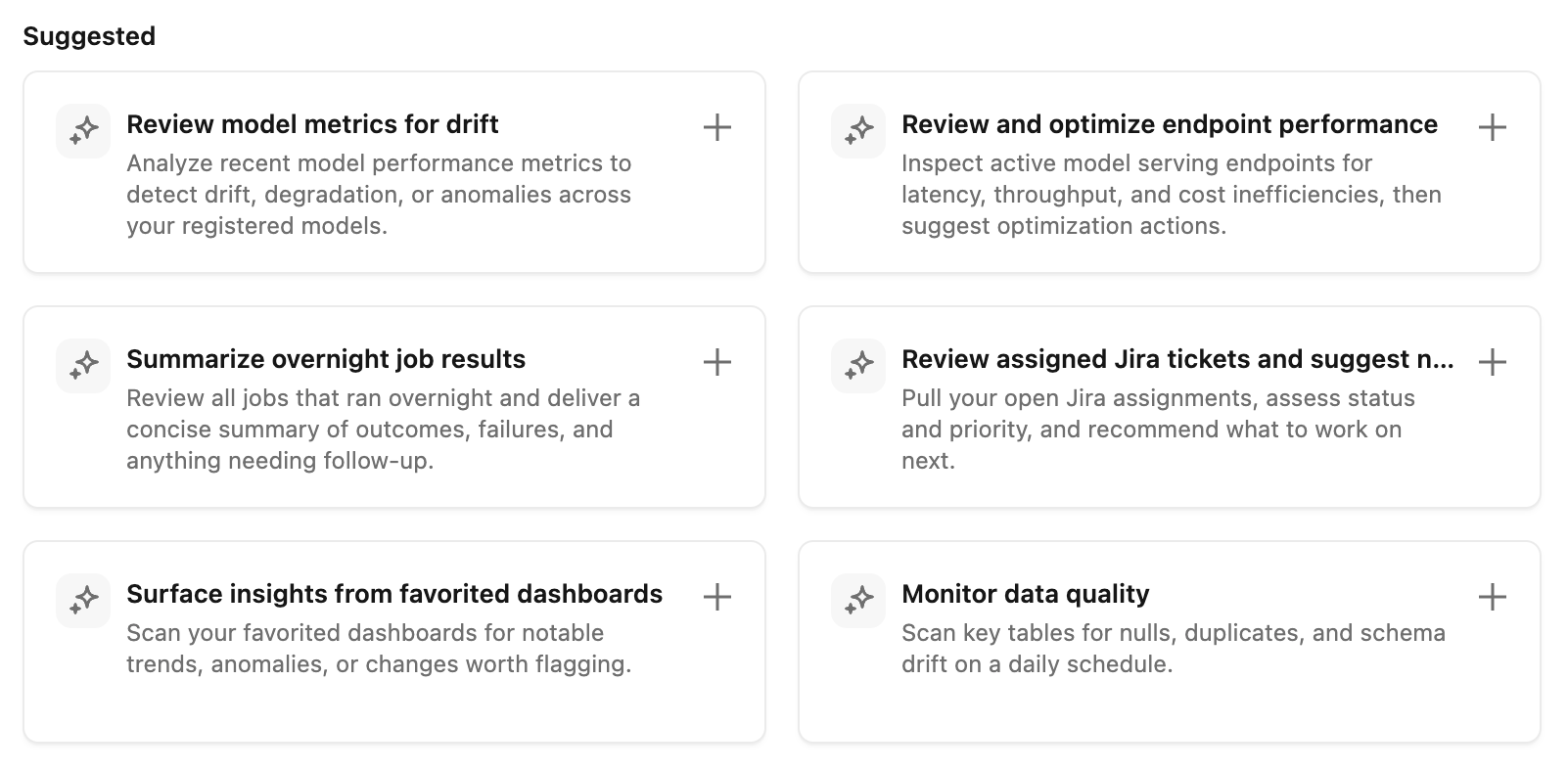
-
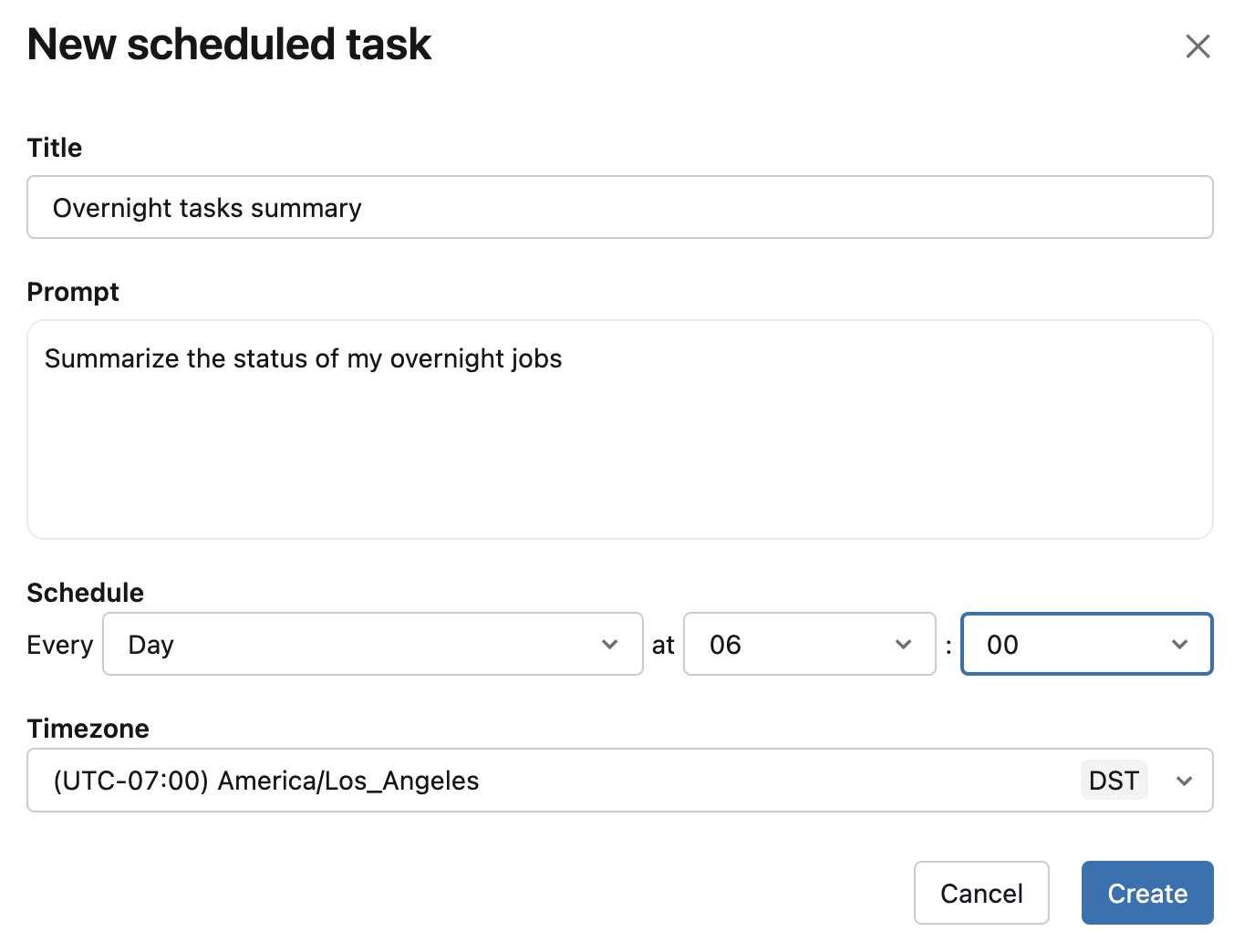
Create it manually: In the Scheduled tasks pane, click the Create dropdown and select Create manually. Fill in the Title, Prompt, Schedule, and Timezone fields, then click Create.
How scheduled runs work
When a scheduled task runs, Genie Code executes your prompt with the same capabilities it has in an interactive session. Runs have the following behavior:
- Auto-approve is always on for scheduled runs. Because a scheduled run happens without you present to approve individual tool actions, Genie Code approves tool actions automatically during the run. An AI classifier reviews each action against your prompt and blocks risky ones. You cannot turn this off for a scheduled run. To understand how automatic approval works and its limits, see Approve tool actions.
- Each run creates a new chat. Every run produces its own Genie Code chat rather than adding to a single ongoing conversation. You can open any run's chat to review what Genie Code did and continue the conversation interactively.
- Runs use your permissions. A scheduled run accesses data and performs operations using the permissions of the user who created the task, governed by your Unity Catalog permissions.
Manage scheduled tasks
View your scheduled tasks in the Scheduled tasks pane. This pane lists all your tasks, their schedule, and when the next run is planned.
To manage a scheduled task, click on it to open its details:
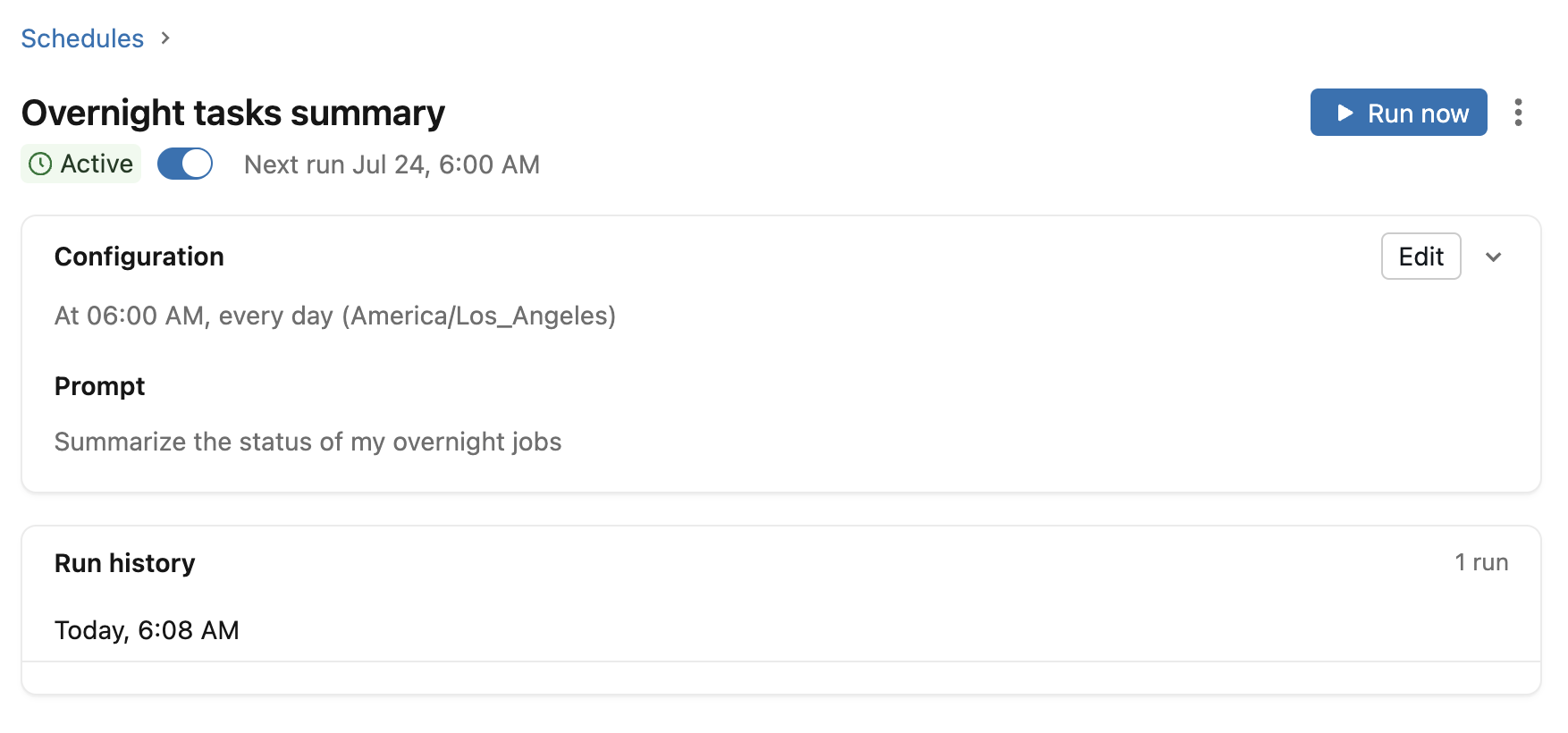
- To manually trigger a run, click
 Run now.
 - To pause a scheduled task, turn it off.
- To edit a scheduled task, click Edit. Update the title, prompt, schedule, or timezone, then click Save.
- To delete a scheduled task, click the kebab menu, then click
 Delete. Click Delete again to confirm.
 - To review a run, select it from Run history. Each run opens in a Genie Code chat.
Limitations
- Scheduled tasks cannot be shared with other users. However, you can share individual chats from scheduled runs like any other Genie Code chat. See Share a chat.
- Scheduled tasks count towards your Genie usage. If you reach your Genie Code usage limit, Genie Code still attempts the scheduled run, and it fails the same way an interactive session would. For more on Genie usage and budgets, see Manage budgets and cost controls for Genie.