Find and open assets in Genie One
You can only interact with data assets that have been shared with you. See Data governance. To mark an asset as a favorite, click the star icon next to the asset's name. To show only your favorites, use the Favorited filter in Discover.
Discover
Use Discover to find the dashboards, Genie Agents, apps, tables, metric views, and Pages that are shared with you. You can search for assets, browse them by domain, and filter the results by type, owner, certification status, or favorites.
When an account admin sets up Genie Search, Discover also searches Genie Search sources such as Google Drive and Jira. See Use Genie Search in Genie One.
Search bar
Use the search bar to find assets or ask data questions in natural language. When you click in the search bar, a drop-down menu opens and shows the Genie Agents that have been shared with you. Select one to ask it a question, or click Open search in a full page. If you enter a question without selecting an agent, the search bar tries to find a Genie Agent that can answer it.
Domains
This feature is in Public Preview.
Domains group assets by business context, making it easier to find data relevant to your work without navigating catalog hierarchies. Browse domains from Discover. See Discover page.
For you
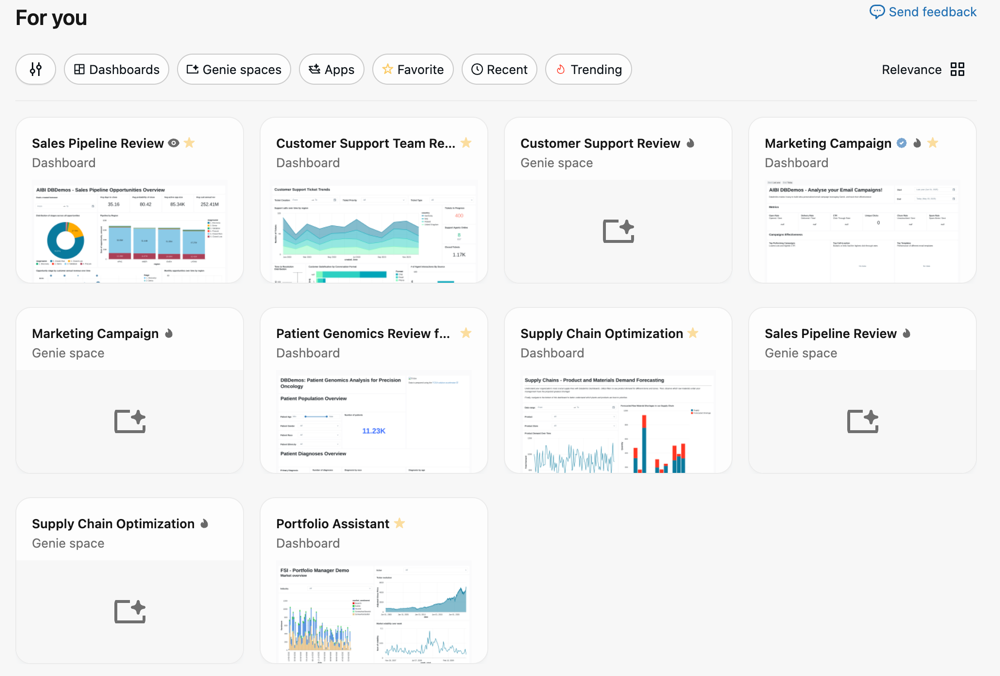
The For you section on the Genie One home page shows personalized asset recommendations based on your activity and the activity of other users in your workspace, including:
- Recently opened: Assets you have opened recently.
- Favorites: Assets you have marked with a star.
- Recently shared: Assets that have been shared with you recently.
- Trending: Assets that are popular among similar users in the workspace.
Open and work with assets
Click an asset to open it. What you can do with it depends on your permissions and on the type of asset.
Open assets
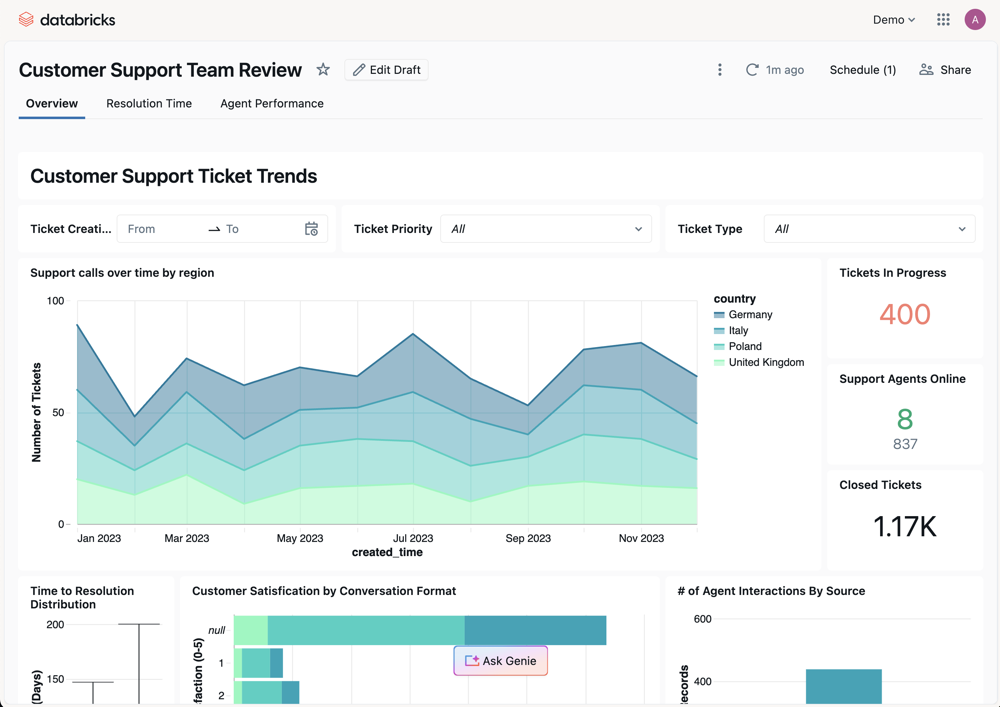
When you click an asset, it opens in the familiar experience for that object (for example, a dashboard).
- If you have viewing rights only, the asset opens within Genie One.
- If you have authoring privileges, click Edit draft to edit the asset in the Analytics and AI workspace UI.
This applies to Genie Agents as well. If you have viewing rights only, a Genie Agent opens as a chat within Genie One. If you have authoring privileges, click Edit draft to edit the agent in the Analytics and AI workspace UI.
Open tables
You can open Unity Catalog tables directly in Genie without navigating to Catalog Explorer. How a table opens depends on where you open it from:
- From chat: Opening a table from a chat conversation keeps you in the conversation. The table opens next to your chat, where you can view its overview details, columns, and sample data.
- From Discover: Opening a table from Discover shows a full-page, catalog-style view optimized for Genie.
When you open a table from Discover, you can also:
- Ask Genie: Click Ask Genie to start a chat about the table.
- Request access: If you have browse access only, request access to the table from the table view.