Scheduled tasks in Genie One
Scheduled tasks run automatically at a specified time and post the results in a chat thread. When a task runs, chat sends you an email with the results, including any visualizations, and a PDF attachment of the task's output.
Create a scheduled task
You can create a scheduled task in chat or manually.
To create a scheduled task in chat, type a request in natural language, for example: "Send me a daily briefing of all new customer reviews for my store location." Chat might ask clarifying questions, such as the time or which location to use, then creates the task and adds it to the Schedules section.
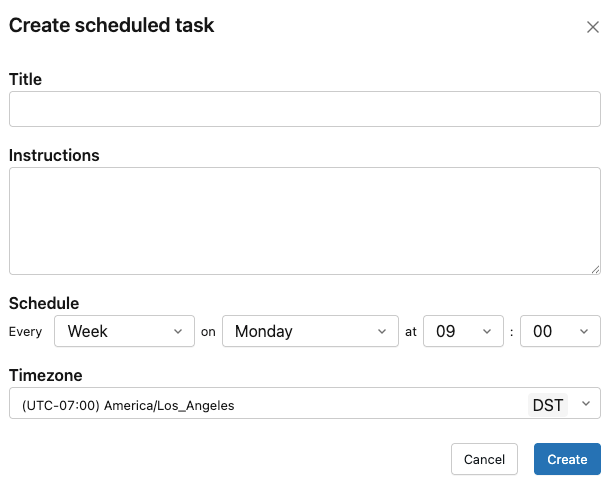
To create a scheduled task manually:
-
In the sidebar, click Schedules, then click the drop-down menu next to + Create in chat and select Create manually.

-
Fill in the Title, Instructions, Connections, Schedule, and Timezone, then click Create.
Manage scheduled tasks
After you create a scheduled task, you can review its runs, edit it, run it on demand, and reference it in chat.
- View, edit, or delete: Click the task in the Schedules section. Each run opens in a chat thread.
- Run immediately: When you author a scheduled task, select Run now to run it without waiting for the next scheduled time.
- Reference in chat: @mention the task in a new request.