Troubleshoot managed ingestion pipelines
This page describes common issues with managed ingestion pipelines in Databricks Lakeflow Connect and how to resolve them. For connector-specific troubleshooting, see the documentation for your connector.
General pipeline troubleshooting
If a pipeline run fails, click the step that failed and confirm whether the error message provides sufficient information about the nature of the error.
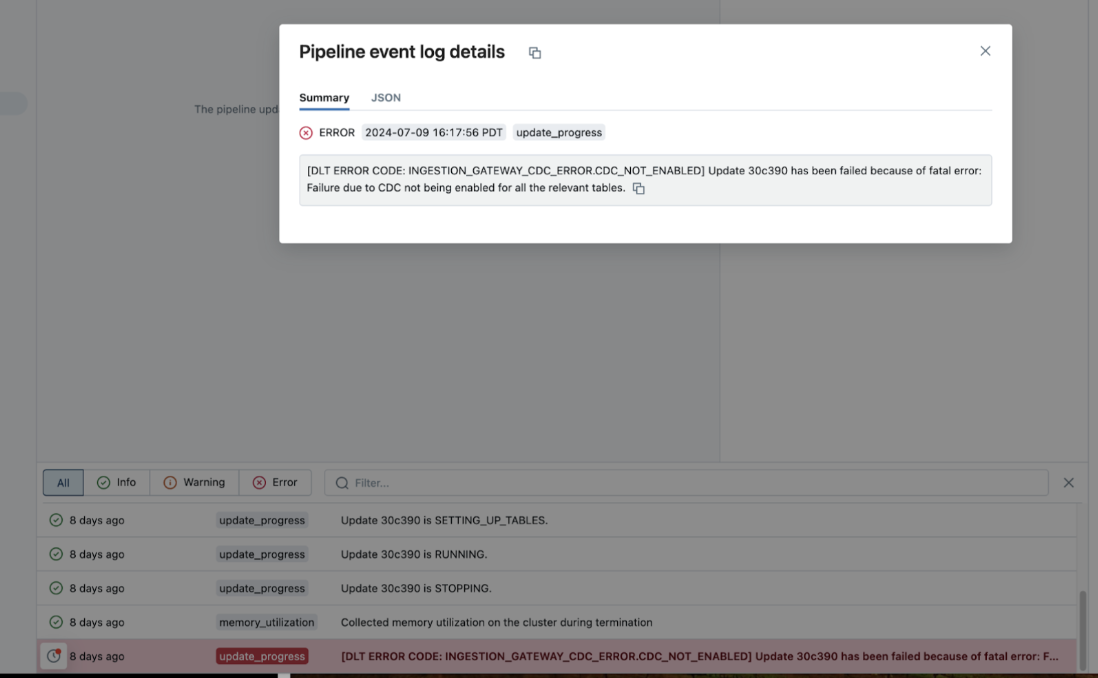
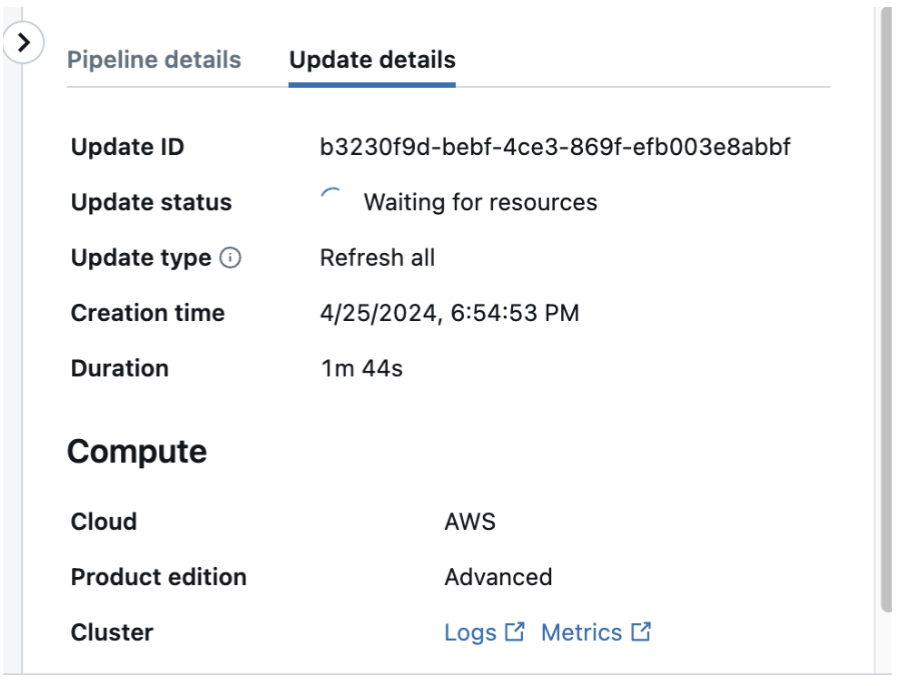
You can also check and download the cluster logs from the pipeline details page by clicking Update details in the right panel, then clicking Logs. Scan the logs for errors or exceptions.
Pipeline does not resume after undropping a streaming table
Using UNDROP TABLE to restore a destination streaming table recovers its metadata and retained data. However, restoring the table does not guarantee that the managed ingestion pipeline can resume from its previous source position. For some connectors, the required source offset might no longer be available.
After restoring a streaming table, run the pipeline and verify that it completes successfully. If the pipeline cannot resume, you might need to fully refresh the affected target tables. A full refresh resets the restored table state and reprocesses records from the source. Confirm that the source retains all required historical data before starting a full refresh.
Column selection using Declarative Automation Bundles
Issue: You're unable to use the column selection feature when you create a managed ingestion pipeline using Declarative Automation Bundles.
Resolution: Check your Databricks CLI version. If the version is below v0.251.0, reinstall the CLI.
I can't edit my pipeline in the UI
Pipelines created or updated using Declarative Automation Bundles or the Databricks CLI might include configuration fields that are not supported in the ingestion wizard. When you try to edit a pipeline with any of these fields in the wizard, a warning indicates that visual mode is not available for the pipeline. To edit these pipelines in the UI, use code editor mode instead.
To switch modes, use the buttons at the top of the pipeline editor (Wizard, YAML, JSON).
If your pipeline is managed by a Declarative Automation Bundles bundle, edit the pipeline definition file in your bundle directly. Edits made in the UI are overwritten the next time you run bundle deploy.
CANNOT_WRITE_TO_INACTIVE_TABLES
CANNOT_WRITE_TO_INACTIVE_TABLES: Table 'XYZ' is marked as inactive and cannot be written to.
This error occurs when a pipeline tries to write to a destination table that has been marked inactive. A table becomes inactive when the corresponding source table is deleted. For more context on how inactive tables work, see Managed connector FAQs.
To resolve this:
- If you want to resume ingesting from the source table (for example, it was recreated), run a full refresh of the affected table.
- If the source table was intentionally deleted, drop the inactive destination table and remove it from the pipeline.