Schedule notebook jobs on AI Runtime
After you develop a notebook interactively on AI Runtime, you can run the same notebook on serverless GPU compute as a recurring job. Create the schedule from the notebook or from the Jobs & Pipelines UI, or define the job in code with the Jobs API or Declarative Automation Bundles.
To run training code from a directory instead of a notebook, or to build multi-task GPU and CPU pipelines, see Schedule GPU workloads and compose tasks. For scheduling options that apply to all notebooks, see Create and manage scheduled notebook jobs.
Requirements
- A notebook that runs on AI Runtime. See AI Runtime Notebook quickstart.
- To run a scheduled job with a workspace base environment, such as the Databricks AI environment, a workspace admin must turn on the Serverless workspace base environment support in Jobs preview. See Manage Databricks previews.
Scheduled AI Runtime jobs don't support adding dependencies through the Environments panel. Install dependencies in the notebook instead, for example with %pip install. Notebook jobs can run for up to two days, so checkpoint long training runs to Unity Catalog volumes and restart from the latest checkpoint. See the AI Runtime limitations and Checkpoint with Distributed Checkpoint (DCP).
Schedule from the notebook
- Open the notebook that you want to run on a schedule.
- Click
 Schedule in the upper-right corner of the notebook.
- If the notebook already has jobs, click Add schedule.
- In the New schedule dialog, enter a Job name, set the Schedule, and select Serverless GPU for Compute.
- Click Create.
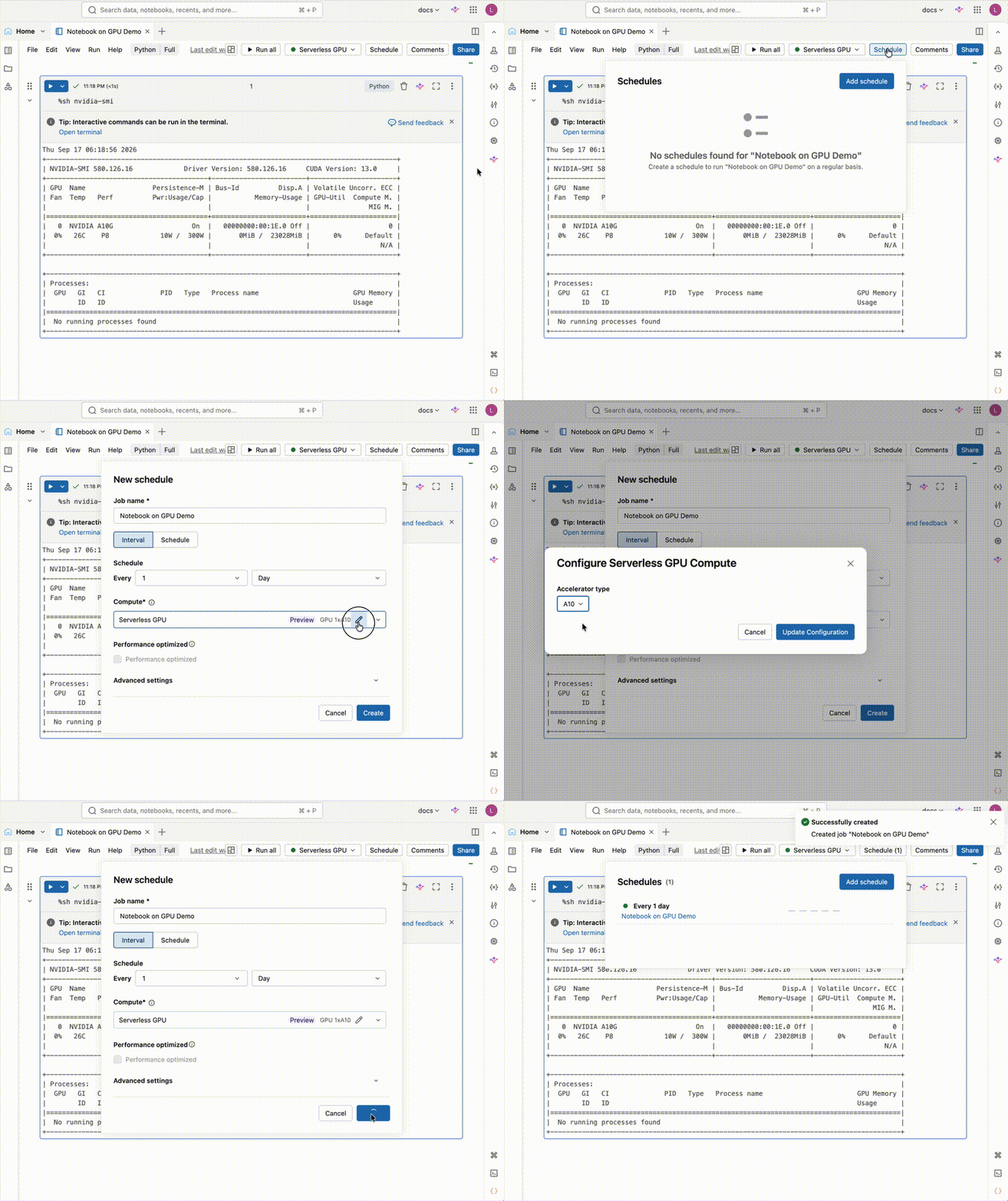
Schedule from the Jobs & Pipelines UI
You can also create and schedule the job from the Jobs & Pipelines UI. For step-by-step instructions, see Configure and edit Lakeflow Jobs.

Define the job with the Jobs API or Declarative Automation Bundles
To automate deployment, define the notebook job with the Jobs API or Declarative Automation Bundles. Select the GPU type with hardware_accelerator in the task's compute block. For valid values, see Add tasks to jobs in Declarative Automation Bundles.
The following Declarative Automation Bundles configuration runs a notebook daily on 8xH100 GPUs with the Standard environment:
resources:
  jobs:
    sample_job:
      name: sample_job_h100

      trigger:
        periodic:
          interval: 1
          unit: DAYS

      environments:
        - environment_key: default
          spec:
            environment_version: '6'

      tasks:
        - task_key: notebook_task
          notebook_task:
            notebook_path: /Workspace/Users/<username>/<notebook-name>
          environment_key: default
          compute:
            hardware_accelerator: GPU_8xH100
Use the Databricks AI environment
Running a scheduled job that uses a workspace base environment, including the Databricks AI environment, is in Beta.
To use the Databricks AI environment instead of the Standard environment, set base_environment to an AI environment identifier, such as databricks_ai_v6, in the environment spec. Then reference that environment from the task's environment_key:
resources:
  jobs:
    sample_job:
      name: sample_job_aiv6_h100

      trigger:
        periodic:
          interval: 1
          unit: DAYS

      environments:
        - environment_key: aiv6
          spec:
            base_environment: databricks_ai_v6

      tasks:
        - task_key: notebook_task
          notebook_task:
            notebook_path: /Workspace/Users/<username>/<notebook-name>
          environment_key: aiv6
          compute:
            hardware_accelerator: GPU_8xH100