Create a Marketplace listing
This page describes how to create shares and Databricks Marketplace listings for your data products.
Prerequisites
You or your Databricks administrator has completed the Databricks Marketplace provider setup process:
- Sign up to become a Databricks Marketplace provider, public or private
- Create a Marketplace provider profile
- Have the Marketplace admin role assigned to you
For more information, see Become a Databricks Marketplace provider.
Create shares
To list a data product that is free and instantly available to consumers, you must include a share when you create the listing. Listings that require you to approve a consumer request, on the other hand, don't require that you include a share in the listing. You can create the share later, after any business agreements are complete and you've approved the consumer's request. If that's what you want to do, skip ahead to Create a listing.
After you have a Databricks account enabled for OpenSharing and a Databricks workspace enabled for Unity Catalog, you can create the shares that you use to share your data in the Marketplace.
A share is an OpenSharing object. It's a collection of tables, views, volumes, and AI models that are shareable and securable as a unit. Tables can be shared with any consumer. Volumes, AI models, and notebooks can only be shared with consumers who have access to a Databricks workspace that is enabled for Unity Catalog.
-
Add data tables, views, or volumes to your Unity Catalog metastore.
To learn how to create these data assets in Unity Catalog, see:
-
Create a share and add these data assets to the share.
To learn how to create and update shares, including permissions required, see Create shares for OpenSharing.
After your share is created, you can create or update a Marketplace listing that references it.
Notebook example: Sample notebook
In addition to tables, volumes, and views, Databricks recommends sharing Databricks notebooks. Notebooks can help demonstrate example use cases and visualize table properties. Your listing can include sample notebook previews that consumers can import into their workspaces.
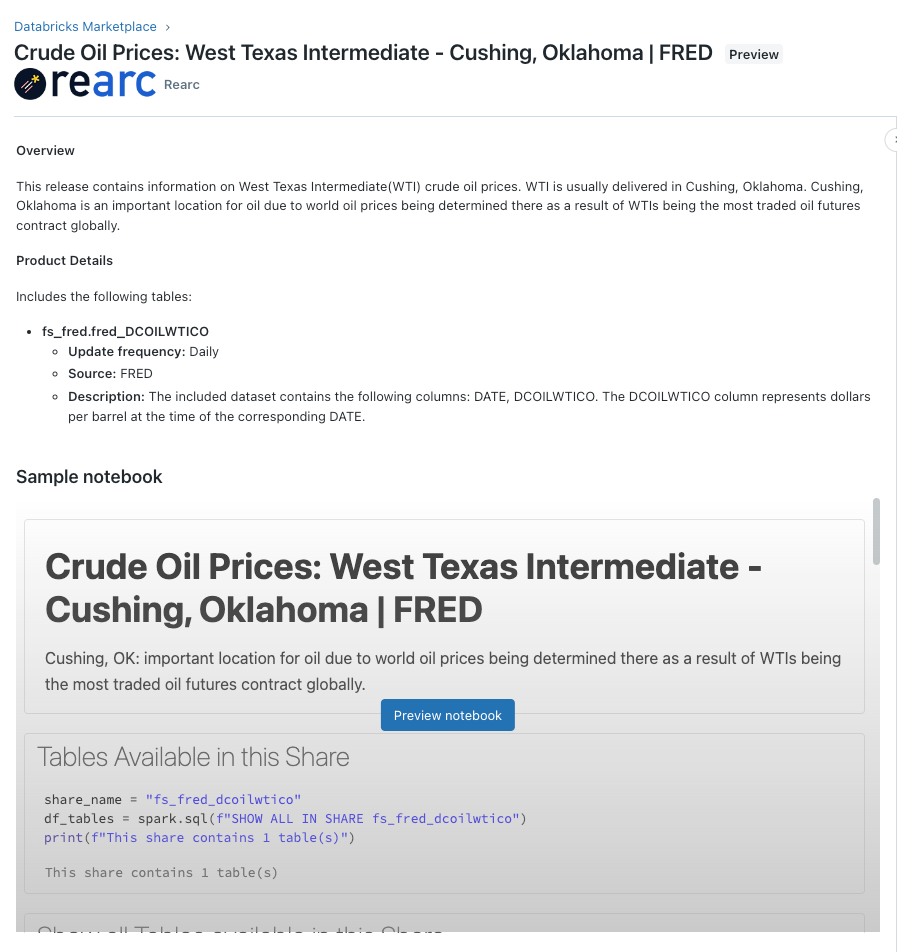
For more information about creating notebooks, see Databricks notebooks. If you need help creating an effective sample notebook, contact dataproviders@databricks.com.
The Sample notebooks display and preview in the listings UI do not work in Chrome Incognito mode.
The following example shows how to create an effective sample notebook. It includes guidance for creating sample notebooks for your listings.
Marketplace starter notebook for data providers
Share data products from storage behind a firewall
If the cloud storage backing your data product is protected by a storage firewall or is reachable only through a private endpoint, use OpenSharing SecureConnect so that consumers can access your data without you allowlisting each consumer's network. Because Databricks Marketplace is built on OpenSharing, no Marketplace-specific configuration is required: set up SecureConnect on the provider metastore that hosts your shares, and your listings work normally.
To make your data products available through SecureConnect:
- Enable SecureConnect on the provider metastore that hosts your shares. Databricks Marketplace creates a recipient for each consumer when they gain access to a listing, so enabling SecureConnect at the metastore level applies it automatically to recipients created afterward. See Step 2: Enable SecureConnect on a metastore. For a consumer who accessed the listing before you turned on the setting, enable SecureConnect on that existing recipient separately. See Step 3: Enable SecureConnect for individual recipients.
- Configure your storage firewall, or private connectivity through a network connectivity configuration (NCC), to allow access from the Databricks serverless data plane. See Step 1: Configure your storage firewall.
Standard SecureConnect support and limitations apply. For the full feature support matrix and limitations, see Share data behind a firewall with SecureConnect. Consumers who access your listing from third-party platforms can follow the recipient guidance in OpenSharing recipient firewall configuration for SecureConnect.
Create a listing
Marketplace listings enable consumers to browse, select, and access your data products. All dataset listings are automatically shareable with both consumers on Databricks workspaces and consumers on third-party platforms like Power BI, pandas, and Apache Spark.
Some data assets, like Unity Catalog volumes, can only be shared with consumers who have access to a Unity Catalog-enabled Databricks workspace. Tables, however, are shareable with all consumers. If you include both tables and volumes in a share, consumers who don't have access to a Unity Catalog-enabled workspace can only access the tabular data.
Permissions required: Marketplace admin role. If you are creating and managing personalized listings (those that require provider approval before they're fulfilled), you must also have the CREATE RECIPIENT and USE RECIPIENT privileges. See Unity Catalog privileges reference.
To create a listing:
- Log in to your Databricks workspace.
- In the sidebar, click
 Marketplace.
 - In the upper-right corner of the Marketplace page, click Provider console.
- On the Provider console page Listings tab, click Create listing.
- On the New listing page, enter your listing information. Each page in the listing wizard is described in Fill out listing fields and options.
Fill out listing fields and options
The listing wizard guides you through publishing a Marketplace listing. This section describes the fields and options on each page, along with recommendations for creating an effective listing. During each step, you can save your progress as a draft and view a preview before you publish.
After you fill out all the fields, click Publish.
Step 1: General
Specify the basic information about your listing, such as the name and the provider profile to publish the listing under.
Field name | Description |
|---|---|
Listing name | Each listing should have a unique name that helps consumers understand what it offers. Recommendations:
|
Provider profile | Your organization or company name. Select from the drop-down menu. Databricks creates your profile as part of the partner organization approval process. |
How can consumers access data assets in the listing? | This field cannot be changed after the listing is saved as a draft or published. Choose how your consumers gain access to the listing:
|
Publish to | Choose one of the following:
|
Step 2: Data assets
Select which types of data assets to include in your listing.
Field name | Description |
|---|---|
Tables | Include structured tabular data from your share. |
Files | Volumes that contain a variety of data, such as images, audio, video, and more. |
Models | AI models that consumers can deploy for inference. |
Notebooks | Interactive notebooks for data science and machine learning workflows. For more information, see Notebook example: Sample notebook. |
MCP server | Model Context Protocol (MCP) servers are tools and APIs that agents can use to interact with external systems. Only other users using Databricks can install MCP servers listed on the Marketplace. For more details on the setup process, see MCP server listing fields. When you select this option, fill in the required fields, and advance to the next step, the listing is saved automatically. |
Select share | If you selected to include tables, files, models, or notebooks in your listing, select the share that contains the data assets for your listing. You can create a new share if needed. For more information, see Create shares. |
Step 3: Attributes
Add attributes and categories to make your listing more discoverable.
Field name | Description |
|---|---|
Categories | Select the categories that consumers can use to filter listings. Categories also appear as tags on listing tiles and detail pages. |
Update frequency (optional) | Specify how often the data asset in your listing is updated on Databricks. |
Advanced attributes | Advanced data attributes are optional. They include fields such as geographic coverage, collection granularity, and time range. Adding attributes helps consumers understand more about your data product. Select as many attributes as you like. |
Step 4: Details
Provide a short description and a detailed description to help consumers understand what data assets are included in your listing. You can also add resources such as sample notebooks, documentation links, and policy URLs.
Field name | Description |
|---|---|
Short description | A short, informative explanation of the dataset that expands on the listing name. This field appears in listing tiles and consumer search results. Recommendations:
|
Description | The detailed description of your data should include a summary of the data and assets being offered in the listing. Basic rich text formatting is supported (that is, bold, italics, bullets, and numbered lists), using Markdown syntax. Recommendations:
|
Add notebook | Databricks recommends that you share sample notebooks to demonstrate how best to use the data and to increase listing downloads. Add up to 10 notebooks. For more information about creating notebooks, see Notebook example: Sample notebook and Databricks notebooks. Clicking Add notebook automatically saves the listing. |
Documentation | A URL that links to documentation that can help consumers use or understand your dataset (for example, a dataset dictionary). |
Privacy policy | A URL that links to your privacy policy. The privacy policy must be publicly accessible and require no login. |
License | A URL that links to your license. |
Terms of service | A URL that links to your terms of service for the appropriate use of the shared data assets. Terms of service must be publicly accessible and require no login. |
MCP server listing fields
Model Context Protocol (MCP) servers are tools and APIs that agents can use to interact with external systems. You can list MCP servers under the "AI" product category in Marketplace to make them discoverable to AI engineers who are building agents.
When creating an MCP server listing, complete the same basic listing fields as for dataset listings, plus the following MCP-specific fields:
Field name | Description |
|---|---|
Authentication type | Specify the authentication method your MCP server requires:
|
Host | The hostname or domain where your MCP server is accessible. |
Port | The network port number that your MCP server listens on. |
Base path (Optional) | The URL path prefix for your MCP server's API endpoints. Leave blank if your MCP server is hosted at the root path. |
Tag (Optional) | A version identifier or release tag for your MCP server. |
Token endpoint (OAuth User to Machine Per User and OAuth Machine to Machine only) | The OAuth 2.0 authorization server endpoint used to obtain access tokens. |
Authorization endpoint (OAuth User to Machine Per User only) | The OAuth 2.0 authorization server endpoint used to get authorization codes. Consumers are redirected to this endpoint to authenticate and authorize access to your MCP server. |
OAuth scope (OAuth authentication types only, optional) | The OAuth 2.0 permissions scope that defines what resources and operations consumers can access. |
OAuth credential exchange method (OAuth User to Machine Per User only) | How OAuth 2.0 credentials are exchanged. |
For Dynamic Client Registration, don't specify token or authorization endpoints. Your external MCP server must support OAuth 2.0 Dynamic Client Registration and expose OAuth metadata endpoints for automatic discovery. Consumers don't enter a client ID or client secret during installation. Each user authorizes access after installation using the MCP Service page. For more information about Dynamic Client Registration, see Create a connection to the external service.
Analyze consumer activity using system tables (Public Preview) and dashboards
If you have system tables enabled in your account, you can use the Marketplace system tables to analyze consumer activity on your listings. For more information, see Marketplace system tables reference.
You can also use the Provider Analytics Dashboard to monitor listing views, requests, and installs. The dashboard pulls data from the system tables. See Monitor listing usage metrics using dashboards.
Resource quotas
Unity Catalog enforces resource quotas on all securable objects, including Marketplace listings per metastore and providers per account. These quotas are listed in Resource limits. If you expect to exceed these resource limits, contact your Databricks account team.
You can monitor your quota usage using the Unity Catalog resource quotas APIs. See Monitor your usage of Unity Catalog resource quotas.