Create Postgres roles
When you create a project, Lakebase creates several Postgres roles in the project:
- A Postgres role for the project owner's Databricks identity (for example,
user@databricks.com), which owns the defaultdatabricks_postgresdatabase - A
databricks_superuseradministrative role
Both of these roles are visible in the Roles & Databases tab when you first open your project.
The databricks_postgres database is created so you can connect and try out Lakebase immediately after project creation.
Several system-managed roles are also created. These are internal roles used by Databricks services for management, monitoring, and data operations.
Postgres roles control database access (who can query data). For project permissions (who can manage infrastructure), see Project permissions. For a tutorial on setting up both, see Tutorial: Grant project and database access to a new user.
See Pre-created roles and System roles.
Create Postgres roles
Lakebase supports two types of Postgres roles for database access:
- OAuth roles for Databricks identities: Create these using the Lakebase UI, the
databricks_authextension with SQL, or the Python SDK and REST API. Enables Databricks identities (users, service principals, and groups) to connect using OAuth tokens. - Native Postgres password roles: Create these using the Lakebase UI, SQL, or the Python SDK and REST API. Use any valid role name with password authentication.
For guidance on choosing the type of role to use, see Authentication overview. Each is designed for different use cases.
Create an OAuth role for Databricks identities
To allow Databricks identities (users, service principals, or groups) to connect using OAuth tokens, create an OAuth role using the Lakebase UI, the databricks_auth extension with SQL, or the REST API.
For detailed instructions on obtaining OAuth tokens, see Obtain an OAuth token in a user-to-machine flow and Obtain an OAuth token in a machine-to-machine flow.
- UI
- SQL
- Python SDK
- CLI
- curl
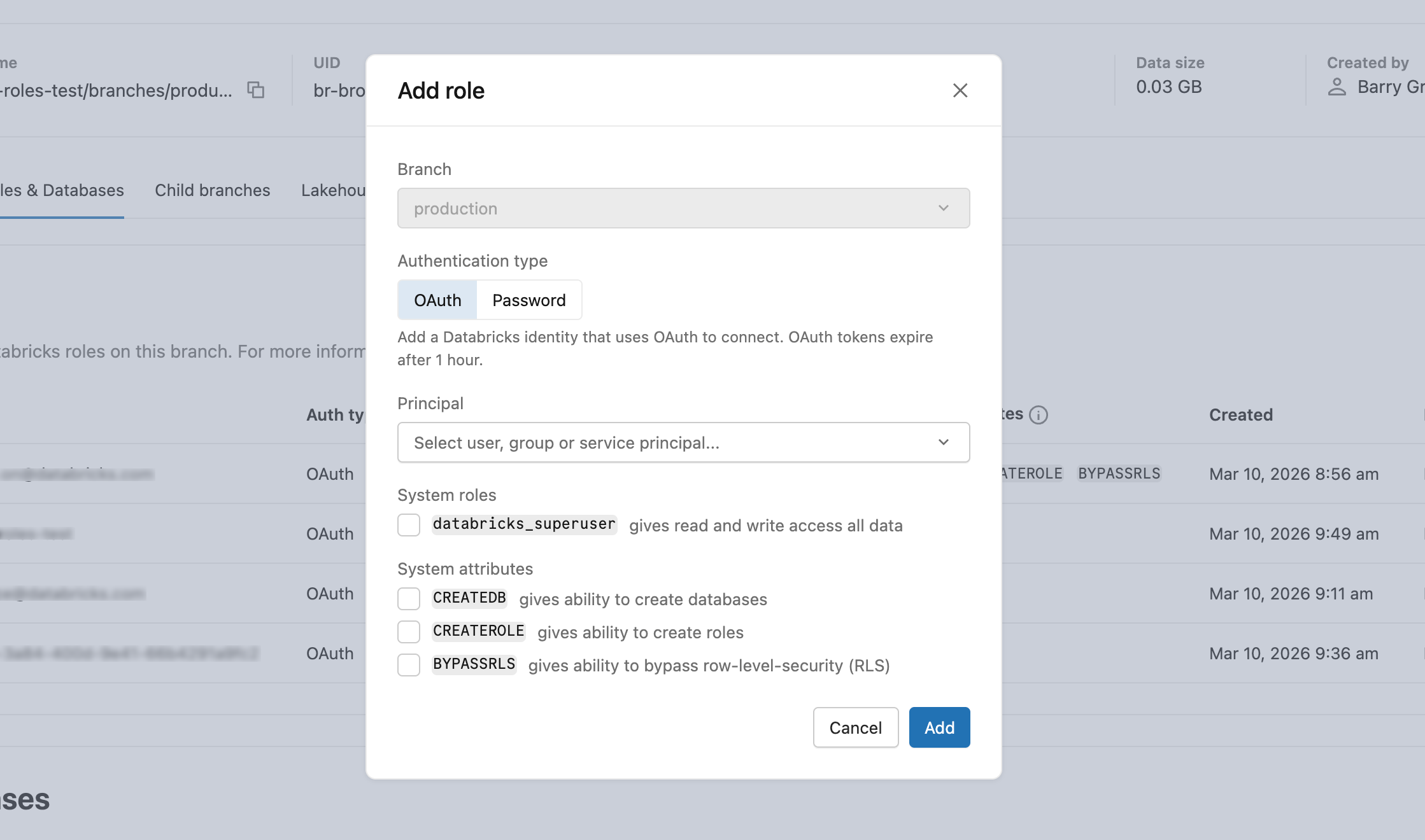
- In Roles & Databases > Add role > OAuth tab, select the user, Databricks service principal, or group to grant database access to.
- After creating the role, grant appropriate database privileges. Learn how: Manage permissions
Prerequisites:
- You must have
CREATEandCREATE ROLEpermissions on the database - You must be authenticated as a Databricks identity with a valid OAuth token
- Native Postgres authenticated sessions cannot create OAuth roles
-
Create the
databricks_authextension. Each Postgres database must have its own extension.SQLCREATE EXTENSION IF NOT EXISTS databricks_auth; -
Use the
databricks_create_rolefunction to create a Postgres role for the Databricks identity:SQLSELECT databricks_create_role('identity_name', 'identity_type');For a Databricks user:
SQLSELECT databricks_create_role('myuser@databricks.com', 'USER');For a Databricks Databricks service principal:
SQLSELECT databricks_create_role('8c01cfb1-62c9-4a09-88a8-e195f4b01b08', 'SERVICE_PRINCIPAL');For a Databricks group:
SQLSELECT databricks_create_role('My Group Name', 'GROUP');The group name is case-sensitive and must match exactly as it appears in your Databricks workspace. When you create a Postgres role for a group, any direct or indirect member (user or Databricks service principal) of that Databricks group can authenticate to Postgres as the group role using their individual OAuth token. This group-level permission model lets you manage permissions in Postgres instead of maintaining permissions for individual users.
-
Grant database permissions to the newly created role.
The databricks_create_role() function creates a Postgres role with LOGIN permission only. After creating the role, you must grant the appropriate database privileges and permissions on the specific databases, schemas, or tables the user needs to access. Learn how: Manage permissions
Set identity_type to USER, SERVICE_PRINCIPAL, or GROUP. Set postgres_role to the identity's email address, application ID (UUID), or group display name respectively. This value becomes the Postgres role name and is what you use in connection strings and GRANT statements.
from databricks.sdk import WorkspaceClient
from databricks.sdk.service.postgres import Role, RoleIdentityType, RoleRoleSpec

w = WorkspaceClient()

operation = w.postgres.create_role(
    parent="projects/my-project/branches/production",
    role=Role(
        spec=RoleRoleSpec(
            identity_type=RoleIdentityType.USER,
            postgres_role="user@example.com"
        )
    )
)
role = operation.wait()
print(f"Created role: {role.name}")
After creating the role, grant appropriate database privileges. Learn how: Manage permissions
Set identity_type to USER, SERVICE_PRINCIPAL, or GROUP. Set postgres_role to the identity's email address, application ID (UUID), or group display name respectively. This value becomes the Postgres role name and is what you use in connection strings and GRANT statements.
For a Databricks user:
databricks postgres create-role projects/my-project/branches/production \
  --role-id my-user-role \
  --json '{"spec": {"identity_type": "USER", "postgres_role": "user@example.com"}}'
For a Databricks Databricks service principal:
databricks postgres create-role projects/my-project/branches/production \
  --role-id my-sp-role \
  --json '{"spec": {"identity_type": "SERVICE_PRINCIPAL", "postgres_role": "8c01cfb1-62c9-4a09-88a8-e195f4b01b08"}}'
For a Databricks group:
databricks postgres create-role projects/my-project/branches/production \
  --role-id my-group-role \
  --json '{"spec": {"identity_type": "GROUP", "postgres_role": "My Group Name"}}'
The command waits for the operation to complete and returns the created role. Use --no-wait to return immediately and poll separately with databricks postgres get-operation.
After creating the role, grant appropriate database privileges. Learn how: Manage permissions
Set identity_type to USER, SERVICE_PRINCIPAL, or GROUP. Set postgres_role to the identity's email address, application ID (UUID), or group display name respectively. This value becomes the Postgres role name and is what you use in connection strings and GRANT statements.
curl -X POST "$WORKSPACE/api/2.0/postgres/projects/my-project/branches/production/roles" \
  -H "Authorization: Bearer ${DATABRICKS_TOKEN}" \
  -H "Content-Type: application/json" \
  -d '{
    "spec": {
      "identity_type": "USER",
      "postgres_role": "user@example.com"
    }
  }' | jq
The endpoint returns a long-running operation. Poll until done is true, then use the role's name field for subsequent API calls. See Long-running operations.
After creating the role, grant appropriate database privileges. Learn how: Manage permissions
Group-based authentication
When you create a Postgres role for a Databricks group, you enable group-based authentication. This allows any member of the Databricks group to authenticate to Postgres using the group's role, simplifying permission management.
How it works:
- Create a Postgres role for a Databricks group.
- Grant database permissions to the group role in Postgres. See Manage permissions.
- Any direct or indirect member (user or Databricks service principal) of the Databricks group can connect to Postgres using their individual OAuth token.
- When connecting, the member authenticates as the group role and inherits all permissions you granted to that role.
Authentication flow:
When a group member connects, they specify the group's Postgres role name as the username and their own OAuth token as the password:
export PGPASSWORD='<OAuth token of a group member>'
export GROUP_ROLE_NAME='<pg-case-sensitive-group-role-name>'

psql -h $HOSTNAME -p 5432 -d databricks_postgres -U $GROUP_ROLE_NAME
Important considerations:
- Group membership validation: Group membership is validated only at authentication time. If a member is removed from the Databricks group after establishing a connection, the connection remains active. New connection attempts from removed members are rejected.
- Workspace scoping: Only groups assigned to the same Databricks workspace as the project are supported for group-based authentication. To learn how to assign groups to a workspace, see Manage groups.
- Case sensitivity: The group name used in
databricks_create_role()must match the group name exactly as it appears in your Databricks workspace, including case. - Permission management: Managing permissions at the group level in Postgres is more efficient than managing individual user permissions. When you grant permissions to the group role, all current and future group members inherit those permissions automatically.
- Identity renaming: If a user's email or group display name changes in Databricks, authentication and existing database grants break. Drop the old role, create a new one with the updated name, and update connection strings and grants.
Role names cannot exceed 63 characters, and some names are not permitted. Learn more: Manage roles
Create a native Postgres password role
Password connections can be disabled at the project or compute level. See Block password connections.
- UI
- SQL
- Python SDK
- CLI
- curl
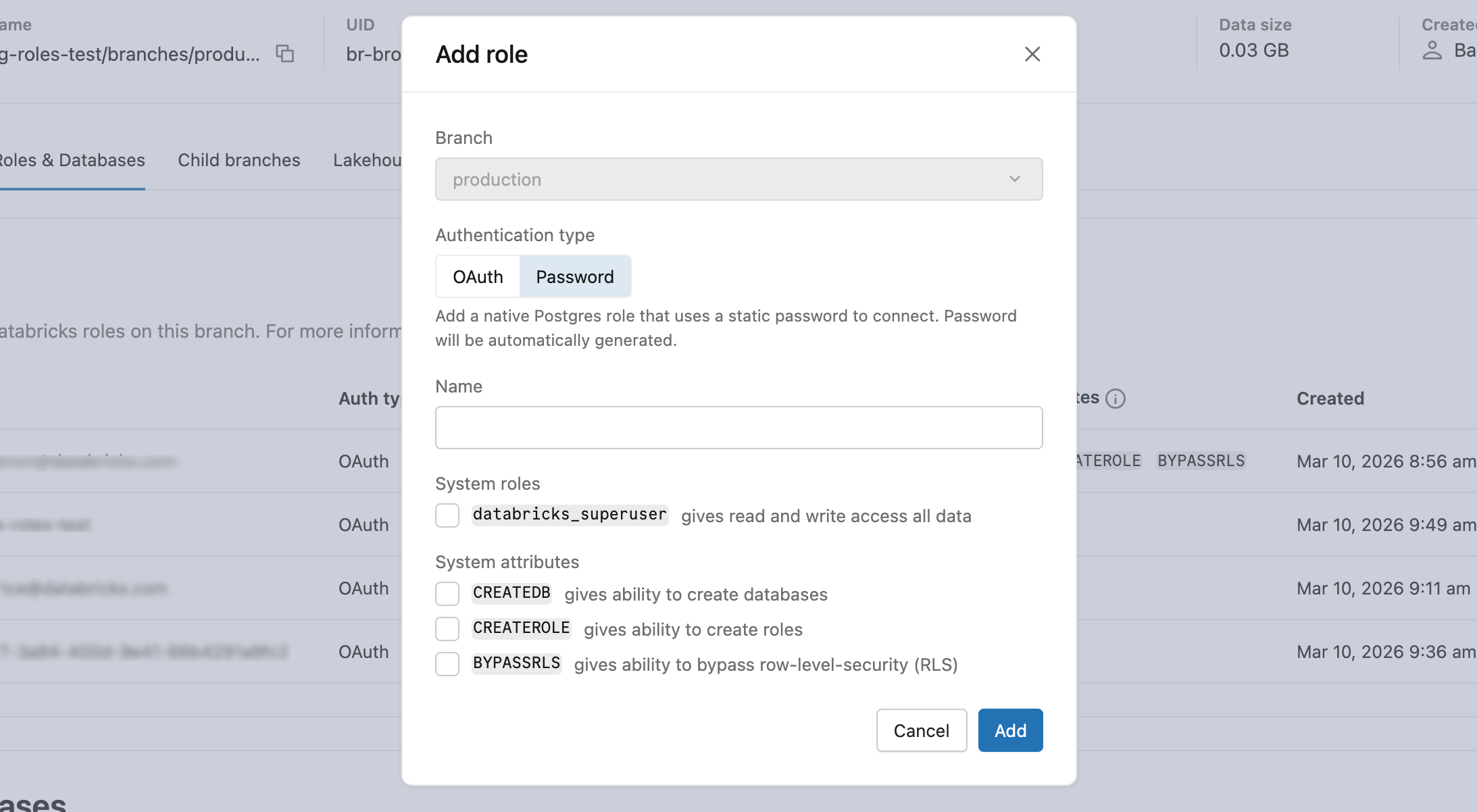
- In Roles & Databases > Add role > Password tab, enter a role name and optionally grant
databricks_superuseror system attributes (CREATEDB,CREATEROLE,BYPASSRLS). - Copy the generated password and provide it securely to the user. It is not shown again.
CREATE ROLE role_name WITH LOGIN PASSWORD 'your_secure_password';
The password must have at least 12 characters with a mix of lowercase, uppercase, number, and symbol characters. User-defined passwords are validated at creation time to verify 60-bit entropy.
Omit identity_type to create a password role. The create_role operation returns a Role object with no password field. The SDK does not return the generated password. To obtain a usable password, see How to obtain a password.
from databricks.sdk import WorkspaceClient
from databricks.sdk.service.postgres import Role, RoleRoleSpec

w = WorkspaceClient()

operation = w.postgres.create_role(
    parent="projects/my-project/branches/production",
    role=Role(
        spec=RoleRoleSpec(
            postgres_role="my-app-role"
        )
    )
)
role = operation.wait()
print(f"Created role: {role.name}")
Omit identity_type to create a password role. The command returns a Role object with no password field. The CLI does not return the generated password. To obtain a usable password, see How to obtain a password.
databricks postgres create-role projects/my-project/branches/production \
  --role-id my-app-role \
  --json '{"spec": {"postgres_role": "my-app-role"}}'
The command waits for the operation to complete and returns the created role.
Omit identity_type to create a password role. The endpoint returns a long-running operation. Poll until done is true. The operation result is a Role object with no password field. The API does not return the generated password. To obtain a usable password, see How to obtain a password.
curl -X POST "$WORKSPACE/api/2.0/postgres/projects/my-project/branches/production/roles" \
  -H "Authorization: Bearer ${DATABRICKS_TOKEN}" \
  -H "Content-Type: application/json" \
  -d '{
    "spec": {
      "postgres_role": "my-app-role"
    }
  }' | jq
Native Postgres password roles support the built-in connection pooler. See Use connection pooling.
How to obtain a password
The Python SDK, REST API, and CLI create-role operations do not return the generated password. Use one of the following methods to obtain a password for a native Postgres password role:
- Set your own password at creation time with SQL: Run
CREATE ROLE role_name WITH LOGIN PASSWORD 'your_secure_password';on an OAuth SQL connection. This requires theCREATEROLEprivilege. See the SQL tab under Create a native Postgres password role. - Reset the password in the UI: For a role created with the Python SDK, REST API, CLI, or Terraform, use the Reset password flow in the Lakebase App to generate a new password. See Reset a password.
Roles created with the Python SDK, REST API, or Terraform are owned by an internal control-plane role. Customer principals cannot change these roles' passwords with SQL, because Postgres 16 requires the ADMIN option on the role to alter its password. Use the UI Reset password flow instead.
How native password roles are stored
However you create a native Postgres password role, its password is never stored in plaintext. The compute node's Postgres core stores a SCRAM-SHA-256 verifier, computed server-side (the compute default is password_encryption = scram-sha-256). When Lakebase generates the password for you (the UI, Python SDK, REST API, and CLI paths), the control plane also retains a KMS-encrypted copy of the credential, which is what lets the UI display or reset the password later. Passwords you set with SQL aren't retained this way: only the verifier is stored.
- UI: Databricks generates the password server-side, computes the verifier, and displays the generated password once. Copy it then, because it isn't shown again.
- Python SDK, REST API, and CLI: Databricks generates the password server-side and computes the verifier, but does not return the password in the response. To obtain a usable password, use SQL at create time or the UI Reset password flow. See How to obtain a password. These paths don't accept a password you supply.
- SQL: when you run
CREATE ROLE role_name WITH LOGIN PASSWORD 'your_secure_password';(orpsql's\password), you provide the plaintext and the server hashes it into the verifier.
You never need to hash a password yourself.
View Postgres roles
- UI
- PostgreSQL
- Python SDK
- CLI
- curl
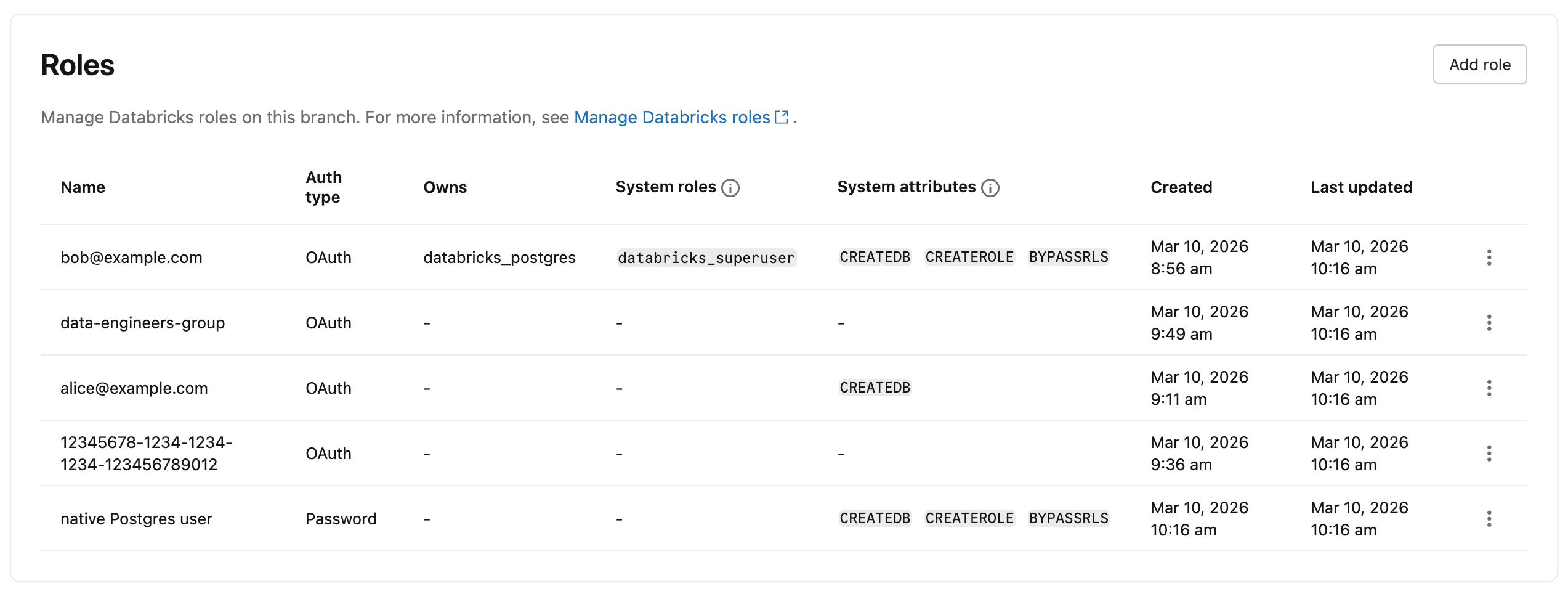
To view all Postgres roles in your project, navigate to your branch's Roles & Databases tab in the Lakebase App. All roles created in the branch, with the exception of System roles, are listed. The Auth type column indicates whether each role uses OAuth or Password authentication.
View all roles with \du command:
You can view all Postgres roles, including system roles, using the \du meta-command from any Postgres client (such as psql) or the Lakebase SQL editor:
\du
                                      List of roles
          Role name          |                         Attributes
-----------------------------+------------------------------------------------------------
 cloud_admin                 | Superuser, Create role, Create DB, Replication, Bypass RLS
 my.user@databricks.com      | Create role, Create DB, Bypass RLS
 databricks_control_plane    | Superuser
 databricks_gateway          |
 databricks_monitor          |
 databricks_reader_12345     | Create role, Create DB, Replication, Bypass RLS
 databricks_replicator       | Replication
 databricks_superuser        | Create role, Create DB, Cannot login, Bypass RLS
 databricks_writer_12345     | Create role, Create DB, Replication, Bypass RLS
List all roles:
from databricks.sdk import WorkspaceClient

w = WorkspaceClient()

roles = w.postgres.list_roles(parent="projects/my-project/branches/production")
for role in roles:
    print(f"{role.status.postgres_role} ({role.status.identity_type or 'PASSWORD'}): {role.name}")
Get a specific role:
role = w.postgres.get_role(
    name="projects/my-project/branches/production/roles/rol-xxxx-xxxxxxxxxx"
)
print(role)
List all roles:
databricks postgres list-roles projects/my-project/branches/production
Get a specific role:
databricks postgres get-role projects/my-project/branches/production/roles/rol-xxxx-xxxxxxxxxx
The output includes the name field (for example, rol-xxxx-xxxxxxxxxx) required for update and delete calls.
List all roles:
curl -X GET "$WORKSPACE/api/2.0/postgres/projects/my-project/branches/production/roles" \
  -H "Authorization: Bearer ${DATABRICKS_TOKEN}" | jq
Get a specific role:
curl -X GET "$WORKSPACE/api/2.0/postgres/projects/my-project/branches/production/roles/rol-xxxx-xxxxxxxxxx" \
  -H "Authorization: Bearer ${DATABRICKS_TOKEN}" | jq
The response includes the name field (for example, rol-xxxx-xxxxxxxxxx) required for update and delete calls.
Update a role
To update a role's attributes in the UI, select Edit role from the role menu in the Roles and Databases tab.
Use the API or CLI to update a role's system roles or attributes. Only the fields specified in the update mask change.
To get a role's resource name for use in update and delete calls, use the list roles endpoint. Role resource names use a system-generated identifier (for example, rol-xxxx-xxxxxxxxxx), not the postgres_role value supplied at creation.
- CLI
- curl
Update a role using the update mask pattern. The update mask is the second positional argument after the resource name.
When updating spec.attributes, you must provide all three attribute fields (createdb, createrole, bypassrls) — the API replaces the entire attributes object:
databricks postgres update-role \
  projects/my-project/branches/production/roles/rol-xxxx-xxxxxxxxxx \
  "spec.attributes" \
  --json '{
    "spec": {
      "attributes": {"createdb": true, "createrole": false, "bypassrls": false}
    }
  }'
To also update membership roles, add spec.membership_roles to the update mask:
databricks postgres update-role \
  projects/my-project/branches/production/roles/rol-xxxx-xxxxxxxxxx \
  "spec.membership_roles" \
  --json '{"spec": {"membership_roles": ["DATABRICKS_SUPERUSER"]}}'
To remove databricks_superuser, pass an empty array: "membership_roles": [].
curl -X PATCH "$WORKSPACE/api/2.0/postgres/projects/my-project/branches/production/roles/rol-xxxx-xxxxxxxxxx?update_mask=spec.membership_roles%2Cspec.attributes.createdb" \
  -H "Authorization: Bearer ${DATABRICKS_TOKEN}" \
  -H "Content-Type: application/json" \
  -d '{
    "name": "projects/my-project/branches/production/roles/rol-xxxx-xxxxxxxxxx",
    "spec": {
      "membership_roles": ["DATABRICKS_SUPERUSER"],
      "attributes": { "createdb": true }
    }
  }' | jq
To remove databricks_superuser, pass an empty array: "membership_roles": [].
Drop a Postgres role
You can drop both Databricks identity-based roles and built-in Postgres password roles.
- UI
- PostgreSQL
- CLI
- Python SDK
- curl
-
Go to your branch's Roles and Databases tab in the Lakebase App.
-
Click the menu for the role you want to drop and select Drop.
-
In the confirmation dialog, optionally enable Reassign owned objects.
A Postgres role cannot be dropped if it owns database objects such as tables, views, or schemas. When enabled, a Reassign owned to dropdown appears. Select the role to receive ownership of the objects before the drop. Objects that cannot be reassigned, such as grants to the role being dropped, are dropped automatically after reassignment completes. When disabled, the drop fails if the role owns any objects.
-
Click Confirm.
Dropping a role is permanent and cannot be undone.
You can drop any Postgres role using standard Postgres commands. For details, see the PostgreSQL documentation on dropping roles.
Drop a role:
DROP ROLE role_name;
After a Databricks identity-based role is dropped, that identity can no longer authenticate to Postgres using OAuth tokens until a new role is created.
databricks postgres delete-role \
  projects/my-project/branches/production/roles/rol-xxxx-xxxxxxxxxx
If the role owns database objects, use --reassign-owned-to to transfer ownership to another role before deletion:
databricks postgres delete-role \
  projects/my-project/branches/production/roles/rol-xxxx-xxxxxxxxxx \
  --reassign-owned-to projects/my-project/branches/production/roles/rol-yyyy-yyyyyyyyyy
from databricks.sdk import WorkspaceClient

w = WorkspaceClient()

operation = w.postgres.delete_role(
    name="projects/my-project/branches/production/roles/rol-xxxx-xxxxxxxxxx"
)
operation.wait()
curl -X DELETE "$WORKSPACE/api/2.0/postgres/projects/my-project/branches/production/roles/rol-xxxx-xxxxxxxxxx" \
  -H "Authorization: Bearer ${DATABRICKS_TOKEN}" | jq
Pre-created roles
After a project is created, Databricks automatically creates Postgres roles for project administration and getting started.
Role | Description | Inherited privileges |
|---|---|---|
| The Databricks identity of the project creator (for example, | Member of |
| An internal administrative role. Used to configure and manage access across the project. This role is granted broad privileges. | Inherits from |
Learn more about these roles' specific capabilities and privileges: Pre-created role capabilities
System roles created by Databricks
Databricks creates the following system roles required for internal services. You can view these roles by issuing a \du command from psql or the Lakebase SQL Editor.
Role | Purpose |
|---|---|
| Superuser role used for cloud infrastructure management |
| Superuser role used by internal Databricks components for management operations |
| Used by internal metrics collection services |
| Used for database replication operations |
| Per-database role used to create and manage synced tables |
| Per-database role used to read tables registered in Unity Catalog |
| Used for internal connections for managed data serving services |
To learn how roles, privileges, and role memberships work in Postgres, use the following resources in the Postgres documentation: