Register a Lakebase database in Unity Catalog
Registering a Lakebase database in Unity Catalog creates a read-only catalog that represents your Postgres database, enabling unified data governance and cross-source analytics across your lakehouse and transactional workloads.
Why register in Unity Catalog
Registration has several benefits:
Unified governance: Apply Unity Catalog's governance controls—permissions, lineage tracking, and audit logs—to your Lakebase data alongside your lakehouse data.
Cross-source queries: Query both Unity Catalog tables and Lakebase databases from a single SQL interface, enabling analytics that combine transactional and analytical data.
Centralized discovery: Find and discover Lakebase databases, schemas, and tables through Catalog Explorer alongside other data sources in your workspace.
Integrated workflows: Use Lakebase data in Databricks dashboards and applications without switching contexts or managing separate connections.
How it works
Registration creates a read-only Unity Catalog catalog that mirrors your Postgres database structure, providing metadata access to your database objects (schemas, tables, views) through Unity Catalog's governance layer.
You initiate registration from Catalog Explorer rather than from the Lakebase interface, which integrates naturally with Unity Catalog's catalog creation workflow.
After registration:
- Your Lakebase database appears as a catalog in Unity Catalog
- Unity Catalog permissions control who can view and query the database
- The catalog remains read-only—you manage the actual database through Lakebase
Prerequisites
- An existing Lakebase project with at least one database
CREATE CATALOGprivileges on the Unity Catalog metastore- A Serverless SQL Warehouse to query the registered catalog. Pro and Classic SQL Warehouses are not supported and return a permission error.
Lakebase catalogs in Unity Catalog require a Serverless SQL Warehouse. Querying with a Pro or Classic SQL Warehouse returns a PERMISSION_DENIED error. In the SQL editor, open the warehouse drop-down and select a Serverless warehouse before running a query.
Register a database
- UI
- Python SDK
- Java SDK
- curl
- Use the app switcher to go to Analytics and AI.
- In Catalog Explorer, click the plus button and Create a catalog.
- Enter a catalog name (for example,
lakebase_catalog). - Select Lakebase Postgres as the catalog type, then select the Autoscaling option.
- Select your project, branch, and Postgres database.
- Click Create.
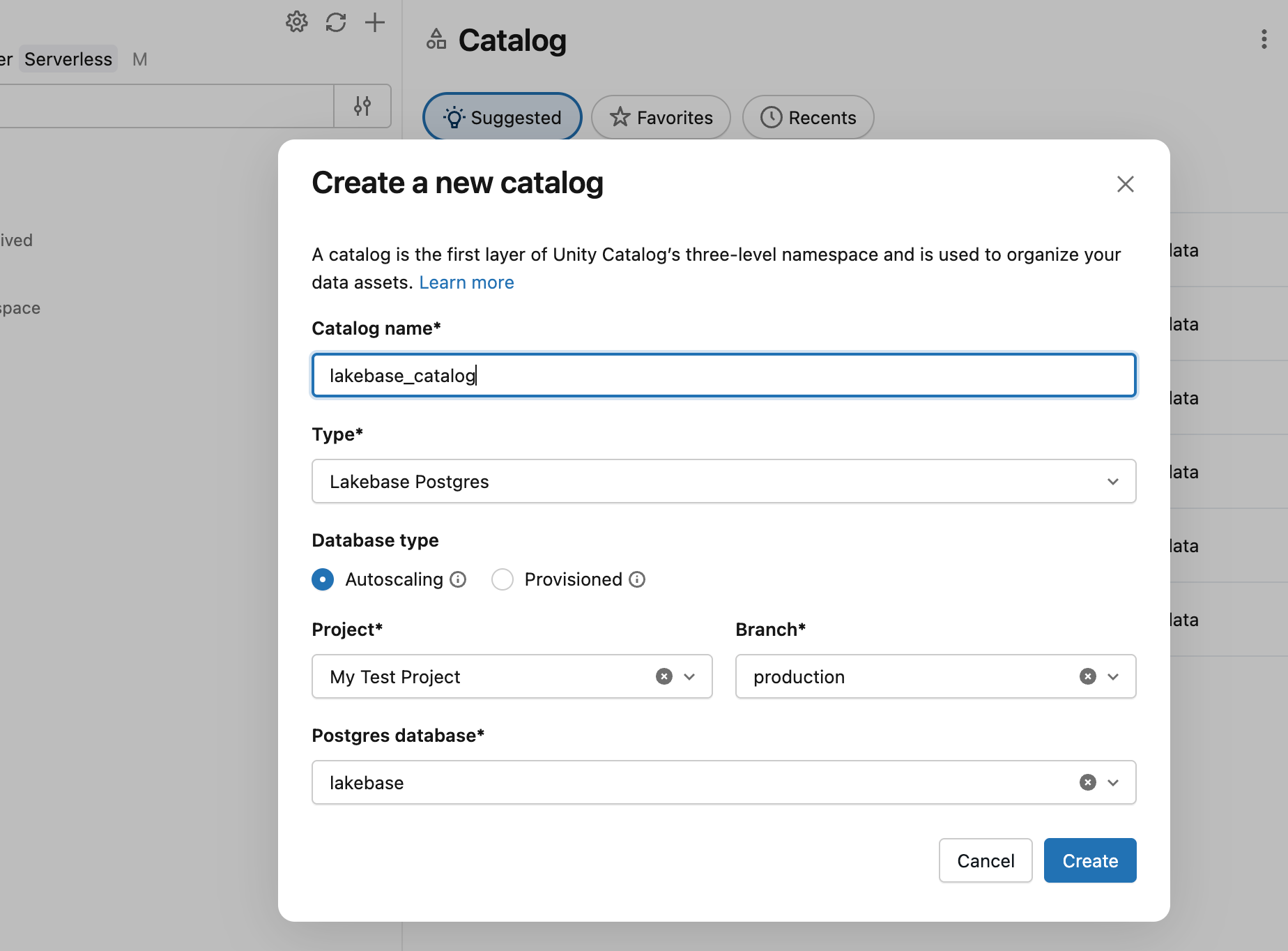
The catalog appears in Catalog Explorer, where you can find schemas, tables, and views, and query them using SQL warehouses.
from databricks.sdk import WorkspaceClient
from databricks.sdk.service.postgres import Catalog, CatalogCatalogSpec

w = WorkspaceClient()

catalog = w.postgres.create_catalog(
    catalog=Catalog(spec=CatalogCatalogSpec(
        postgres_database="mydb",
        branch="projects/my-project/branches/production",
    )),
    catalog_id="my-catalog",
).wait()

print(f"Catalog registered: {catalog.name}")
import com.databricks.sdk.WorkspaceClient;
import com.databricks.sdk.service.postgres.*;

WorkspaceClient w = new WorkspaceClient();

Catalog catalog = w.postgres().createCatalog(
    new CreateCatalogRequest()
        .setCatalogId("my-catalog")
        .setCatalog(new Catalog()
            .setSpec(new CatalogCatalogSpec()
                .setPostgresDatabase("mydb")
                .setBranch("projects/my-project/branches/production"))))
    .waitForCompletion();

System.out.println("Catalog registered: " + catalog.getName());
curl -X POST "https://your-workspace.cloud.databricks.com/api/2.0/postgres/catalogs?catalog_id=my-catalog" \
  -H "Authorization: Bearer ${DATABRICKS_TOKEN}" \
  -H "Content-Type: application/json" \
  -d '{
    "spec": {
      "postgres_database": "mydb",
      "branch": "projects/my-project/branches/production"
    }
  }'
This returns a long-running operation. Poll the returned name field until done: true. See Long-running operations. For authentication setup, see Authentication.
Explore registered databases
After registration, go to your catalog in Catalog Explorer to find schemas, tables, and views. Click any table to view schema details, sample data, and lineage information.
Unity Catalog automatically syncs metadata from your Lakebase database. When you add or modify tables in Lakebase, refresh the catalog view to see updates.
Check registration status
To retrieve the current registration details for a catalog programmatically:
- Python SDK
- Java SDK
- curl
from databricks.sdk import WorkspaceClient

w = WorkspaceClient()

catalog = w.postgres.get_catalog("catalogs/my-catalog")
print(f"Database: {catalog.status.postgres_database}")
print(f"Branch: {catalog.status.branch}")
import com.databricks.sdk.WorkspaceClient;
import com.databricks.sdk.service.postgres.Catalog;

WorkspaceClient w = new WorkspaceClient();

Catalog catalog = w.postgres().getCatalog("catalogs/my-catalog");
System.out.println("Database: " + catalog.getStatus().getPostgresDatabase());
System.out.println("Branch: " + catalog.getStatus().getBranch());
curl "https://your-workspace.cloud.databricks.com/api/2.0/postgres/catalogs/my-catalog" \
  -H "Authorization: Bearer ${DATABRICKS_TOKEN}"
Query registered databases
Query registered Lakebase databases using SQL warehouses or any tool that connects to Unity Catalog:
-- Query a registered Lakebase database
SELECT * FROM chatbot_catalog.public.conversations
WHERE created_at >= current_date - INTERVAL 7 DAYS;

-- Join Lakebase and lakehouse data
SELECT
  c.conversation_id,
  c.user_id,
  c.agent_response,
  u.user_name,
  u.subscription_tier
FROM chatbot_catalog.public.conversations c
JOIN main.user_analytics.users u
  ON c.user_id = u.user_id;
The read-only catalog ensures queries don't modify your Lakebase database through Unity Catalog. To modify data, use the Lakebase SQL Editor or connect directly to your database.
Permissions and access control
Unity Catalog permissions control access to registered Lakebase databases:
- Catalog ownership: The user who registers the database becomes the catalog owner
- Read access: Grant
USE CATALOGandSELECTprivileges to allow others to query the database - Metastore administrator: Metastore admins can manage all registered catalogs
To grant access to a registered database:
-- Grant read access to a group
GRANT USE CATALOG ON CATALOG chatbot_catalog TO `ai-engineering`;
GRANT SELECT ON CATALOG chatbot_catalog TO `ai-engineering`;
Permissions set in Unity Catalog control query access through SQL warehouses. Direct connections to your Lakebase database use Postgres roles and permissions independently.
Unregister a database
Unregistering removes the catalog from Unity Catalog but does not affect your Lakebase database. The database remains accessible through Lakebase and direct Postgres connections.
- UI
- Python SDK
- Java SDK
- curl
Select the catalog in Catalog Explorer, click the  , and select Delete.
from databricks.sdk import WorkspaceClient

w = WorkspaceClient()

w.postgres.delete_catalog("catalogs/my-catalog").wait()
import com.databricks.sdk.WorkspaceClient;

WorkspaceClient w = new WorkspaceClient();

w.postgres().deleteCatalog("catalogs/my-catalog").waitForCompletion();
curl -X DELETE "https://your-workspace.cloud.databricks.com/api/2.0/postgres/catalogs/my-catalog" \
  -H "Authorization: Bearer ${DATABRICKS_TOKEN}"
If you created synced tables from the registered database, delete those tables first. Each source table can only be used to create 20 synced tables, and synced tables pending deletion count toward this limit.
Limitations
Read-only access: Catalogs registered from Lakebase databases are read-only. You can't modify data through Unity Catalog queries.
Serverless SQL Warehouse required: You can only query a registered Lakebase catalog using a Serverless SQL Warehouse. Pro and Classic SQL Warehouses don't support this feature.
Single database per catalog: Each Unity Catalog catalog represents one Lakebase database. To expose multiple databases, register each one separately.
Metadata sync: Unity Catalog caches metadata to reduce Postgres requests. New objects may not appear immediately. Click  to trigger a full refresh.
Branched database registration not supported: You can't register a branched database as a separate Unity Catalog catalog. When you create a branch from a database that is already registered in Unity Catalog, the branch inherits the parent's registration metadata. This causes new catalog registration to fail.