Manage databases
A database is a container for SQL objects such as schemas, tables, views, functions, and indexes. In Lakebase, a database exists within a branch of a project, with a limit of 500 databases per branch.
Database overview
Each project's default branch is created with a database called databricks_postgres, which is owned by the Postgres role for your Databricks identity (for example, user@databricks.com).
Databases created in the Lakebase App are created in the Postgres public schema default.
If you manage your project with Terraform and want to bring this implicit databricks_postgres database under IaC management, see Typical Lakebase project setup with Terraform for the replace_existing adoption pattern.
If you use Declarative Automation Bundles instead, see Typical Lakebase project setup with Declarative Automation Bundles for the same pattern.
Databases are independent between branches. When you create a branch, it reflects the parent's Postgres databases at the time of branching. After branching, each branch's databases evolve independently — databases created or dropped on one branch have no effect on any other branch, including the parent. There is no automatic synchronization of databases between branches.
View databases
To view databases for a branch, navigate to your branch's Roles & Databases tab in the Lakebase App.
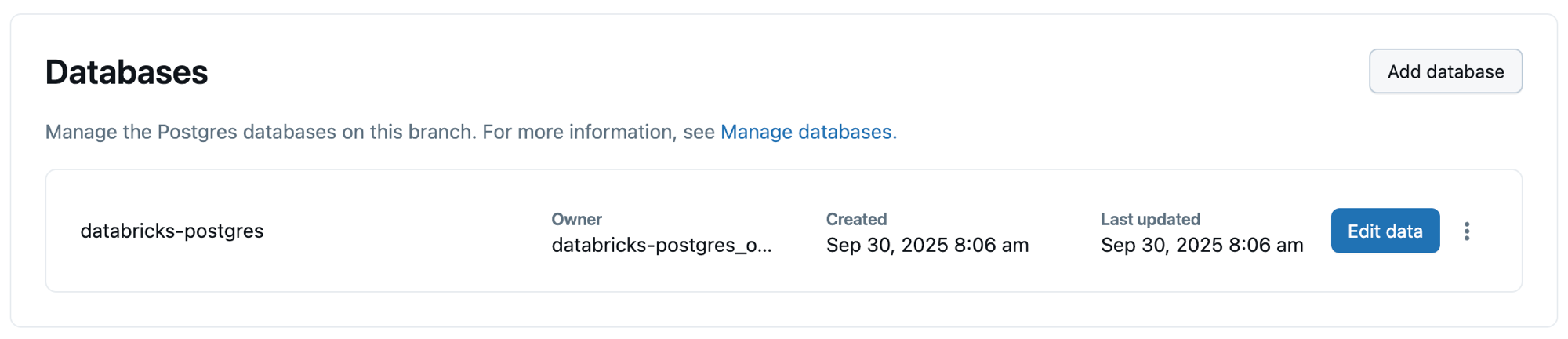
The databases section displays information about all databases in the selected branch:
Detail | Description |
|---|---|
Database name | The name of the database |
Owner | The Postgres role that owns and has full privileges on the database |
Created | When the database was created |
Last updated | The last time the database was updated |
Create a database
You can create additional Postgres databases on your branch using the Lakebase App or SQL commands.
To create a database using the Lakebase App:
- Navigate to your branch's Roles & Databases tab in the Lakebase App.
- Click Add database, enter a database name following Postgres naming conventions, and select the owner role.
Some database names are reserved and cannot be used: databricks_postgres (already used as the default database name), postgres, template0, template1.
Manage databases with SQL
Create a database
Create databases using standard Postgres SQL commands:
CREATE DATABASE my_application_db
    WITH OWNER = my_app_role
    ENCODING = 'UTF8';
Databases created using SQL commands will automatically appear in the Lakebase App under your branch's Roles & Databases tab.
List databases
View all databases in your project:
SELECT datname FROM pg_database WHERE datistemplate = false;
Switch between databases
Switch to a different database:
-
In the Lakebase SQL editor: Select the database from the database dropdown menu
-
In the
psqlSQL client:SQL\c my_application_db
Monitor database size
Check the logical size of a database:
SELECT
    datname AS database_name,
    pg_size_pretty(pg_database_size(datname)) AS size
FROM pg_database
WHERE datistemplate = false
ORDER BY pg_database_size(datname) DESC;
Delete a database
Deleting a database permanently removes all schemas, tables, and data within that database. This action cannot be undone.
To delete a database using the Lakebase App:
- Navigate to your branch's Roles & Databases tab in the Lakebase App.
- Click the
 menu for the database, select Delete database, and enter the database name to confirm.
To delete using SQL:
-- Drop the database
DROP DATABASE database_to_delete;