Connect a custom Databricks app to Lakebase
This tutorial shows you how to connect a Databricks app to Lakebase with automatic credential rotation. The app generates fresh database credentials from Databricks before they expire. The example uses Flask, but the authentication pattern applies to any framework.
How it works
Databricks Apps authenticate to Lakebase using OAuth tokens that expire after one hour. To handle this, you create a Postgres role for your app's service principal, then configure your app to automatically generate fresh tokens whenever it needs to connect to the database. The app uses a connection pool. The pool creates new connections with fresh tokens as needed, so your app never uses expired credentials.
When you deploy the app to Databricks, it runs as its service principal and generates tokens for that identity. When you test locally, the app runs as your Databricks user account and generates tokens for you. Both use the same token rotation code. Only the authentication context changes.
Prerequisites
To complete this tutorial, you need:
- Access to a Databricks workspace with Lakebase Postgres Autoscaling enabled. Contact your workspace admin if you don't see Lakebase in the app switcher.
- Permission to create apps
- Basic familiarity with Python and SQL
- Databricks CLI installed for local development
- Python 3.9 or later installed locally
Step 1: Create your app and database
First, create both a Databricks app and a Lakebase project. The app automatically gets a service principal identity that you'll use for database authentication.
Create the app
Create a new Databricks app using the Flask Hello world template. See Create a Databricks app from a template.
After you create the app, go to the app's Environment tab and note the DATABRICKS_CLIENT_ID value (UUID format like 6b215d2b-f099-4bdb-900a-60837201ecec). This becomes your app's Postgres username for OAuth authentication.
Don't deploy the app yet. Configure the database connection first.
Create the database
Create a new Lakebase project to host your database. Click the  app switcher, select Lakebase Postgres, then create a new project with a name (for example,
 my-app-db) and Postgres version (accept the default Postgres 17). For complete setup details, see Create a project.
Wait for the compute to become active (approximately 1 minute) before proceeding.
Step 2: Configure database authentication and schema
Create a Postgres role for your app's service principal with OAuth authentication, then create a sample table with data for your app to display.
Set up OAuth authentication
In your Lakebase project, open the SQL Editor and run these commands. The databricks_auth extension enables OAuth authentication. With it, your Postgres roles accept Databricks tokens instead of traditional passwords:
-- Enable the Databricks authentication extension
CREATE EXTENSION IF NOT EXISTS databricks_auth;

-- Create a Postgres role for your app's service principal
-- Replace the UUID below with your DATABRICKS_CLIENT_ID from Step 1
SELECT databricks_create_role('<DATABRICKS_CLIENT_ID>', 'SERVICE_PRINCIPAL');

-- Grant necessary permissions (use the same DATABRICKS_CLIENT_ID)
GRANT CONNECT ON DATABASE databricks_postgres TO "<DATABRICKS_CLIENT_ID>";
GRANT CREATE, USAGE ON SCHEMA public TO "<DATABRICKS_CLIENT_ID>";
Replace <DATABRICKS_CLIENT_ID> with your app's DATABRICKS_CLIENT_ID value. The service principal can now authenticate using OAuth tokens that Databricks automatically manages. For details, see Create an OAuth role for a Databricks identity.
Create database schema
Create a sample table with explicit permissions for your service principal (service principals don't inherit default schema permissions):
-- Create a sample table
CREATE TABLE notes (
    id SERIAL PRIMARY KEY,
    content TEXT NOT NULL,
    created_at TIMESTAMP DEFAULT CURRENT_TIMESTAMP
);

-- Grant permissions to your app's service principal (use your DATABRICKS_CLIENT_ID)
GRANT SELECT, INSERT, UPDATE, DELETE ON TABLE notes TO "<DATABRICKS_CLIENT_ID>";

-- Insert sample data
INSERT INTO notes (content) VALUES
   ('Welcome to Lakebase!'),
   ('This app connects to Postgres'),
   ('Data fetched from your database');
Replace <DATABRICKS_CLIENT_ID> with your DATABRICKS_CLIENT_ID value.
Step 3: Build and configure your application
Download your app files, configure the database connection with automatic OAuth token rotation, and test locally before deploying.
Download and configure app files
Download your app files from the workspace by copying the export command from the app's Sync the files section:
databricks workspace export-dir /Workspace/Users/<your-email>/databricks_apps/<app-folder>/flask-hello-world-app .
Edit app.yaml to add database connection details. Get your connection values from the Lakebase Connect modal by selecting Parameters only:
command: ['flask', '--app', 'app.py', 'run', '--host', '0.0.0.0', '--port', '8000']

env:
  - name: PGHOST
    value: '<your-endpoint-hostname>'
  - name: PGDATABASE
    value: 'databricks_postgres'
  - name: PGUSER
    value: '<DATABRICKS_CLIENT_ID>'
  - name: PGPORT
    value: '5432'
  - name: PGSSLMODE
    value: 'require'
  - name: ENDPOINT_NAME
    value: 'projects/<project-id>/branches/<branch-id>/endpoints/<endpoint-id>'
Replace the placeholders:
<your-endpoint-hostname>: Copy the PGHOST value from the Connect modal (for example,ep-xyz.database.us-west-2.dev.databricks.com)<DATABRICKS_CLIENT_ID>: Use yourDATABRICKS_CLIENT_IDfrom Step 1projects/<project-id>/branches/<branch-id>/endpoints/<endpoint-id>: In the Lakebase app, go to your branch's Computes tab, click Get ID for your compute, and select Copy resource name.
Implement OAuth token rotation and database query
Replace app.py with this code, which adds automatic OAuth token rotation and a database query that fetches the notes from Step 2:
import os
from databricks.sdk import WorkspaceClient
import psycopg
from psycopg_pool import ConnectionPool
from flask import Flask

app = Flask(__name__)

# Initialize Databricks client for token generation
w = WorkspaceClient()

# Custom connection class that generates fresh OAuth tokens
class OAuthConnection(psycopg.Connection):
    @classmethod
    def connect(cls, conninfo='', **kwargs):
        # Generate a fresh OAuth token for each connection (tokens are workspace-scoped)
        endpoint_name = os.environ["ENDPOINT_NAME"]
        credential = w.postgres.generate_database_credential(endpoint=endpoint_name)
        kwargs['password'] = credential.token
        return super().connect(conninfo, **kwargs)

# Configure connection parameters
username = os.environ["PGUSER"]
host = os.environ["PGHOST"]
port = os.environ.get("PGPORT", "5432")
database = os.environ["PGDATABASE"]
sslmode = os.environ.get("PGSSLMODE", "require")

# Create connection pool with automatic token rotation
pool = ConnectionPool(
    conninfo=f"dbname={database} user={username} host={host} port={port} sslmode={sslmode}",
    connection_class=OAuthConnection,
    min_size=1,
    max_size=10,
    open=True
)

@app.route('/')
def hello_world():
    # Use connection from pool (automatically gets fresh token)
    with pool.connection() as conn:
        with conn.cursor() as cur:
            cur.execute("SELECT content, created_at FROM notes ORDER BY created_at DESC LIMIT 5")
            notes = cur.fetchall()

    # Display results
    notes_html = "<ul>" + "".join([f"<li>{note[0]} - {note[1]}</li>" for note in notes]) + "</ul>"
    return f'<h1>Hello from Lakebase!</h1><h2>Recent Notes:</h2>{notes_html}'

if __name__ == '__main__':
    app.run(host="0.0.0.0", port=8000)
The three key components are:
WorkspaceClient: generates fresh credentials using the SDK.OAuthConnection: a custom connection class that injects a fresh credential into each connection.ConnectionPool: manages connections and calls the custom class as needed.
For more information about credential rotation strategies and error handling, see Token rotation examples.
Update requirements.txt to include the required packages:
flask
psycopg[binary,pool]
databricks-sdk>=0.81.0
Version 0.81.0 or later includes the generate_database_credential() method.
Test locally
Test your app locally to verify the database connection works before deploying. When testing locally, the app runs as your Databricks user account (not the service principal), so change PGUSER to your email address in the environment variables below.
Authenticate to your workspace and export environment variables:
databricks auth login

export PGHOST="<your-endpoint-hostname>"
export PGDATABASE="databricks_postgres"
export PGUSER="your.email@company.com"  # Use YOUR email for local testing, not the service principal
export PGPORT="5432"
export PGSSLMODE="require"
export ENDPOINT_NAME="<your-endpoint-name>"
Copy the values from your app.yaml, but replace the PGUSER value (service principal client ID) with your Databricks email address.
Install dependencies and run the app:
pip3 install --upgrade -r requirements.txt
python3 app.py
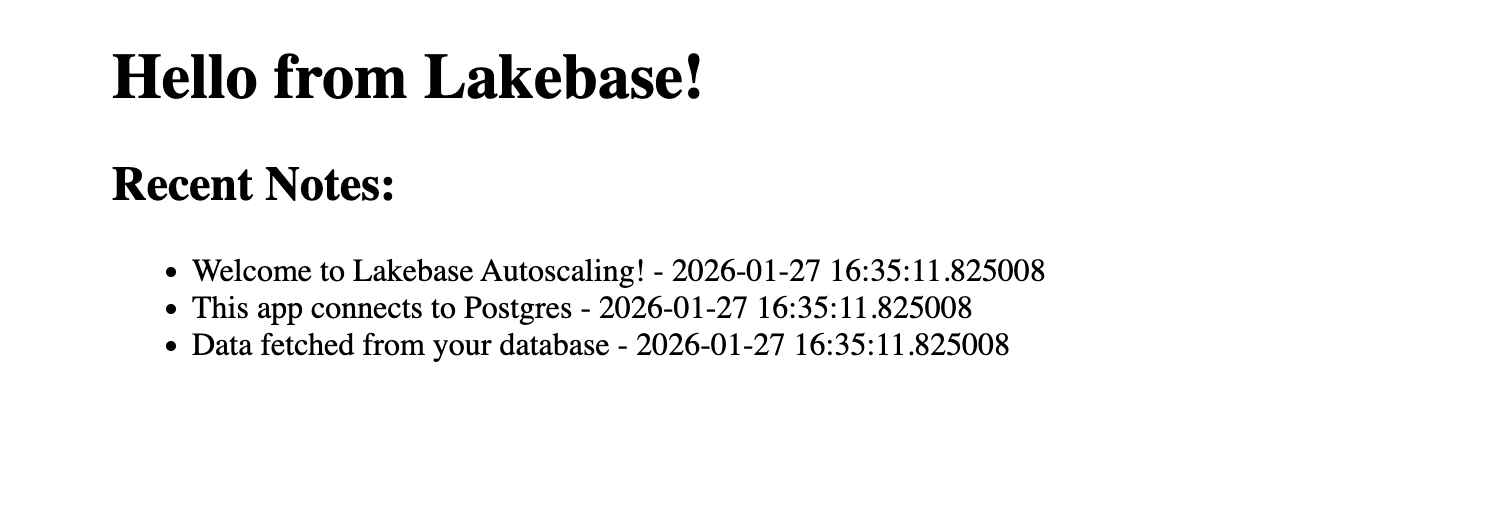
Open http://localhost:8000 in your browser. You should see "Hello from Lakebase!" with your three sample notes. The connection pool automatically generates fresh OAuth tokens when creating new connections. For more details, see OAuth token authentication.
Step 4: Deploy and verify
After testing locally, sync your changes to a workspace folder and deploy from that location:
# Upload files to workspace
databricks sync . /Workspace/Users/<your-email>/my-lakebase-app

# Deploy from the uploaded location
databricks apps deploy <app-name> --source-code-path /Workspace/Users/<your-email>/my-lakebase-app
Replace <your-email> with your Databricks email address and <app-name> with your app name. The --source-code-path flag tells the deployment to use your uploaded files instead of the app's default location.
Wait for deployment to complete (2-3 minutes), then access your app at the provided URL. You should see "Hello from Lakebase!" with your sample notes.