Import a provider and read shared data in Databricks
As a Databricks recipient, you can import a credential file from an open provider and read the shared data assets. You can query the shared data in Catalog Explorer or use a Python notebook.
If data has been shared with you using Databricks-to-Databricks OpenSharing, you don't need a credential file to access data, and this page doesn't apply to you. Instead, see Read data shared using Databricks-to-Databricks OpenSharing (for recipients).
Requirements
A member of your team must download the credential file that the data provider shares and use a secure channel to share that file or file location with you. See Get access in the Open-to-Databricks model.
The storage bucket and credential capabilities (scope, expiration, read vs. read/write) are determined by the provider. If the provider is a Databricks provider, mounting an open share in a Secure Egress Gateway (SEG) workspace automatically allowlists the provider's bucket for outbound access. For non-Databricks open providers, the bucket is not automatically allowlisted. Verify the provider before mounting.
Verify that when an open provider shares tables using credential vending (directory-based access), those tables are backed by cloud storage that uses one of the following supported schemes: s3, s3a, s3n, abfss, wasbs, gs, or r2. Tables backed by storage using an unsupported scheme (for example, the unencrypted wasb scheme) can't be read through credential vending.
Import a provider and query shared data
This section describes how to import a provider and how to query the shared data in Catalog Explorer or in a Python notebook:
-
If your Databricks workspace is enabled for Unity Catalog, use the Import provider UI in Catalog Explorer. You can do the following without needing to store or specify a credential file:
- Create catalogs from shares with the click of a button.
- Use Unity Catalog access controls to grant access to shared tables.
- Query shared data using standard Unity Catalog syntax.
- Apply a rotated credential to the existing provider object without recreating the catalog. See Rotate credentials for open recipients.
-
If your Databricks workspace is not enabled for Unity Catalog, follow the Python notebook instructions instead.
Catalog Explorer
Permissions required: A metastore admin or a user with the CREATE PROVIDER privilege for your Unity Catalog metastore. To create catalogs from the share, you need the CREATE CATALOG privilege.
-
In your Databricks workspace, click
 Catalog to open Catalog Explorer.
 -
At the top of the Catalog pane, click
 and select OpenSharing. Alternatively, in the upper-right corner, click Share > OpenSharing.
 -
On the Shared with me tab, click Install share.
-
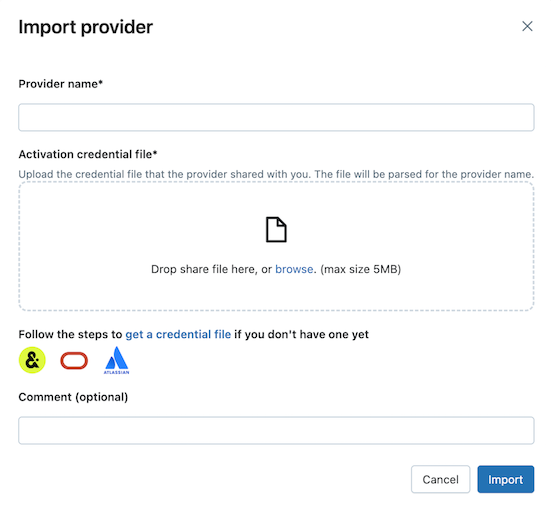
Enter the provider name. The name cannot include spaces.
-
Upload the credential file that the provider shared with you. Many providers have their own OpenSharing networks that you can receive shares from. For more information, see Provider-specific configurations.
-
(Optional) Enter a comment.
-
Click Import.
-
On the Shares tab, click Create catalog on the share row to create catalogs from shared data.
For information about using SQL or the Databricks CLI to create a catalog from a share, see Create a catalog from a share.
-
Grant access to the catalogs. See How do I make shared data available to my team? and Manage permissions for the schemas, tables, and volumes in an OpenSharing catalog.
-
Read the shared data objects just like you would any data object that is registered in Unity Catalog.
For details and examples, see Access data in a shared table or volume.
Python
Read shared data using a notebook in your Databricks workspace if your workspace is not enabled for Unity Catalog. Store the credential file in Databricks, then use it to authenticate to the data provider and read the shared data.
These instructions assume that your Databricks workspace is not enabled for Unity Catalog. If you are using Unity Catalog, you do not need to point to the credential file when you read from the share. You can read from shared tables just like you do from any table registered in Unity Catalog. Databricks recommends that you use the Import provider UI in Catalog Explorer instead of the instructions provided here.
First store the credential file as a Databricks workspace file so that users on your team can access shared data.
- To import the credential file in your Databricks workspace, see Import a file.
- You can grant other users permission to access the file by clicking
 next to the file, then Share (Permissions). Input the Databricks identities that should have access to the file. For more information on file permissions, see File ACLs.
Now that the credential file is stored, create a notebook to list and read shared tables.
-
In your Databricks workspace, click New > Notebook. For more information on Databricks notebooks, see Databricks notebooks.
-
Install the
delta-sharingconnector and use Python,pandas, or Apache Spark to list and read the shared tables. Use the workspace path to your credential file (for example,/Workspace/Users/user.name@email.com/config.share) as the profile path. For code examples, see Pandas: Read shared data and Apache Spark: Read shared data. -
In addition to the Python and Apache Spark commands, you can query shared data using SQL. Create a local table in the workspace from the shared table, then query the local table. The shared data is not stored or cached in the local table. Each time you query the local table, you see the current state of the shared data.
Replace the variables as follows:
<local-table-name>: the name of the local table.<profile-path>: the location of the credential file.<share-name>: the value ofshare=for the table.<schema-name>: the value ofschema=for the table.<table-name>: the value ofname=for the table.
%sqlDROP TABLE IF EXISTS <local-table-name>;CREATE TABLE <local-table-name> USING deltaSharing LOCATION "<profile-path>#<share-name>.<schema-name>.<table-name>";SELECT * FROM <local-table-name> LIMIT 10; -
When you run the command, the shared data is queried directly. As a test, the table is queried and the first 10 results are returned.
-
If the output is empty or doesn't contain the data you expect, contact the data provider.
OpenSharing Python connector limitations apply. See OpenSharing Python connector limitations.
Limitations
Open-to-Databricks sharing is based on the OpenSharing protocol. The following support applies when you import an open provider into Databricks:
- Only Delta tables that support the Delta Sharing protocol. Iceberg-only tables are not supported.
- Both presigned URL and cloud token (directory-based) access are supported. Databricks prefers cloud token access when the provider makes it available.
- Only the following cloud token storage schemes are supported:
s3,s3a,s3n,abfss,wasbs,gs, andr2.
To read non-Delta data such as Iceberg, CSV, Parquet, or JSON from an external source, use Lakehouse Federation instead. See Connect to external databases and catalogs.
When you use libraries such as pandas or the delta-sharing connector directly on serverless compute to read shared data, the connectors don't work in the following cases:
- Your serverless network policy uses serverless egress control in Restricted access mode.
- The provider has enabled SecureConnect.
In these cases, Databricks recommends you to install the share using Catalog Explorer.