Configure Microsoft Entra ID SSO for Power BI
This feature is in Public Preview.
Configure Microsoft Entra ID as the identity provider (IdP) for single sign-on (SSO) to Databricks from Power BI using an account-level federation policy. With SSO, report viewers access underlying Databricks data in DirectQuery mode using their own Microsoft Entra ID credentials.
Requirements
Before you configure SSO to Databricks from Power BI with Microsoft Entra ID, make sure you have the following:
- Power BI Desktop 2.153.1206.0 (May 2026 release) or later.
- A Power BI connection using the Arrow Database Connectivity (ADBC) driver. See Configure ADBC or ODBC driver for Power BI.
- A Microsoft Entra ID user with a valid email claim. This email claim must also be a user in your Databricks account.
- Unified login enabled for your Databricks workspace.
- Your Microsoft Entra ID tenant ID, which must match your Power BI tenant ID. See How to find your Microsoft Entra tenant ID. To find your Power BI tenant ID, see Find your Fabric home region. Your tenant ID is the value after
ctid=in the tenant URL.
Configure the account federation policy
Account admins must create a federation policy with the following values:
- Issuer URL:
https://sts.windows.net/<tenant-id>/. Replace<tenant-id>with your Microsoft Entra ID tenant ID. The trailing slash is required. - Audiences:
2ff814a6-3304-4ab8-85cb-cd0e6f879c1d - Subject claim:
email. If usernames in your Databricks account match the Microsoft Entra ID User Principal Name (UPN) format instead of email addresses, useupnas the subject claim.
For steps to create the policy, see Configure an account federation policy. If your Databricks account has multiple account federation policies, only the earliest-created policy is used for OIDC discovery.
After you configure the federation policy, users connect from Power BI Desktop by creating a manual connection, selecting the Azure Databricks connector, and choosing Azure Active Directory as the authentication type.
Although the connector is named Azure Databricks, it works with Databricks on AWS. Do not select the Databricks connector.
Enable SSO to access reports in the Power BI service
Enabling SSO in the Power BI service lets users access reports built using DirectQuery storage mode by passing their Microsoft Entra ID credentials to Databricks.
-
Publish your Power BI report from Power BI Desktop to the Power BI service.
-
Enable SSO access to the report and underlying data source.
-
Go to the underlying Databricks dataset for the report in the Power BI service, expand Data source credentials, and then click Edit credentials.
-
On the configuration dialog, select Report viewers can only access this data source with their own Power BI identities using Direct Query, and then click Sign in.
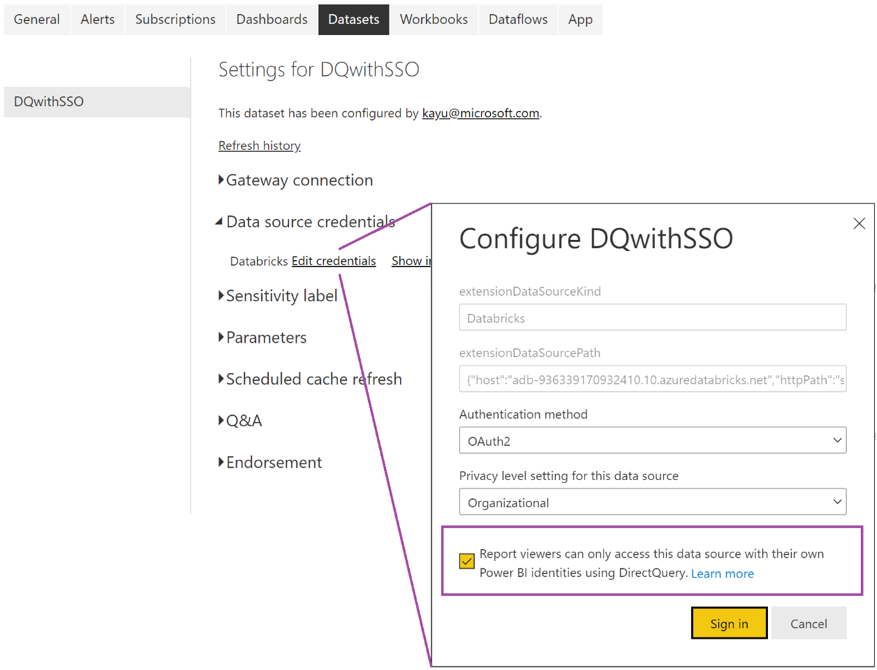
With this option selected, access to the data source is handled using DirectQuery and managed using the Microsoft Entra ID identity of the user who is accessing the report. If you don't select this option, only the user who published the report has access to the Databricks data source.
-
Troubleshoot configuration
If the Test SSO validation step in SSO to Databricks with Microsoft Entra ID fails, verify the following:
-
The OpenID issuer URL contains your Microsoft Entra tenant ID and ends with a forward slash. For example:
https://sts.windows.net/<tenant-id>/ -
Your Microsoft Entra user has a valid email claim. This email claim must also be a user in your Databricks workspace.
noteMake sure your user email property is consistent with your User principal name property. Both properties must be members of your Databricks workspace.
You might have to configure optional claims. To do this, follow https://learn.microsoft.com/entra/identity-platform/optional-claims. Make sure you have the email claim in both id token and access token.