Sign-in with email or external accounts
This page shows how to allow users to sign in to Databricks using one-time passcodes via email or common external accounts, such as Google or Microsoft. To configure single sign-on (SSO) to authenticate using your organization's identity provider, see Configure SSO in Databricks.
Configure sign-in with email or external accounts
-
As an account admin, log in to the account console and click Security.
-
Click the Identity provider setup tab.
-
Next to Authentication, click Manage.
-
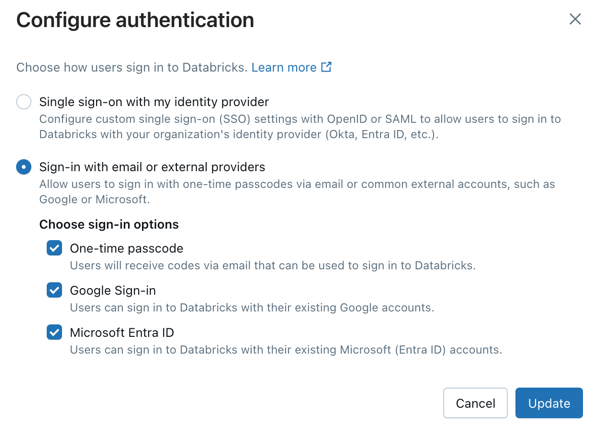
Choose Sign-in with email or external providers.
-
In Choose sign-in options, select one or more methods that users can choose to log in:
- One-time passcode: Users receive codes via email that can be used to sign in to Databricks.
- Google Sign-in: Users can sign in to Databricks with their existing Google accounts.
- Microsoft Entra ID: Users can sign in to Databricks with their existing Microsoft Entra ID accounts.
noteWhen users sign in with Microsoft, a Databricks enterprise application appears in your Azure tenant. This application enables Microsoft social login using a global identity provider. If you have configured custom SSO, such as Microsoft Entra ID or any other provider, you can safely delete this application from your tenant.
-
Click Update.
Configure sign-in with email on an individual workspace
When legacy workspace-level SSO is enabled, admins can override these settings and enable sign-in with email on a workspace. Databricks recommends enabling SSO using unified login on your workspace. See Enable unified login.
If your account was created after June 21, 2023 or you did not configure SSO before December 12, 2024, unified login is enabled on your account for all workspaces, new and existing, and it cannot be disabled.
-
As a workspace admin, log in to the Databricks workspace.
-
Click your username in the top bar of the Databricks workspace and select Settings.
-
Click on the Identity and access tab.
-
Next to SSO settings, click Manage.
-
Click Disable SSO override.
-
As an account admin, log in to the account console and click the Settings icon in the sidebar.
-
Click the Identity provider setup tab.
-
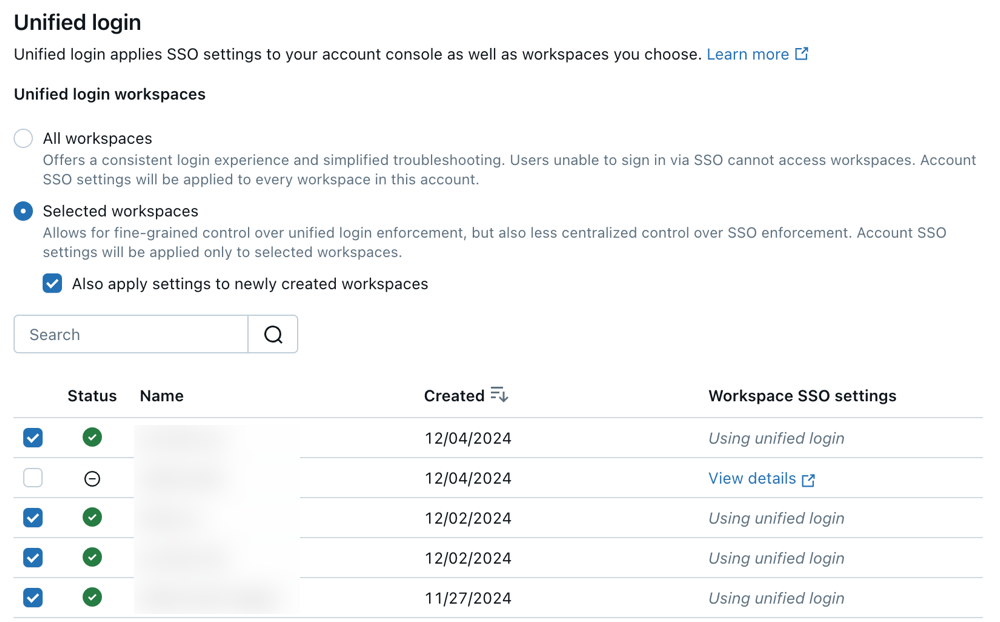
In Unified login workspaces, unselect your workspace from the list.
Automatically provision users by email domain
When single sign-on (SSO) is not enabled, you can automatically create user accounts for a verified email domain. Anyone with an email address in that domain gets a Databricks account the first time they sign in. This is a form of just-in-time (JIT) provisioning based on email domain. It is separate from SSO JIT provisioning, which provisions users after they authenticate through your identity provider.
Email domain JIT applies when SSO is not configured for your account. When a user whose email address ends in your configured domain signs in for the first time using a one-time passcode or an external account, such as Google, Databricks provisions a new user account for them.
To configure email domain JIT:
- As an account admin, log in to the account console and click Security.
- Click the Identity provider setup tab.
- In the Identity management section, enable Create new identities during first-time authentication.
- Select the email domain to provision users for. You can select only a domain that matches your own verified email domain.
Users with an email address in the selected domain then have an account provisioned automatically the first time they sign in.
Log in using email or external accounts
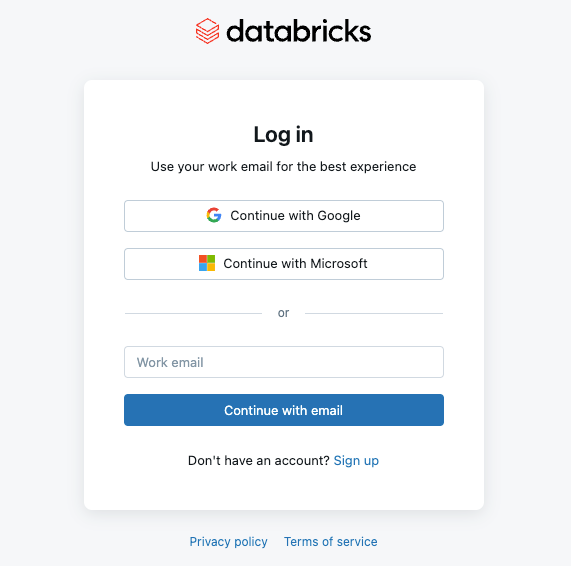
When single sign-on is not configured, users can log in to Databricks using their email or one of the account providers selected in the account console. When a user logs in with a one-time passcode, Databricks sends a unique code to the user's email address. The user must then retrieve this code from their email and enter it on the login page to verify their identity. This enhances security by ensuring that only individuals with access to the registered email can log in. The following demo walks you through sign-in with email or external accounts: Configure sign-in with Google or Microsoft.
When signing in to a workspace using Microsoft Entra ID as an external account, users must also complete a one-time passcode (OTP) verification step. After authenticating with Microsoft Entra ID, Databricks sends a unique code to the user's email address, which the user must enter to complete the sign-in. This additional OTP step is not required when signing in to the account console with Microsoft Entra ID.