Manage workspace context-based ingress policies
This page shows account admins how to create a workspace-level network policy, configure its ingress rules for public, private, and cross-workspace access, and attach it to workspaces.
For an overview of context-based ingress control, including enforcement modes, auditing, how ingress interacts with other network controls, and the API and Terraform options, see Context-based ingress control. For serverless egress control, see What is serverless egress control?.
To manage the account-level policy, see Manage account context-based ingress policies.
Requirements
- You must be an account admin.
- Your Databricks account must be on the Enterprise tier.
To enforce your ingress network policy on connections that can originate anywhere in the world, Databricks distributes your policy configuration to enforcement infrastructure in all Databricks regions, including regions where you do not have a workspace.
Access network policies
Use a network policy to define ingress and egress rules for one or more workspaces. To manage network policies in your account:
- From the account console, click Security.
- Click the Networking tab.
- Under Policies, click Context-based ingress & egress control.
Workspace-level policies are defined under Workspace level policies.
The default workspace-level policy applies to any workspace without another network policy. Databricks doesn't recommend modifying its ingress rules. Instead, create a new policy and attach it to specific workspaces.
Create a workspace network policy
- Click Create new network policy.
- Enter a Policy name.
- Click the Ingress tab. To set egress rules, see Set egress rules.
- Select a network access mode (for both public network access and private network access):
- Allow access from all sources: Allow unrestricted inbound access over the internet.
- Restrict access based on request context: Deny inbound access by default and allow access only through explicit Allow rules.

Configure ingress rules
When you use restricted access mode:
- The policy denies access by default.
- The policy grants access only when a request matches an explicit Allow rule.
- Deny rules are exceptions to Allow rules. For example, you can allow a broad network range while denying access to specific identities within that range. If a request matches both an allow rule and a deny rule, the request is denied.
To configure an allow or deny rule:
-
Click Add rule above the Allow rules or Deny rules lists.
-
Select an access type:
- Workspace UI: Allow access to the workspace UI.
- API: Allow or deny access to Databricks APIs. Optionally, select specific API scopes to narrow the rule, choosing IN to match only the selected scopes or NOT IN to match all API scopes except them. API scopes can only be specified in Allow rules, not Deny rules:
- All APIs: Applies to all Databricks API calls.
- Apps: Applies to Databricks Apps API endpoints.
- Dashboard: Applies to Databricks dashboard API endpoints.
- Model serving: Applies to model serving API endpoints.
- Apps runtime: Allow access to Databricks Apps deployments.
- Lakebase runtime: Allow access to Lakebase database instances. See Lakebase Postgres.
-
Select an identity type:
- All users and service principals: Allow access to both users and service principals.
- All users: Allow access only to users in the workspace.
- All service principals: Allow access only to service principals in the workspace.
- Selected identities: Allow access only to specific users or service principals. Choose the identities from the Subjects list.
noteFor Lakebase runtime and Apps runtime access types, the only supported identity type is All users and service principals. Other identity options cannot be selected.
-
Select a network source. The available sources depend on whether you are configuring public, private, or cross-workspace access, described in the following sections.
-
Click Save.
You can define multiple allow and deny rules to control access based on client identity, client network source, or access scope (access type).
Public network access
For public network access, select one of the following network sources:
- All public IPs: Allow access from all public IPs.
- Selected IPs: Allow access from only specific IPs. Enter the IPs separated by commas.
Partner platforms as a network source is in Beta.
Select Partner platforms to allowlist the IPs that third-party apps (Power BI, Tableau Cloud, and dbt platform) use to connect to Databricks. Databricks manages and updates these IP lists automatically.
For Deny rules with selected IPs, choose one of the following:
- IN: Denies access from IPs that are in the specified network source.
- NOT IN: Denies access from IPs that are not in the specified network source.
Private network access
To use context-based ingress policies for inbound private connectivity, an account admin must turn on Context-Based Ingress: Workspace Private Access Policies from the account console Previews page. See Manage account-level previews.
For private network access, select one of the following network sources:
- All registered private endpoints: Allow access from all registered private endpoints.
- Selected registered private endpoints: Allow access from only specific registered private endpoints.
For the relationship between a private access policy and your workspace's private access settings, see Relationship with other controls. For end-to-end inbound Private Link setup, see Configure inbound PrivateLink for workspaces.
Cross-workspace access
Cross-workspace access is in Beta.
Cross-workspace access controls which source workspaces can reach this workspace over serverless traffic, using the same identities and allow and deny rules as other network sources. Select Selected workspaces as the network source and list the workspace IDs to allow.
If you leave the policy in compatibility mode, it does not govern cross-workspace ingress and the workspace's pre-existing network controls apply. To configure cross-workspace access on both the ingress and egress sides, and to review its limitations, see Configure cross-workspace ingress access.
Set the enforcement mode
Dry run mode lets you test your policy and monitor inbound connections without blocking any access. When dry run mode is enabled, requests that violate the policy are logged but not blocked. For details, see Enforcement modes.
- Set the policy enforcement mode to Enforced for all products or Dry run mode for all products.
- Click Create.

Attach a policy to workspaces
If you have updated your default policy with additional configurations, they are automatically applied to workspaces that don't have an existing network policy.
To associate your workspace with a different policy, follow these steps:
- In the account console, click Workspaces.
- Select a workspace.
- In Network Policy, click Update network policy.
- Select the desired network policy from the list.
- Click Apply policy.
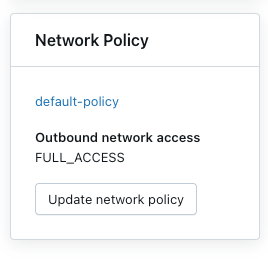
Policy changes, such as creating, updating, or attaching, typically take 10 to 15 minutes to take effect. During this window, enforcement might be inconsistent as the change propagates. Allow for this delay before relying on updated policies.
Configure using the API or Terraform
In addition to the account console, you can configure context-based ingress policies using the Databricks REST API or Terraform. See API and Terraform.
Check denial logs
Denial logs are stored in the system.access.inbound_network table in Unity Catalog. To access denial logs, verify the access schema is enabled on your Unity Catalog metastore. See Enable system tables. For the fields captured in each entry, see Auditing.
Use a SQL query like the following example to view denial events. If dry-run logs are enabled, the query returns both denial logs and dry-run logs, which you can distinguish using the access_type column. Denial logs have a DROP value, while dry-run logs show DRY_RUN_DENIAL.
The following example retrieves logs from the last 2 hours:
SELECT *
FROM system.access.inbound_network
WHERE event_time >= CURRENT_TIMESTAMP() - INTERVAL 2 HOUR
ORDER BY event_time DESC;
Logs might not appear immediately. There might be a delay of several minutes between the time of access and when the denial logs appear.
Limitations
Context-based ingress control is not available in AWS GovCloud. Use IP access lists instead.