Migrate workspace IP access lists to context-based ingress
Workspace IP access lists restrict access based on source IP addresses alone. Context-based ingress controls let account admins create allow and deny rules based on multiple conditions, including user identity, request type, and network source. This provides more granular control over who can reach your workspace and from where.
Databricks recommends using context-based ingress as the primary control for workspace ingress. For an overview of how context-based ingress evaluates requests, see Context-based ingress control.
You can use the Databricks Labs migrate-ip-acls CLI tool to migrate existing workspace IP access lists to a context-based ingress policy.
Requirements
- You must be a workspace admin on the workspace you migrate. Reading workspace IP access lists requires workspace admin permissions.
- You must be an account admin. Creating and attaching network policies requires account admin permissions.
- Context-based ingress requires the Enterprise tier.
Review Migration tool limitations before you start, because the tool can't migrate every workspace.
Policy changes typically take 10 to 15 minutes to take effect. During this window, enforcement might be inconsistent as the change propagates. Allow for this delay before you rely on the migrated policy.
How the migration tool works
The migration tool performs the following steps:
- Authenticates to the selected workspace using your workspace admin permissions and to the Databricks account using your account admin permissions.
- Performs pre-migration checks to determine whether the workspace can be migrated safely.
- Asks you to provide a policy name for the generated network policy.
- Reads the workspace's enabled IP access lists.
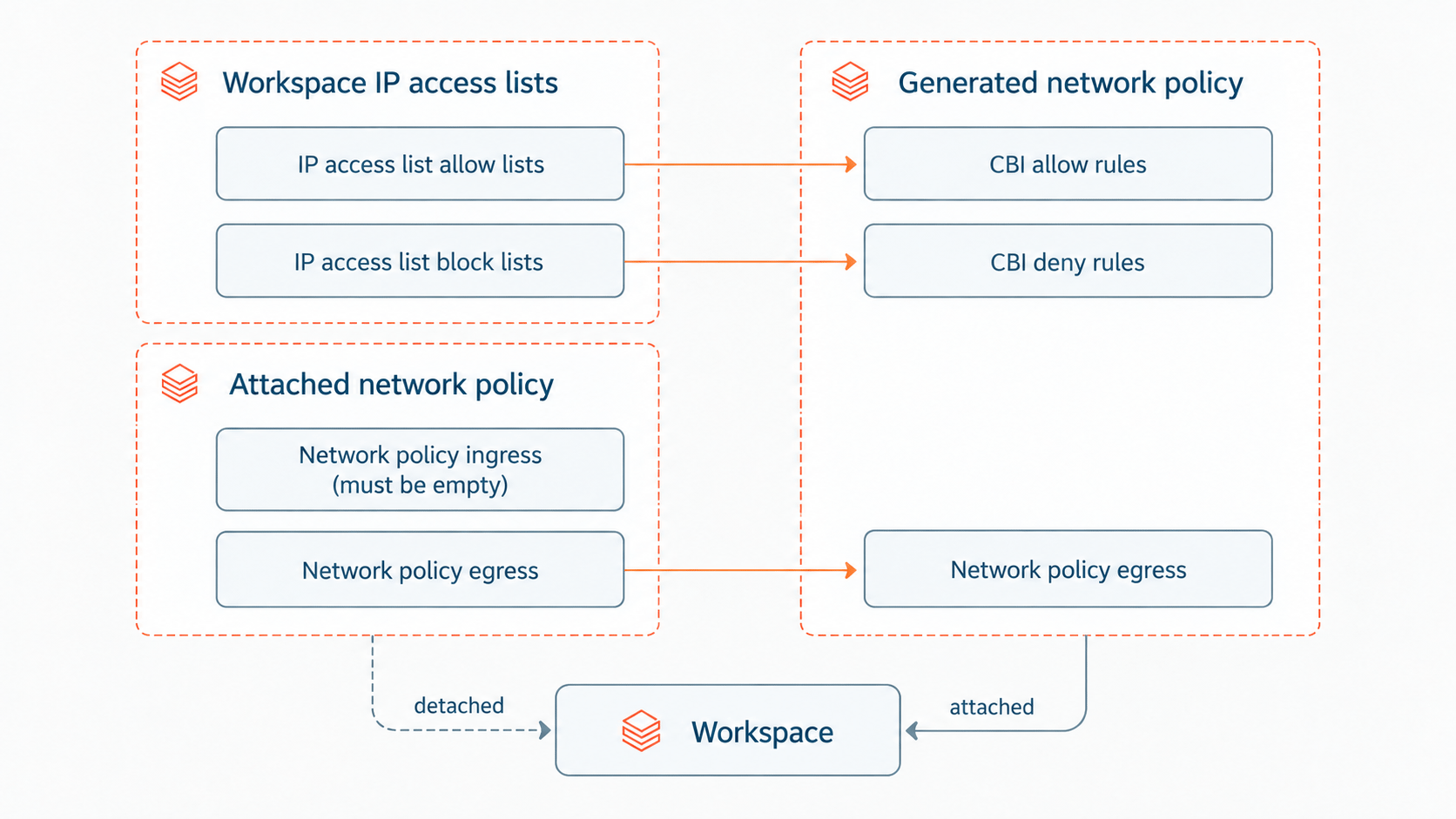
- Each enabled allow list is converted to a context-based ingress allow rule in the generated network policy.
- Each enabled block list is converted to a context-based ingress deny rule in the generated network policy.
- Existing IP access list labels are preserved.
- Disabled individual lists are not migrated and are reported for review.
- If the workspace has only block lists, the tool adds a catch-all allow rule so the generated context-based ingress policy preserves the existing IP access list behavior.
- Copies the egress configuration from the network policy currently attached to the workspace, to the generated network policy. If the workspace does not have an explicitly assigned policy, the tool uses the account's baseline
default-policy. - Displays the generated network policy for you to review.
- If configured with
--export, the tool writes JSON and Terraform representations of the proposed policy. - If
--create-policyis enabled, the tool creates the new network policy. - If
--auto-assignis enabled, the tool attaches the generated policy to the selected workspace. Because a workspace has one network policy assignment, this replaces the workspace's previous policy assignment. - If
--disable-existing-ip-aclsis specified, the tool disables workspace IP access list enforcement after the new enforced policy is successfully created and attached. The existing IP access lists are preserved, but are no longer enforced.
--auto-assign is enabled by default. --disable-existing-ip-acls is disabled by default.
While workspace IP access lists remain enabled, they continue to be evaluated together with context-based ingress. A request must satisfy both controls.
Use the migration tool
Follow these steps to generate a context-based ingress policy from a workspace's IP access lists and, optionally, create and attach it.
The generated policy is a security-enforcing control. In enforced mode, any request that the rules don't match is blocked. The migration tool preserves the policy of your existing workspace IP access lists. However, if you prefer, you can run the migration tool in dry-run mode first (--policy-mode dry_run), then review the denial logs before you switch the generated policy to enforced mode.
Clone the migration tool
Clone the Databricks Labs migration tool repository:
git clone https://github.com/databrickslabs/migrate-ip-acls.git
cd migrate-ip-acls
Install the tool's dependencies:
uv sync
Authenticate to the workspace as a workspace admin
Reading and modifying workspace IP access lists requires workspace admin permissions.
Authenticate to the workspace by running the following command:
databricks auth login \
   --host https://dbc-<WORKSPACE_URL>.cloud.databricks.com/
The authentication command creates a Databricks CLI profile for the workspace. You use this profile when running the migration tool.
Authenticate to the account as an account admin
Creating and assigning network policies requires account admin permissions.
Authenticate to the account by running the following command:
databricks auth login \
   --host https://accounts.cloud.databricks.com \
   --account-id <ACCOUNT_ID>
Use the account that contains the workspace you are migrating.
Start the migration tool
Start the migration tool by running the following command:
uv run dbx-migrate-ip-acls --profile <my-workspace-profile-name> --account-id <acct-id> --export .
Input parameters
Parameter | Description | Valid values | Default value | Recommended or optional |
|---|---|---|---|---|
| Databricks CLI workspace profile for the workspace to migrate. | Any workspace profile name listed in | N/A | Recommended. Will be prompted if omitted. |
| Databricks account ID containing the selected workspace. | Any valid Databricks account ID (must be associated with the selected workspace) | N/A | Recommended. Will be prompted if omitted. |
| The file path where the generated policy's JSON and Terraform files are written. | Any valid file path | N/A | Recommended. Will not export any files if omitted. |
| The name of the generated network policy. | The name must not already be in use by other network policies in the account. | N/A | Optional. Will be prompted if omitted. |
| Whether the generated context-based ingress policy is enforced or dry run mode. Enforced mode enforces the policy. Dry run mode is log-only (logs ingress denials, no enforcement). |
|
| Optional. Uses default if omitted. |
| Controls whether the generated policy is attached to the selected workspace after creation. Attaching the new policy replaces the workspace's previous network policy assignment. | N/A |
| Optional. Uses default if omitted. |
| Create a new network policy. Use | N/A |
| Optional. Uses default if omitted. |
| After successfully creating and attaching an enforced policy, disables workspace IP access list enforcement. The IP access list configuration itself is preserved. | N/A | Will not disable existing IP access lists | Optional. Uses default if omitted. |
The tool rejects parameter combinations that could leave the workspace with a different ingress policy post-migration. For example, --disable-existing-ip-acls cannot be used unless the tool also creates and attaches an enforced network policy. It also rejects nonsensical combinations such as --no-create-policy --auto-assign.
Inspect and approve output
Before creating, attaching, or enforcing the generated policy, the tool prints the generated network policy for inspection and validation. Once you approve, the tool applies these changes, according to your input parameters.
Apply the generated Terraform script
If you specify --export, the tool creates a JSON representation of the generated policy and a corresponding Terraform configuration.
Review the generated Terraform before adding it to your infrastructure-as-code configuration or running terraform apply. The Terraform output is intended as a starting point for managing the generated policy with infrastructure as code.
Verify the migration
After the tool creates and attaches the policy, confirm that it behaves as expected before you rely on it:
- In the account console, click Workspaces, select the workspace, and confirm that the generated policy is listed under Network Policy.
- If you created the policy in dry-run mode, generate typical workspace traffic, then review the denial logs to confirm the converted rules match your intended access. When the rules are correct, switch the policy to enforced mode. See Set the enforcement mode.
Denial logs are stored in the system.access.inbound_network table in Unity Catalog. Dry-run denials appear with a DRY_RUN_DENIAL value in the access_type column, and enforced denials appear as DROP. See Check denial logs.
Migration tool limitations
The migration tool does not support the following configurations:
- An existing restrictive context-based ingress policy is already assigned to the workspace. If the tool is configured to create and assign a new policy, it aborts if the workspace already has an assigned policy containing enforced or dry-run ingress rules. An allow-all baseline policy does not trigger this check.
- Inbound private connectivity is configured. If your account has any registered inbound private endpoints, or if your workspace has a Private Access Setting attached, the tool aborts. The tool does not migrate inbound PrivateLink configurations to context-based ingress. To configure a private access policy with context-based ingress, see Configure private access policy.
Next steps
-
- Manage workspace context-based ingress policies
- To tune the generated policy, add or edit rules, or change enforcement modes.
-
- Context-based ingress control
- To learn how context-based ingress evaluates requests.