Write queries in the new SQL editor
This page explains how to connect to a SQL warehouse, browse files and data, and write queries in the new Databricks SQL editor.
Connect to compute
You must have at least CAN USE permissions on a SQL warehouse to run queries. You can use the drop-down near the top of the editor to see available options. To filter the list, enter text in the search box.
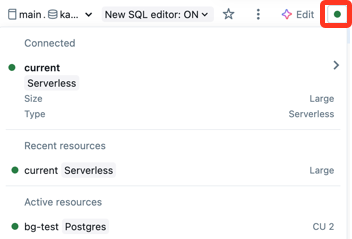
If you have a default SQL warehouse, the SQL editor automatically uses it when you create a query. If no default warehouse is set, you select from an alphabetical list of available warehouses. Subsequent queries use the last selected warehouse. To set a default warehouse, see Set a user-level default warehouse.
The icon next to the SQL warehouse indicates the status:
- Running

- Stopped

If there are no SQL warehouses in the list, contact your workspace administrator.
The selected SQL warehouse will restart automatically when you run your query. See Start a SQL warehouse to learn other ways to start a SQL warehouse.
Browse assets and get help
Use the left pane in the SQL editor to find workspace files, view data objects, and get help from Genie Code.

Browse workspace files
Click  the folder icon to open your workspace user folder. You can go to all of the workspace files you have access to from this part of the UI.
Browse data objects
If you have metadata read permission, the schema browser in the SQL editor shows the available databases and tables. You can also browse data objects from Catalog Explorer.
You can navigate Unity Catalog-governed database objects in Catalog Explorer without active compute. To explore data in the hive_metastore and other catalogs not governed by Unity Catalog, you must attach to compute with appropriate privileges. See Data governance with Unity Catalog.
If no data objects exist in the schema browser or Catalog Explorer, contact your workspace administrator.
Click  near the top of the schema browser to refresh the schema. You can enter text in the search bar to filter assets by name. Click the
  filter icon to filter objects by type.
Click the name of an object in the browser to see more details on the object. For example, click a schema name to show the tables in that schema. Click a table name to show the columns in that table.
Get help from Genie Code
Click  Genie Code icon to open a chat window with Genie Code. Click a suggested question or enter your own question to interact with Genie Code.
Create a query
You can enter text to create a query in the SQL editor. You can insert elements from the schema browser to reference catalogs and tables.
-
Enter your query in the SQL editor.
The SQL editor supports autocomplete. As you type, autocomplete suggests completions. For example, if a valid completion at the cursor location is a column, autocomplete suggests a column name. If you type
select * from table_name as t where t., autocomplete recognizes thattis an alias fortable_nameand suggests the columns insidetable_name. You can also use autocomplete to reference query snippets.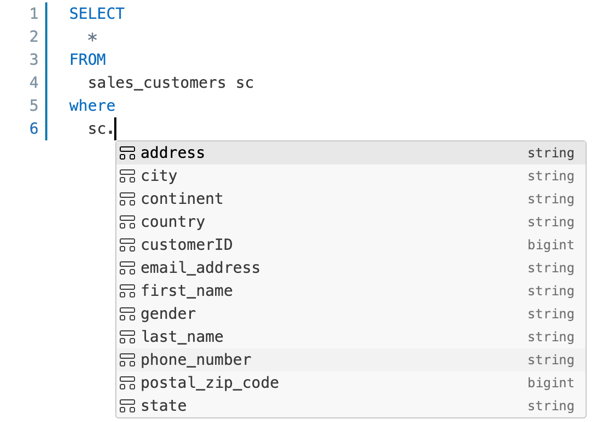
-
(Optional) When you are done editing, click Save. By default, the query is saved to your user Home folder. To save the query to a different location, select the target folder and click Move.
New queries are automatically named New query with the creation timestamp appended in the title. By default, new queries created without a specific folder context are created in the Drafts folder in your home directory. When new queries are saved or renamed, they are removed from Drafts.
Query data sources
You can identify a query source using a fully-qualified table name in the query itself or by selecting a combination of catalog and schema from the drop-down selectors along with the table name in the query. A fully-qualified table name in the query overrides the catalog and schema selectors in the SQL editor. If a table or column name includes spaces, wrap those identifiers in backticks in your SQL queries.
The maximum number of results returned in a table is 64,000 rows or 10MB, whichever is smaller.
The following examples demonstrate how to query various table-like objects that you can store in a catalog.
Query a standard table or view
The following example queries a table from the samples catalog.
SELECT
  o_orderdate,
  o_orderkey,
  o_custkey,
  o_totalprice,
  o_shippriority
FROM
  samples.tpch.orders
Query a metric view
The following example queries a metric view that uses a table from the samples catalog as its source. It evaluates the three listed measures and aggregates over Order Month and Order Status. It returns results sorted by Order Month. To create a similiar metric view in your workspace, see Tutorial: build a metric view with joins and data modeling.
All measure evaluations must be wrapped in the MEASURE function. See measure aggregate function.
SELECT
 `Order Month`,
 `Order Status`,
 MEASURE(`Order Count`),
 MEASURE(`Total Revenue`),
 MEASURE(`Total Revenue per Customer`)
FROM
 orders_metric_view
GROUP BY ALL
ORDER BY 1 ASC;
Optimize a query with Genie Code
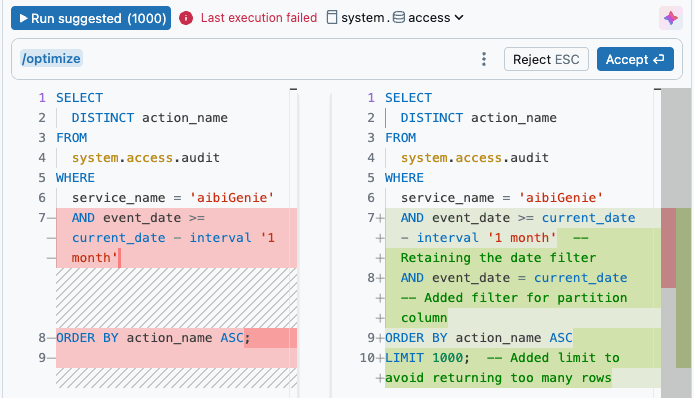
Click the Genie Code icon on the right side of the editor to get inline help and suggestions when writing queries. The /optimize slash command prompts Genie Code to evaluate and optimize queries. For more information, see Optimize Python, PySpark, and SQL code.
Edit multiple query tabs
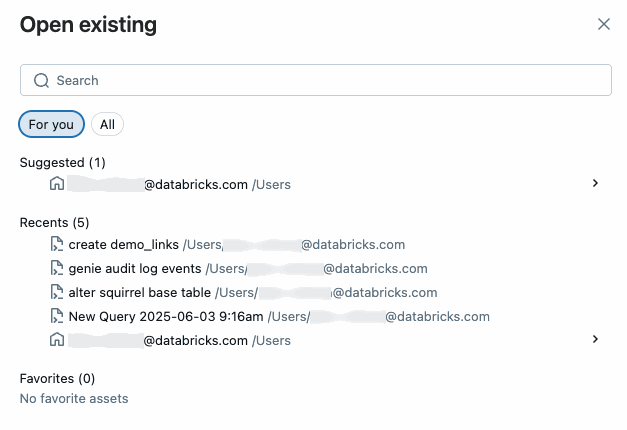
By default, the SQL editor uses tabs so you can open and edit multiple queries simultaneously. To open a new tab, click +, then select Create new query or Open existing query. Click Open existing query to see a list of queries. The For you tab offeres a curated list of sugestions based on your usage. Use the All tab to find any query that you have access to.
Save a query
Query content in the new SQL editor is continuously autosaved. The Save button controls whether the draft query content should be applied to related assets, like workflows or legacy alerts. If the query is shared with the Run as owner credential, only the query owner can use the Save button to propagate changes. If the credential is set to Run as viewer, any user with at least CAN MANAGE permission can save the query.
Source control a query
Databricks SQL query files (extension: .dbquery.ipynb) are supported in Databricks Git folders. You can use a Git folder to source control your query files and to share them in other workspaces with Git folders that access the same Git repository. If you choose to opt out of the new SQL editor after committing or cloning a query in a Databricks Git folder, delete and reclone that Git folder to avoid unexpected behaviors.