Databricks Voices content is authored and published by Databricks employees that want to share their own individual learnings and Databricks knowledge. This content supplements the official Databricks product documentation found in other sections of this site.
Deliver secure, per-customer Excel reports from AI/BI dashboards
How I recommend using Unity Catalog, row-level security, and per-customer service principals to schedule data extracts for external recipients in a secure and repeatable way.
Suppose your partners, franchisees, suppliers, or business-to-business (B2B) customers want a fresh Excel file in their inbox on a schedule. They don't want to log in to a portal, and many of them don't have a Databricks account.
AI/BI dashboards can do this out of the box. A scheduled update can email a PDF snapshot along with tabular data from selected widgets as CSV, TSV, or Excel attachments, and it can deliver to Databricks users as well as to external notification destinations such as email addresses, Slack, or Microsoft Teams.
When the recipients are outside your organization, though, the real question is how to make sure each customer only receives their own data.
This page walks through a pattern that keeps the security boundary where it belongs: in Unity Catalog. Access is enforced by the data platform, so the correctness of a recipient's file does not depend on how a dashboard filter happens to be configured. At the end, I cover a second option, external embedding with data downloads enabled, for customers who prefer self-service over files in their inbox.
Filters are for convenience, not for security
When you set up a scheduled export, you can pre-apply dashboard filter values, such as region = 'EMEA' or customer = 'Acme'. That's useful for shaping a report. It is not an access control mechanism, and you should not rely on it to separate one customer's data from another's.
The reason comes down to how dashboards are published:
- Shared data permissions (the default): every query runs with the publisher's credentials. The dashboard can see the superset of all the dashboard data the publisher can access. A filter just narrows what's displayed. Anything that changes, bypasses, or misconfigures a dashboard filter shows the full dashboard data behind it.
- Individual data permissions: every query runs with the viewer's or job's own identity, and Unity Catalog row filters and column masks are enforced automatically for that identity. Queries against the governed tables return only the rows that identity's row filters allow.
If you remember one thing from this page: don't build a multi-tenant external distribution on shared-credential dashboards. The tenant boundary belongs in Unity Catalog. Give each tenant an identity that can only see its own slice.
Filter on a shared-credential dashboard | Unity Catalog row-level security + per-customer service principal | |
|---|---|---|
Where the tenant boundary lives | Dashboard filter configuration | Unity Catalog (row filters / attribute-based access control (ABAC), grants) |
Identity that runs the query | Publisher (sees all tenants) | Customer-specific service principal (sees one tenant) |
Effect of a mis-set or missing filter | Another tenant's data can be sent | Recipient still only receives their own rows |
Auditable "who could see what" | Indirect | Grants and policies in Unity Catalog, queries attributed to the service principal (SP) |
Same rules apply to SQL, Genie, embedding | No | Yes |
Reference architecture
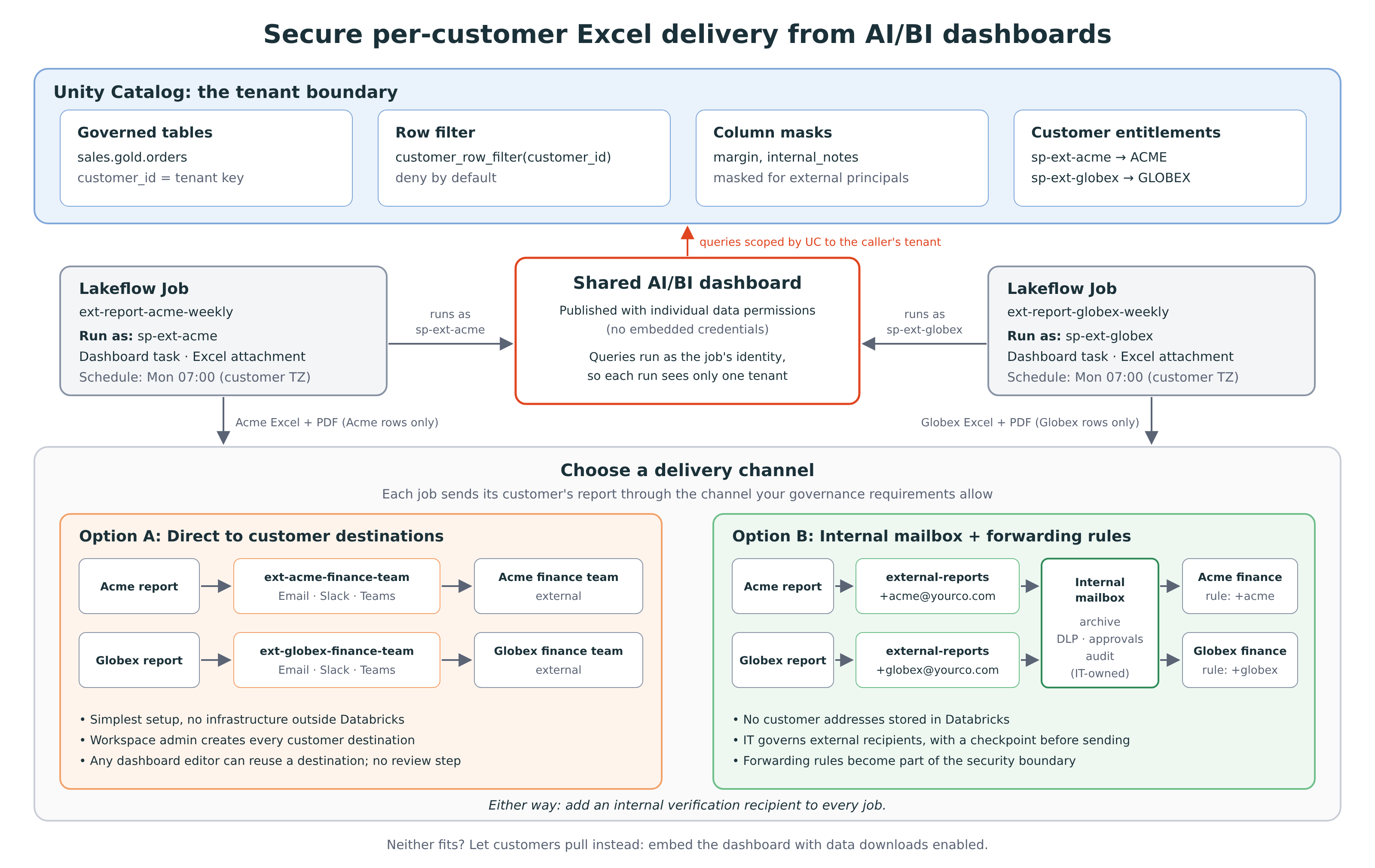
The pattern has five building blocks:
- An entitlements model in Unity Catalog that maps each customer identity to the rows it may see.
- Row filters and column masks (or ABAC policies) on the governed tables, so every query is scoped to the caller.
- One service principal per external customer, with only the grants it needs.
- One dashboard, published with individual data permissions, so queries run as the caller, not the publisher.
- One Lakeflow Job per customer with a dashboard task that runs as that customer's service principal and delivers the Excel attachment through the delivery channel you choose for that customer.
You build and maintain a single dashboard. What differs per customer is the identity it runs as and where the output is sent.
Set up the pattern
Model entitlements in Unity Catalog
Start with an entitlements table that maps principals to the tenants they may access. Keeping this as data, rather than as hard-coded logic, makes onboarding a new customer a single INSERT.
CREATE TABLE IF NOT EXISTS governance.security.customer_entitlements (
  principal   STRING  COMMENT 'Service principal application ID (or user/group)',
  customer_id STRING  COMMENT 'Tenant key the principal may access'
);

INSERT INTO governance.security.customer_entitlements VALUES
  ('<acme-sp-application-id>',   'ACME'),
  ('<globex-sp-application-id>', 'GLOBEX');
Enforce row-level security at the table
Create a row filter function that only returns rows whose tenant key the current identity is entitled to, and attach it to every table the dashboard reads.
CREATE OR REPLACE FUNCTION governance.security.customer_row_filter(customer_id STRING)
RETURN
  is_account_group_member('internal_analysts')        -- internal staff see everything
  OR EXISTS (
    SELECT 1
    FROM governance.security.customer_entitlements e
    WHERE e.principal = session_user()
      AND e.customer_id = customer_row_filter.customer_id   -- qualify the parameter, otherwise it resolves to e.customer_id
  );

ALTER TABLE sales.gold.orders
  SET ROW FILTER governance.security.customer_row_filter ON (customer_id);
A few recommendations:
- Deny by default. A principal with no entitlement row sees zero rows rather than everything.
- Use column masks for sensitive fields (margins, internal notes, personally identifiable information (PII)) that external recipients should never receive, even for their own tenant.
- Use ABAC at scale. If many tables carry the same tenant key, use ABAC policies with governed tags. They attach at the catalog or schema level and apply automatically, so a newly added table doesn't silently go unprotected.
- Check your identity values. Use
session_user()to retrieve the service principal's identity. For a service principal it returns the application ID (a universally unique identifier, or UUID), not its display name, so key the entitlements table on the application ID. Alternatively, add each customer service principal to a per-customer account group and check membership withis_account_group_member(). - Masked values are what recipients actually receive. A masked value arrives in the export as whatever your mask function returns. That's typically an empty cell for a masked numeric column, or a placeholder such as
[MASKED]for a masked text column. Consider dropping such columns from the exported widget altogether, or explaining them in the email subject or dashboard text, so customers don't mistake them for missing data.
Create one service principal per external customer
For each external customer, create a dedicated service principal (for example sp-ext-acme) and grant it the minimum it needs:
GRANT USE CATALOG ON CATALOG sales TO `<acme-sp-application-id>`;
GRANT USE SCHEMA  ON SCHEMA  sales.gold TO `<acme-sp-application-id>`;
GRANT SELECT      ON TABLE   sales.gold.orders TO `<acme-sp-application-id>`;
In addition:
- Grant the service principal CAN USE on the SQL warehouse the report runs on (serverless or pro).
- Grant it CAN VIEW / CAN RUN on the dashboard.
- Grant your report operators the Service Principal User role on the service principal, so they can set it as a job's Run as identity. Keep this list short: anyone with that role can run workloads with that customer's data access. This role is required even for the workspace admin who created the service principal. Creating a service principal makes you its Manager, which lets you administer it but not run workloads as it. Without Service Principal User, saving a job with that service principal as its Run as identity fails with a permission error.
A dedicated identity per customer helps contain a misconfiguration to that customer, as long as its grants and entitlements are scoped correctly. It also makes every query in the audit logs attributable to a specific tenant, and offboarding a matter of disabling one principal.
Publish the dashboard with individual data permissions
Build a single report dashboard against the row-filtered tables. When you publish, choose individual data permissions (don't embed credentials). With this setting, the identity running the dashboard, not the publisher, determines which rows come back, and Unity Catalog row filters and column masks are enforced with no extra configuration in the dashboard.
Test it before going further. Open the dashboard as an internal user, then query the underlying tables as each service principal, and confirm that each service principal sees only its own tenant.
If you deploy the dashboard with Declarative Automation Bundles, the dashboard resource's embed_credentials setting already defaults to false, so the bundle publishes it with individual data permissions. Keep that default, and no manual publishing step is needed.
A variant of this approach is one dashboard per customer, each published with the embedded credentials of that customer's service principal. This also keeps data separated, but you maintain one copy of the dashboard per customer, so every report change must be rolled out to all copies.
Choose a delivery channel
With this setup, Unity Catalog and the per-customer service principal decide what goes into each file. Your delivery channel decides where the data goes. Choose the option that fits your organization's governance requirements.
Option A: Deliver directly to customer notification destinations
As a workspace admin, create notification destinations for each customer's recipients under Settings > Notifications > Manage > Add destination (Email, Slack, Microsoft Teams, and more). Use a clear naming convention, such as ext-acme-finance-team, so it's obvious which customer each destination belongs to. This is the simplest setup and needs no infrastructure outside Databricks.
Before choosing this option, consider the following caveats:
- Creating, updating, and deleting notification destinations requires workspace admin rights, so onboarding a new customer needs an admin.
- After a destination exists, any user with CAN EDIT on a dashboard in the workspace can add it as a subscriber to a schedule. There is no per-destination permission, so a destination that points to a customer can be reused by anyone with edit rights on any dashboard.
- There is no review step. A wrong subscriber or a wrong dashboard goes straight to an external inbox.
If you choose this option, you can mitigate some of these caveats. Run external delivery from a dedicated workspace where only the automation service principal and a small group of operators have access. Create destinations through automation, and monitor audit logs for schedule and subscription changes.
Option B: Deliver to an internal mailbox and forward with mail rules
Instead of registering customer addresses in Databricks, send every report to an internal mailbox that your organization owns and controls, such as external-reports@yourcompany.com. Your email administrators can then set up forwarding rules on that mailbox, for example "if this is the Acme report, forward it to the Acme finance team."
This approach has several advantages:
- No customer address exists in the Databricks workspace, so nobody can use a notification destination to message a customer directly.
- The list of external recipients is owned by your email or IT team and governed by the controls they already apply to outbound mail, such as approvals, data loss prevention, retention, and audit.
- Every delivery passes through an internal mailbox. That gives you an archive and a checkpoint where you can add a manual or automated validation step before anything leaves the organization.
- Only internal addresses are registered as destinations, so admin involvement shrinks to setting up internal mailboxes or aliases.
Keep in mind that the forwarding rules are now part of your security boundary:
- Each rule must identify the customer unambiguously. Because all customers share one dashboard, the emails can look very similar. A reliable pattern is one internal alias per customer on the shared mailbox (for example
external-reports+acme@yourcompany.com), used as that customer's destination, with the forwarding rule matching on the alias. - Restrict who can change the forwarding rules, and review them as carefully as you review Unity Catalog grants.
- Test every new rule with an internal recipient before pointing it at a customer, and check that forwarded attachments stay within your mail system's size limits.
If neither option fits
If your organization can't accept either approach, for example because no external delivery may originate from the data platform, have customers pull the data instead. See An alternative: embedding with data downloads enabled later on this page.
Whichever option you choose, consider adding an internal recipient to each scheduled run. It receives the same notification and serves as a verification and audit copy.
Create a Lakeflow Job per customer with a dashboard task
This is the step that ties identity to delivery. For each customer:
- Create a job, for example
ext-report-acme-weekly. - Set the job's Run as to that customer's service principal (
sp-ext-acme). - Add a Dashboard task that points at the shared report dashboard and a serverless or pro SQL warehouse.
- Under Subscribers, add only the destination you chose for that customer in Step 5: the customer's own destinations (Option A) or that customer's internal alias (Option B).
- Under Attachments > Include data, select the widgets to export and choose Excel. Optionally include PDF pages and the current filter selections for context.
- Add a schedule (for example, every Monday at 07:00 in the customer's time zone).
Because the dashboard is published with individual data permissions, the dashboard task refreshes it using the job's Run as identity. The Excel file Acme receives is therefore produced from queries that Unity Catalog has already restricted to Acme's rows.
You can still use dashboard filters in the task for reporting purposes, such as a reporting period or product line. They narrow a report that's already secure. They do not decide which tenant's data is included.
Two things can prevent the Excel file from being attached even when everything else is configured correctly. First, data downloads must be enabled for the workspace. If they're disabled, the dashboard snapshot is still delivered but tabular attachments are omitted. Second, very large extracts may be dropped to stay within the email size limits. In both cases the job run still reports success, which is one more reason to include an internal verification recipient on every job, at least during rollout.
Automate onboarding as code
With more than a handful of customers, manage this as code with Declarative Automation Bundles and the Databricks APIs. A typical onboarding pipeline for a new customer:
- Create the service principal.
- Insert its rows into the entitlements table.
- Apply Unity Catalog grants and warehouse and dashboard permissions.
- Create the notification destinations.
- Deploy a job from a template with Run as set to the new service principal, its subscribers, and its schedule.
Bundles manage the dashboard and the per-customer jobs, including their run-as identity, subscribers, and Excel attachment. Service principals and notification destinations aren't bundle resources. Create them in a short pre-deploy step with the Databricks CLI, the REST APIs, or Terraform, and pass their IDs to the bundle as variables.
Offboarding is the reverse, and it starts with disabling the service principal, which stops its access to the data; then verify that its jobs no longer run.
Validate the setup
Before turning on external delivery, run through this checklist:
- The dashboard is published with individual data permissions.
- Every table and view the dashboard reads has a row filter or ABAC policy, and a principal without an entitlement gets zero rows.
- Each job's Run as is the matching customer service principal, and Subscribers contain only that customer's destinations.
- A test run for each customer, sent to an internal destination first, produces an Excel file with only that customer's rows.
- Sensitive columns are masked for external principals.
- The list of people with Service Principal User on each customer service principal is reviewed regularly.
- Audit logs and system tables are monitored for dashboard schedule and subscription changes.
- Data downloads are enabled for the workspace, and the internal verification copy of each test run contains the Excel attachment.
An alternative: embedding with data downloads enabled
Some customers don't actually want files in their inbox. They want the latest numbers and the ability to pull an export whenever they need one. For them, embed the dashboard in your customer-facing application and leave data downloads enabled.
With external embedding, your application authenticates with a service principal and issues a short-lived, user-scoped token per viewer. Viewers don't need Databricks accounts. By default they can download widget data as CSV, TSV, or Excel, and the same entitlements model applies: scope rows with __aibi_external_value in the dataset and back it with Unity Catalog row filters and column masks.
For a full walkthrough, see:
- How to embed Databricks AI/BI dashboards into customer-facing applications
- Beyond embedding: How to secure AI/BI Dashboards for every viewer
Choose an approach
Scheduled Excel delivery (this page) | Embedded dashboard with downloads | |
|---|---|---|
Recipient experience | Push: a file arrives on a schedule | Pull: live dashboard, export on demand |
Recipient needs | An email address or Slack/Teams channel | Access to your application |
Data freshness | As of the scheduled run | As of the viewer's session |
You build | Jobs, SPs, and destinations per customer | Token-issuing backend in your app |
Security boundary | Unity Catalog, per-customer SP | Unity Catalog, scoped embed token |
Many teams use both: scheduled Excel files for the stakeholders who live in email, and an embedded portal for the analysts who want to dig in.
Wrapping up
Sending data to people outside your organization is a governance problem before it's a reporting problem. Put the tenant boundary in Unity Catalog, give every external customer its own service principal, publish with individual data permissions, and let Lakeflow Jobs deliver the Excel file under that identity. Then each job's queries return only the rows that customer's identity can read, and with correctly configured subscribers and forwarding rules, each customer receives only their own data. Use dashboard filters to shape the report, not to secure it.