---
title: Work with files in Unity Catalog volumes
description: Learn about how to manage files in Unity Catalog volumes.
canonical_url: https://docs.databricks.com/aws/en/volumes/volume-files
---
# Work with files in Unity Catalog volumes
This page has examples for managing files in Unity Catalog [volumes](https://docs.databricks.com/aws/en/volumes/index.md) for various user interfaces, tools, libraries, and languages.
> [!NOTE]
>
> Available in Beta, use the `FILE` type to reference files in volumes as values in a table and apply table access controls to them. See [FILE type and unstructured data](https://docs.databricks.com/aws/en/unstructured/file.md).
Databricks recommends using volumes for managing all access to non-tabular data in cloud object storage and for storing workload support files. Examples include the following:
* Data files for ingestion, such as CSV, JSON, and Parquet
* Text, image, and audio files for data science, ML, and AI workloads
* CSV or JSON artifacts written by Databricks for integration with external systems
* Libraries, init scripts, and build artifacts
Volumes provide Portable Operating System Interface (POSIX)-style paths that work with Filesystem in Userspace (FUSE)-dependent tools and frameworks. This makes them ideal for machine learning frameworks and open source Python modules that require POSIX-style access. For detailed information about URI schemes, POSIX paths, and how they relate to volumes, see [Do I need to provide a URI scheme to access data?](https://docs.databricks.com/aws/en/files/index.md#paths).
## Methods for managing files in volumes
For quick examples of each method, see [Work with files in Unity Catalog volumes](https://docs.databricks.com/aws/en/files/index.md#volumes).
| Interface | Description |
| ----------------------------------------------------------------------------------------------------------------------------- | --------------------------------------------------------------------------------------- |
| [Catalog Explorer UI](https://docs.databricks.com/aws/en/volumes/volume-files.md#use-catalog-explorer) | Interactive file management through the Databricks workspace |
| [Programmatic access](https://docs.databricks.com/aws/en/volumes/volume-files.md#programmatically-work-with-files-in-volumes) | Read and write files using Apache Spark, Pandas, or SQL |
| [Databricks utilities](https://docs.databricks.com/aws/en/volumes/volume-files.md#utility-commands-for-files-in-volumes) | File operations using `dbutils.fs` or magic commands (`%fs`, `%sh`) in notebooks |
| [List and query files](https://docs.databricks.com/aws/en/volumes/volume-files.md#list-and-query-files-in-volumes-with-sql) | Query file metadata using `READ_FILES` and filter by properties |
| [SQL commands](https://docs.databricks.com/aws/en/volumes/volume-files.md#sql-commands-for-files-in-volumes) | File operations using SQL keywords (`LIST`, `PUT INTO`, `GET`, `REMOVE`) and connectors |
| [Databricks CLI](https://docs.databricks.com/aws/en/volumes/volume-files.md#manage-files-in-volumes-with-the-databricks-cli) | Command-line operations using `databricks fs` commands |
| [SDKs](https://docs.databricks.com/aws/en/volumes/volume-files.md#manage-files-in-volumes-with-sdks) | File operations using Python, Java, or Go SDKs |
| [REST API](https://docs.databricks.com/aws/en/volumes/volume-files.md#manage-files-in-volumes-with-the-rest-api) | Direct API access for custom integrations |
## Use Catalog Explorer
Catalog Explorer has options for common file management tasks for files stored with Unity Catalog volumes.
To interact with files in a volume, do the following:
1. In your Databricks workspace, click  **Catalog**.
2. Search or browse for the volume that you want to work with and select it.
For details on creating and managing volumes, see [Create and manage Unity Catalog volumes](https://docs.databricks.com/aws/en/volumes/utility-commands.md).
### Upload files to a volume
You can upload structured, semi-structured, or unstructured files of any format to a volume. Volumes support files up to the maximum size supported by the underlying cloud storage. However, when you upload files to a volume through the Databricks UI, there's a 5 GB file size limit. To upload larger files, use the Databricks SDK for Python v0.72.0 or above. See [Manage files in Unity Catalog volumes](https://docs.databricks.com/aws/en/dev-tools/sdk-python.md#files-in-volumes). You can also use [multipart upload](https://docs.databricks.com/aws/en/volumes/files-api.md#upload-large-files) in Files API 3.0, which is in [Beta](https://docs.databricks.com/aws/en/release-notes/release-types.md).
#### Requirements
Before you upload to a volume, make sure you have the following:
* A workspace with Unity Catalog enabled
* `WRITE VOLUME` on the target volume
* `USE SCHEMA` on the parent schema
* `USE CATALOG` on the parent catalog
For details, see [Unity Catalog privileges reference](https://docs.databricks.com/aws/en/data-governance/unity-catalog/access-control/privileges-reference.md).
#### Upload steps
1. In the sidebar, click **New**, then **Add or upload data**.
2. Click **Upload files to a volume**.
3. Under **Files**, click **browse** or drag and drop files into the drop zone.
4. Under **Destination volume**, select a volume or directory, or paste a volume path.
If no volume exists in the target schema, you can create one by clicking **Create volume**. Within the volume, you can create a new directory.
> [!NOTE]
>
> To upload your own files without first creating a catalog, schema, and volume, you can select My Files, a per-user volume, as the destination. My Files is in [Beta](https://docs.databricks.com/aws/en/release-notes/release-types.md). See [Store files in My Files](https://docs.databricks.com/aws/en/volumes/my-files.md).
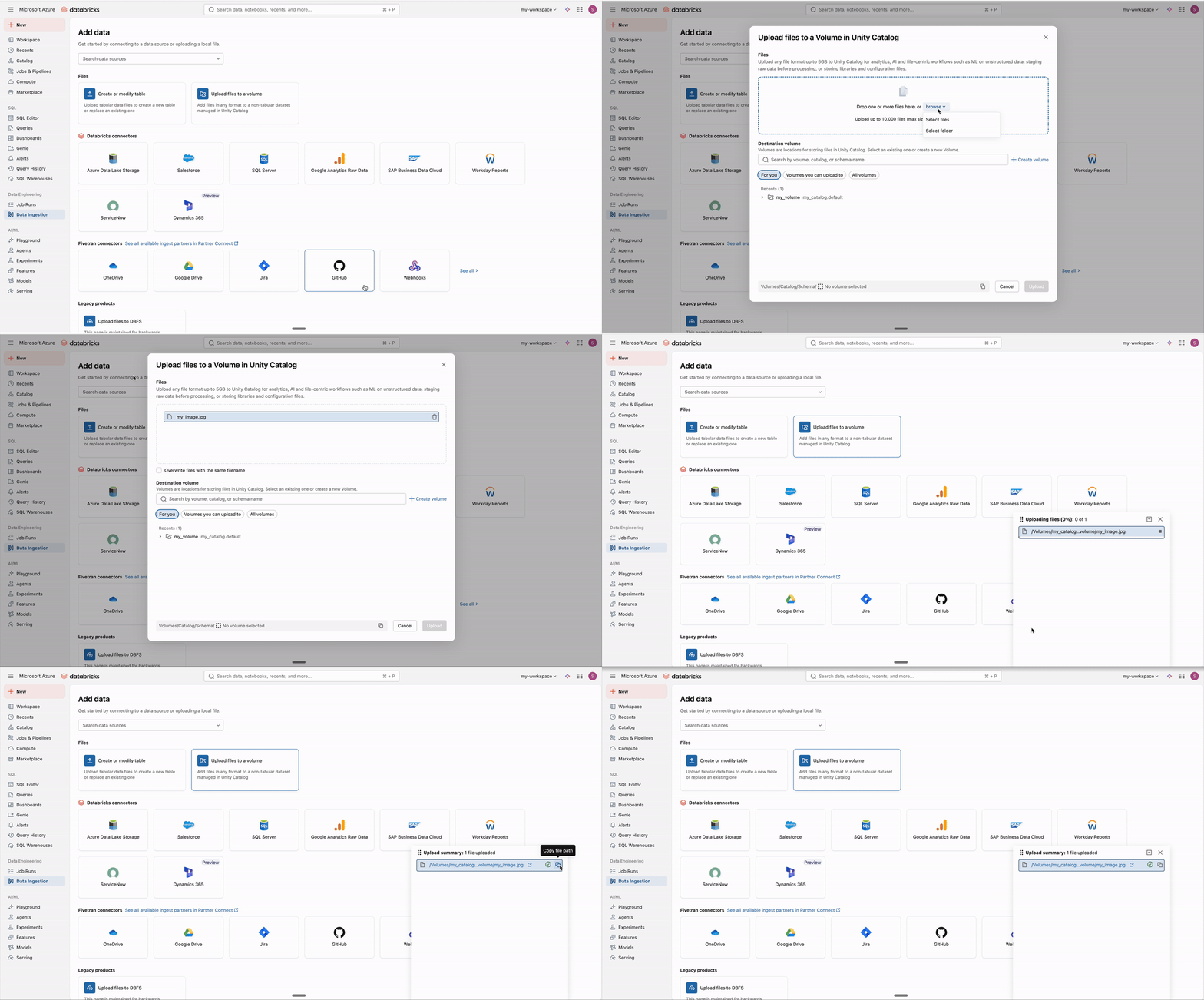
You can also access the upload UI in the following ways:
* In Catalog Explorer: **Add data** > **Upload files to a volume**
* From a notebook: **File** > **Upload files to volume**
#### Next steps
After you upload to a volume, you can do the following:
* Create a Unity Catalog managed table from the files. See [Create a table from data in a volume](https://docs.databricks.com/aws/en/volumes/volume-files.md#create-table).
* Use the files in ML and data science workloads
* Configure cluster libraries, notebook-scoped libraries, or job dependencies using the uploaded files
* Ingest data for engineering pipelines using [Auto Loader](https://docs.databricks.com/aws/en/ingestion/cloud-object-storage/auto-loader/patterns.md) or [COPY INTO](https://docs.databricks.com/aws/en/ingestion/cloud-object-storage/copy-into/unity-catalog.md)
* Process files with [AI functions](https://docs.databricks.com/aws/en/large-language-models/ai-functions.md) such as [`ai_parse_document`](https://docs.databricks.com/aws/en/sql/language-manual/functions/ai_parse_document.md)
* Set up [file arrival triggers](https://docs.databricks.com/aws/en/jobs/file-arrival-triggers.md) in jobs
- Upload documents for use with [Knowledge Assistant](https://docs.databricks.com/aws/en/agents/agent-bricks/knowledge-assistant.md)
### Edit files in a volume
You can open a text file stored in a volume in the Databricks file editor and edit it in place, without downloading the file and uploading it again. The editor saves your changes to the volume automatically.
To open a file in the editor, you need these privileges:
* `READ VOLUME` on the volume
* `USE SCHEMA` on the parent schema
* `USE CATALOG` on the parent catalog
* `WRITE VOLUME` on the volume to save changes. For details, see [Unity Catalog privileges reference](https://docs.databricks.com/aws/en/data-governance/unity-catalog/access-control/privileges-reference.md).
To edit a file in a volume:
1. In Catalog Explorer, browse to the volume that contains the file.
2. Click the  kebab menu next to the file name, and then click **Open in Editor**.
You can also click the file name to open its preview, and then click the  **Open in Editor** icon.
3. Edit the file. The editor saves your changes to the volume automatically.
You can also open a volume file from a notebook or the SQL editor. In the [schema browser](https://docs.databricks.com/aws/en/notebooks/notebook-editor.md#browse-data), hover over the file, click the  kebab menu, and then click **Open file**.
If the file changes outside the editor while you have it open, the editor shows a **Conflict detected** dialog. Click **Yes, I would like to fetch the latest changes** to load the latest version of the file, or click **No, overwrite contents** to save your version over it.
In the editor, you can use [Genie Code](https://docs.databricks.com/aws/en/notebooks/code-assistant.md) to read and edit the file. Genie Code can edit only the file that is open in the editor, and only if you have `WRITE VOLUME` on the volume.
#### Supported file types
The editor opens files with these extensions:
* **Text files**: txt, log, md
* **Code files**: py, scala, sql, r, sh
* **Semi-structured data files**: json, ndjson, jsonl, csv, tsv, tab
* **Configuration files**: yaml, yml, toml, ini, conf, properties, env
Files named `stdout` or `stderr` also open in the editor.
#### Limitations
The editor has these limitations:
* If a file is larger than 10 MB, you can't open it in the editor. To edit the file, download it, edit it locally, and upload it again.
* If a file has an extension that isn't in the preceding list, such as an image, PDF, or Parquet file, you can't open it in the editor. You can still preview supported formats such as images, PDFs, and Parquet files. See [ Preview files in volumes](https://docs.databricks.com/aws/en/discover/files.md#preview).
- The file editor isn't available in AWS GovCloud regions.
### Download files from a volume
To download files from a volume, do the following:
1. Select one or more files.
2. Click **Download** to download these files.
### Delete files from a volume
To delete files from a volume, do the following:
1. Select one or more files.
2. Click **Delete**.
3. Click **Delete** to confirm in the dialog that appears.
### Create a blank directory
To create a new directory in a volume, do the following:
1. On the volume overview tab, click **Create directory**.
2. Enter a directory name.
3. Click **Create**.
### Download a directory
To download a directory in a volume, do the following:
1. Click the  kebab menu to the right of the directory.
2. Click **Download directory**.
The directory is downloaded as a ZIP file.
### Delete directories from a volume
To delete directories from a volume, do the following:
1. Select one or more directories.
2. Click **Delete**.
3. Click **Delete** to confirm in the dialog that appears.
### UI file management tasks for volumes
Click the  kebab menu next to a file name to perform the following actions:
* Open in Editor (supported text files only). See [Edit files in a volume](https://docs.databricks.com/aws/en/volumes/volume-files.md#edit-files).
* Copy path
* Download file
* Delete file
* Create table
### Create a table from data in a volume
Databricks provides a UI to create a Unity Catalog managed table from a file, files, or directory of files stored in a Unity Catalog volume.
You must have `CREATE TABLE` permissions in the target schema and have access to a running SQL warehouse.
1. Select one or more files or a directory. Files should have the same data layout.
2. Click **Create table**. The **Create table from volumes** dialog appears.
3. Use the provided dialog to review a preview of the data and complete the following configurations:
* Choose to **Create new table** or **Overwrite existing table**
* Select the target **Catalog** and **Schema**.
* Specify the **Table name**.
* (Optional) Override default column names and types, or choose to exclude columns.
> [!NOTE]
>
> Click **Advanced attributes** to view additional options.
4. Click **Create table** to create the table with the specified attributes. Upon completion, Catalog Explorer displays the table details.
## Programmatically work with files in volumes
Read and write files in volumes from all supported languages and workspace editors using the following format:
`/Volumes/catalog_name/schema_name/volume_name/path/to/files`
You interact with files in volumes in the same way that you interact with files in any cloud object storage location. That means that if you currently manage code that uses cloud URIs, DBFS mount paths, or DBFS root paths to interact with data or files, you can update your code to use volumes instead.
> [!NOTE]
>
> Volumes are only used for non-tabular data. Databricks recommends registering tabular data using Unity Catalog tables and then reading and writing data using table names.
### Read and write data in volumes
Use Apache Spark, pandas, Spark SQL, and other OSS libraries to read and write data files in volumes.
The following examples demonstrate reading a CSV file stored in a volume:
#### Python
```python
df = spark.read.format("csv").load("/Volumes/catalog_name/schema_name/volume_name/data.csv")
display(df)
```
#### Pandas
```python
import pandas as pd
df = pd.read_csv('/Volumes/catalog_name/schema_name/volume_name/data.csv')
display(df)
```
#### SQL
```sql
SELECT * FROM csv.`/Volumes/catalog_name/schema_name/volume_name/data.csv`
```
### Utility commands for files in volumes
Databricks provides the following tools for managing files in volumes:
* The `dbutils.fs` submodule in Databricks Utilities. See [File system utility (dbutils.fs)](https://docs.databricks.com/aws/en/dev-tools/databricks-utils.md#dbutils-fs).
* The `%fs` magic, which is an alias for `dbutils.fs`.
* The `%sh` magic, which allows bash command against volumes.
For an example of using these tools to download files from the internet, unzip files, and move files from ephemeral block storage to volumes, see [Download data from the internet](https://docs.databricks.com/aws/en/volumes/download-internet-files.md).
You can also use OSS packages for file utility commands, such as the Python `os` module, as shown in the following example:
```python
import os
os.mkdir('/Volumes/catalog_name/schema_name/volume_name/directory_name')
```
### DataFrame checkpoints in volumes
You can use Unity Catalog volume paths to store [DataFrame checkpoints](https://spark.apache.org/docs/latest/api/python/reference/pyspark.sql/api/pyspark.sql.DataFrame.checkpoint.html). DataFrame checkpoints truncate the execution plan of a DataFrame and save the contents to storage. This can improve performance for iterative algorithms and complex query plans by preventing excessively long lineages when reusing DataFrames.
Storing checkpoints in Unity Catalog volumes applies governance and access controls to your checkpoint data, helping you move away from unmanaged cloud storage paths.
#### Requirements
* Databricks Runtime 18.1 or above.
* Unity Catalog-enabled compute with either dedicated or standard access mode. DataFrame checkpoints in volumes are not supported on serverless compute.
#### Configure the checkpoint directory
The method for setting the checkpoint directory depends on the access mode of your compute:
##### Dedicated access mode
On compute with dedicated access mode, use `SparkContext.setCheckpointDir`:
```python
spark.checkpoint.dir=/Volumes////checkpoint
```
##### Standard access mode
On compute with standard access mode, use the `spark.checkpoint.dir` Spark configuration:
```python
spark.conf.set("spark.checkpoint.dir", "/Volumes////checkpoints")
```
#### Create a DataFrame checkpoint
After configuring the checkpoint directory, use `DataFrame.checkpoint()` to truncate the execution plan and save the data:
```python
df = spark.range(100).withColumn("doubled", col("id") * 2)
checkpointed_df = df.checkpoint()
```
> [!NOTE]
>
> DataFrame checkpoints differ from Structured Streaming checkpoints. For information about storing streaming checkpoint data in volumes, see [Structured Streaming checkpoints](https://docs.databricks.com/aws/en/structured-streaming/checkpoints.md).
## List and query files in volumes with SQL
You can use the [`read_files` table-valued function](https://docs.databricks.com/aws/en/sql/language-manual/functions/read_files.md) SQL function to list files in a volume and query their metadata. This is useful for discovering files, filtering by file properties, and preparing files for processing with [AI functions](https://docs.databricks.com/aws/en/large-language-models/ai-functions.md).
When using `READ_FILES` with `format => "binaryFile"`, the function returns a table with the following columns:
* `path`: The full file path
* `modificationTime`: The last modification timestamp
* `length`: The file size in bytes
* `content`: The raw file content as binary data
You can also select the `_metadata` column to access additional file information, including `file_path`, `file_name`, `file_size`, and `file_modification_time`.
### List all files in a volume
The following example lists all files in a volume, excluding the binary content:
```sql
SELECT
* EXCEPT (content),
_metadata
FROM read_files(
"/Volumes///",
format => "binaryFile"
);
```
### Filter files by type and size
The following example filters for image files between 20 KB and 1 MB:
```sql
SELECT * EXCEPT (content), _metadata
FROM read_files(
"/Volumes/my_catalog/my_schema/my_volume",
format => "binaryFile",
fileNamePattern => "*.{jpg,jpeg,png,JPG,JPEG,PNG}"
)
WHERE _metadata.file_size BETWEEN 20000 AND 1000000;
```
### Filter files by modification time
The following example finds PDF files modified in the last day:
```sql
SELECT * EXCEPT (content), _metadata
FROM read_files(
"/Volumes/my_catalog/my_schema/my_volume",
format => "binaryFile",
fileNamePattern => "*.{pdf,PDF}"
)
WHERE modificationTime >= current_timestamp() - INTERVAL 1 DAY;
```
### Process images with AI functions
The following example uses the [`ai_query` function](https://docs.databricks.com/aws/en/sql/language-manual/functions/ai_query.md) function to generate descriptions for image files:
```sql
SELECT
path AS file_path,
ai_query(
'system.ai.llama-4-maverick',
'Describe this image in ten words or less: ',
files => content
) AS result
FROM read_files(
"/Volumes/my_catalog/my_schema/my_volume",
format => "binaryFile",
fileNamePattern => "*.{jpg,jpeg,png}"
)
WHERE _metadata.file_size < 1000000
AND _metadata.file_name LIKE '%robots%';
```
### Parse documents with AI functions
The following example uses the [`ai_parse_document` function](https://docs.databricks.com/aws/en/sql/language-manual/functions/ai_parse_document.md) function to extract structured data from PDF receipts:
```sql
SELECT
path AS file_path,
ai_parse_document(content, map('version', '2.0')) AS result
FROM read_files(
"/Volumes/main/public/my_files/",
format => "binaryFile",
fileNamePattern => "*.{pdf,PDF}"
)
WHERE _metadata.file_name ILIKE '%receipt%';
```
## Manage files in volumes from external tools
Databricks provides a suite of tools for programmatically managing files in volumes from your local environment or integrated systems.
### SQL commands for files in volumes
Databricks supports the following SQL keywords for interacting with files in volumes:
* [PUT INTO](https://docs.databricks.com/aws/en/sql/language-manual/sql-ref-syntax-aux-connector-put-into.md)
* [GET](https://docs.databricks.com/aws/en/sql/language-manual/sql-ref-syntax-aux-connector-get.md)
* [REMOVE](https://docs.databricks.com/aws/en/sql/language-manual/sql-ref-syntax-aux-connector-remove.md)
* [LIST](https://docs.databricks.com/aws/en/sql/language-manual/sql-ref-syntax-aux-list.md)
In Databricks notebooks and the SQL query editor, only the `LIST` command is supported. The other SQL commands (`PUT INTO`, `GET`, and `REMOVE`) are available through the following Databricks SQL connectors and drivers, which support managing files in volumes:
* [Databricks SQL Connector for Python](https://docs.databricks.com/aws/en/dev-tools/python-sql-connector.md#files-in-volumes)
* [Databricks SQL Driver for Go](https://docs.databricks.com/aws/en/dev-tools/go-sql-driver.md#files-in-volumes)
* [Databricks SQL Driver for Node.js](https://docs.databricks.com/aws/en/dev-tools/nodejs-sql-driver.md#files-in-volumes)
* [Databricks JDBC driver](https://docs.databricks.com/aws/en/integrations/jdbc/volumes.md)
* [Databricks ODBC driver](https://docs.databricks.com/aws/en/integrations/odbc/volumes.md)
### Manage files in volumes with the Databricks CLI
Use the subcommands in `databricks fs`. See [`fs` command group](https://docs.databricks.com/aws/en/dev-tools/cli/reference/fs-commands.md).
> [!NOTE]
>
> The Databricks CLI requires the scheme `dbfs:/` to precede all volumes paths. For example, `dbfs:/Volumes/catalog_name/schema_name/volume_name/path/to/data`.
### Manage files in volumes with SDKs
The following SDKs support managing files in volumes:
* The Databricks SDK for Python. Use the available methods in [WorkspaceClient.files](https://databricks-sdk-py.readthedocs.io/en/latest/workspace/files/files.html#databricks.sdk.service.files.FilesAPI). For examples, see [Manage files in Unity Catalog volumes](https://docs.databricks.com/aws/en/dev-tools/sdk-python.md#files-in-volumes).
* The Databricks SDK for Java. Use the available methods in [WorkspaceClient.files](https://javadoc.io/static/com.databricks/databricks-sdk-java/0.25.0/com/databricks/sdk/service/files/FilesAPI.html). For examples, see [Manage files in Unity Catalog volumes](https://docs.databricks.com/aws/en/dev-tools/sdk-java.md#files-in-volumes).
* The Databricks SDK for Go. Use the available methods in [WorkspaceClient.files](https://pkg.go.dev/github.com/databricks/databricks-sdk-go@v0.40.1/service/files#FilesInterface). For examples, see [Manage files in Unity Catalog volumes](https://docs.databricks.com/aws/en/dev-tools/sdk-go.md#files-in-volumes).
### Manage files in volumes with the REST API
Use the [Files API](https://docs.databricks.com/aws/en/volumes/files-api.md) to manage files in volumes.
#### REST API examples for files in volumes
The following examples use `curl` and the Files API 3.0 to perform file management tasks in volumes.
> [!NOTE]
> **Beta**
>
> Files API 3.0 is in [Beta](https://docs.databricks.com/aws/en/release-notes/release-types.md). To use it, a workspace admin must turn on **Files API V3 with Large File Upload Support** from the **Previews** page. See [Manage Databricks previews](https://docs.databricks.com/aws/en/admin/workspace-settings/manage-previews.md).
>
> * `REGIONAL_WORKSPACE_HOST` is your workspace's regional hostname. See [Send requests to the regional hostname](https://docs.databricks.com/aws/en/volumes/files-api.md#regional-hostname).
> * Files API 3.0 requires network connectivity to Databricks and to your storage. See [Configure network connectivity](https://docs.databricks.com/aws/en/volumes/files-api.md#configure-network-connectivity).
The following example creates an empty folder named `my-folder` in the specified volume.
```bash
curl --request PUT "https://${REGIONAL_WORKSPACE_HOST}/api/3.0/fs/directories/Volumes/main/default/my-volume/my-folder/" \
--header "Authorization: Bearer ${DATABRICKS_TOKEN}"
```
The following example creates a file named `data.csv` with the specified data in the specified path in the volume.
```bash
curl --request PUT "https://${REGIONAL_WORKSPACE_HOST}/api/3.0/fs/files/Volumes/main/default/my-volume/my-folder/data.csv?overwrite=true" \
--header "Authorization: Bearer ${DATABRICKS_TOKEN}" \
--header "Content-Type: application/octet-stream" \
--data-binary $'id,Text\n1,Hello World!'
```
The following example lists the contents of a volume in the specified path. This example uses [jq](https://jqlang.github.io/jq/) to format the response body's JSON for easier reading.
```bash
curl --request GET "https://${REGIONAL_WORKSPACE_HOST}/api/3.0/fs/directories/Volumes/main/default/my-volume/" \
--header "Authorization: Bearer ${DATABRICKS_TOKEN}" | jq .
```
The following example lists the contents of a folder in a volume in the specified path. This example uses [jq](https://jqlang.github.io/jq/) to format the response body's JSON for easier reading.
```bash
curl --request GET "https://${REGIONAL_WORKSPACE_HOST}/api/3.0/fs/directories/Volumes/main/default/my-volume/my-folder" \
--header "Authorization: Bearer ${DATABRICKS_TOKEN}" | jq .
```
The following example prints the contents of a file in the specified path in a volume.
```bash
curl --request GET "https://${REGIONAL_WORKSPACE_HOST}/api/3.0/fs/files/Volumes/main/default/my-volume/my-folder/data.csv" \
--header "Authorization: Bearer ${DATABRICKS_TOKEN}"
```
The following example deletes a file in the specified path from a volume.
```bash
curl --request DELETE "https://${REGIONAL_WORKSPACE_HOST}/api/3.0/fs/files/Volumes/main/default/my-volume/my-folder/data.csv" \
--header "Authorization: Bearer ${DATABRICKS_TOKEN}"
```
The following example deletes a folder from the specified volume.
```bash
curl --request DELETE "https://${REGIONAL_WORKSPACE_HOST}/api/3.0/fs/directories/Volumes/main/default/my-volume/my-folder/" \
--header "Authorization: Bearer ${DATABRICKS_TOKEN}"
```
## Limitations of working with files in volumes
Before working with files in volumes, consider the following limitations:
* Direct-append or non-sequential (random) writes are not supported. This affects operations like writing Zip and Excel files. For these workloads:
1. Perform the operations on a local disk first
2. Copy the results to the volume
For example:
```python
# python
import xlsxwriter
from shutil import copyfile
workbook = xlsxwriter.Workbook('/local_disk0/tmp/excel.xlsx')
worksheet = workbook.add_worksheet()
worksheet.write(0, 0, "Key")
worksheet.write(0, 1, "Value")
workbook.close()
copyfile('/local_disk0/tmp/excel.xlsx', '/Volumes/my_catalog/my_schema/my_volume/excel.xlsx')
```
* Catalog Explorer can't preview spreadsheet files (xls, xlsx) larger than 1 MB or that use the ZIP64 format. See [ Preview files in volumes](https://docs.databricks.com/aws/en/discover/files.md#preview).
* Sparse files are not supported. To copy sparse files, use `cp --sparse=never`:
```bash
$ cp sparse.file /Volumes/my_catalog/my_schema/my_volume/sparse.file
error writing '/dbfs/sparse.file': Operation not supported
$ cp --sparse=never sparse.file /Volumes/my_catalog/my_schema/my_volume/sparse.file
```