Chat in Genie One
Chat in Genie One is a unified, full-screen natural-language interface for business users to ask data questions. It first searches available Genie Agents for a match, then searches across dashboards, queries, and metric views. You can also connect external sources (such as Google Drive and SharePoint) so chat can answer from your company documents and schedule recurring chat tasks that post results back as a thread.
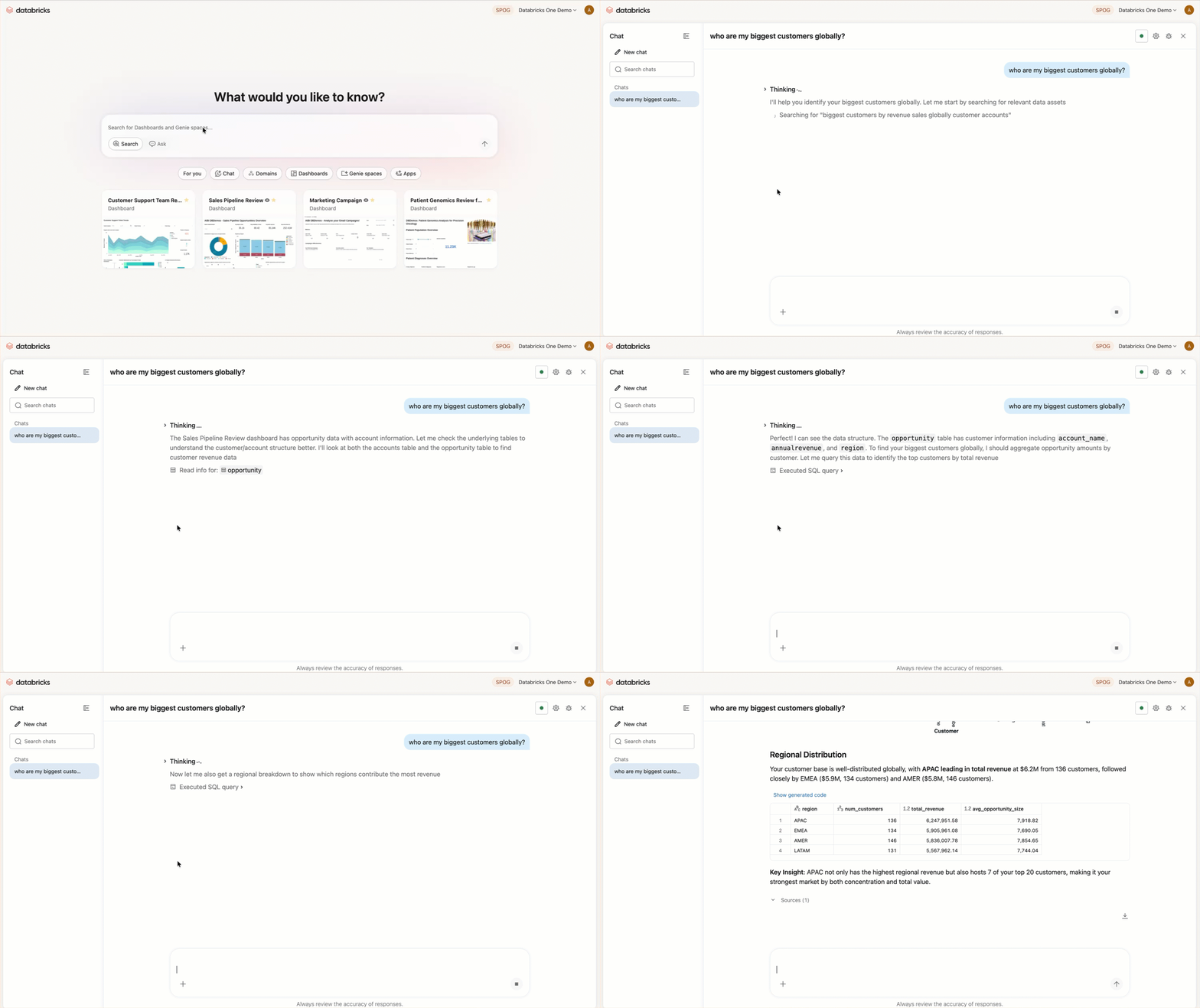
How chat works
When you submit a question to chat:
- It searches available Genie Agents for one relevant to your question.
- If a matching Genie Agent is found, it uses that space to generate a response.
- If no matching Genie Agent is found, it searches for relevant data assets to answer your question.
To give chat access to your company documents, connect external data sources such as Google Drive, SharePoint, GitHub, Glean, and Atlassian. See Connect Genie One to external tools and sources.
To open chat, click New chat from the sidebar or use Ask mode in the search bar. You must have the CAN USE permission on at least one SQL warehouse to use chat.
Select compute
Chat uses Auto compute by default, which automatically selects the best available SQL warehouse and is recommended for most users. To use a specific warehouse instead:
- Click ••• in the top right.
- Click Manage compute.
- Select your SQL warehouse.
Manage chats in the sidebar
Your recent chats appear in the sidebar. Hover over a chat and click the  kebab menu to manage it:
- Pin a chat: Select Pin to keep the chat at the top of the sidebar for quick access. Pinned chats stay at the top until you unpin them.
- Rename a chat: Select Rename, enter a new name, and confirm to give the chat a clearer title.
Create a Genie Agent from a conversation
You can turn the context from a chat conversation into a reusable Genie Agent. This is helpful when a conversation builds up context that you want to save and apply to future questions, such as a sales KPI analysis, business report formatting guidance, or other domain-specific instructions.
To create a Genie Agent from Genie One, you must have the Workspace access or Databricks SQL access entitlement. Users with only Consumer access and account users without workspace membership can't create Genie Agents from Genie One. See Manage entitlements.
Create an agent
You can create a Genie Agent from a conversation in two ways:
- Ask Genie One to save the conversation's context as an agent.
- Click the overflow menu (•••) under an answer, then click Create Agent.
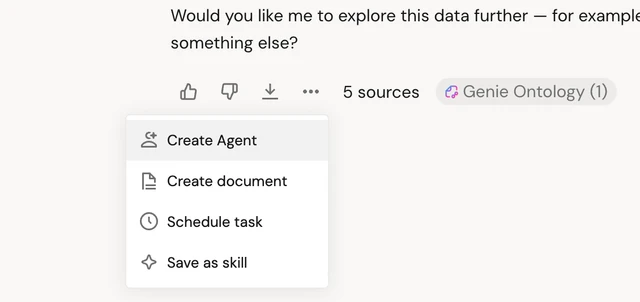
To create an agent in a conversation, tell Genie One what you want the agent to capture:
Save this sales KPI analysis as an agent so I can reuse it.
After Genie One creates the agent, you can open it in your workspace to fine-tune its context, instructions, and data assets. To learn more about Genie Agents, see Genie Agents.
Edit an agent
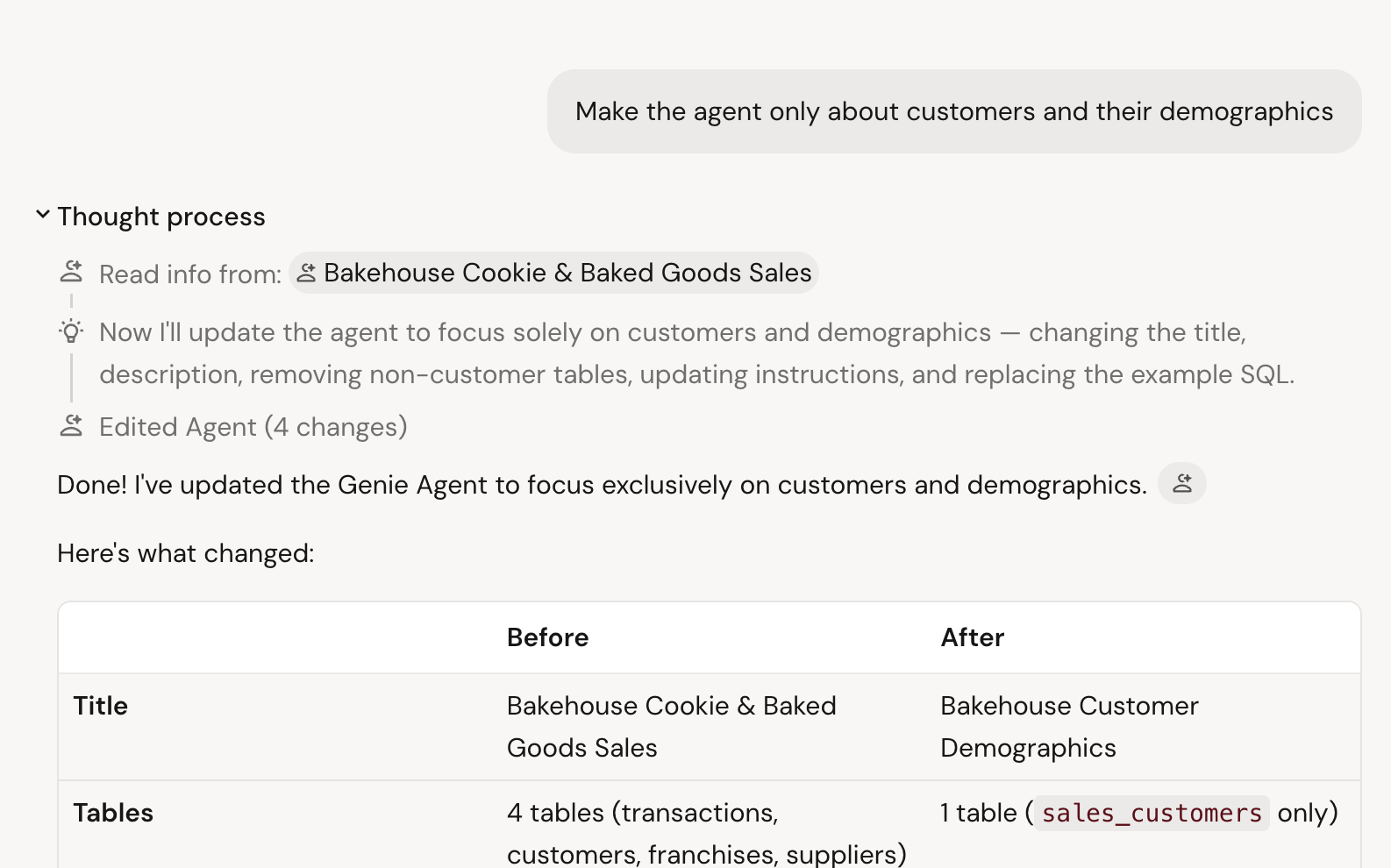
You can ask Genie One to change an agent's context in a conversation. For example, you can add tables or change an agent's instructions in natural language.
Add the sales.forecast table to my sales KPI agent.
Delete an agent
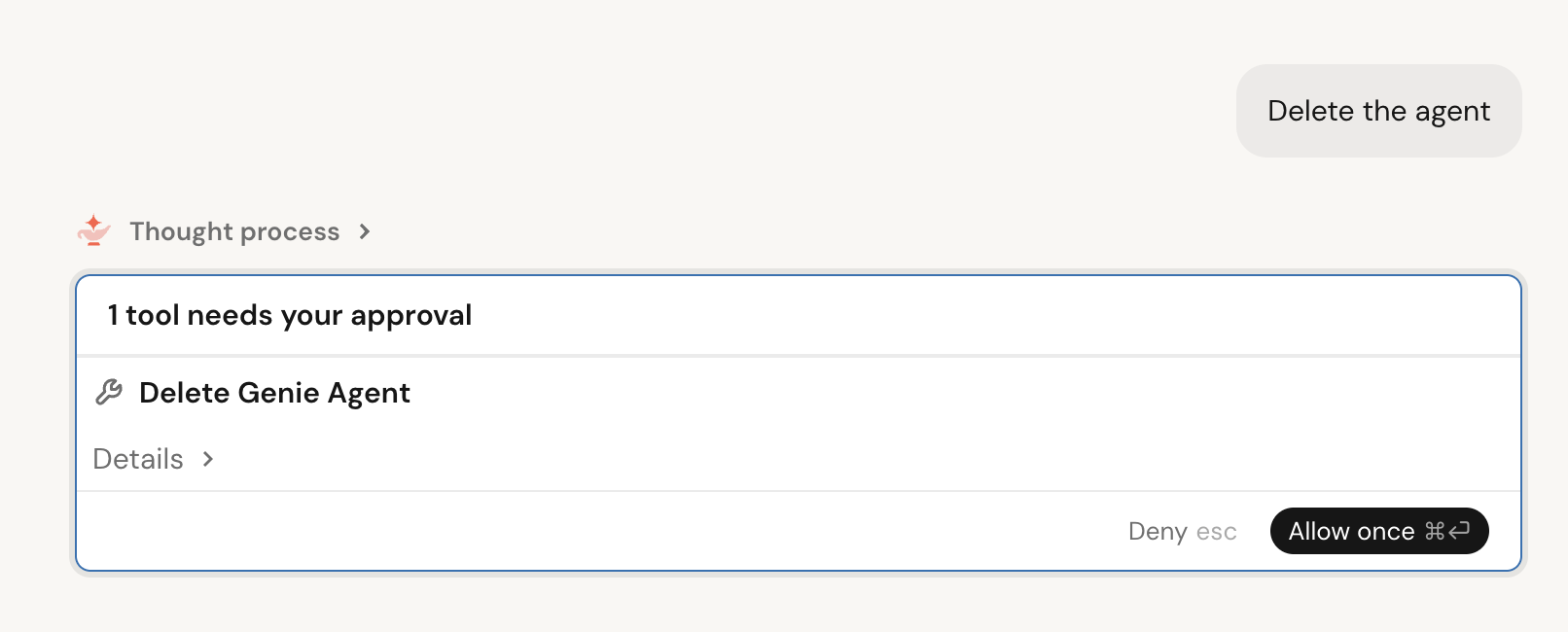
You can ask Genie One to delete an agent in a conversation. Genie One asks you to confirm before it deletes the agent.
Delete my sales KPI agent.
Genie Ontology
Genie One uses Genie Ontology, the unified context layer that gives Genie a business-aware map of your organization. It combines modeled context you govern in Unity Catalog semantics, such as metric views, domains, and Pages, with context Genie infers automatically from your assets and usage. Genie One and Genie Code search the same ontology, so context you curate once applies to both surfaces.
To see which knowledge sources Genie One used to answer your question, click the  citation icons in a response.
For a full description of Genie Ontology, including inferred context, authority scoring, and permission gating, see Genie Ontology.
Add workspace instructions for chat
Workspace admins can add custom instructions that apply to every chat conversation in the workspace. Instructions can include information about your organization's data conventions, preferred terminology, or guidelines for how chat should respond.
To add workspace instructions, create a Markdown file at the following path in your workspace:
/Workspace/.genie_workspace_instructions.md
Instructions must be under 20,000 characters. Chat reads this file automatically with no additional configuration required. Instructions apply to chat only and do not affect Genie Agents or Genie Code.
For best practices on adding custom instructions, see Best practices for Genie Code instructions.
Skills
Skills let you extend chat in Genie One with custom capabilities tailored to your needs. By default, a skill is available only to you, but you can share it with your team. See Share a skill with your team. Skills are loaded automatically when Genie One determines they are relevant to your request, and you can invoke a skill manually by typing / followed by its name.
A skill can include multiple files and sub-folders, up to three folders deep and 50 files or folders per skill. Skills can contain text files only. Images, PDFs, and other binary files are not supported.
For agent skills in Genie Code, see Extend Genie Code with agent skills.
Create a skill
Tell Genie One to do this for you:
Create a skill that summarizes weekly sales trends for my region.
Genie One creates the skill and saves it to your workspace at /Workspace/Users/{email}/.assistant/skills/.
Edit a skill
To edit a skill, ask Genie One to make changes in a conversation, then review the changes in the sidebar. You can also manage a skill from its page:
- In the left navigation, click Customizations, then click Skills.
- Select the skill.
- From the drop-down menu next to Share in the top right, select Edit with Genie to change the skill in a conversation, or Open in workspace editor to edit its files directly.
To delete a skill, follow the same steps and select Remove skill from the drop-down menu.
Invoke a skill
Genie One automatically loads skills when they are relevant to your request. To invoke a skill, type / followed by its name in the chat input.
Share a skill with your team
This feature is in Beta and requires two previews:
- An account admin must turn on the Enhanced Unity AI Gateway preview from the account console Previews page.
- A workspace admin must turn on the Unity Gateway skills in Genie preview from the workspace Previews page.
You can publish a skill and share it with teammates. Skills are governed by Unity Gateway, so the same catalog and schema privileges that protect your other data control who can publish and use them:
- To publish a skill, you need
USE CATALOG,USE SCHEMA, andCREATE VOLUMEon the target schema. - To install and use a shared skill, you need
USE CATALOG,USE SCHEMA, andREAD VOLUMEon the schema that holds it.
For the full privilege model, including the privileges needed to update a published skill, see Grant access to skills.
To publish a skill and share it:
- In the left navigation, click Customizations, then click Skills.
- Select the skill, then click Share.
- Under Publish to, select a catalog and schema.
- Add the users, groups, or service principals to share with, and set the general access level.
- Click Done.
Find and install shared skills
On the customization page, skills that teammates shared with you appear next to your skills. Install a skill to use it in your chats, and uninstall it to stop using it.
You can also browse skills from chat: click + in the message composer, then select Skills > Browse skills.
Use shared skills in scheduled tasks
Skills you install are available in scheduled tasks, including tasks shared with your team, so recurring runs apply the same skills.
Skill limitations
Uploading files to a skill isn't supported in the Genie One UI. To add files, upload them from Catalog Explorer the same way you would for a volume: click  Catalog, browse to the skill in the catalog and schema you published it to, then upload your files. See Use Catalog Explorer.
Scheduled tasks
Scheduled tasks run automatically at a specified time and post the results in a chat thread. When a task runs, chat sends you an email with the results, including any visualizations, and a PDF attachment of the task's output.
You can create a scheduled task in two ways:
-
Type a request in natural language in chat, for example: "Send me a daily briefing of all new customer reviews for my store location." Chat might ask clarifying questions, such as the time or which location to use, then creates the task and adds it to the Schedules section.
-
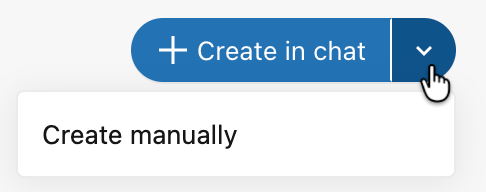
In the sidebar, click Schedules, then click the drop-down menu next to + Create in chat and select Create manually.
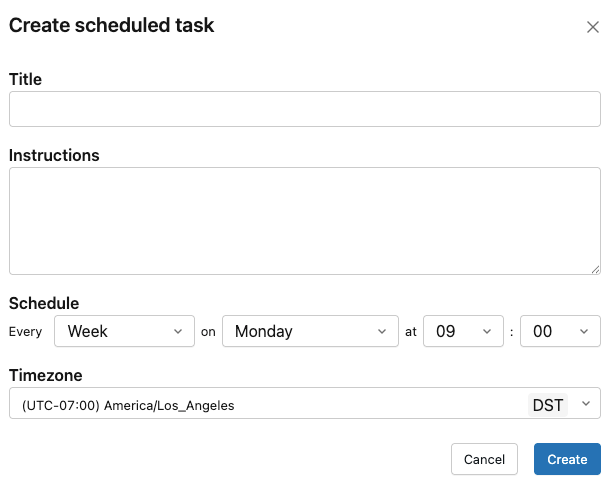
Fill in the Title, Instructions, Connections, Schedule, and Timezone, then click Create.
To view past runs, edit, or delete a scheduled task, click the task in the Scheduled tasks section. Each run opens in a chat thread.
When you author a scheduled task, select Run now to run it immediately without waiting for the next scheduled time.
To reference a scheduled task in a new request, @mention it in chat.
Recall past conversations
Genie One remembers your past conversations and can draw on them to shape its answers, so you can build on earlier work without repeating yourself. Genie One only references your own conversations. This capability is always available and requires no setup.
Most of the time, Genie One draws on your conversation history automatically when earlier context is relevant, rather than only when you ask it to recall a past thread. When a previous conversation is used for context, it adds a citation that links back to the original conversation, just like any other source.
You can also draw on your past conversations yourself in two ways:
- Bring past context into your current conversation. Reference an earlier conversation to pull its context into the chat you're already in, without navigating away.
- Find and reopen a past conversation. Search by content to locate an earlier conversation, then reopen it to continue that thread.
For example, to drill down from a past conversation without leaving your current one:
Remember when we talked about ARR last quarter? Let's drill down from that conversation and break it out by region.
Personalized starter questions
This feature is in Beta. To use it, a workspace admin must turn on Personalized Genie One Starter Questions from the Previews page. See Manage Databricks previews.
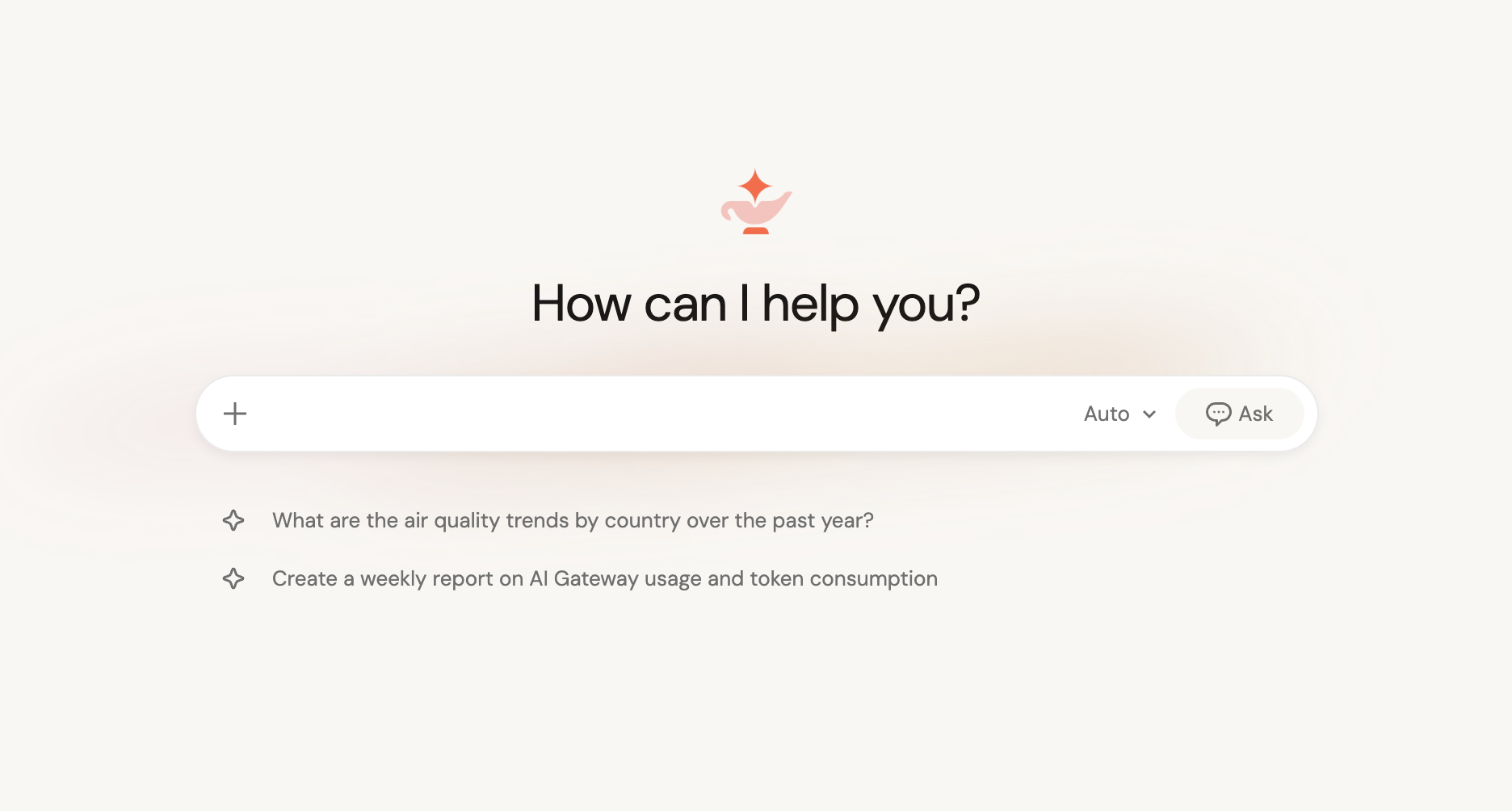
When personalized starter questions are enabled, the Genie One home page shows a small number of suggested questions tailored to you. Each one is a single-line prompt. Select a question to open a chat with it already entered, so you can start exploring your data.
How questions are personalized
Genie One generates starter questions for you from your own recent Databricks activity: the tables, AI/BI dashboards, Genie Agents, and notebooks that you frequently use, recently viewed, or marked as favorites. If you have little recent activity, Genie One suggests questions based on assets that are popular across your workspace instead.
Data access and privacy
Starter questions only reference assets that you already have access to. They are generated using your own permissions, so they never surface data outside your access. Generation uses only asset metadata, such as names and types. It never reads the contents of your tables, dashboards, or notebooks.
Availability
Personalized starter questions are in Beta. Workspace admins control access from the Previews page, as noted at the start of this section. When the feature is not enabled for a workspace, the home page shows a small set of generic default starter questions instead.
Limitations for personalized starter questions
Personalized starter questions are cached for each user and refresh periodically, so they might not reflect your most recent activity immediately.
For more about Genie One, see Use Genie One.
Add to Genie One's memory
Genie One can retain specific facts you provide as memories and apply them in later conversations, so you don't need to repeat the same context every time you chat. Genie One's memories are private to you and aren't shared with other users.
Genie One saves a memory when you explicitly ask it to. To create a memory, tell Genie One what to remember in a conversation:
Remember that I report all revenue in USD and my fiscal year starts in February.
Genie One automatically applies your saved memories to future conversations.
Genie One can also suggest a memory when it detects a fact worth remembering in your request that you did not explicitly ask it to save. It asks you to confirm before saving, and you can approve, modify, or reject the suggested memory.
When Genie One applies a memory, it includes a citation for the memory it used. You can give that memory a thumbs-up or thumbs-down to let Genie One know whether it's helpful. If a memory is wrong or out of date, ask Genie One to update or delete it directly in a conversation.
Upload a file
This feature is in Beta. To use it, a workspace admin must turn on Genie One File Upload from the Previews page. See Manage Databricks previews.
Upload CSV, Excel, PDF, image, Word, PowerPoint, and plaintext files directly into a chat conversation to analyze them in natural language alongside your other data. Uploaded files are private to the conversation you add them to, and only you can access them.
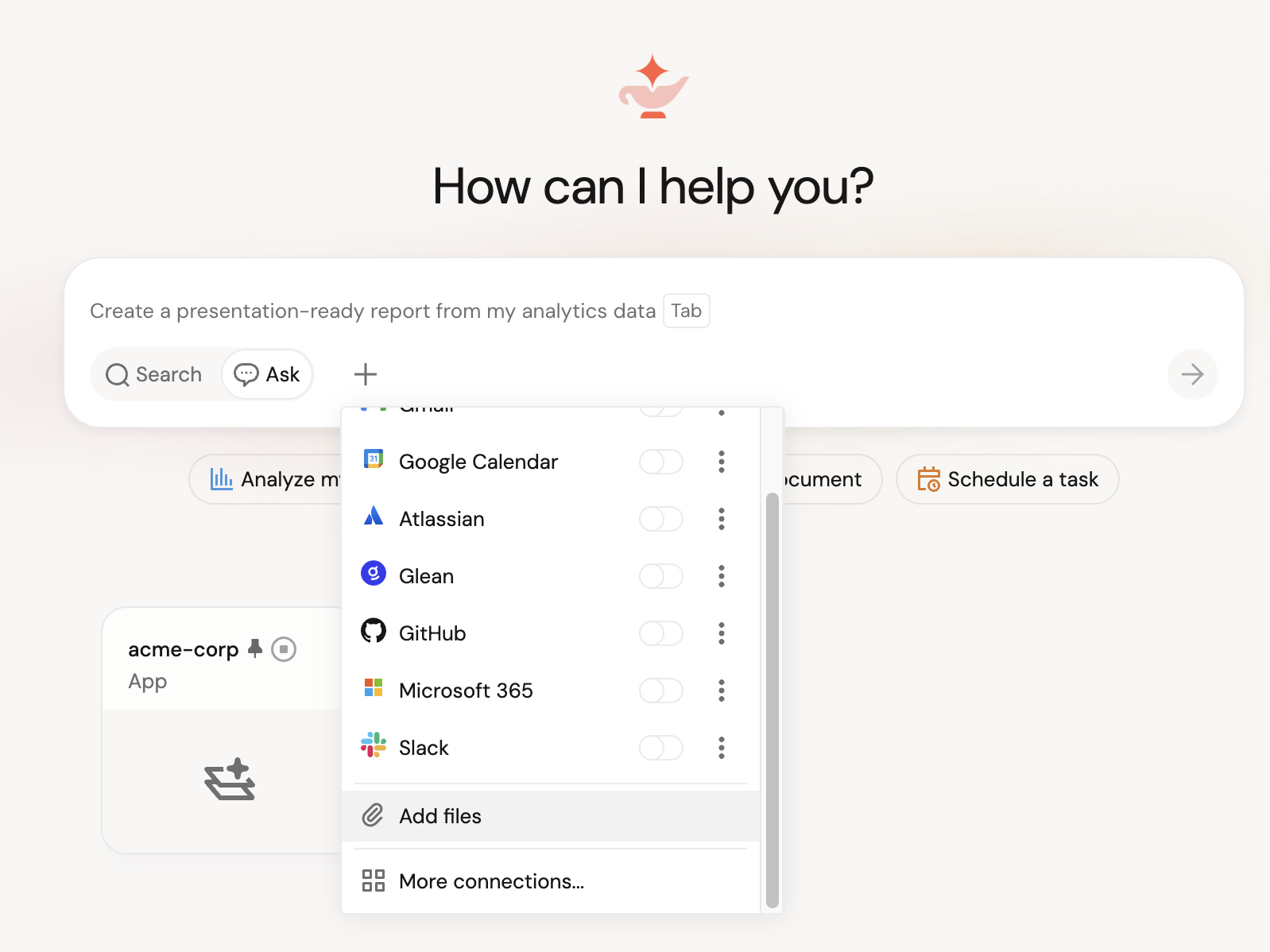
To upload a file, select  in the message composer, then
  Add files. You can also drag and drop files onto the composer or paste them from your clipboard. To see the files in a conversation, select and open the Uploaded files list.
File requirements:
- Each CSV or Excel file must be smaller than 200 MB. An Excel file can contain multiple sheets. To query a specific sheet, reference it by name.
- Each PDF must be smaller than 20 MB and contain no more than 100 pages. Genie One reads up to 4,000 characters per page.
- Each image (PNG, JPG, or JPEG) must be smaller than 5 MB. Genie One automatically downscales larger images.
- You can upload Word (
.docx) and PowerPoint (.pptx) files. - You can upload plaintext files, including text (
.txt) and Markdown (.md) files. - You can upload up to 100 files per conversation, and up to 5 files in a single action.
Databricks stores uploaded files in a Unity Catalog managed volume, in customer-managed root storage on classic workspaces or in default storage on serverless workspaces. For details, see Upload a file.
Uploaded files have no fixed retention period and no configurable lifecycle policy. They remain until you remove them or delete the conversation. For details, see Remove a file.
Search the web
This feature is in Beta. To use it, a workspace admin must turn on Web search in Genie Code and Genie One from the Previews page. See Manage Databricks previews.
Genie One can search the public web to answer questions that need current information, such as recent release notes, third-party documentation, or news. Genie One decides when to search based on your request and cites the sources it uses. Each source appears in the response as a link you can open.
Web search has the following requirements:
- The workspace must have partner-powered AI features enabled.
- The workspace must be in an eligible geo (Americas or Europe), or have cross-geography processing enabled.
- For workspaces with the compliance security profile enabled, web search is only supported for HIPAA. Other compliance standards are not supported.
Code execution
This feature is in Public Preview.
Genie One can run code in a secure, isolated sandbox to take on work that goes beyond SQL, such as advanced analyses and creating spreadsheets and presentations. Code runs on your behalf using only the permissions you already have. See Code execution in Genie One.
Documents
Ask Genie One to draft a shareable document from any chat conversation. The document opens in a canvas pane alongside the chat, where you can edit and share it. See Documents in Genie One.
Connect to external tools and sources
Connect external data sources such as Google Drive, SharePoint, GitHub, Glean, and Atlassian to a chat conversation in Genie One. See Connect Genie One to external tools and sources.
Share a chat
You can share a chat conversation with all users in your account as read-only.
-
Click Share in the upper-right corner of the conversation.
-
Select Anyone in this account.
-
Click
 Copy link and share the link with others.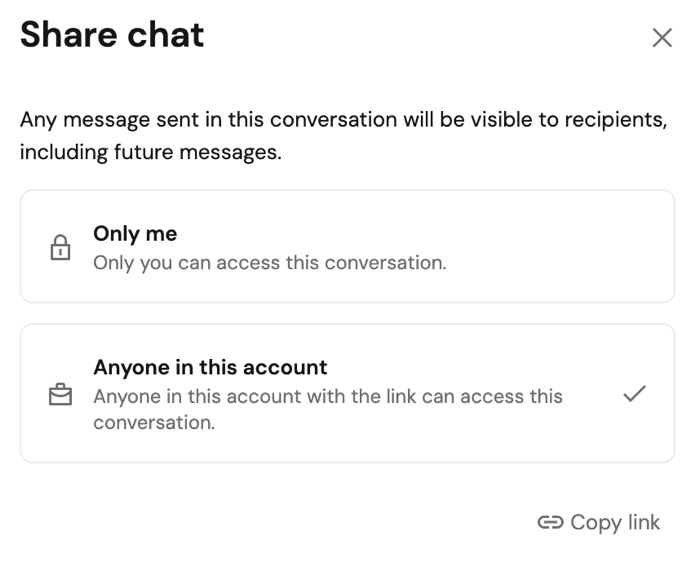
To make a conversation private again, click Share and select Only me.
Limitations
- File upload is not currently supported for users who have only consumer access, or in the Genie mobile app.
- Workspaces with many Genie Agents might experience reduced routing accuracy.