Get started with Genie ZeroOps
This feature is in Private Preview. To try it, reach out to your Databricks contact.
To start using Genie ZeroOps, choose the jobs, pipelines, and tables it monitors from the Jobs & Pipelines page. Genie ZeroOps then backfills insights from the previous 24 hours and keeps reporting new issues for you to review and resolve. For an overview, see Genie ZeroOps.
Requirements
- A Databricks workspace that is enrolled in the Genie ZeroOps Private Preview.
OWNER,CAN MANAGE, orCAN VIEWpermission on the jobs, pipelines, or tables that you want to monitor.- To detect data quality issues, Genie ZeroOps enables data quality monitoring on the schemas and tables you choose to monitor. Monitoring jobs doesn't enable it. While the Genie ZeroOps Private Preview is free, data quality monitoring is billed separately at standard pricing.
- Optional: For jobs that run code from a Git repository, a Git credential with read access to the repository. To create pull requests from fixes, the credential also needs write access. See Add Git credentials.
Set up Genie ZeroOps
-
In the sidebar, click
 Jobs & Pipelines to open the Jobs & Pipelines page.
 -
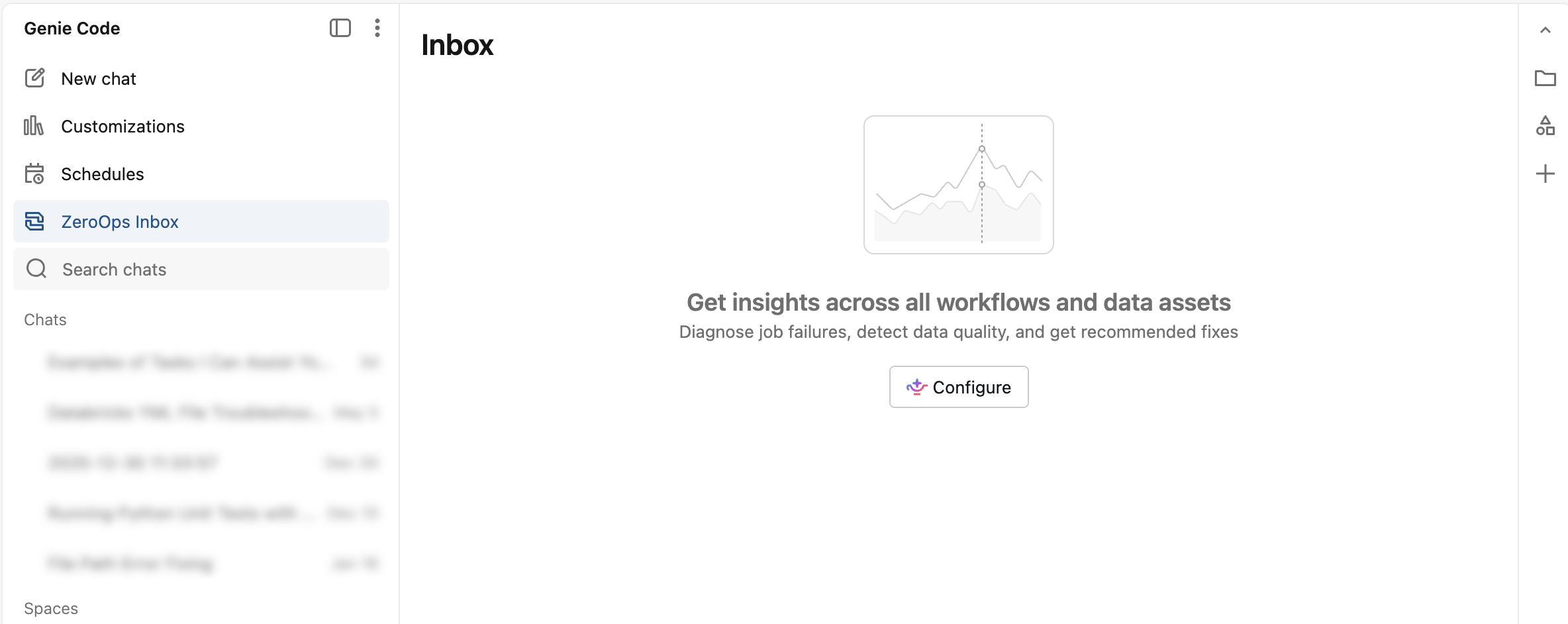
Click the Open ZeroOps button.
-
If you have not configured Genie ZeroOps yet, you are prompted to do so. Click the
 Configure button to open the Genie Code chat.
 -
When Genie Code prompts you for which resources to monitor, select a suggested scope, or describe your own in natural language:
promptTell Genie Code what to monitor, for example:
all owned jobs
After you set the scope, Genie ZeroOps analyzes your selected assets, backfilling insights from the previous 24 hours for jobs that have already failed and for tables that are stale or incomplete. It then displays any insights it finds for issues within that scope.
You can select the Configure button at any time to adjust what Genie ZeroOps monitors. See Update Genie ZeroOps configuration.
Review an insight and its root cause
Besides opening the Genie ZeroOps inbox from the Jobs & Pipelines page, you can also access it from full page Genie Code, where it appears in the thread list as ZeroOps Inbox.
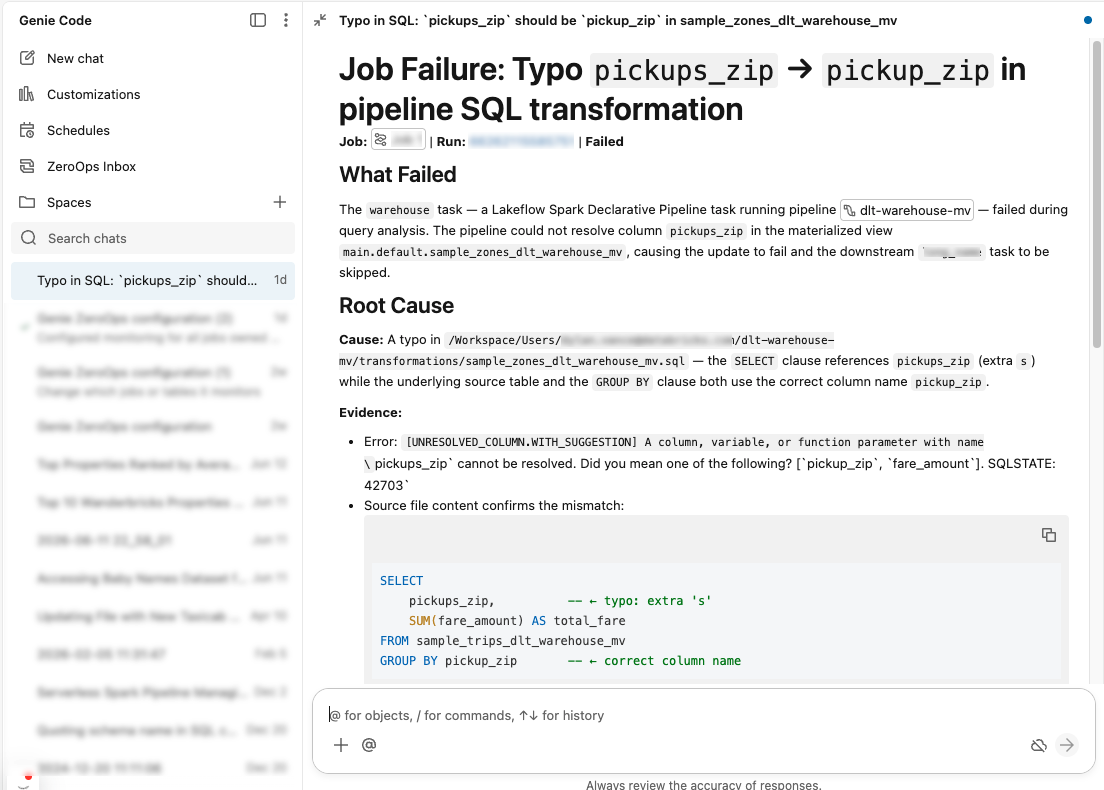
- In the inbox, click an open insight to open its thread.
- Review the root cause analysis, the impacted assets, and the proposed fix.
- Follow the link to the source, such as the notebook, where you make the change.
If you do not have CAN VIEW permission on the asset that Genie ZeroOps identifies as the root cause, the insight masks the information you do not have access to.
Manage insights
From an open insight, you can take the following actions:
- Resolve: Marks the issue as fixed and removes the insight from the inbox. Genie ZeroOps also resolves an insight for you automatically when a failing job succeeds on a later run.
- Not an issue: Marks a detected issue that does not need a fix and removes the insight from the inbox. If Genie ZeroOps detects the same issue again after seven days, the insight reappears.
- Retry: Starts a new job run. Genie ZeroOps proposes this action when a job failure is transient and the operation is idempotent, meaning it can be safely re-run.
Create a pull request from a fix
If a job runs code from a Git repository and the fix is a code change, you can have Genie ZeroOps push the fix to a new branch and then open a pull request. Genie ZeroOps prepares the change during its investigation and shows a Create PR option in the insight. It doesn't push anything to your repository until you explicitly instruct it to.
- In the inbox, click the insight to open its thread.
- Review the proposed fix. To change it, describe the change you want in the thread.
- Click Create PR, and then confirm the push when prompted. Genie ZeroOps commits the fix to a new branch and pushes it.
- To open a pull request, click the link in the Genie ZeroOps reply, or create the pull request from the new branch if the reply has no link. Then get the pull request reviewed and merged through your regular process.
Update Genie ZeroOps configuration
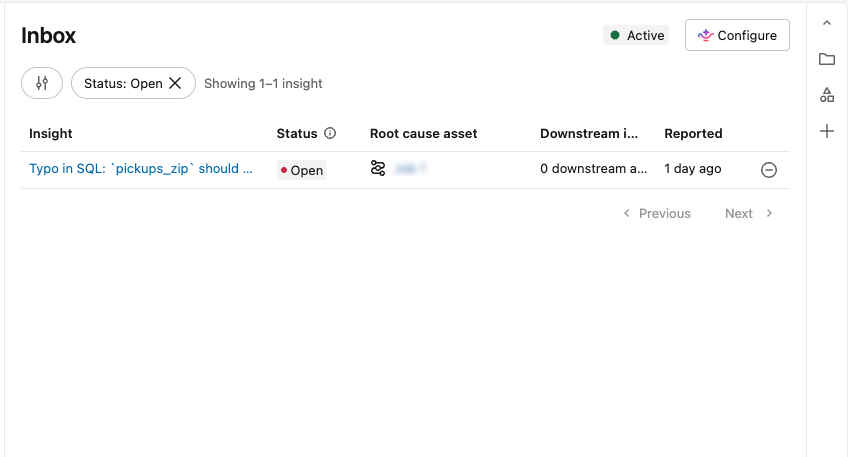
To change what Genie ZeroOps monitors after setup, click Configure in the top-right corner of the inbox. A Genie Code chat opens where you describe the jobs, pipelines, and tables you want to include or exclude.
Customize investigation instructions
Custom instructions tell Genie ZeroOps what it should and shouldn't do when it investigates your issues. For example, you can tell it to check upstream data freshness before it recommends a retry, or to follow a specific step when it sees a particular error.
Your custom instructions apply only to investigations for your Genie ZeroOps configuration, and are stored in a Markdown file in your home folder:
/Workspace/Users/<your-username>/.assistant/zeroops/instructions.md
Access to this file follows the same workspace permissions as any other workspace file.
Edit instructions
Using the chat interface
-
In the top-right corner of the inbox, click
Configure to open the Genie Code chat. -
Describe your guidance in natural language:
promptTell Genie Code what Genie ZeroOps should do, for example:
TextWhen a job fails, check upstream data freshness before recommending a retry.
Genie Code adds your guidance to the instructions, and future investigations account for it.
Direct edits
- In the Genie Code configuration chat, find the Your ZeroOps configuration card and click View.
- Under Custom instructions, click this file.
- Edit the file. You can also describe your changes in the chat that opens next to it.
When your instructions file has content, the Custom instructions section shows Configured.
Limitations
- New investigations for issues in your configuration load your instructions. Saving instructions does not change an investigation that is already in progress.
- Genie ZeroOps reads only the first 20,000 characters of the file. Keep your instructions concise and specific, because irrelevant or conflicting guidance can reduce investigation quality.
- Each investigation report states whether it used your instructions.
- Instructions cannot override Genie ZeroOps safety constraints or tool permissions. If Genie ZeroOps does not apply an instruction, it briefly explains why in the investigation report.
Filter insights
- Click Filter.
- Select a status, such as Resolved.
- Apply the filter to update the inbox.
Troubleshooting
- No insights appear after you set up Genie ZeroOps: Verify that you have
OWNER,CAN MANAGE, orCAN VIEWpermission on the jobs, pipelines, or tables you expect to see. Genie ZeroOps monitors only the assets you have permission on. - An insight masks the root cause: You don't have
CAN VIEWpermission on the root-cause asset. To see the full details, requestCAN VIEWpermission on that asset. - Genie ZeroOps can't access a repository: Your Git credential is missing, expired, or can't access the repository. Click your username, select Settings > Linked accounts, and add or update the credential. See Add Git credentials.
- An insight doesn't show Create PR: Check that the job runs code from a Git repository and that your Git credential can access the repository. Genie ZeroOps offers Create PR only when the fix is a code change.
- Genie ZeroOps can't push the fix: Your Git credential needs write access to the repository. Click your username, select Settings > Linked accounts, and update the credential so that it has write access. Then ask Genie ZeroOps to push the fix again.