LinkedIn広告をデータソースとして設定する
ベータ版
この機能はベータ版です。
このページでは、Lakeflow Connectを使ってLinkedIn広告をデータソースとして取り込みする方法を説明しています。
Requirements
LinkedIn広告をデータソースとして設定するには、以下が必要です:
- 広告データを取り込みたいLinkedInページにアクセスできるLinkedInアカウント。
- 取り込みを計画している各スポンサー広告アカウントのロール。コネクタは、承認ユーザーがロールを持つ広告アカウントのみを読み取ることができます。
- LinkedIn開発者ポータルでアプリを作成および設定するための権限。
LinkedIn開発者アプリを作成する
もしまだLinkedIn開発者アプリを持っていない場合は、以下の**ステップ**に従って作成してください:
-
https://www.linkedin.com/developers/apps にサインインします。
-
右上の 「アプリを作成」 をクリックしてください。
-
アプリの詳細を入力してください:
フィールド | 説明 |
|---|---|
アプリ名 |
|
LinkedInページ | データを取り込みたいLinkedInページ。 |
プライバシーポリシーのURL | 組織のプライバシーポリシーへのリンクURL。 |
アプリのロゴ | アプリ用の画像。LinkedInは、一辺が少なくとも100ピクセル以上の正方形の画像を推奨しています。 |
-
チェックボックスを選択して LinkedIn API 利用規約に同意し、 [アプリの作成] をクリックします。
-
On the Settings tab, click Verify and complete the verification flow to confirm that the app is associated with your company.未検証のアプリは Advertising API にアクセスできないため、この手順が必要です。
-
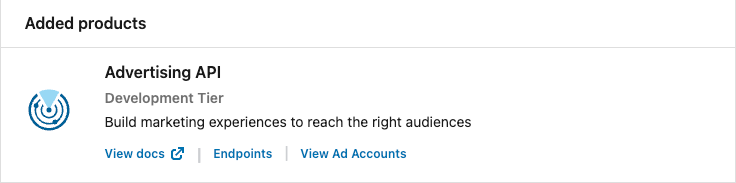
Products tabで、利用可能な製品のリストから Advertising API を追加します。コネクタが広告データを読み取れるようにするには、Marketing Developer Platform を通じて、LinkedIn が Advertising API 用のアプリを承認する必要があります。詳細については、LinkedIn ドキュメントの「Marketing Developer Platform」を参照してください。
-
認証 tabで、 クライアントID と プライマリ クライアント シークレット を記録します。Databricks接続を作成する際に、両方を入力します。
-
同じtabの Authorized redirect URLs for your app で、以下の URL を追加します。その際、
<workspace-url>を Databricks ワークスペースの URL に置き換えてから、 Update をクリックしてください:https://<workspace-url>/login/oauth/lakehousefederation.html