ワークスペース Feature Storeにおける特徴量テーブルの取り扱い (レガシー)
このドキュメントでは、ワークスペース Feature Store について説明します。 Databricksでは Unity Catalogでの特徴量エンジニアリングの使用を推奨しています。ワークスペース Feature Store は今後廃止される予定です。
Unity Catalog の特徴量テーブルの操作に関する情報については、「Unity Catalog の特徴量テーブル」を参照してください。
このページでは、ワークスペース Feature Storeで特徴量テーブルを作成して操作する方法について説明します。
ワークスペースで Unity Catalog が有効になっている場合、主キーを持つ Unity Catalog によって管理されるテーブルは、モデルのトレーニングと推論に使用できる特徴量テーブルに自動的になります。セキュリティ、リネージ、タグ付け、クロスワークスペースアクセスなど、Unity Catalogのすべての機能は、特徴量テーブルで自動的に使用可能になります。Unity Catalog対応ワークスペースでの特徴量テーブルの操作に関する情報については、Unity Catalogの 特徴量テーブルの操作を参照してください。
追跡機能のリネージと鮮度については、機能とリネージ (レガシー)を参照してください。
データベース名と特徴量テーブル名に使用できるのは、英数字とアンダースコア (_) のみです。
特徴量テーブルのデータベースを作成する
特徴量テーブルを作成する前に、特徴量テーブルを格納する データベース を作成する必要があります。
%sql CREATE DATABASE IF NOT EXISTS <database-name>
特徴量テーブルは Delta テーブルとして格納されます。 create_table (Feature Store クライアント v0.3.6 以降) または create_feature_table (v0.3.5 以前) で特徴量テーブルを作成する場合は、データベース名を指定する必要があります。たとえば、この引数は、データベース recommender_systemに customer_features という名前の Delta テーブルを作成します。
name='recommender_system.customer_features'
特徴量テーブルを オンラインストアに公開する場合、デフォルト テーブルとデータベース名は、テーブルの作成時に指定した名前になります。 publish_table メソッドを使用して別の名前を指定できます。
Databricks Feature Store の UI には、オンラインストアのテーブルとデータベースの名前が、その他のメタデータとともに表示されます。
Databricks Feature Storeで特徴量テーブルを作成する
また、既存の Delta テーブル を特徴量テーブルとして登録することもできます。 既存のDeltaテーブルを特徴量テーブルとして登録するを参照してください。
特徴量テーブルを作成するための基本的な手順は次のとおりです。
- Python関数を特徴量をコンピュートに書き込みます。各関数の出力は、一意の主キーを持つ Apache Spark データフレーム である必要があります。 プライマリ・キーは、1 つ以上のカラムで構成できます。
FeatureStoreClientをインスタンス化し、create_table(v0.3.6 以降) またはcreate_feature_table(v0.3.5 以下) を使用して特徴量テーブルを作成します。write_tableを使用して特徴量テーブルを設定します。
次の例で使用されているコマンドとパラメーターの詳細については、 Feature Store Python API リファレンスを参照してください。
- V0.3.6 and above
- V0.3.5 and below
from databricks.feature_store import feature_table

def compute_customer_features(data):
  ''' Feature computation code returns a DataFrame with 'customer_id' as primary key'''
  pass

# create feature table keyed by customer_id
# take schema from DataFrame output by compute_customer_features
from databricks.feature_store import FeatureStoreClient

customer_features_df = compute_customer_features(df)

fs = FeatureStoreClient()

customer_feature_table = fs.create_table(
  name='recommender_system.customer_features',
  primary_keys='customer_id',
  schema=customer_features_df.schema,
  description='Customer features'
)

# An alternative is to use `create_table` and specify the `df` argument.
# This code automatically saves the features to the underlying Delta table.

# customer_feature_table = fs.create_table(
#  ...
#  df=customer_features_df,
#  ...
# )

# To use a composite key, pass all keys in the create_table call

# customer_feature_table = fs.create_table(
#   ...
#   primary_keys=['customer_id', 'date'],
#   ...
# )

# Use write_table to write data to the feature table
# Overwrite mode does a full refresh of the feature table

fs.write_table(
  name='recommender_system.customer_features',
  df = customer_features_df,
  mode = 'overwrite'
)
from databricks.feature_store import feature_table

def compute_customer_features(data):
  ''' Feature computation code returns a DataFrame with 'customer_id' as primary key'''
  pass

# create feature table keyed by customer_id
# take schema from DataFrame output by compute_customer_features
from databricks.feature_store import FeatureStoreClient

customer_features_df = compute_customer_features(df)

fs = FeatureStoreClient()

customer_feature_table = fs.create_feature_table(
  name='recommender_system.customer_features',
  keys='customer_id',
  schema=customer_features_df.schema,
  description='Customer features'
)

# An alternative is to use `create_feature_table` and specify the `features_df` argument.
# This code automatically saves the features to the underlying Delta table.

# customer_feature_table = fs.create_feature_table(
#  ...
#  features_df=customer_features_df,
#  ...
# )

# To use a composite key, pass all keys in the create_feature_table call

# customer_feature_table = fs.create_feature_table(
#   ...
#   keys=['customer_id', 'date'],
#   ...
# )

# Use write_table to write data to the feature table
# Overwrite mode does a full refresh of the feature table

fs.write_table(
  name='recommender_system.customer_features',
  df = customer_features_df,
  mode = 'overwrite'
)
既存の Delta テーブルを特徴量テーブルとして登録する
v0.3.8以降では、既存の Delta テーブル を特徴量テーブルとして登録することができます。 Delta テーブルはメタストアに存在する必要があります。
登録した特徴量テーブルを更新するには、Feature Store Python APIを使用する必要があります。
fs.register_table(
  delta_table='recommender.customer_features',
  primary_keys='customer_id',
  description='Customer features'
)
特徴量テーブルへのアクセスを制御する
アクセス制御(従来方式)を参照してください。
特徴量テーブルの更新
特徴量テーブルを更新するには、新しい特徴量テーブルを追加するか、主キーに基づいて特定の行を変更します。
次の特徴量テーブルのメタデータは更新できません。
- プライマリーキー
- パーティションキー
- 既存の特徴量の名前またはタイプ
既存の特徴量テーブルに新しい特徴量テーブルを追加
既存の特徴量テーブルに新しい特徴量を追加するには、次の 2 つの方法があります。
- 既存の特徴量計算関数を更新し、返された データフレームで
write_tableを実行します。 これにより、特徴量テーブル スキーマが更新され、主キーに基づいて新しい特徴量テーブル値がマージされます。 - 新しい特徴量を計算するための新しい特徴量計算関数を作成します。この新しい計算関数によって返される DataFrame には、特徴量テーブルの主キーとパーティション キー (定義されている場合) が含まれている必要があります。 DataFrameで
write_tableを実行して、同じ主キーを使用して新しい特徴量テーブルに新しい特徴を書き込むことができます。
特徴量テーブルの特定の行のみを更新する
write_tableでmode = "merge"を使用します。write_table呼び出しで送信された データフレーム にプライマリ・キーが存在しないローは変更されません。
fs.write_table(
  name='recommender.customer_features',
  df = customer_features_df,
  mode = 'merge'
)
特徴量テーブルを更新するジョブのスケジュール
特徴量テーブルの特徴量テーブルに常に最新の値が含まれるようにするために、 Databricks では、ノートブックを実行して特徴量テーブルを定期的に (毎日など) 更新するジョブを作成することをお勧めします。 スケジュールされていないジョブがすでに作成されている場合は、スケジュール済みジョブに変換して、機能値が常に最新の状態であることを確認できます。「ジョブLakeflow」を参照してください。
特徴量テーブルを更新するコードでは、次の例に示すように、 mode='merge'を使用します。
fs = FeatureStoreClient()

customer_features_df = compute_customer_features(data)

fs.write_table(
  df=customer_features_df,
  name='recommender_system.customer_features',
  mode='merge'
)
日次特徴量の過去の値を保存する
複合主キーを持つ特徴量テーブルを定義します。 主キーに日付を含めます。 たとえば、特徴量テーブル store_purchasesの場合、効率的な読み取りのために複合主キー (date、 user_id) とパーティション キー date を使用できます。
fs.create_table(
  name='recommender_system.customer_features',
  primary_keys=['date', 'customer_id'],
  partition_columns=['date'],
  schema=customer_features_df.schema,
  description='Customer features'
)
その後、特徴量テーブルから date をフィルター処理して対象期間に読み取るコードを作成できます。
また、timestamp_keys 引数を使用して date 列をタイムスタンプ キーとして指定することで、時系列 特徴量テーブルを作成することもできます。
fs.create_table(
  name='recommender_system.customer_features',
  primary_keys=['date', 'customer_id'],
  timestamp_keys=['date'],
  schema=customer_features_df.schema,
  description='Customer time series features'
)
これにより、 create_training_set または score_batchを使用する際のポイントインタイムルックアップが可能になります。 システムは、指定した timestamp_lookup_key を使用して、時点のタイムスタンプ結合を実行します。
特徴量テーブルを最新の状態に保つには、特徴量テーブルを書き込むか、新しい特徴量テーブル値を特徴量テーブルにストリーミングするように定期的にスケジュールされたジョブを設定します。
特徴量を更新するためのストリーミング 特徴量計算パイプラインの作成
ストリーミング特徴量の計算パイプラインを作成するには、ストリーミング DataFrame を引数として write_tableに渡します。 このメソッドは、 StreamingQuery オブジェクトを返します。
def compute_additional_customer_features(data):
  ''' Returns Streaming DataFrame
  '''
  pass  # not shown

customer_transactions = spark.readStream.load("dbfs:/events/customer_transactions")
stream_df = compute_additional_customer_features(customer_transactions)

fs.write_table(
  df=stream_df,
  name='recommender_system.customer_features',
  mode='merge'
)
特徴量テーブルから読み取る
read_table を使用して特徴値を読み取ります。
fs = feature_store.FeatureStoreClient()
customer_features_df = fs.read_table(
  name='recommender.customer_features',
)
特徴量テーブルの検索と閲覧
Feature Store UI を使用して、特徴量テーブルを検索または参照します。
-
サイドバーの AI / ML の下にある 「機能」 をクリックすると、 Feature Store UIが表示されます。
-
検索ボックスに、特徴量テーブル、特徴量テーブル、または特徴量の計算に使用されるデータソースの名前の全部または一部を入力します。 タグのキーまたは値の全部または一部を入力することもできます。検索テキストでは、大文字と小文字は区別されません。

特徴量テーブル メタデータの取得
特徴量テーブルのメタデータを取得する API は、使用している Databricks ランタイムのバージョンによって異なります。 v0.3.6 以降では、 get_tableを使用します。 v0.3.5 以前では、 get_feature_tableを使用します。
# this example works with v0.3.6 and above
# for v0.3.5, use `get_feature_table`
from databricks.feature_store import FeatureStoreClient
fs = FeatureStoreClient()
fs.get_table("feature_store_example.user_feature_table")
特徴量テーブル のタグ の操作
タグはキーと値のペアで、 特徴量テーブルを検索して作成して使用できます。 タグの作成、編集、削除は、Feature Store UIまたは Feature Store Python APIを使用して行うことができます。
UI での特徴量テーブル タグの操作
特徴量テーブルを検索または参照するには、 Feature Store UI を使用します。 UIにアクセスするには、サイドバーの 「AI/ML」 の下にある 「機能」 をクリックします。
Feature Store UIを使用してタグを追加する
-
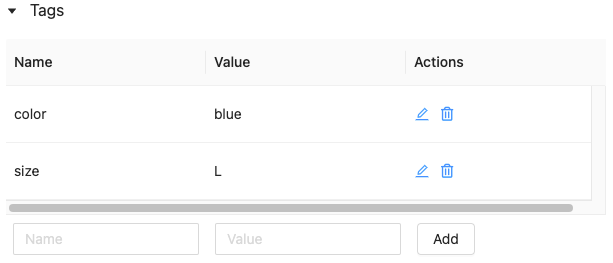
 まだ開いていない場合はクリックしてください。 タグテーブルが表示されます。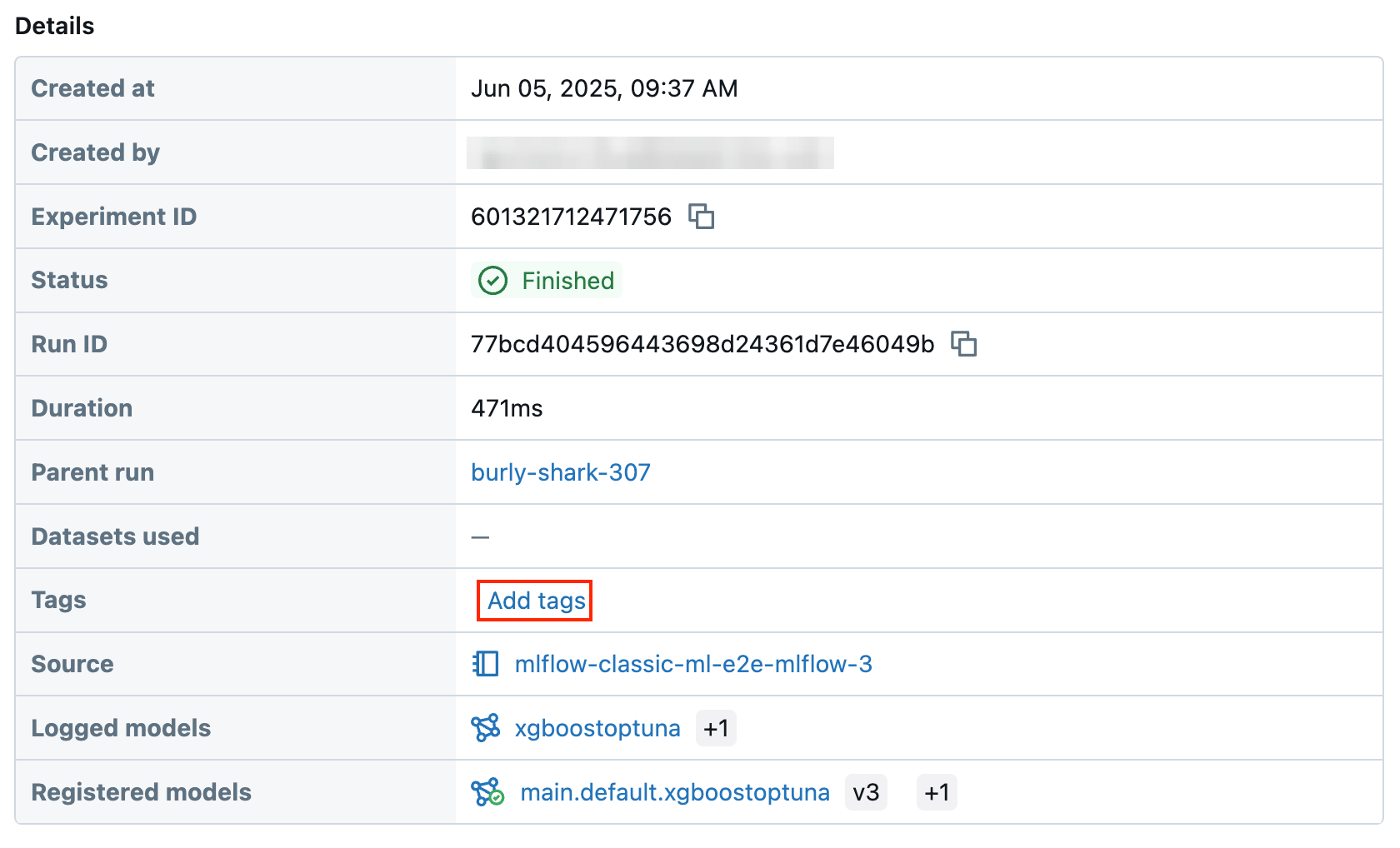
-
名前 フィールドと 値 フィールドをクリックし、タグのキーと値を入力します。
-
[ 追加 ] をクリックします。
Feature Store UIを使用したタグの編集または削除
既存のタグを編集または削除するには、[ アクション ] 列のアイコンを使用します。
Feature Store Python APIを使用した特徴量テーブル タグの操作
v0.4.1 以降を実行しているクラスターでは、Feature Store Python APIを使用してタグを作成、編集、削除できます。
必要条件
Feature Store クライアント v0.4.1 以降
Feature Store Python APIを使用してタグ付きの特徴量テーブルを作成します
from databricks.feature_store import FeatureStoreClient
fs = FeatureStoreClient()

customer_feature_table = fs.create_table(
  ...
  tags={"tag_key_1": "tag_value_1", "tag_key_2": "tag_value_2", ...},
  ...
)
Feature Store Python API を使用したタグの追加、更新、削除
from databricks.feature_store import FeatureStoreClient
fs = FeatureStoreClient()

# Upsert a tag
fs.set_feature_table_tag(table_name="my_table", key="quality", value="gold")

# Delete a tag
fs.delete_feature_table_tag(table_name="my_table", key="quality")
特徴量テーブルのデータソースの更新
Feature Storeは、特徴量の計算に使用されたデータソースを自動的に追跡します。 また、Feature Store Python APIを使用して、データソースを手動で更新することもできます。
必要条件
Feature Store クライアント v0.5.0 以降
Feature Store Python APIを使用してデータソースを追加する
以下はコマンドの例です。 詳細については、 API ドキュメントを参照してください。
from databricks.feature_store import FeatureStoreClient
fs = FeatureStoreClient()

# Use `source_type="table"` to add a table in the metastore as data source.
fs.add_data_sources(feature_table_name="clicks", data_sources="user_info.clicks", source_type="table")

# Use `source_type="path"` to add a data source in path format.
fs.add_data_sources(feature_table_name="user_metrics", data_sources="dbfs:/FileStore/user_metrics.json", source_type="path")

# Use `source_type="custom"` if the source is not a table or a path.
fs.add_data_sources(feature_table_name="user_metrics", data_sources="user_metrics.txt", source_type="custom")
Feature Store Python API を使用したデータソースの削除
詳細については、 API ドキュメントを参照してください。
次のコマンドは、ソース名に一致するすべてのタイプ ("table"、"path"、"custom") のデータソースを削除します。
from databricks.feature_store import FeatureStoreClient
fs = FeatureStoreClient()
fs.delete_data_sources(feature_table_name="clicks", sources_names="user_info.clicks")
特徴量テーブルの削除
特徴量テーブルは、Feature Store UI または Feature Store の Python APIを使用して削除できます。
- 特徴量テーブルを削除すると、上流のプロデューサーと下流のコンシューマー (モデル、エンドポイント、スケジュールされたジョブ) で予期しないエラーが発生する可能性があります。 クラウドプロバイダーで公開されたオンラインストアを削除する必要があります。
- API を使用して特徴量テーブルを削除すると、基になる Delta テーブルも削除されます。 UI から特徴量テーブルを削除する場合は、基になる Delta テーブルを個別に削除する必要があります。
UIを使用した特徴量テーブルの削除
-
特徴量テーブル ページで、特徴量テーブル名の右側にある
 をクリックし、 削除 を選択します。 特徴量テーブルに対する CAN MANAGE 権限がない場合、このオプションは表示されません。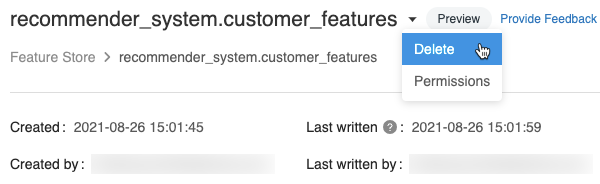
-
「特徴量テーブルの削除」ダイアログで、「 削除 」をクリックして確定します。
-
基になる Delta テーブルも削除する場合は、ノートブックで次のコマンドを実行します。
SQL%sql DROP TABLE IF EXISTS <feature-table-name>;
Feature Store Python APIを使用した特徴量テーブルの削除
Feature Store クライアント v0.4.1 以降では、 drop_table を使用して特徴量テーブルを削除できます。drop_tableを使用してテーブルを削除すると、基になる Delta テーブルも削除されます。
fs.drop_table(
  name='recommender_system.customer_features'
)