Databricks Connect
Databricks Connect allows you to connect your favorite IDE (IntelliJ, Eclipse, PyCharm, RStudio, Visual Studio), notebook server (Zeppelin, Jupyter), and other custom applications to Databricks clusters and run Apache Spark code.
This article explains how Databricks Connect works, walks you through the steps to get started with Databricks Connect, explains how to troubleshoot issues that may arise when using Databricks Connect, and differences between running using Databricks Connect versus running in a Databricks notebook.
Overview
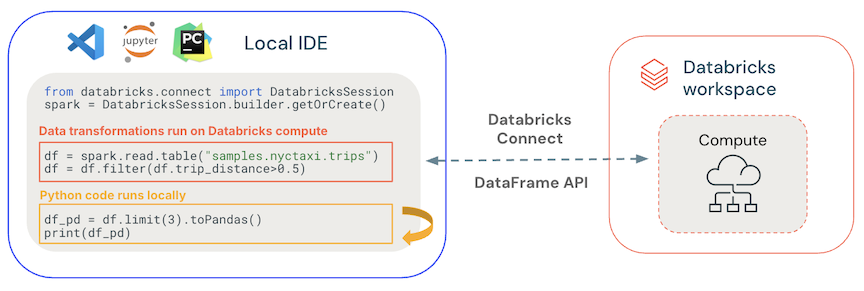
Databricks Connect is a client library for Apache Spark. It allows you to write jobs using Spark native APIs and have them execute remotely on a Databricks cluster instead of in the local Spark session.
For example, when you run the DataFrame command spark.read.parquet(...).groupBy(...).agg(...).show() using Databricks Connect, the parsing and planning of the job runs on your local machine. Then, the logical representation of the job is sent to the Spark server running in Databricks for execution in the cluster.
With Databricks Connect, you can:
- Run large-scale Spark jobs from any Python, Java, Scala, or R application. Anywhere you can
import pyspark,import org.apache.spark, orrequire(SparkR), you can now run Spark jobs directly from your application, without needing to install any IDE plugins or use Spark submission scripts. - Step through and debug code in your IDE even when working with a remote cluster.
- Iterate quickly when developing libraries. You do not need to restart the cluster after changing Python or Java library dependencies in Databricks Connect, because each client session is isolated from each other in the cluster.
- Shut down idle clusters without losing work. Because the client application is decoupled from the cluster, it is unaffected by cluster restarts or upgrades, which would normally cause you to lose all the variables, RDDs, and DataFrame objects defined in a notebook.
Requirements
Note
In Databricks Runtime 7.1, Databricks recommends that you always use the most recent version of Databricks Connect.
The minor version of your client Python installation must be the same as the minor Python version of your Databricks cluster (3.5, 3.6, or 3.7). Databricks Runtime 5.5 LTS has Python 3.5, Databricks Runtime 5.5 LTS ML has Python 3.6, and Databricks Runtime 6.1 and above and Databricks Runtime 6.1 ML and above have Python 3.7.
For example, if you’re using Conda on your local development environment and your cluster is running Python 3.5, you must create an environment with that version, for example:
conda create --name dbconnect python=3.5
Java 8. The client does not support Java 11.
Set up client
Step 1: Install the client
Uninstall PySpark.
pip uninstall pyspark
Install the Databricks Connect client.
pip install -U databricks-connect==5.5.* # or 6.*.* or 7.1.* to match your cluster version. 6.1-6.6 and 7.1 are supported
Step 2: Configure connection properties
Collect the following configuration properties:
URL: A workspace URL.
User token: A personal access token.
Cluster ID: The ID of the cluster you created. You can obtain the cluster ID from the URL. Here the cluster ID is
0304-201045-xxxxxxxx.
Port: The port that Databricks Connect connects to. Set to
15001.
Configure the connection. You can use the CLI, SQL configs, or environment variables. The precedence of configuration methods from highest to lowest is: SQL config keys, CLI, and environment variables.
CLI
Run
databricks-connect.databricks-connect configure
The license displays:
Copyright (2018) Databricks, Inc. This library (the "Software") may not be used except in connection with the Licensee's use of the Databricks Platform Services pursuant to an Agreement ...
Accept the license and supply configuration values.
Do you accept the above agreement? [y/N] y Set new config values (leave input empty to accept default): Databricks Host [no current value, must start with https://]: <databricks-url> Databricks Token [no current value]: <databricks-token> Cluster ID (e.g., 0921-001415-jelly628) [no current value]: <cluster-id> Org ID (Azure-only, see ?o=orgId in URL) [0]: <org-id> Port [15001]: <port>
SQL configs or environment variables. Set SQL config keys (for example,
sql("set config=value")) and environment variables as follows:Parameter SQL config key Environment variable name Databricks host spark.databricks.service.address DATABRICKS_ADDRESS Databricks token spark.databricks.service.token DATABRICKS_API_TOKEN Cluster ID spark.databricks.service.clusterId DATABRICKS_CLUSTER_ID Org ID spark.databricks.service.orgId DATABRICKS_ORG_ID Port spark.databricks.service.port DATABRICKS_PORT (Databricks Runtime > 5.4 only) Important
We do not recommend putting tokens in SQL configurations.
Test connectivity to Databricks.
databricks-connect testIf the cluster you configured is not running, the test starts the cluster which will remain running until its configured autotermination time. The output should be something like:
* PySpark is installed at /.../3.5.6/lib/python3.5/site-packages/pyspark * Checking java version java version "1.8.0_152" Java(TM) SE Runtime Environment (build 1.8.0_152-b16) Java HotSpot(TM) 64-Bit Server VM (build 25.152-b16, mixed mode) * Testing scala command 18/12/10 16:38:44 WARN NativeCodeLoader: Unable to load native-hadoop library for your platform... using builtin-java classes where applicable Using Spark's default log4j profile: org/apache/spark/log4j-defaults.properties Setting default log level to "WARN". To adjust logging level use sc.setLogLevel(newLevel). For SparkR, use setLogLevel(newLevel). 18/12/10 16:38:50 WARN MetricsSystem: Using default name SparkStatusTracker for source because neither spark.metrics.namespace nor spark.app.id is set. 18/12/10 16:39:53 WARN SparkServiceRPCClient: Now tracking server state for 5abb7c7e-df8e-4290-947c-c9a38601024e, invalidating prev state 18/12/10 16:39:59 WARN SparkServiceRPCClient: Syncing 129 files (176036 bytes) took 3003 ms Welcome to ____ __ / __/__ ___ _____/ /__ _\ \/ _ \/ _ `/ __/ '_/ /___/ .__/\_,_/_/ /_/\_\ version 2.4.0-SNAPSHOT /_/ Using Scala version 2.11.12 (Java HotSpot(TM) 64-Bit Server VM, Java 1.8.0_152) Type in expressions to have them evaluated. Type :help for more information. scala> spark.range(100).reduce(_ + _) Spark context Web UI available at https://10.8.5.214:4040 Spark context available as 'sc' (master = local[*], app id = local-1544488730553). Spark session available as 'spark'. View job details at <databricks-url>/?o=0#/setting/clusters/<cluster-id>/sparkUi View job details at <databricks-url>?o=0#/setting/clusters/<cluster-id>/sparkUi res0: Long = 4950 scala> :quit * Testing python command 18/12/10 16:40:16 WARN NativeCodeLoader: Unable to load native-hadoop library for your platform... using builtin-java classes where applicable Using Spark's default log4j profile: org/apache/spark/log4j-defaults.properties Setting default log level to "WARN". To adjust logging level use sc.setLogLevel(newLevel). For SparkR, use setLogLevel(newLevel). 18/12/10 16:40:17 WARN MetricsSystem: Using default name SparkStatusTracker for source because neither spark.metrics.namespace nor spark.app.id is set. 18/12/10 16:40:28 WARN SparkServiceRPCClient: Now tracking server state for 5abb7c7e-df8e-4290-947c-c9a38601024e, invalidating prev state View job details at <databricks-url>/?o=0#/setting/clusters/<cluster-id>/sparkUi
Set up your IDE or notebook server
The section describes how to configure your preferred IDE or notebook server to use the Databricks Connect client.
In this section:
Jupyter
The Databricks Connect configuration script automatically adds the package to your project configuration. To get started in a Python kernel, run:
from pyspark.sql import SparkSession
spark = SparkSession.builder.getOrCreate()
To enable the %sql shorthand for running and visualizing SQL queries, use the following snippet:
from IPython.core.magic import line_magic, line_cell_magic, Magics, magics_class
@magics_class
class DatabricksConnectMagics(Magics):
@line_cell_magic
def sql(self, line, cell=None):
if cell and line:
raise ValueError("Line must be empty for cell magic", line)
try:
from autovizwidget.widget.utils import display_dataframe
except ImportError:
print("Please run `pip install autovizwidget` to enable the visualization widget.")
display_dataframe = lambda x: x
return display_dataframe(self.get_spark().sql(cell or line).toPandas())
def get_spark(self):
user_ns = get_ipython().user_ns
if "spark" in user_ns:
return user_ns["spark"]
else:
from pyspark.sql import SparkSession
user_ns["spark"] = SparkSession.builder.getOrCreate()
return user_ns["spark"]
ip = get_ipython()
ip.register_magics(DatabricksConnectMagics)
PyCharm
The Databricks Connect configuration script automatically adds the package to your project configuration.
SparkR and RStudio Desktop
Download and unpack the open source Spark onto your local machine. Choose the same version as in your Databricks cluster (Hadoop 2.7).
Run
databricks-connect get-jar-dir. This command returns a path like/usr/local/lib/python3.5/dist-packages/pyspark/jars. Copy the file path of one directory above the JAR directory file path, for example,/usr/local/lib/python3.5/dist-packages/pyspark, which is theSPARK_HOMEdirectory.Configure the Spark lib path and Spark home by adding them to the top of your R script. Set
<spark-lib-path>to the directory where you unpacked the open source Spark package in step 1. Set<spark-home-path>to the Databricks Connect directory from step 2.# Point to the OSS package path, e.g., /path/to/.../spark-2.4.0-bin-hadoop2.7 library(SparkR, lib.loc = .libPaths(c(file.path('<spark-lib-path>', 'R', 'lib'), .libPaths()))) # Point to the Databricks Connect PySpark installation, e.g., /path/to/.../pyspark Sys.setenv(SPARK_HOME = "<spark-home-path>")
Initiate a Spark session and start running SparkR commands.
sparkR.session() df <- as.DataFrame(faithful) head(df) df1 <- dapply(df, function(x) { x }, schema(df)) collect(df1)
sparklyr and RStudio Desktop
Preview
This feature is in Public Preview.
Note
You can copy sparklyr-dependent code that you’ve developed locally using Databricks Connect and run it in a Databricks notebook or hosted RStudio Server in your Databricks workspace with minimal or no code changes.
In this section:
Requirements
- sparklyr 1.2 or above.
- Databricks Runtime 6.4 with Databricks Connect 6.4.1.
Install, configure, and use sparklyr
In RStudio Desktop, install sparklyr 1.2 or above from CRAN or install the latest master version from GitHub.
# Install from CRAN install.packages("sparklyr") # Or install the latest master version from GitHub install.packages("devtools") devtools::install_github("sparklyr/sparklyr")
Activate the Python environment with
databricks-connect==6.4.1installed and run the following command in the terminal to get the<spark-home-path>:databricks-connect get-spark-home
Initiate a Spark session and start running sparklyr commands.
library(sparklyr) sc <- spark_connect(method = "databricks", spark_home = "<spark-home-path>") iris_tbl <- copy_to(sc, iris, overwrite = TRUE) library(dplyr) src_tbls(sc) iris_tbl %>% count
Close the connection.
spark_disconnect(sc)
sparklyr and RStudio Desktop limitations
The following features are unsupported:
- sparklyr streaming APIs
- sparklyr ML APIs
- broom APIs
- csv_file serialization mode
- spark submit
IntelliJ (Scala or Java)
Run
databricks-connect get-jar-dir.Point the dependencies to the directory returned from the command. Go to File > Project Structure > Modules > Dependencies > ‘+’ sign > JARs or Directories.
To avoid conflicts, we strongly recommend removing any other Spark installations from your classpath. If this is not possible, make sure that the JARs you add are at the front of the classpath. In particular, they must be ahead of any other installed version of Spark (otherwise you will either use one of those other Spark versions and run locally or throw a
ClassDefNotFoundError).Check the setting of the breakout option in IntelliJ. The default is All and will cause network timeouts if you set breakpoints for debugging. Set it to Thread to avoid stopping the background network threads.
Eclipse
Run
databricks-connect get-jar-dir.Point the external JARs configuration to the directory returned from the command. Go to Project menu > Properties > Java Build Path > Libraries > Add External Jars.
To avoid conflicts, we strongly recommend removing any other Spark installations from your classpath. If this is not possible, make sure that the JARs you add are at the front of the classpath. In particular, they must be ahead of any other installed version of Spark (otherwise you will either use one of those other Spark versions and run locally or throw a
ClassDefNotFoundError).
Visual Studio Code
Verify that the Python extension is installed.
Open the the Command Palette (Command+Shift+P on macOS and Ctrl+Shift+P on Windows/Linux).
Select a Python interpreter. Go to Code > Preferences > Settings, and choose python settings.
Run
databricks-connect get-jar-dir.Add the directory returned from the command to the User Settings JSON under
python.venvPath. This should be added to the Python Configuration.Disable the linter. Click the … on the right side and edit json settings. The modified settings are as follows:
If running with a virtual environment, which is the recommended way to develop for Python in VS Code, in the Command Palette type
select python interpreterand point to your environment that matches your cluster Python version.
For example, if your cluster is Python 3.5, your local environment should be Python 3.5.
SBT
To use SBT, you must configure your build.sbt file to link against the Databricks Connect JARs instead of the usual Spark library dependency. You do this with the unmanagedBase directive in the following example build file, which assumes a Scala app that has a com.example.Test main object:
Run examples from your IDE
import org.apache.spark.sql.SparkSession;
public class HelloWorld {
public static void main(String[] args) {
System.out.println("HelloWorld");
SparkSession spark = SparkSession
.builder()
.master("local")
.getOrCreate();
System.out.println(spark.range(100).count());
// The Spark code will execute on the Databricks cluster.
}
}
from pyspark.sql import SparkSession
spark = SparkSession\
.builder\
.getOrCreate()
print("Testing simple count")
# The Spark code will execute on the Databricks cluster.
print(spark.range(100).count())
import org.apache.spark.sql.SparkSession
object Test {
def main(args: Array[String]): Unit = {
val spark = SparkSession
.builder()
.master("local")
.getOrCreate()
println(spark.range(100).count())
// The Spark code will execute on the Databricks cluster.
}
}
Work with dependencies
Typically your main class or Python file will have other dependency JARs and files. You can add such dependency JARs and files by calling sparkContext.addJar("path-to-the-jar") or sparkContext.addPyFile("path-to-the-file"). You can also add Egg files and zip files with the addPyFile() interface. Every time you run the code in your IDE, the dependency JARs and files are installed on the cluster.
from lib import Foo
from pyspark.sql import SparkSession
spark = SparkSession.builder.getOrCreate()
sc = spark.sparkContext
#sc.setLogLevel("INFO")
print("Testing simple count")
print(spark.range(100).count())
print("Testing addPyFile isolation")
sc.addPyFile("lib.py")
print(sc.parallelize(range(10)).map(lambda i: Foo(2)).collect())
class Foo(object):
def __init__(self, x):
self.x = x
Python + Java UDFs
from pyspark.sql import SparkSession
from pyspark.sql.column import _to_java_column, _to_seq, Column
## In this example, udf.jar contains compiled Java / Scala UDFs:
#package com.example
#
#import org.apache.spark.sql._
#import org.apache.spark.sql.expressions._
#import org.apache.spark.sql.functions.udf
#
#object Test {
# val plusOne: UserDefinedFunction = udf((i: Long) => i + 1)
#}
spark = SparkSession.builder \
.config("spark.jars", "/path/to/udf.jar") \
.getOrCreate()
sc = spark.sparkContext
def plus_one_udf(col):
f = sc._jvm.com.example.Test.plusOne()
return Column(f.apply(_to_seq(sc, [col], _to_java_column)))
sc._jsc.addJar("/path/to/udf.jar")
spark.range(100).withColumn("plusOne", plus_one_udf("id")).show()
package com.example
import org.apache.spark.sql.SparkSession
case class Foo(x: String)
object Test {
def main(args: Array[String]): Unit = {
val spark = SparkSession.builder()
...
.getOrCreate();
spark.sparkContext.setLogLevel("INFO")
println("Running simple show query...")
spark.read.parquet("/tmp/x").show()
println("Running simple UDF query...")
spark.sparkContext.addJar("./target/scala-2.11/hello-world_2.11-1.0.jar")
spark.udf.register("f", (x: Int) => x + 1)
spark.range(10).selectExpr("f(id)").show()
println("Running custom objects query...")
val objs = spark.sparkContext.parallelize(Seq(Foo("bye"), Foo("hi"))).collect()
println(objs.toSeq)
}
}
Access DBUtils
To access dbutils.fs and dbutils.secrets, you use the Databricks Utilities module.
pip install six
from pyspark.dbutils import DBUtils
dbutils = DBUtils(spark.sparkContext)
print(dbutils.fs.ls("dbfs:/"))
print(dbutils.secrets.listScopes())
To access the DBUtils module in a way that works both locally and in Databricks clusters, on Python, use the following get_dbutils():
def get_dbutils(spark):
if spark.conf.get("spark.databricks.service.client.enabled") == "true":
from pyspark.dbutils import DBUtils
return DBUtils(spark)
else:
import IPython
return IPython.get_ipython().user_ns["dbutils"]
val dbutils = com.databricks.service.DBUtils
println(dbutils.fs.ls("dbfs:/"))
println(dbutils.secrets.listScopes())
Enabling dbutils.secrets.get
Due to security restrictions, calling dbutils.secrets.get requires obtaining a privileged authorization token from your workspace. This is different from your REST API token, and starts with dkea.... The first time you run dbutils.secrets.get, you are prompted with instructions on how to obtain a privileged token. You set the token with dbutils.secrets.setToken(token), and it remains valid for 48 hours.
Access the Hadoop filesystem
You can also access DBFS directly using the standard Hadoop filesystem interface:
> import org.apache.hadoop.fs._
// get new DBFS connection
> val dbfs = FileSystem.get(spark.sparkContext.hadoopConfiguration)
dbfs: org.apache.hadoop.fs.FileSystem = com.databricks.backend.daemon.data.client.DBFS@2d036335
// list files
> dbfs.listStatus(new Path("dbfs:/"))
res1: Array[org.apache.hadoop.fs.FileStatus] = Array(FileStatus{path=dbfs:/$; isDirectory=true; ...})
// open file
> val stream = dbfs.open(new Path("dbfs:/path/to/your_file"))
stream: org.apache.hadoop.fs.FSDataInputStream = org.apache.hadoop.fs.FSDataInputStream@7aa4ef24
// get file contents as string
> import org.apache.commons.io._
> println(new String(IOUtils.toByteArray(stream)))
Set Hadoop configurations
On the client you can set Hadoop configurations using the spark.conf.set API, which applies to SQL and DataFrame operations. Hadoop configurations set on the sparkContext must be set in the cluster configuration or using a notebook. This is because configurations set on sparkContext are not tied to user sessions but apply to the entire cluster.
Troubleshooting
Run databricks-connect test to check for connectivity issues. This section describes some common issues you may encounter and how to resolve them.
Python version mismatch
Check the Python version you are using locally has at least the same minor release as the version on the cluster (for example, 3.5.1 versus 3.5.2 is OK, 3.5 versus 3.6 is not).
If you have multiple Python versions installed locally, ensure that Databricks Connect is using the right one by setting the PYSPARK_PYTHON environment variable (for example, PYSPARK_PYTHON=python3).
Server not enabled
Ensure the cluster has the Spark server enabled with spark.databricks.service.server.enabled true. You should see the following lines in the driver log if it is:
18/10/25 21:39:18 INFO SparkConfUtils$: Set spark config:
spark.databricks.service.server.enabled -> true
...
18/10/25 21:39:21 INFO SparkContext: Loading Spark Service RPC Server
18/10/25 21:39:21 INFO SparkServiceRPCServer:
Starting Spark Service RPC Server
18/10/25 21:39:21 INFO Server: jetty-9.3.20.v20170531
18/10/25 21:39:21 INFO AbstractConnector: Started ServerConnector@6a6c7f42
{HTTP/1.1,[http/1.1]}{0.0.0.0:15001}
18/10/25 21:39:21 INFO Server: Started @5879ms
Conflicting PySpark installations
The databricks-connect package conflicts with PySpark. Having both installed will cause errors when initializing the Spark context in Python. This can manifest in several ways, including “stream corrupted” or “class not found” errors. If you have PySpark installed in your Python environment, ensure it is uninstalled before installing databricks-connect. After uninstalling PySpark, make sure to fully re-install the Databricks Connect package:
pip uninstall pyspark
pip uninstall databricks-connect
pip install -U databricks-connect==5.5.* # or 6.*.* or 7.1.* to match your cluster version. 6.1-6.6 and 7.1 are supported
Conflicting SPARK_HOME
If you have previously used Spark on your machine, your IDE may be configured to use one of those other versions of Spark rather than the Databricks Connect Spark. This can manifest in several ways, including “stream corrupted” or “class not found” errors. You can see which version of Spark is being used by checking the value of the SPARK_HOME environment variable:
System.out.println(System.getenv("SPARK_HOME"));
import os
print(os.environ['SPARK_HOME'])
println(sys.env.get("SPARK_HOME"))
Resolution
If SPARK_HOME is set to a version of Spark other than the one in the client, you should unset the SPARK_HOME variable and try again.
Check your IDE environment variable settings, your .bashrc, .zshrc, or .bash_profile file, and anywhere else environment variables might be set. You will most likely have to quit and restart your IDE to purge the old state, and you may even need to create a new project if the problem persists.
You should not need to set SPARK_HOME to a new value; unsetting it should be sufficient.
Conflicting or Missing PATH entry for binaries
It is possible your PATH is configured so that commands like spark-shell will be running some other previously installed binary instead of the one provided with Databricks Connect. This can cause databricks-connect test to fail. You should make sure either the Databricks Connect binaries take precedence, or remove the previously installed ones.
If you can’t run commands like spark-shell, it is also possible your PATH was not automatically set up by pip install and you’ll need to add the installation bin dir to your PATH manually. It’s possible to use Databricks Connect with IDEs even if this isn’t set up. However, the databricks-connect test command will not work.
Conflicting serialization settings on the cluster
If you see “stream corrupted” errors when running databricks-connect test, this may be due to incompatible cluster serialization configs. For example, setting the spark.io.compression.codec config can cause this issue. To resolve this issue, consider removing these configs from the cluster settings, or setting the configuration in the Databricks Connect client.
Cannot find winutils.exe on Windows
If you are using Databricks Connect on Windows and see:
ERROR Shell: Failed to locate the winutils binary in the hadoop binary path
java.io.IOException: Could not locate executable null\bin\winutils.exe in the Hadoop binaries.
Follow the instructions to configure the Hadoop path on Windows.
The filename, directory name, or volume label syntax is incorrect on Windows
If you are using Databricks Connect on Windows and see:
The filename, directory name, or volume label syntax is incorrect.
Either Java or Databricks Connect was installed into a directory with a space in your path. You can work around this by either installing into a directory path without spaces, or configuring your path using the short name form.
Limitations
The following Databricks features and third-party platforms are unsupported:
- The following Databricks Utilities: credentials, library, notebook workflow, and widgets.
- Structured Streaming.
- Running arbitrary code that is not a part of a Spark job on the remote cluster.
- Native Scala, Python, and R APIs for Delta table operations (for example,
DeltaTable.forPath). However, the SQL API (spark.sql(...)) with Delta Lake operations and the regular Spark API (for example,spark.read.load) on Delta tables are both supported. - Apache Zeppelin 0.7.x and lower.