Configure the serverless environment
This page explains how to configure the serverless environment for notebooks and job tasks. For standard serverless notebooks, use the Environment side pane to select a base environment, install notebook-scoped dependencies, configure memory, and apply usage policies. For job tasks, configure the environment when you create or edit a task.
With Shared Serverless, notebooks and files in the same Git folder or bundle use an environment managed by a pyproject.toml file at the project root instead of a notebook-scoped dependency list. See Manage the Shared Serverless environment.
To expand the Environment side pane, click the  button to the right of the notebook.
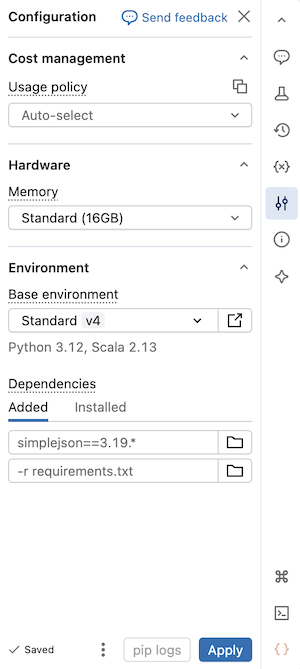
Select a base environment
A base environment determines the pre-installed libraries and environment version available for your serverless notebook. The Base environment selector in the Environment side pane is where you choose your environment. To see details on each environment version, see Serverless environment versions. Databricks recommends using the latest version to get the most up-to-date notebook features.
The Base environment selector includes the following options:
- Standard: The default serverless base environment with Databricks-provided libraries.
- ML: A base environment with the Python and system packages from Databricks Runtime for Machine Learning pre-installed. Use this environment to migrate classic Databricks Runtime for Machine Learning workloads to serverless compute. See ML base environment.
- AI: An AI-optimized base environment with pre-installed machine learning (ML) libraries. This option appears only when an accelerator (GPU) is selected. See AI environment.
- More: Expands to show additional options:
- Previous versions of Standard, ML, and AI environments.
- Custom: Specify a custom environment using a YAML file.
- Workspace environments: Lists all compatible base environments configured for your workspace by an administrator.
To select a base environment:
- In the notebook UI, click the Environment side pane .
- Under Base environment, select an environment from the drop-down menu.
- Click Apply.
Add dependencies to the notebook
Because serverless does not support compute policies or init scripts, you must install custom dependencies using the Environment side pane. You can install dependencies individually or use a shareable base environment to install multiple dependencies at once.
Databricks caches your notebook's virtual environment, so dependencies don't reinstall every time you reopen a notebook or resume after inactivity. Job tasks that share the same dependency set also benefit from this cache within a run.
To individually install a dependency:
-
In the notebook UI, click the Environment side pane
. -
In the Dependencies section, enter the path of the dependency in the field then click +Add dependency. You can specify a dependency in any format that is valid in a requirements.txt file. Python wheel files or Python projects (for example, the directory containing a
pyproject.tomlor asetup.py) can be located in workspace files or Unity Catalog volumes.- If using a workspace file, the path should be absolute and start with
/Workspace/. - If using a file in a Unity Catalog volume, the path should be in the following format:
/Volumes/<catalog>/<schema>/<volume>/<path>.whl.
- If using a workspace file, the path should be absolute and start with
-
Click Apply to install the dependencies and restart the Python process.
Do not install PySpark or any library that installs PySpark as a dependency on your serverless notebooks. Doing so will stop your session and result in an error. If this occurs, remove the library and reset your environment.
To view installed dependencies, click the Installed tab in the Environments side pane. Open the pip installation logs for the notebook environment by clicking pip logs at the bottom of the pane.
Serverless compute does not guarantee a specific CPU architecture. A notebook or job can run on either aarch64 or x86_64, and the architecture can change between runs. Because a dependency might install on a different architecture than the one it was built for, your dependencies must support every architecture the compute might use.
If a dependency is a Python wheel with native (C) extensions, its prebuilt binary is architecture-specific. A wheel built for one architecture fails to install on another, returning an error. To avoid this, use pure-Python wheels (tagged py3-none-any) where possible, or include both aarch64 and x86_64 wheel variants and constrain each to its architecture with a platform_machine environment marker.
Databricks resolves and installs dependencies before your notebook or task code runs. Code in a notebook cell cannot change how dependencies are fetched. Serverless compute also does not support compute-scoped environment variables, so proxy settings applied at runtime have no effect on dependency installation. To install from a private or authenticated package repository, specify index-url or extra-index-url in the dependency specification. You can also ask a workspace admin to configure the repository as a default package repository. See Configure default package repositories.
Configure default package repositories
Workspace admins can configure private or authenticated package repositories as the default pip source for serverless notebooks and jobs. This lets users install packages from internal repositories without specifying index-url or extra-index-url. See Configure default package repositories.
Create a custom environment specification
You can create and reuse custom environment specifications.
- In a serverless notebook, select a base environment and install any dependencies you want.
- Click the kebab menu button
 at the bottom of the environment pane then click Export environment.
 - Save the specification as a Workspace file or in a Unity Catalog volume. Make sure you have permission to write to the destination, or the export fails with a
Forbiddenerror.
To use your custom environment specification in a notebook, select Custom from the Base environment drop-down menu, then use the folder  to select your YAML file.
Create common tools to share across your workspace
This example stores a utility in a workspace file and installs it as a serverless notebook dependency:
-
Create a folder with the following structure. Make sure other users have read access to this path:
Shellhelper_utils/├── helpers/│ └── __init__.py # your common functions live here├── pyproject.toml -
Populate
pyproject.tomllike this:Python[project]name = "common_utils"version = "0.1.0" -
Add a function to the
init.pyfile. For example:Pythondef greet(name: str) -> str:return f"Hello, {name}!" -
In the notebook UI, click the Environment side pane
 .
. -
In the Dependencies section, click Add Dependency then enter the path of your util file. For example:
/Workspace/helper_utils. -
Click Apply.
You can now use the function in your notebook:
from helpers import greet
print(greet('world'))
This outputs as:
Hello, world!
Use AI Runtime (serverless GPU)
This feature is in Public Preview.
Follow these steps to configure AI Runtime, powered by serverless GPU compute, on your Databricks notebook:
- From a notebook, click the compute drop-down menu at the top and select Serverless GPU.
- Click the to open the Environment side pane.
- Select A10 or H100 from the Accelerator field.
- Under Base environment, select Standard for the default environment or AI for the AI-optimized environment with pre-installed machine learning (ML) libraries.
- Click Apply and then Confirm that you want to apply AI Runtime to your notebook environment.
For more details, see AI Runtime.
Use high memory serverless compute
This feature is in Public Preview.
If you run into out-of-memory errors in your notebook, configure the notebook to use a higher memory size. This memory size setting increases the size of the REPL memory used when running code in the notebook. It doesn't affect the memory size of the Spark session. Serverless usage with high memory has a higher DBU emission rate than standard memory.
The available memory options are:
- Standard: 16 GB total memory.
- High: 32 GB total memory.
To configure the notebook's memory setting:
- In the notebook UI, click the Environment side pane .
- Under Memory, select High memory.
- Click Apply.
This memory setting also applies to notebook job tasks that run using the notebook's memory preferences. Updating the memory preference in the notebook affects the next job run.
Select a serverless usage policy
This feature is in Public Preview.
Serverless usage policies allow your organization to apply custom tags on serverless usage for granular billing attribution.
If your workspace uses serverless usage policies, select the policy you want to apply to the notebook. If a user is assigned to only one serverless usage policy, that policy applies by default.
After connecting to serverless compute, select a policy from the Environment side pane:
- In the notebook UI, click the Environment side pane .
- Under Serverless usage policy select the serverless usage policy you want to apply to your notebook.
- Click Apply.
After applying, all notebook usage picks up the policy's custom tags.
If your notebook originates from a Git repository or does not have an assigned serverless usage policy, it defaults to your last chosen serverless usage policy when it is next attached to serverless compute.
Include the environment in source file exports
For Python notebooks, you can toggle Include in source file exports in the environment configuration. When enabled, the base environment and dependencies are stored in PEP 723 format in source file exports. This helps persist the environment configuration when notebooks are stored in Git folders or downloaded as source files.
For example, a notebook using Standard v5 exports its environment configuration as inline metadata at the top of the file:
# Databricks notebook source
# /// script
# [tool.databricks.environment]
# environment_version = "5"
# ///
print("Hello World!")
Reset the environment dependencies
If your notebook is connected to serverless compute, Databricks automatically caches the content of the notebook's virtual environment. This means you generally don't need to reinstall the Python dependencies specified in the Environment side pane when you open an existing notebook, even if it has been disconnected due to inactivity.
Python virtual environment caching also applies to jobs. When a job runs, any task that shares the same set of dependencies as a completed task in the same run finishes faster, because the cache already contains the required dependencies.
If you change the implementation of a custom Python package used in a job on serverless, you must also update its version number so that jobs can pick up the latest implementation.
To clear the environment cache and perform a fresh install of the dependencies specified in the Environment side pane of a notebook attached to serverless compute, click the arrow next to Apply and then click Reset to defaults.
If you install packages that break or change the core notebook or Apache Spark environment, remove the offending packages and then reset the environment. Starting a new session does not clear the entire environment cache.
Configure environment for job tasks
Each job task runs in an isolated environment that includes a base environment and any additional libraries you specify. The base environment sets the Python and Scala runtime version and pre-installed libraries. Tasks inherit the default set of installed libraries from the environment version. To see what's included, see the Installed Python libraries or Installed Java and Scala libraries section of the environment version you're using.
You can supplement the pre-installed libraries with libraries from workspace files, Unity Catalog volumes, or public package repositories. Only dependencies required for the task are installed at runtime.
To configure notebook, Python script, or Python wheel tasks with pyproject.toml, see Configure a project environment with pyproject.toml.
To pass environment variables to the application code in your tasks, see Configure environment variables for serverless jobs.
Selecting a managed base environment is in beta. The Base environment drop-down in the Configure environment dialog enables you to select from Databricks-provided environments (such as Standard and ML) or workspace-configured environments. Without this feature, the dialog shows an Environment version drop-down instead. Workspace administrators can enable this feature from the Previews page.
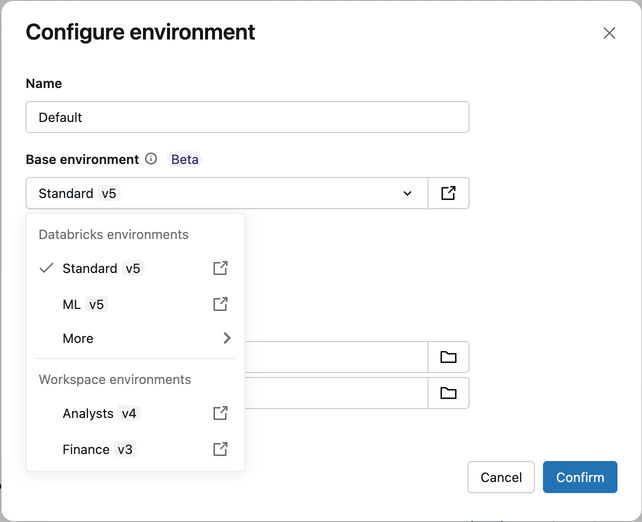
Configure the environment by task type
How you configure environments in a job depends on the task type:
- Notebook tasks
- Python script and Python wheel tasks
- Dbt tasks
- JAR tasks
Notebook tasks default to Notebook Environment, which uses the notebook's own configured base environment and dependencies. You can override this with a job-level environment.
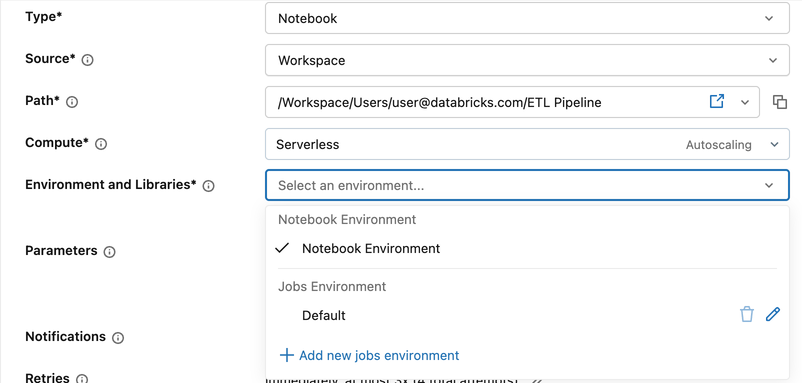
To configure a job-level environment:
- In the task configuration, click the Environment and Libraries drop-down menu.
- In Jobs Environment, click the pencil icon next to Default, or click + Add new jobs environment.
- In the Configure environment dialog, under Environment source, select Standard or Project. The Project option is available only when your workspace administrator has enabled the Project-Scoped Shared Compute preview from the Previews page. See Manage Databricks previews. If the dialog doesn't show Environment source, follow the Standard steps.
- For Standard, select from the Base environment drop-down menu:
- Databricks environments: Databricks-provided options such as Standard and ML.
- Workspace environments: Custom environments configured by your workspace administrator. See Manage workspace base environments.
- More: Previous versions and Custom (specify a YAML file).
- For Standard, under Dependencies, add any additional libraries. Use any format valid in a requirements.txt file. You can also use an absolute path to a workspace file or Unity Catalog volume.
- For Project, in Project environment, enter the workspace path to
pyproject.tomlor select the file. Configure the environment version and dependencies inpyproject.toml. You cannot also set Base environment or Dependencies. See Configure a project environment withpyproject.toml. - Click Confirm.
If your workspace does not have the workspace base environment for jobs preview enabled, the Configure environment dialog shows an Environment version drop-down instead of Base environment.
To configure the environment, select a version, then click + Add library. You can specify a workspace file path (starting with /Workspace/), a Unity Catalog volume path (starting with /Volumes/), or a requirements file reference (for example, -r /Workspace/path/to/requirements.txt).
Python script and Python wheel tasks require an environment to be configured.
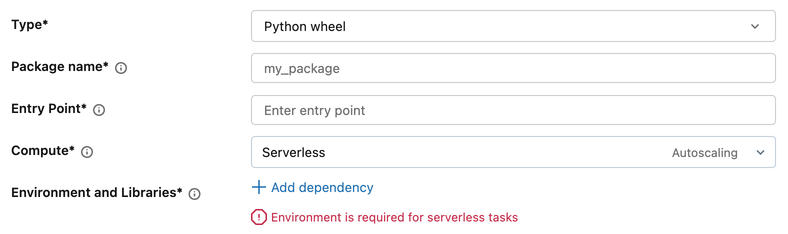
- In the task configuration, under Environment and Libraries, click + Add dependency.
- In the Configure environment dialog, under Environment source, select Standard or Project. The Project option is available only when your workspace administrator has enabled the Project-Scoped Shared Compute preview from the Previews page. See Manage Databricks previews. If the dialog doesn't show Environment source, follow the Standard steps.
- For Standard, select from the Base environment drop-down menu:
- Databricks environments: Databricks-provided options such as Standard and ML.
- Workspace environments: Custom environments configured by your workspace administrator. See Manage workspace base environments.
- More: Previous versions and Custom (specify a YAML file).
- For Standard, under Dependencies, add any additional libraries.
- For Project, in Project environment, enter the absolute workspace path to
pyproject.toml(for example,/Workspace/path/to/pyproject.toml) or select the file. Python wheel tasks do not support relative project-environment paths. Configure the environment version and dependencies inpyproject.toml. You cannot also set Base environment or Dependencies. See Configure a project environment withpyproject.toml. - Click Confirm.
If your workspace does not have the workspace base environment for jobs preview enabled, the Configure environment dialog shows an Environment version drop-down instead of Base environment.
To configure the environment, select a version, then click + Add library. You can specify a workspace file path (starting with /Workspace/), a Unity Catalog volume path (starting with /Volumes/), or a requirements file reference (for example, -r /Workspace/path/to/requirements.txt).
DBT tasks use a job-level environment for library configuration.
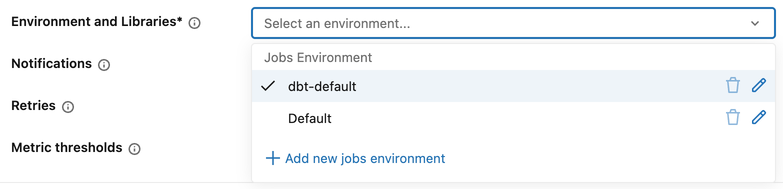
To configure a job-level environment:
- In the task configuration, click the Environment and Libraries drop-down menu.
- In Jobs Environment, click the pencil icon next to an existing environment, or click + Add new jobs environment.
- In the Configure environment dialog, select from the Base environment drop-down menu:
- Databricks environments: Databricks-provided options such as Standard and ML.
- Workspace environments: Custom environments configured by your workspace administrator. See Manage workspace base environments.
- More: Previous versions and Custom (specify a YAML file).
- Under Dependencies, add any additional libraries. You can specify a library in any format valid in a requirements.txt file, or use an absolute path to a workspace file or Unity Catalog volume.
- Click Confirm.
If your workspace does not have the workspace base environment for jobs preview enabled, the Configure environment dialog shows an Environment version drop-down instead of Base environment.
To configure the environment, select a version, then click + Add library. You can specify a workspace file path (starting with /Workspace/), a Unity Catalog volume path (starting with /Volumes/), or a requirements file reference (for example, -r /Workspace/path/to/requirements.txt).
Workspace base environments are not supported for JAR tasks. To configure the environment for a JAR task:
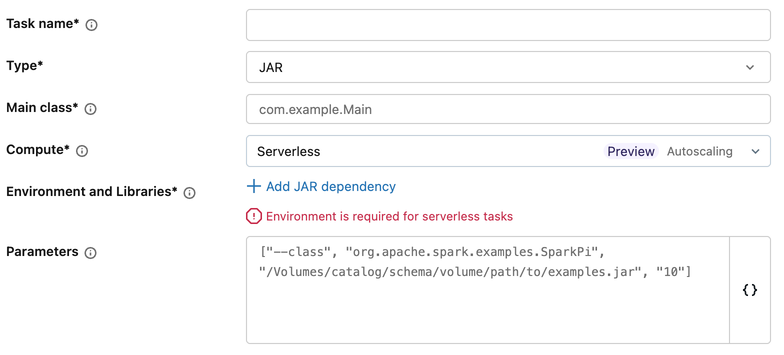
- In the task configuration, under Environment and Libraries, click + Add JAR dependency.
- In the Configure environment dialog:
- Optionally, enter a path to a YAML file in the Base environment field.
- Select an environment version from the Environment version drop-down menu.
- Under JAR Dependencies, add the paths to your JAR files.
- Click Confirm.
To create a custom YAML-based base environment, see Create a custom environment specification.
Environment and compute compatibility
The base environment you select must be compatible with the task's compute type. For example, an environment built for GPU compute is not compatible with CPU compute. In the jobs UI, incompatible environments are unavailable in the base environment drop-down menu.
When you configure a notebook task, the compute type (CPU or GPU) and base environment can each come from either the job settings or the notebook settings.
- If you set a hardware accelerator (GPU) at the job level, you must also select a base environment at the job level. You cannot use the notebook's environment with a job-level accelerator.
- If you have job tasks that reference a notebook, and you update the referenced notebook's compute type (for example, from CPU to GPU), existing tasks might become incompatible with their configured environment. Review your job's environment settings after changing the notebook's compute configuration.
- For API users: if you set the base environment at the job level but the notebook defines the compute type, Databricks validates compatibility at runtime, not at job creation time. If the configuration is incompatible, the run fails with an error.
Configure a project environment with pyproject.toml
This feature is in Beta. To use it, a workspace admin must turn on Project-Scoped Shared Compute from the Previews page. See Manage Databricks previews.
A project environment configures a serverless job task from a pyproject.toml file. Use the file to declare dependencies for notebook, Python script, and Python wheel tasks. To select a project environment for a task, see Configure environment for job tasks.
For notebooks that use Shared Serverless, see Manage the environment with pyproject.toml.
Requirements
- Use serverless environment version 5 and above.
- Store
pyproject.tomlin workspace files, for example/Workspace/path/to/pyproject.toml. - To use
project_environmentin a bundle, use Databricks CLI version 1.21.0 and above. - When you use the Jobs API or a bundle,
project_environmentmust be the only environment-source field in the environmentspec. Omit fields such asenvironment_version,base_environment, anddependencies. Set the environment version and dependencies inpyproject.tomlinstead.
Prepare the project environment
To define the pyproject.toml file, declare the dependencies under [project]. Set the serverless environment version under [tool.databricks.environment]. For example:
[project]
name = "my-project"
version = "0.1.0"
dependencies = [
    # Keep your other dependencies here.
    "cowsay==6.1",
]

[tool.databricks.environment]
# Serverless environment version.
environment_version = "6"
For a job that installs only project dependencies, an absent or out-of-date uv.lock causes the runtime to fall back to uv pip install -r pyproject.toml. This fallback resolves dependencies from pyproject.toml without enforcing locked versions and does not install the project package itself.
To install the project itself as a package, add a build backend to pyproject.toml. For example, to use Hatchling, add the following:
[build-system]
requires = ["hatchling"]
build-backend = "hatchling.build"
Hatchling builds the package from the source directory that matches the project name. For example, for my-project, Hatchling uses src/my_project/__init__.py. Project installation requires an up-to-date uv.lock file next to pyproject.toml. Generate the file with uv lock in the project directory.
To check that uv.lock matches pyproject.toml, run the following command in a notebook in the project directory:
%uv lock --check
Configure a project environment in a bundle
Set project_environment to the path of pyproject.toml. During deployment, the Databricks CLI translates this path to a workspace path.
The following example bundle installs its own package, my-project. It uses this layout:
.
├── databricks.yml
├── pyproject.toml
├── uv.lock
├── resources/
│   └── my_project.job.yml
└── src/
    ├── main.py
    └── my_project/
        └── __init__.py
The root pyproject.toml declares the dependencies, the Hatchling build backend, and the environment version:
[project]
name = "my-project"
version = "0.1.0"
dependencies = [
    "cowsay==6.1",
]

[build-system]
requires = ["hatchling"]
build-backend = "hatchling.build"

[tool.databricks.environment]
environment_version = "6"
Save the following configuration as resources/my_project.job.yml. The project_environment and python_file paths are relative to this file:
resources:
  jobs:
    my_project_job:
      name: my-project-job
      environments:
        - environment_key: project
          spec:
            project_environment: ../pyproject.toml
      tasks:
        - task_key: main
          environment_key: project
          spark_python_task:
            python_file: ../src/main.py