Install an external MCP server

Preview

This feature is in Public Preview.

Install third-party Model Context Protocol (MCP) servers in your Databricks workspace through Databricks-managed proxies. After installation, agents and clients access external tools and services through the proxy with consistent authentication and governance.

Databricks supports both shared principal and per-user authentication for external MCP servers. See Supported authentication methods.

To use an installed external MCP server in agent code, see Use external MCP servers in agents.

Requirements

  • You must have CREATE CONNECTION privilege on the Unity Catalog metastore that stores the MCP connection information.
  • The MCP server must use the Streamable HTTP transport mechanism.

Installation methods

You have four options for installing external MCP servers. Start with Managed OAuth if your MCP provider is supported since it requires no credential management. If not, check Databricks Marketplace for a pre-built integration. For any other server, use a Custom HTTP connection. All methods create a Unity Catalog connection for secure, authenticated access.

Choose your installation method based on your MCP server:

Databricks provides managed OAuth flows for select services, eliminating the need to register your own OAuth app or manage credentials. Databricks recommends Managed OAuth for development and testing. If production use cases require generating custom OAuth credentials, see the providers' documentation for more information.

The following integrations use Databricks-managed OAuth credentials stored securely in the backend.

Provider

Configuration notes

Supported scopes

Description

Glean MCP

Requires Host. Base path is configurable (defaults to /mcp/default).

mcp

Access Glean enterprise search, chat, documents, and agent tools.

GitHub MCP

None

repo read:project read:org

Access GitHub repositories, organizations, and project data.

Atlassian MCP

None

read:jira-work read:jira-user read:confluence-content.all offline_access

Access Jira issues, users, and Confluence content.

To set up managed OAuth:

  1. In your Databricks workspace, go to Catalog > Connections > Create connection.
  2. Select HTTP as the connection type.
  3. Select OAuth User to Machine Per User as the auth type.
  4. From the OAuth Provider dropdown, select your provider.
  5. Configure the provider settings as needed (see the configuration notes in the table above).
  6. For the OAuth Scope field, enter the scopes you need as a space-delimited string (for example, MCP SEARCH). Refer to the supported scopes in the table above for your selected provider. If you leave this field empty, Databricks requests the full default set of scopes.
  7. Click Create connection.

Each user will be prompted to authorize with the provider on first use.

If needed, allowlist the following redirect URIs used by managed OAuth:

Cloud

Redirect URI

AWS

https://oregon.cloud.databricks.com/api/2.0/http/oauth/redirect

Azure

https://westus.azuredatabricks.net/api/2.0/http/oauth/redirect

GCP

https://us-central1.gcp.databricks.com/api/2.0/http/oauth/redirect

View your MCP server

After completing any installation method:

  • A Unity Catalog connection is created with your MCP server details

  • Databricks provisions a managed proxy endpoint that securely handles authentication and token management

  • The MCP server is available in AI Playground and can be used programmatically in your agents

  • You can grant other users access to the connection through Unity Catalog permissions

  • The proxy endpoint URL follows this format:

    https://<workspace-hostname>/api/2.0/mcp/external/{connection_name}
  • You can also access the external server through the UC connections proxy, which works with any HTTP or MCP client and supports arbitrary sub-paths and all HTTP methods:

    https://<workspace-hostname>/api/2.0/unity-catalog/connections/{connection_name}/proxy[/<sub-path>]

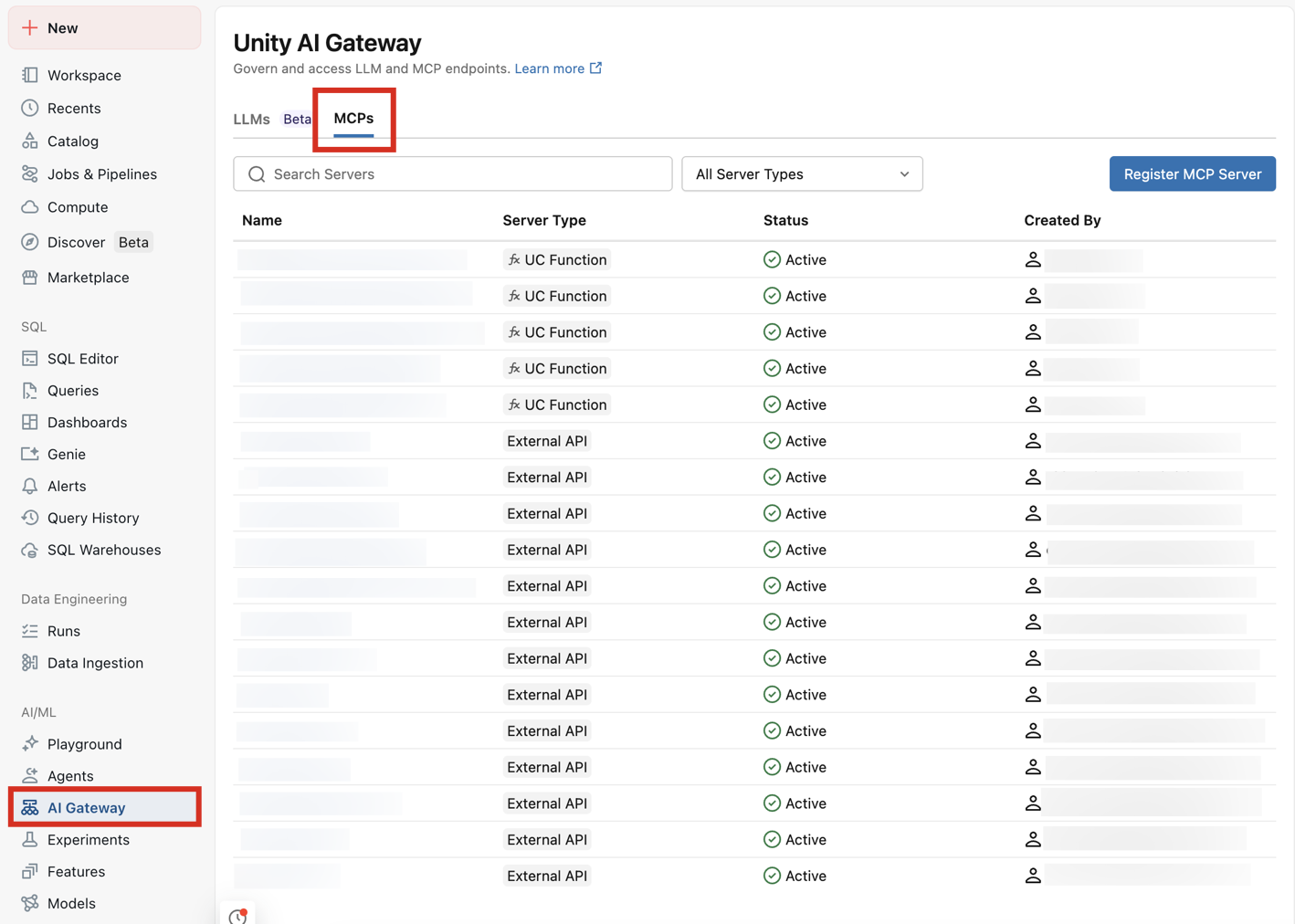
To view your MCP server, go to your workspace > AI Gateway > MCPs:

ai-gateway MCP Servers

Share the MCP server connection

Grant USE CONNECTION privileges to identity principals that need to use the MCP server connection:

  1. In your workspace, go to Catalog > Connections > Your connection > Permissions.
  2. Grant identities appropriate access to the Unity Catalog connection.

Test MCP servers within Databricks

You can test MCP servers directly within Databricks without writing any code.

Using Genie Code: follow steps in Add MCP servers to Genie Code

Using AI Playground:

  1. Go to AI Playground in your Databricks workspace.

  2. Choose a model with the Tools enabled label.

  3. Click Tools > + Add tool and select MCP Servers from the available tool options.

  4. In the MCP Servers section, select External MCP servers to browse available connections.

  5. Choose the Unity Catalog connection you installed earlier (for example, github_connection).

  6. Chat with the LLM to test how it interacts with your MCP server tools. AI Playground automatically discovers available tools from your MCP server and makes them available to the LLM.

This allows you to quickly prototype and test MCP server integrations before building full agents or deploying to production.

Authentication and security

Databricks uses managed MCP proxies and Unity Catalog HTTP connections to securely handle authentication to external MCP servers. The following authentication methods are supported:

Supported authentication methods

Databricks supports the following types of authentication for external MCP servers:

  • Shared principal authentication: All users share the same credentials when accessing the external service. This includes Bearer token, OAuth Machine-to-Machine (M2M), and OAuth User-to-Machine Shared authentication. Use this when the external service doesn't require user-specific access or when a single service account is sufficient.

  • Per-user authentication (OAuth U2M Per User): Each user authenticates with their own credentials. The external service receives requests on behalf of the individual user, enabling user-specific access control, auditing, and accountability. Use this when accessing user-specific resources like a user's GitHub repositories, Slack messages, or calendar.

For detailed configuration instructions for each authentication method, see HTTP connections.

Security benefits

  • Secure token management: Databricks handles all OAuth flows and token refresh automatically
  • No exposed credentials: Tokens are never exposed to end users
  • Centralized authentication: Consistent authentication patterns using Unity Catalog connections
  • Centralized governance: View and manage all external MCP connections alongside your LLM endpoints from Unity AI Gateway

Limitations

  • External MCP servers are only available in regions where Model Serving is supported. If your workspace is in an unsupported region, external MCP server connections will not work. This includes use in AI Playground, Genie Code, and Chat in Genie. See Model serving features availability.

Next steps