Manage Databricks notebook format
By default, notebooks in Databricks are created in .ipynb (IPython or Jupyter) format. You can also choose to use source format instead.
You can still import and export notebooks in various formats. See Import and export Databricks notebooks.
Notebook formats
Databricks supports creating and editing notebooks in two formats: IPYNB (default) and source.
You can manage source files, including notebooks, using Git folders. Only certain Databricks asset types are supported in Git folders. The format affects how notebooks are committed to remote repositories, as described in the table below.
Notebook source format | Description |
|---|---|
source | A basic format that only captures source code, with a suffix that signals the code language, such as |
IPYNB (Jupyter) | A rich format that captures source code, notebook environment, visualization definitions, notebook widgets, and optional outputs. An IPYNB notebook can contain code in any language supported by Databricks notebooks (despite the |
The IPYNB format also supports a better viewing experience for Databricks notebooks on remote Git repositories. If you use GitHub or GitLab, you can enable features that give you enhanced diffs of your notebooks in pull requests, making it easier to view and code review changes to a notebook.
To learn more about GitHub support for rich diffs of IPYNB notebooks, see Feature Preview: Rich Jupyter Notebook Diffs. To learn more about GitLab support for IPYNB notebook diffs, see Jupyter Notebook files.
To distinguish source format notebooks from regular Python, Scala, and SQL files, Databricks adds the comment “Databricks notebook source” to the top of Python, Scala, and SQL notebooks. This comment ensures that Databricks correctly parses the file as a notebook rather than a script file.
Change the default notebook format setting
IPYNB notebooks are the default format when creating a new notebook on Databricks.
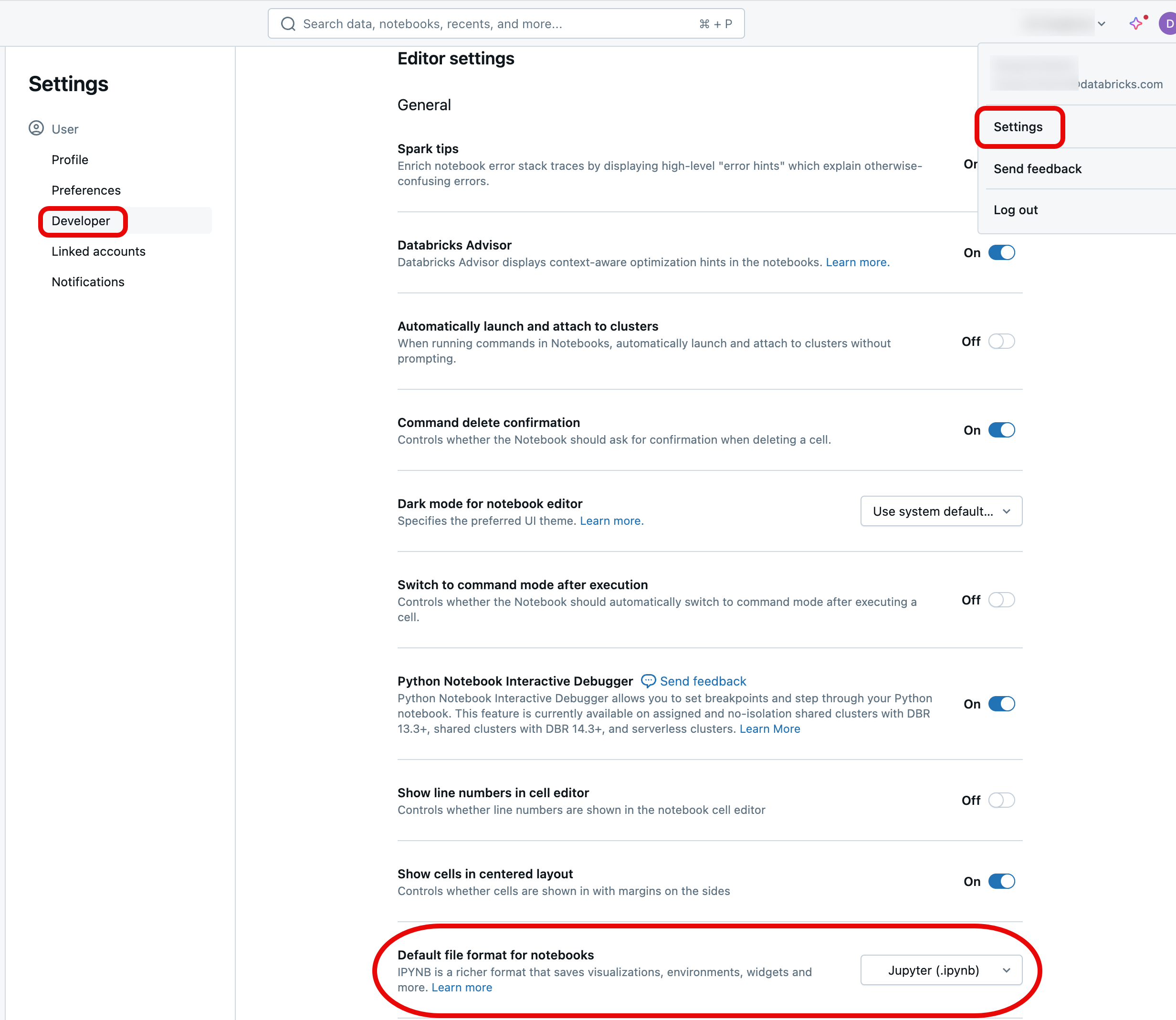
To change the default to the Databricks source format, log into your Databricks workspace, click your profile in the upper-right of the page, then click Settings and navigate to Developer. Change the notebook format default under the Editor settings heading.
Convert notebook format
You can convert an existing notebook to another format through the Databricks UI.
To convert an existing notebook to another format:
-
Open the notebook in your workspace.
-
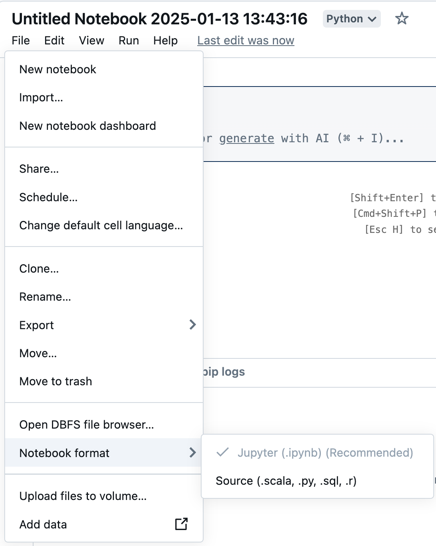
Select File from the workspace menu, select Notebook format, and choose the format you want. You can choose either Jupyter (.ipynb) (Recommended) or Source (.scala, .py, .sql, .r). The notebook's current format is greyed out and has a checkmark next to it.
For more information on the kinds of notebooks supported in Databricks, see Import and export Databricks notebooks.
Manage IPYNB notebook output commits
Outputs are the results of running a notebook on the Databricks platform, including table displays and visualizations. For IPYNB notebooks in source-controlled folders, you can manage how notebook outputs are committed to the remote repository.
Allow committing .ipynb notebook output
Outputs can be committed only if a workspace administrator has enabled this feature. By default, the administrative setting for Git folders doesn't allow .ipynb notebook output to be committed. If you have administrator privileges for the workspace, you can change this setting:
-
Click your username in the top bar of the Databricks workspace and select Settings.
-
Under Workspace admin, click Development.
-
In the Repos section, set Allow repos to export IPYNB output to Allow: IPYNB outputs can be toggled on.

When outputs are included, the visualization and dashboard configurations are included in the .ipynb notebooks you create.
Control IPYNB notebook output artifact commits
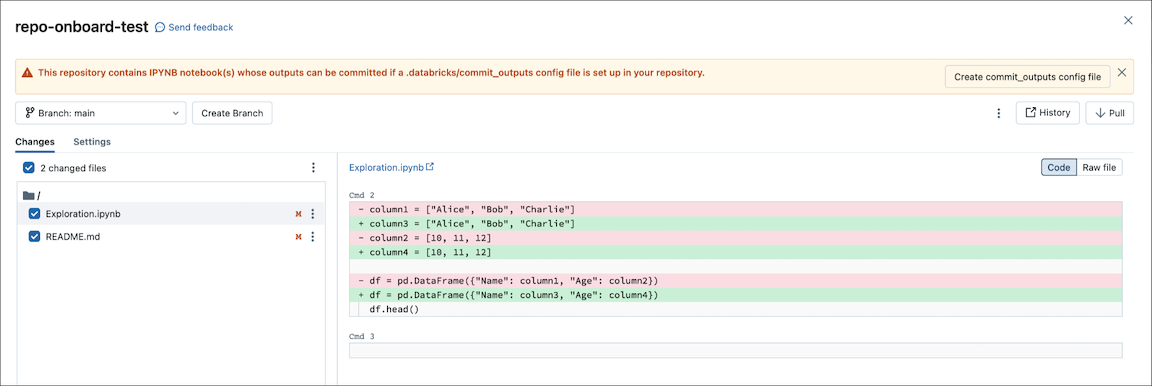
The .databricks/commit_outputs configuration file in your repository controls which .ipynb notebook outputs are committed. After a workspace admin allows output commits, you can create this file from the Git dialog:
-
Open the Git dialog for a Git folder that contains a
.ipynbnotebook but no.databricks/commit_outputsfile. -
In the info alert at the top of the dialog, click Create commit_outputs config file.
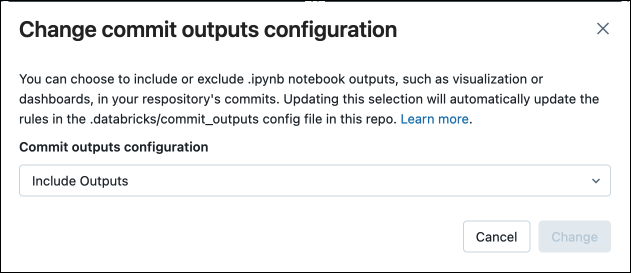
You can also use the File menu to include or exclude outputs for a specific IPYNB notebook. If the configuration file doesn't exist, Databricks creates it when you make your selection. Use this option if you dismissed the alert in the Git dialog.
-
In the File menu, select Commit notebook outputs. The menu item is available only for IPYNB notebooks in a Git folder, after a workspace admin allows output commits.
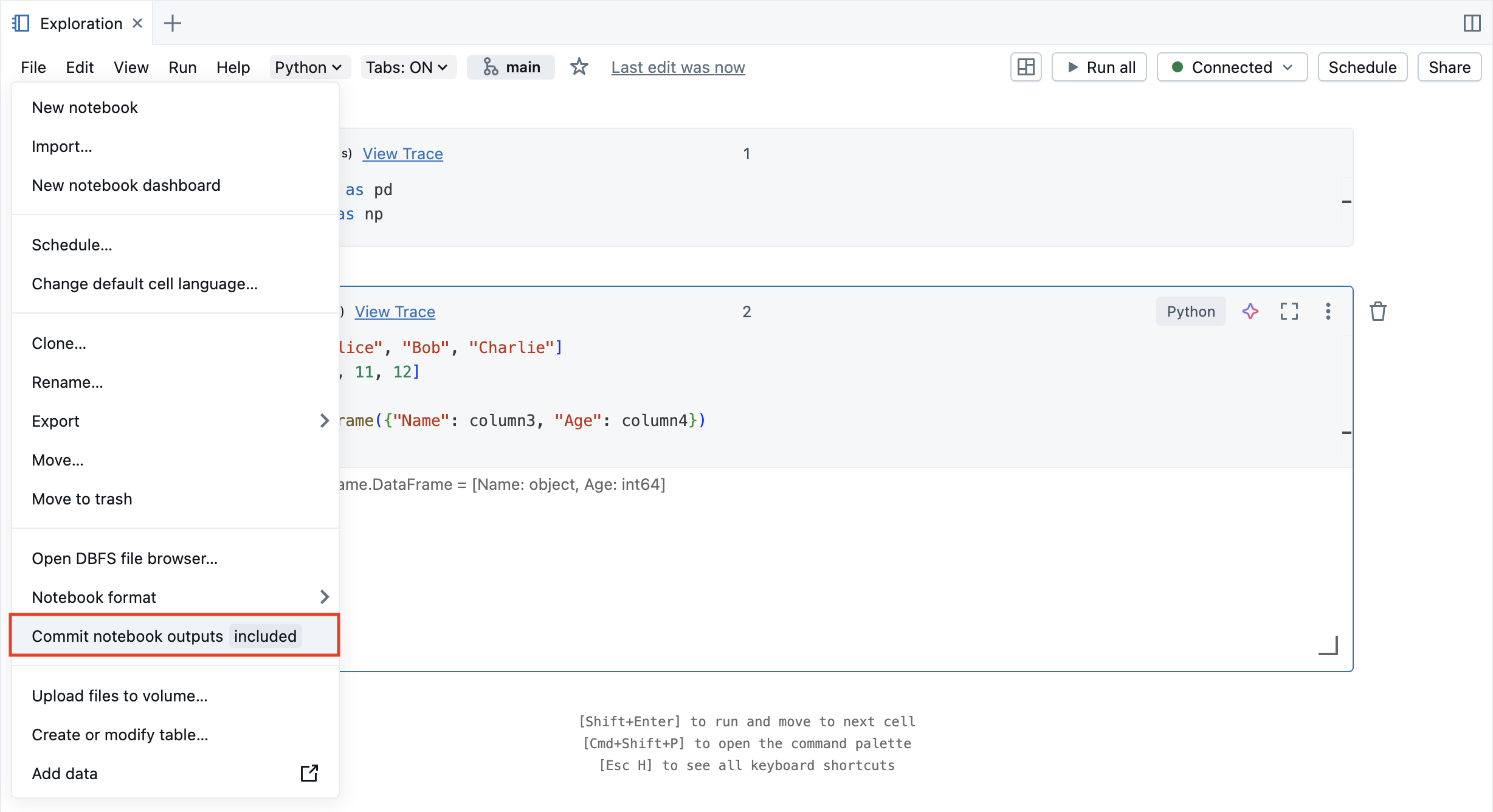
-
In the Commit outputs configuration dialog, select Include Outputs or Exclude Outputs, and then click Change.