Diagnose cost and performance issues using the Spark UI
When a pipeline or query runs longer or costs more than you expect, the cause is often hard to see from the code alone. The Spark UI shows what the cluster actually did: which jobs ran, how long each stage took, how much data moved, and where tasks failed. This guide describes patterns in the Spark UI and explains which page to read next for each pattern. If you aren't familiar with the concepts of driver, workers, executors, stages, and tasks, review the Spark architecture before you start.
When to use this guide
Use this guide when a workload that runs on a cluster has any of these symptoms:
- A job, pipeline, or query takes longer than expected or longer than it used to.
- A workload costs more than expected for the amount of data it processes.
- Jobs or executors fail, and the error message doesn't identify the cause.
Using this guide
Start with the jobs timeline. The timeline shows the overall shape of the workload, and each pattern links to the page that diagnoses that pattern. Follow the links at the end of each page to move through the guide. To diagnose a slow workload, follow these steps in order:
- Use the Jobs Timeline to identify major issues
- Look at longest stage
- Look for skew or spill
- Determine if longest stage is I/O bound
- Look for other causes of slow stage runtime
If the jobs timeline shows failing jobs, long gaps between jobs, or many small jobs, skip the remaining steps and follow the link on the timeline page to the page for that pattern.
How to open the Spark UI
-
Navigate to your cluster's page:
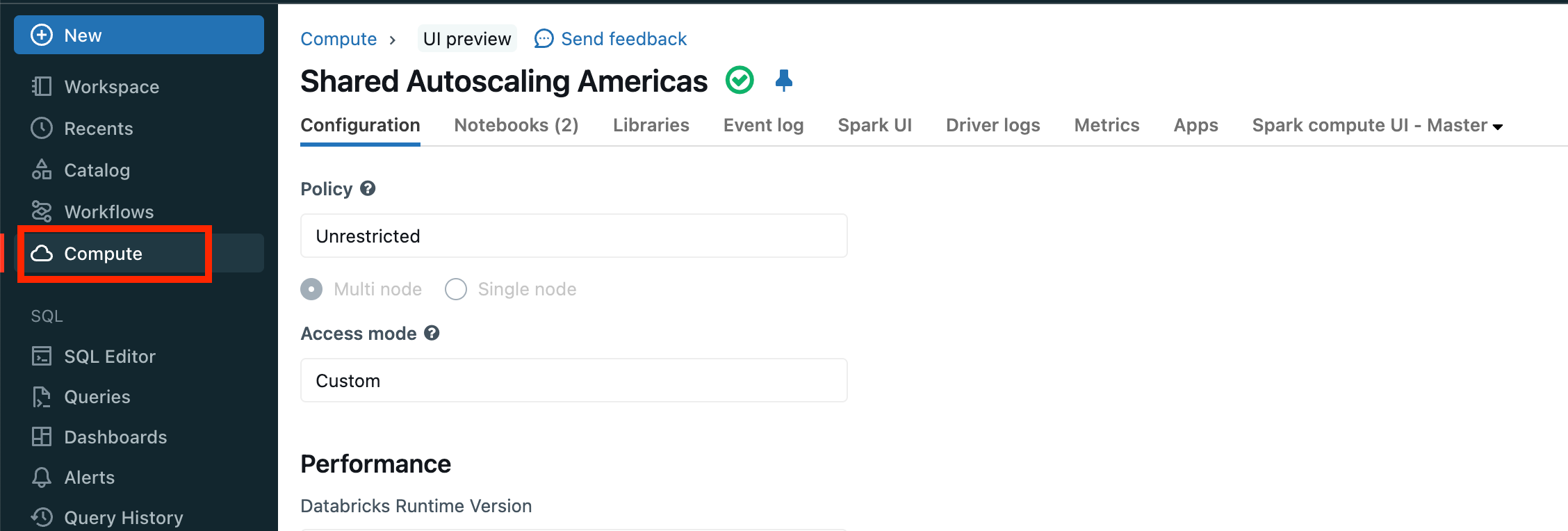
-
Click Spark UI:
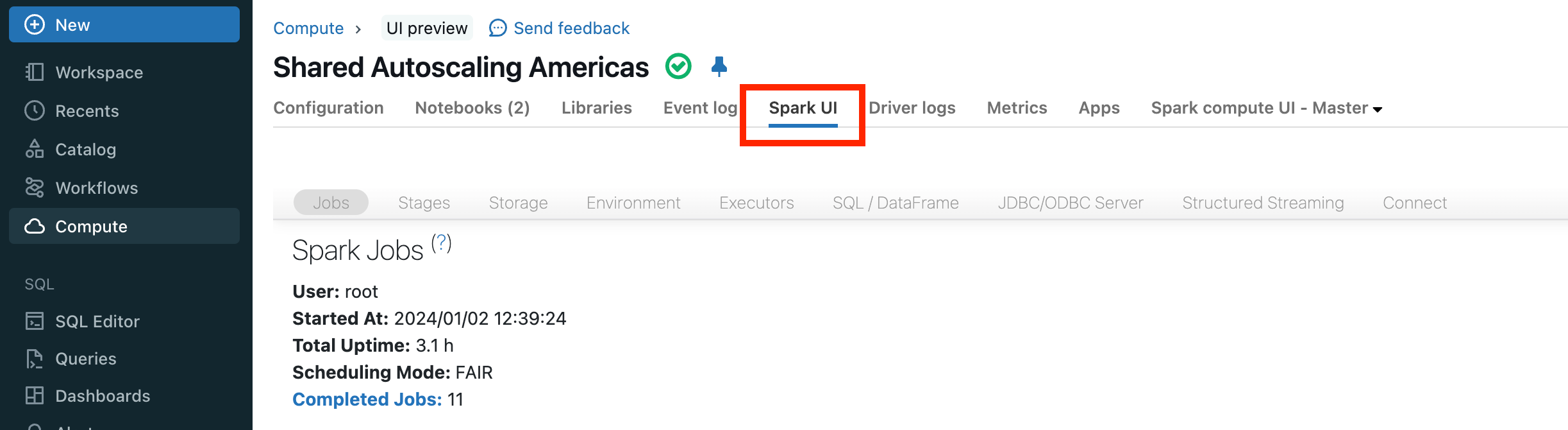
Next step
Next, review the event timeline to find out more about your pipeline or query. See Jobs timeline.