Monitor usage for Unity AI Gateway endpoints
This feature is in Beta. Account admins can control access to this feature from the account console Previews page. See Manage Databricks previews.
This page describes how to monitor usage for Unity AI Gateway endpoints using the usage tracking system table.
The usage tracking table automatically captures request and response details for an endpoint, logging essential metrics like token usage and latency. You can use the data in this table to monitor usage, track costs, and gain insights into endpoint performance and consumption.
Usage tracking also captures ai_query requests to Databricks-provided endpoints.
Requirements
- Unity AI Gateway preview enabled for your account. See Manage Databricks previews.
- A Databricks workspace in a Unity AI Gateway supported region.
- Unity Catalog enabled for your workspace. See Enable a workspace for Unity Catalog.
Query the usage table
Unity AI Gateway logs usage data to the system.ai_gateway.usage system table. You can view the table in the UI, or query the table from Databricks SQL or a notebook.
Only account admins have permission to view or query the system.ai_gateway.usage table.
To view the table in the UI, click the usage tracking table link on the endpoint page to open the table in Catalog Explorer.
To query the table from Databricks SQL or a notebook:
SELECT * FROM system.ai_gateway.usage;
Genie Code (Agent mode) can do this for you. Try this example prompt:
Query the system.ai_gateway.usage table to analyze AI Gateway usage showing request count and total tokens, grouped by endpoint name for the last 7 days.
Built-in usage dashboard
Create built-in usage dashboard
Account admins can create a built-in Unity AI Gateway usage dashboard by clicking Create Dashboard on the AI Gateway page to monitor usage, track costs, and gain insights into endpoint performance and consumption. Account admins can also update the warehouse used to run dashboard queries, which applies to all subsequent queries.
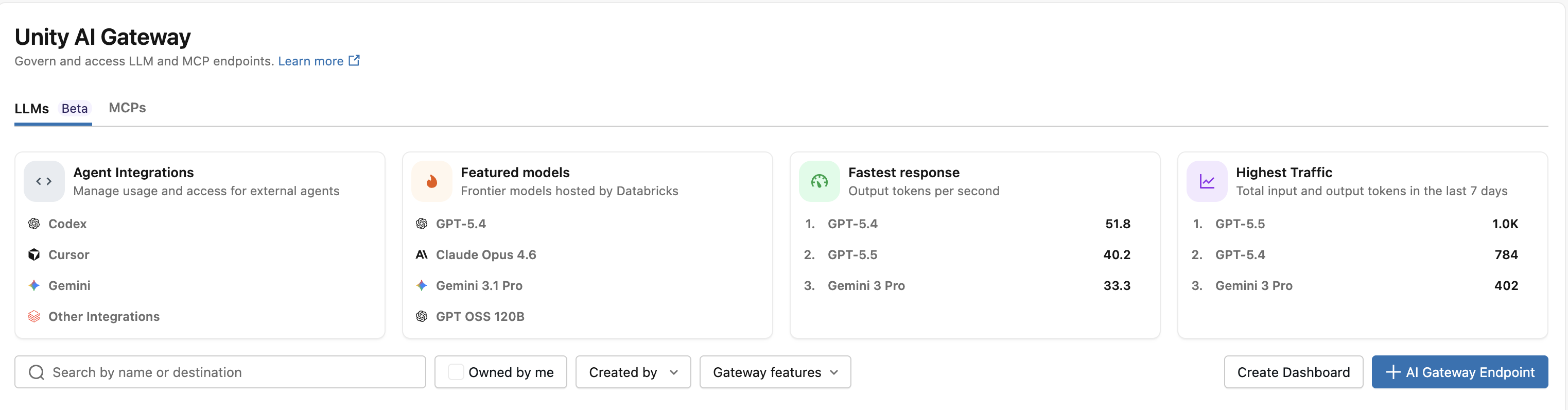
Dashboard creation is restricted to account admins because it requires SELECT permissions on the system.ai_gateway.usage table. The dashboard's data is subject to the usage table's retention policies. See Which system tables are available?.
When a newer version of the built-in usage dashboard is available, account admins can click Update from the dashboard actions menu on the AI Gateway page.
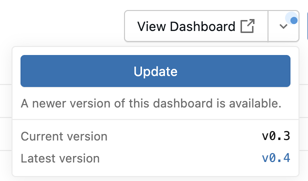
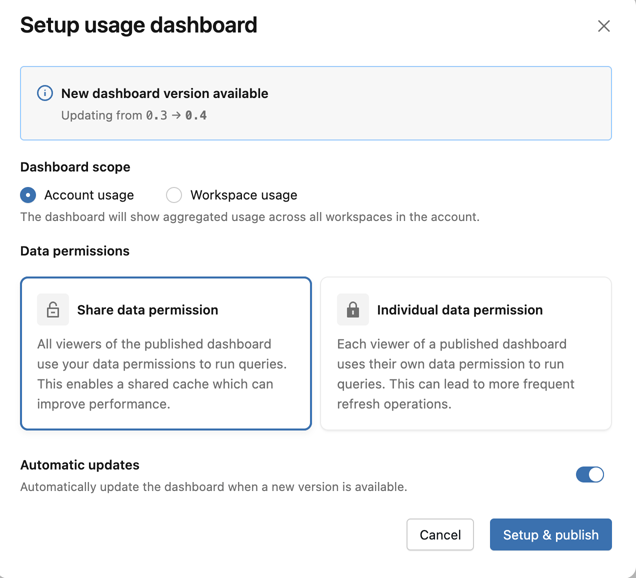
You can use the following dashboard configuration options to manage the dashboard:
- Scope: Select whether to scope the dashboard to the account or workspace.
- Permissions: Choose whether queries run using the dashboard owner’s permissions or each viewer’s permissions. See What are shared data permissions?.
- Automatic updates: When you enable this option, the dashboard updates automatically whenever a newer version becomes available and an account administrator visits the AI Gateway page.
When the dashboard is updated to version 0.3 or higher, a schedule is automatically created to refresh the dashboard every 6 hours. If needed, this schedule can be disabled in the Lakeview dashboard. See Create a schedule.
View usage dashboard
To view the dashboard, click View Dashboard from the AI Gateway page. The built-in dashboard has comprehensive visibility into Unity AI Gateway endpoint usage, performance, and cost. It includes multiple pages tracking requests, token consumption, latency metrics, error rates, cost breakdowns, external MCP server traffic, and coding agent activity.
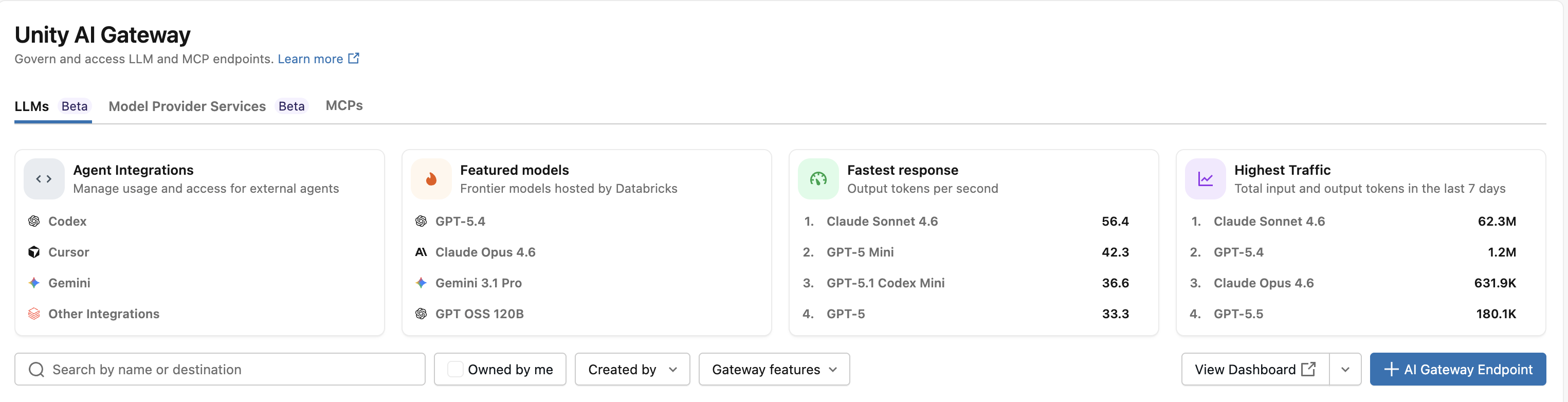
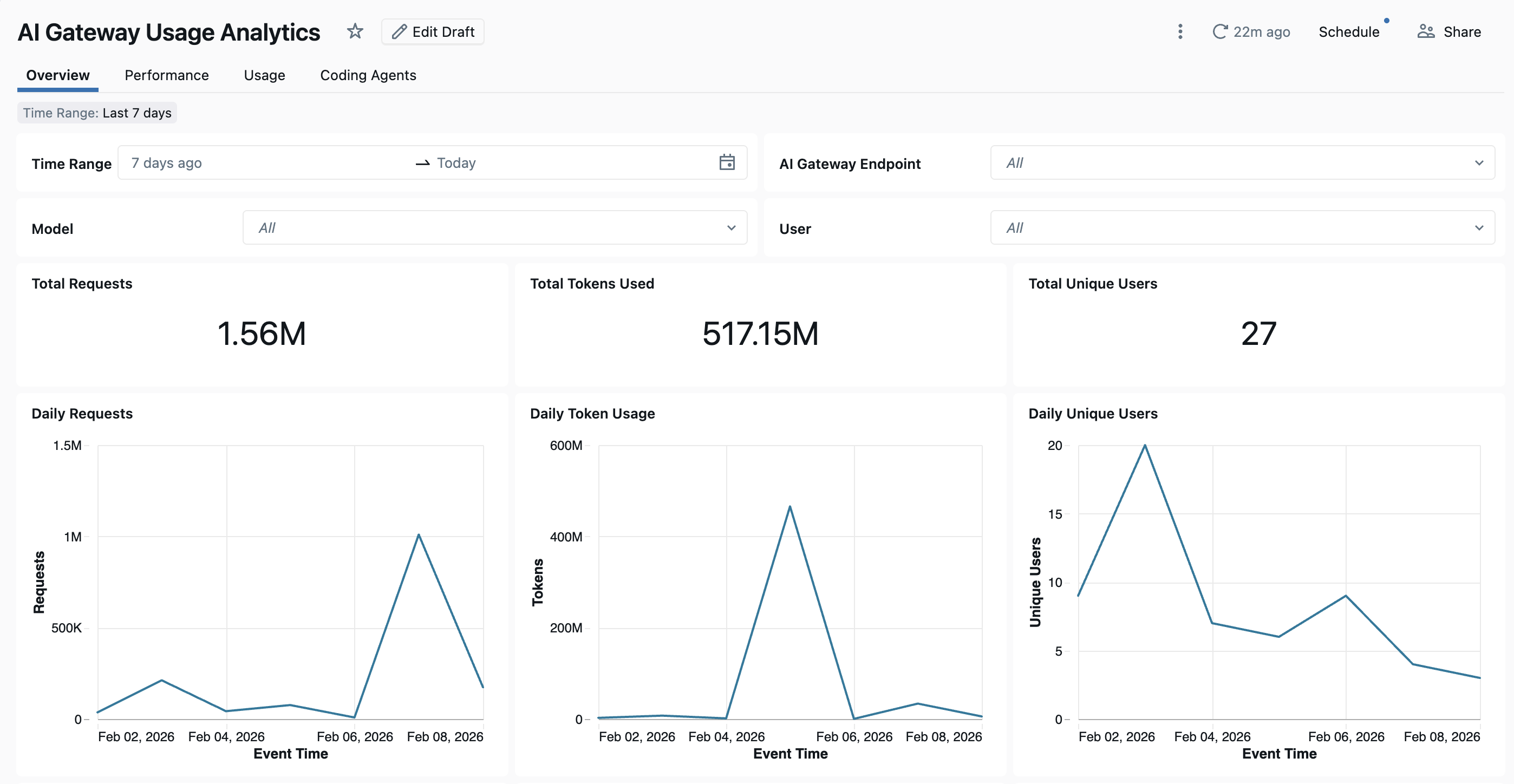
The dashboard provides cross-workspace analytics by default. All dashboard pages can be filtered by date range and workspace ID.
- Overview tab: Shows high-level usage metrics including daily request volume, token usage trends over time, top users by token consumption, and total unique user counts. Use this tab to get a quick snapshot of overall Unity AI Gateway activity and identify the most active users and models.
- Performance tab: Tracks key performance metrics including latency percentiles (P50, P90, P95, P99), time to first byte, error rates, and HTTP status code distributions. Use this tab to monitor endpoint health and identify performance bottlenecks or reliability issues.
- Usage tab: Shows detailed consumption breakdowns by endpoint, workspace, and requester. This tab shows token usage patterns, request distributions, and cache hit ratios.
- Cost Observability tab: Shows cost breakdowns by endpoint, target model, user, endpoint tags, and request tags. This tab also includes estimated cost for external models. See Monitor Unity AI Gateway cost.
- External MCP Server tab: Shows request volume, error rates, users and connections, and daily usage trends for external MCP server traffic.
- Coding Agents tab: Tracks activity from integrated coding agents including Cursor, Claude Code, Gemini CLI, and Codex CLI. This tab shows metrics like active days, coding sessions, commits, and lines of code added or removed to monitor developer tool usage. See Coding agent dashboard for more details.
Usage table schema
The system.ai_gateway.usage table has the following schema:
Column name | Type | Description | Example |
|---|---|---|---|
| STRING | The account ID. |
|
| STRING | The workspace ID. |
|
| STRING | A unique identifier for the request. |
|
| INTEGER | The schema version of the usage record. |
|
| STRING | The unique ID of the Unity AI Gateway endpoint. |
|
| STRING | The name of the Unity AI Gateway endpoint. |
|
| MAP | Tags configured on the endpoint at creation or update time. Endpoint tags apply to all requests to the endpoint and are useful for categorizing endpoints by team, cost center, or project. See Tag requests and endpoints for usage tracking. |
|
| STRUCT | Endpoint metadata including |
|
| TIMESTAMP | The timestamp when the request was received. |
|
| LONG | The total latency in milliseconds. |
|
| LONG | The time to first byte in milliseconds. |
|
| STRING | The type of destination (for example, external model or foundation model). |
|
| STRING | The name of the destination model or provider. |
|
| STRING | The unique ID of the destination. |
|
| STRING | The specific model used for the request. |
|
| STRING | The ID of the user or service principal that made the request. |
|
| STRING | The type of requester (user, service principal, or user group). |
|
| STRING | The IP address of the requester. |
|
| STRING | The URL of the request. |
|
| STRING | The user agent of the requester. |
|
| STRING | The type of API call (for example, chat, completions, or embeddings). |
|
| MAP | User-provided tags sent with individual requests using the |
|
| LONG | The number of input tokens. |
|
| LONG | The number of output tokens. |
|
| LONG | The total number of tokens (input + output). |
|
| STRUCT | Detailed token breakdown including |
|
| STRING | The content type of the response. |
|
| INT | The HTTP status code of the response. |
|
| STRUCT | Routing details for fallback attempts. Contains an |
|
Tag requests and endpoints for usage tracking
AI Gateway supports two types of tags for tracking and attributing usage:
- Request tags: Custom key-value pairs that the caller attaches to individual requests. Use request tags to attribute usage by project, team, environment, end user, or any other dimension relevant to your organization.
- Endpoint tags: Key-value pairs configured on the endpoint itself. Endpoint tags apply to all requests routed through the endpoint and are useful for categorizing endpoints by team, cost center, or application.
Both tag types are logged to the system.ai_gateway.usage table and can be used to filter, aggregate, and analyze usage data.
Request tags
To tag individual requests, include the Databricks-Ai-Gateway-Request-Tags HTTP header with a JSON object mapping string keys to string values. Request tags are logged to the request_tags column in the usage table and in inference tables.
For examples showing how to set request tags with REST API, OpenAI SDK, and Anthropic SDK, see Tag requests for usage tracking.
For example, you can aggregate usage by project using request tags:
SELECT
  request_tags['project'] AS project,
  COUNT(*) AS request_count,
  SUM(total_tokens) AS total_tokens
FROM system.ai_gateway.usage
WHERE request_tags['project'] IS NOT NULL
GROUP BY request_tags['project']
ORDER BY total_tokens DESC;
Endpoint tags
Endpoint tags are configured when creating or updating an AI Gateway endpoint. They appear in the endpoint_tags column of the usage table for all requests to that endpoint.
For example, you can aggregate usage by team using endpoint tags:
SELECT
  endpoint_tags['team'] AS team,
  endpoint_name,
  COUNT(*) AS request_count,
  SUM(total_tokens) AS total_tokens
FROM system.ai_gateway.usage
WHERE endpoint_tags['team'] IS NOT NULL
GROUP BY endpoint_tags['team'], endpoint_name
ORDER BY total_tokens DESC;