Customize Genie Code with custom instructions
Customize Genie Code with user and workspace instructions that share preferences, coding conventions, role context, and guidelines. Genie Code applies these instructions to every response, including inline suggestions and Suggest Fix. Quick Fix and Autocomplete are the exceptions.
For example, instructions can include:
- Information about your preferences, such as which libraries you prefer to use when writing code.
- Context about who you are, such as your name and role.
- Coding conventions to follow.
- Guidelines to follow.
- Directions on how Genie Code should respond, such as using a casual tone.
With the exception of Quick Fix and Autocomplete, Genie Code applies instructions to every response it generates, including inline suggestions, chat, and Suggest Fix.
In addition to user and workspace instructions, Genie Code automatically discovers and reads AGENTS.md and CLAUDE.md files in your workspace. When you open a notebook or file, Genie Code walks up the directory tree and injects the contents of any instruction files it finds into its context. No configuration is required.
Genie Code supports two types of instructions: user instructions and workspace instructions. Unless otherwise instructed, Genie Code generally prioritizes workspace instructions over user instructions.
Add user instructions
User instructions let you provide system-level instructions to Genie Code. They're a persistent way to share context, preferences, or preferred authoring methods. These instructions are specific to you and are only applied to your interactions with Genie Code.
To add user instructions:
-
Open the Genie Code pane by clicking
 in the upper-right corner of your workspace.
 -
In the Genie Code pane, click
 to open the Genie Code settings.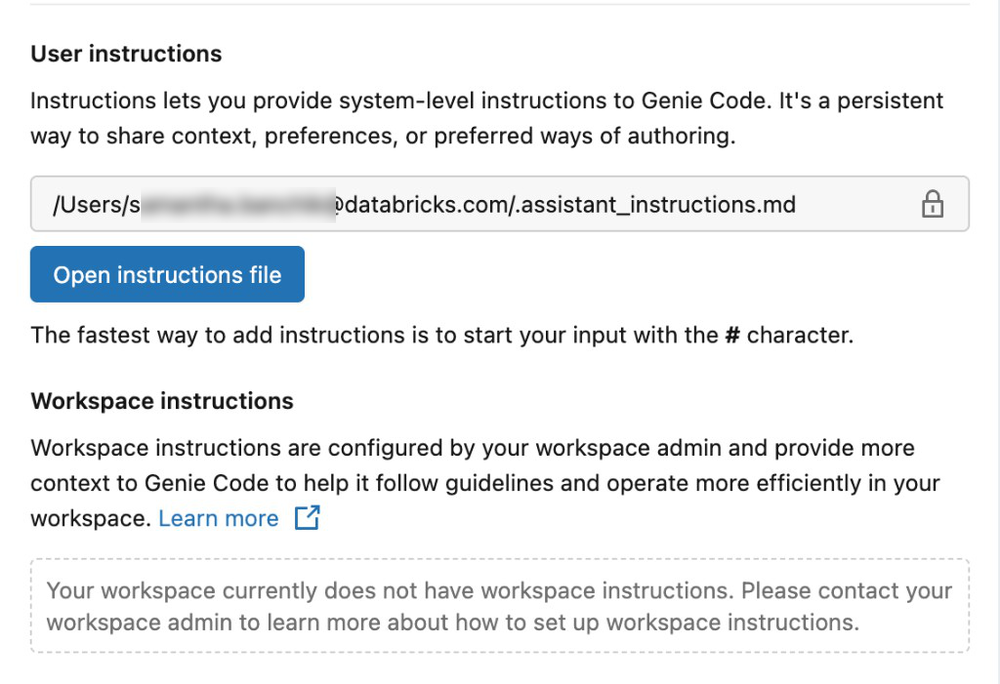
-
Under User instructions, click Add instructions file. This creates a
.assistant_instructions.mdfile in your default user workspace directory (/Users/<your-username-or-email>) and opens it in a new file tab.If you’ve already created an instructions file, click Open instructions file to open the file.
-
Edit the
.assistant_instructions.mdfile to add your custom instructions. Databricks recommends adding your instructions in plain English text, separating each instruction as a new bullet point or paragraph. See Best practices for Genie Code instructions.
Genie Code automatically picks up the instructions the next time you interact with it.
You can also use Genie Code to add instructions for you. From the Genie Code pane, ask Genie Code to remember something.
Add and view workspace instructions
Only workspace administrators can add or edit workspace instructions.
Workspace instructions are configured by your workspace administrator and provide more context to Genie Code to help it follow guidelines and operate more efficiently in your workspace.
If your workspace does not have workspace instructions yet, a workspace administrator can create the instructions file by following these steps:
- In the
Workspace/directory of the workspace, create a file named.assistant_workspace_instructions.md. - Edit the file to add instructions for Genie Code that should apply workspace-wide. Databricks recommends adding your instructions in plain English text, separating each instruction as its own bullet point or paragraph. See Best practices for Genie Code instructions.
Genie Code automatically picks up the new workspace instructions the next time a user interacts with it.
To view or edit workspace instructions:
-
Open the Genie Code pane by clicking
in the upper-right corner of your workspace. -
In the Genie Code pane, click
to open the Genie Code settings. -
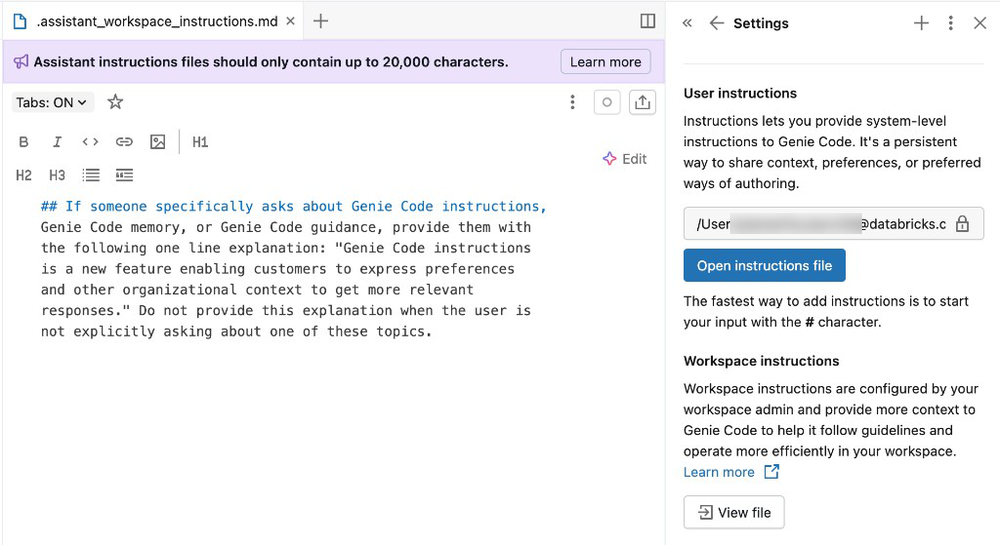
Under Workspace instructions, click View file. This opens the
.assistant_workspace_instructions.mdfile in a new tab. -
If you’re a workspace administrator, you can edit the file and add instructions that apply to Genie Code’s behavior throughout the workspace. See Best practices for Genie Code instructions for more information about adding instructions.
If you’re not an administrator, you can still view the file to understand what instructions Genie Code is following in addition to any user instructions you might have provided.
Best practices for Genie Code instructions
It’s important to consider the potential limitations of Genie Code when providing instructions. Here are some general guidelines and tips for writing instructions to optimize your experience and get the most out of this feature.
- Write clear, specific instructions: Be explicit and unambiguous when writing your instructions.
- Keep instructions under 20,000 characters: Instruction files are limited to 20,000 characters. Genie Code doesn't use any instructions past this limit. Be concise and prioritize important instructions.
- Use headings and delimiters for structure: Instructions are in Markdown files. Use Markdown formatting in your instructions to provide structure. Use bullet points as delimiters to separate out distinct instructions. Use headings to group together a set of instructions. For example, you might have a heading for "Python code conventions" that includes a bulleted list of Python-specific guidelines that Genie Code should follow when working with Python code.
- Scope: Genie Code applies instructions to every response it generates when you interact with it using Inline Genie Code, General Chat, Suggest Fix, and similar features. However, Genie Code does not consider instructions for Quick Fix and Autocomplete. Keep instructions broadly relevant to different Genie Code functions to avoid unintended behavior.
- Provide context and references: While Genie Code uses surrounding context like notebook code and table metadata, it does not yet proactively fetch additional information based on the instructions. To ensure helpful responses, include any key details directly in the instructions, such as when to use a particular table or function.