Custom classifiers
This feature is in Beta.
This page describes how to create and manage custom classifiers for Databricks Data Classification in Unity Catalog. Custom classifiers extend the built-in classification system so you can detect sensitive data that is specific to your organization, such as internal employee IDs, proprietary product codes, vendor identifiers, or partner account numbers.
To create a custom classifier, you first select a governed tag. Then, describe the data to detect, provide sample columns that contain representative values, or both. Databricks generates a preview of what the classifier detects so you can review it before you save. Data Classification then detects this classifier during its regular scans.
Custom classifiers detect column-level sensitive data during classification scans. To assign governed tags to whole tables and volumes, such as a table-level sensitivity tier, automate tag assignment (beta) instead.
Using custom classifiers, you can:
- Tag organization-specific data: Detect and configure auto-tagging for data types that are unique to your organization, such as employee IDs, partner codes, or internal account numbers.
- Extend governance controls: Apply ABAC column-level masks to sensitive data.
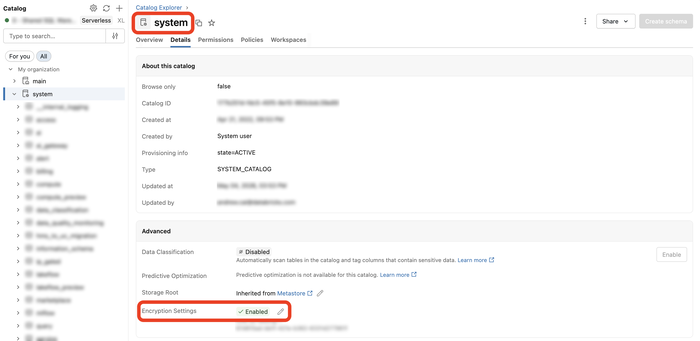
Custom classifier configuration and the detection metadata that Databricks generates from your sample columns are encrypted at rest. You can use a customer-managed key (CMK) on your system catalog to manage the encryption key. Configuring a CMK on the system catalog encrypts all data in the system catalog, not just custom classifier data.
Requirements
- Data Classification must be enabled on at least one catalog in the metastore. See Use data classification.
- Your workspace must have serverless compute available (enabled by default in workspaces with Unity Catalog).
- To create, edit, or delete a custom classifier, you must be a metastore admin or have
MANAGEon the governed tag the classifier uses. See Manage permissions on governed tags. - To select a sample column for the classifier, you must have
SELECTon the table that contains it. Databricks samples the column to generate the preview.
Create a custom classifier
-
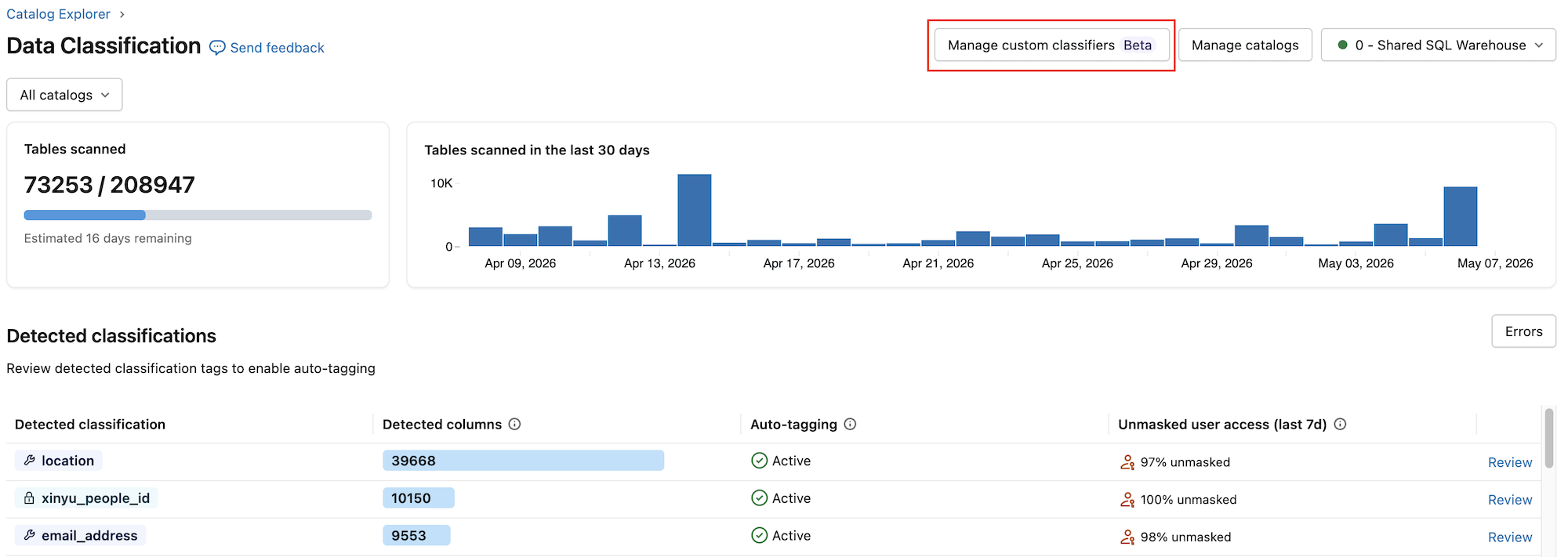
From the Data Classification results page, click Manage custom classifiers.
-
In the Custom classifiers side panel, click Add classifier.
-
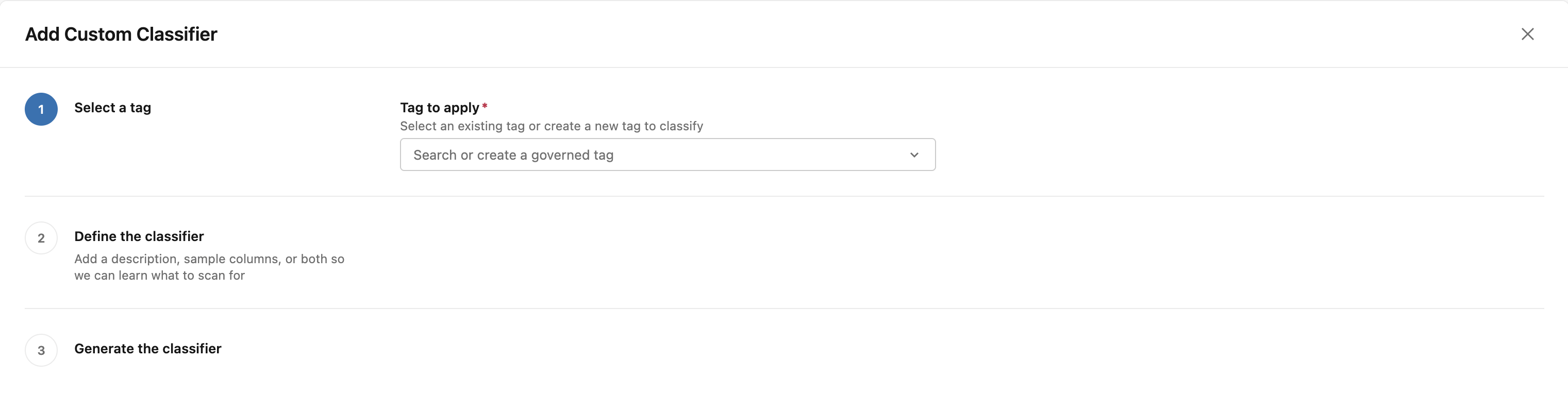
Select a tag. Choose an existing governed tag, or create a new tag to define one inline. If the tag has allowed values, choose the specific value you want to detect.
-
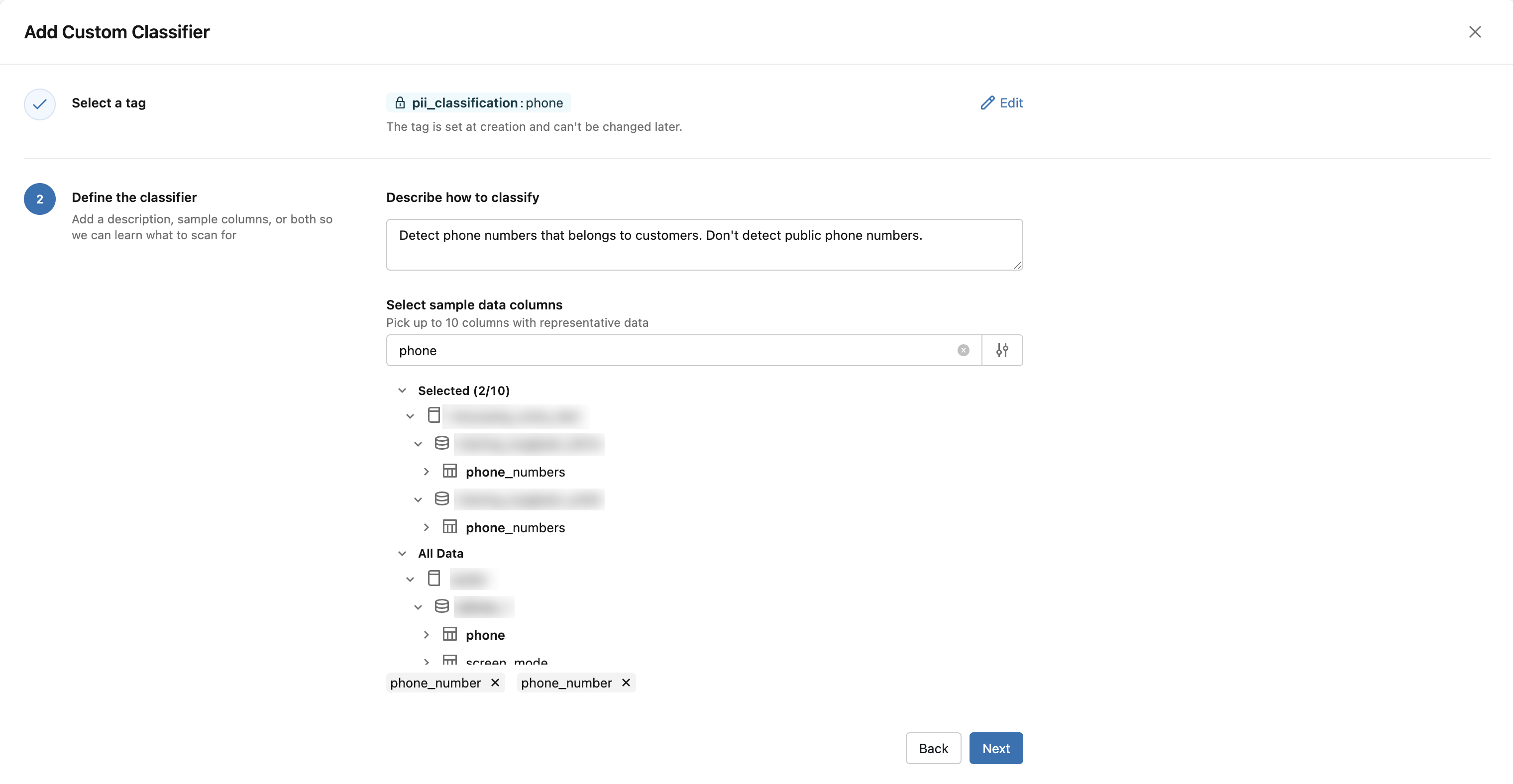
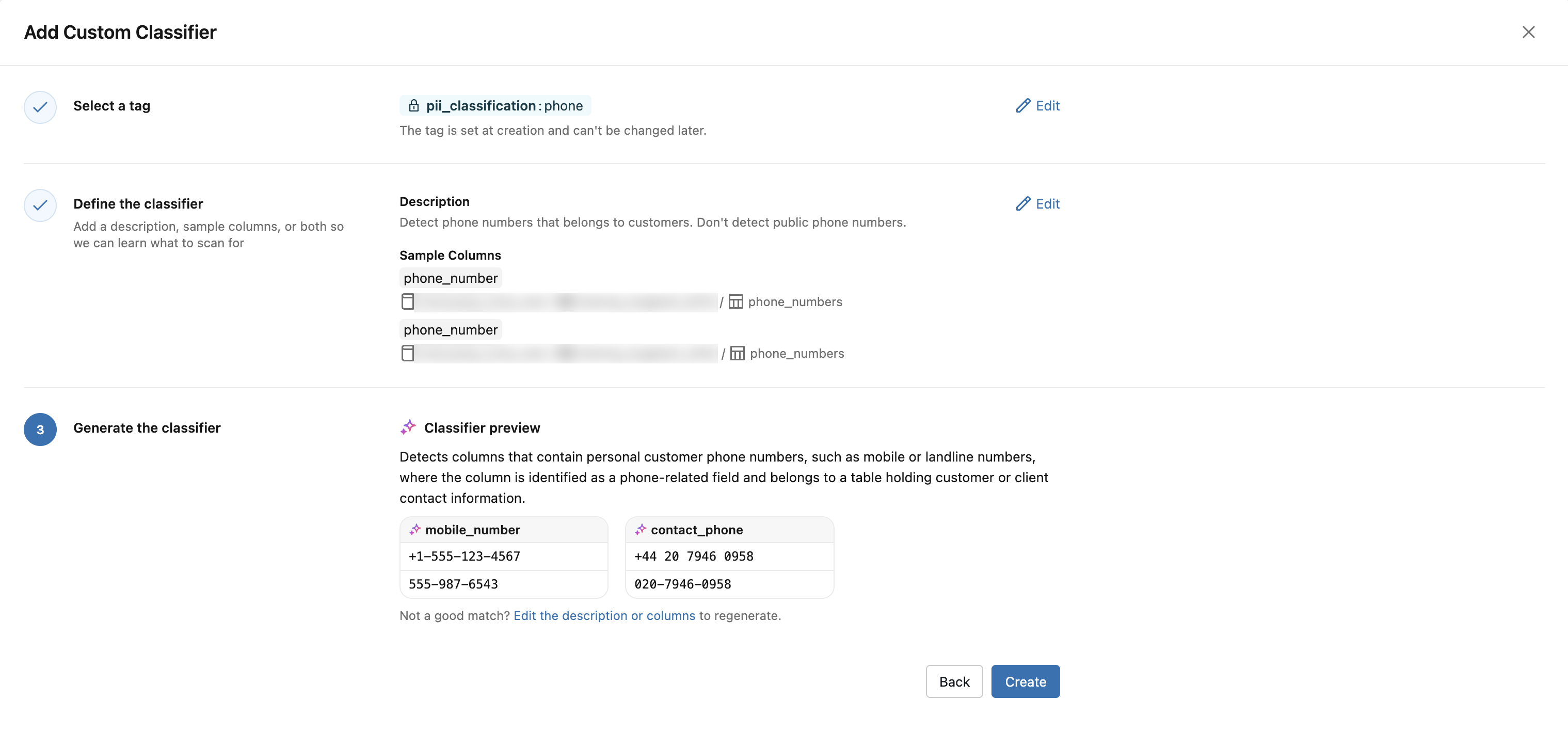
Define the classifier. Provide a description, sample columns, or both so Databricks learns what to scan for:
- In Describe how to classify, describe the data to detect in plain language, such as
Columns that store a person's contact details. - Under Select sample data columns, browse the catalog tree and select up to 10 columns that contain representative values for the class.
For how to write an effective description and choose good sample columns, see Define the classifier.
- In Describe how to classify, describe the data to detect in plain language, such as
-
Generate the classifier. Databricks generates a preview of what the classifier detects. To adjust the result, edit the description or sample columns and the preview regenerates. See Classifier preview.
-
Click Create. This button stays disabled until a preview is generated.
Detections from the custom classifier typically appear on the results page within a few hours.
Define the classifier
You define a custom classifier with a description, sample columns, or both.
Your description explains what the data represents, and directly affects how Databricks generates the classifier. You can use the description to teach Databricks to include or exclude matches (for example, "phone numbers that belong to individual customers, not public support or sales lines").
The sample columns help Databricks learn the shape of the data to sample. You need the SELECT privilege on a table to use its columns as samples.
A custom classifier applies to all catalogs in the metastore that have Data Classification enabled. Per-catalog or per-schema scoping is not supported.
Classifier preview
Before you save a custom classifier, Databricks generates a preview so you can verify its detection rules. The preview describes what the classifier detects in plain language and shows sample matching column names and values.
The columns and values in the preview are AI-generated examples, not real table data. If the preview doesn't match what you want to detect, edit the description or sample columns to generate a new preview.
Manage custom classifiers
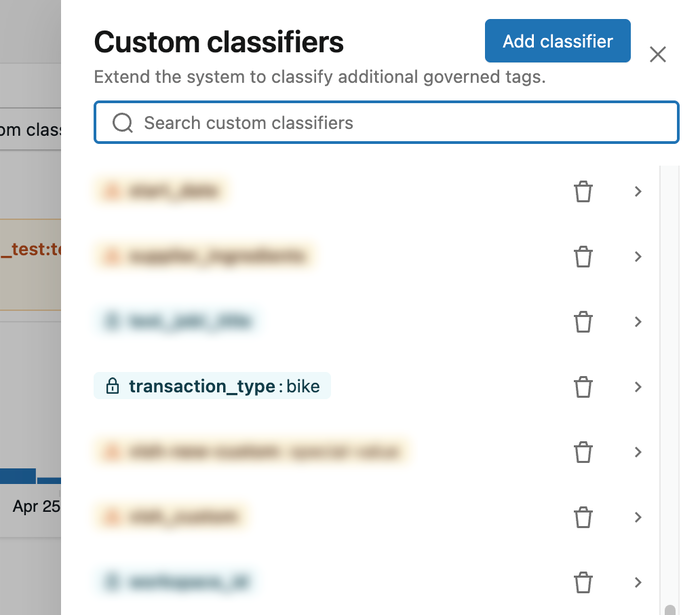
The Custom classifiers side panel lists all custom classifiers configured for the metastore. From this panel, you can search by tag name, edit an existing classifier, or delete a classifier.
Edit a custom classifier
To update an existing custom classifier:
- In the Custom classifiers side panel, select the custom classifier you want to edit. The edit view shows the classifier's saved description, sample columns, and preview.
- Edit the description, or add or remove sample columns. Databricks regenerates the preview automatically.
- If the preview is correct, click Update.
Existing detections from the previous configuration remain in place.
The governed tag and tag value cannot be changed after a custom classifier is created. To switch to a different tag, delete the custom classifier and create a new one.
Delete a custom classifier
- In the Custom classifiers side panel, select the custom classifier you want to delete.
- Click Delete.
- Confirm the deletion.
When you delete a custom classifier:
- No new detections are produced for that classifier.
- Existing detections are removed from the Data Classification results page.
- Tags that were already auto-applied to columns are not removed automatically.
View custom classifier detections
To view custom classifier detections, follow the same steps as for built-in classifications. See View classification results.
Limitations
- You can create a maximum of 50 custom classifiers per metastore.
- Each custom classifier must have a description, sample columns, or both. You can reference a maximum of 10 sample columns.
- Governed tag naming is subject to Tag Policy rules.
- Custom classifiers apply to all Data Classification-enabled catalogs in the metastore. Per-catalog or per-schema scoping is not supported.
- The governed tag used by a custom classifier cannot be changed after creation. To use a different tag, delete and recreate the custom classifier.
- New and updated custom classifiers apply only to subsequent Data Classification scans. Existing scan results are not automatically reclassified, so detections for previously scanned data appear after the next scan completes.
- All Data Classification limitations apply to custom classifiers as well, including supported table types. See Limitations.
Troubleshooting
The following topics help you troubleshoot common issues with custom classifiers.
A custom classifier is suspended
If a custom classifier can no longer produce detections, Databricks suspends it and shows a warning on the Data Classification results page. The warning states the reason. A suspended custom classifier produces no new detections.

Databricks suspends a custom classifier for the following reasons:
- The governed tag is no longer valid. The governed tag or tag value was deleted, or the tag is missing a required value. Restore the tag or value, or delete the custom classifier and create a new one with a valid tag. Editing the description or sample columns doesn't resolve this suspension.
- Databricks cannot generate a detection rule from the description and sample columns you provided. Edit the custom classifier to refine the description or replace sample columns that are inaccessible or not representative, then save to regenerate the classifier.
Permission denied when creating or listing custom classifiers
You must be a metastore admin or have MANAGE on the governed tag the classifier uses. See Requirements.
Cannot select a sample column
You must have SELECT on the table that contains the column. If you do not have SELECT on the table, ask the table owner to grant it, or choose a different column.