Alerts for anomaly detection
This page describes how to set up and view alerts for anomaly detection. For an introduction to anomaly detection, see Anomaly detection.
Alerts notify you when anomaly detection identifies a data quality issue, such as a stale table or an unexpected drop in row count. Create and manage alerts directly from the Data Quality Monitoring UI (Beta), without leaving the page. See Alerts in the Data Quality Monitoring UI.
Alerts in the Data Quality Monitoring UI
This feature is in Beta, and is visible to all users by default. Workspace admins don't need to enable the feature from the Previews page.
Alert rules notify the workspace users and notification destinations you select when an unhealthy table is detected within a catalog or schema. You create and manage these rules directly from the Data Quality Monitoring UI.
Each alert rule is scoped to a catalog or a specific schema. When a monitored table within the rule's scope becomes unhealthy, each recipient receives one notification per important unhealthy table, with the same summary and a link to view the results in the Data Quality Monitoring UI.
Notification destinations
In addition to notifying workspace users by email, you can send alerts to Slack, Microsoft Teams, or webhook notification destinations.
Notification destinations must be configured by a workspace admin. When you set up an alert, you select from the destinations that already exist in the workspace. If the destination you need isn't listed, ask a workspace admin to create one.
Required permissions
The privileges required to create or manage an alert rule depend on the rule's scope:
- To create a schema-level alert, you must have the
MANAGEprivilege on the schema. - To create a catalog-level alert, you must have the
MANAGEprivilege on the catalog.
View and manage data quality monitoring alerts
To view your alert rules:
- Navigate to a schema in Catalog Explorer. Data quality monitoring must be enabled for this schema.
- Click the Details tab. Next to Data Quality Monitoring, click View results. This opens the Data Quality Monitoring UI.
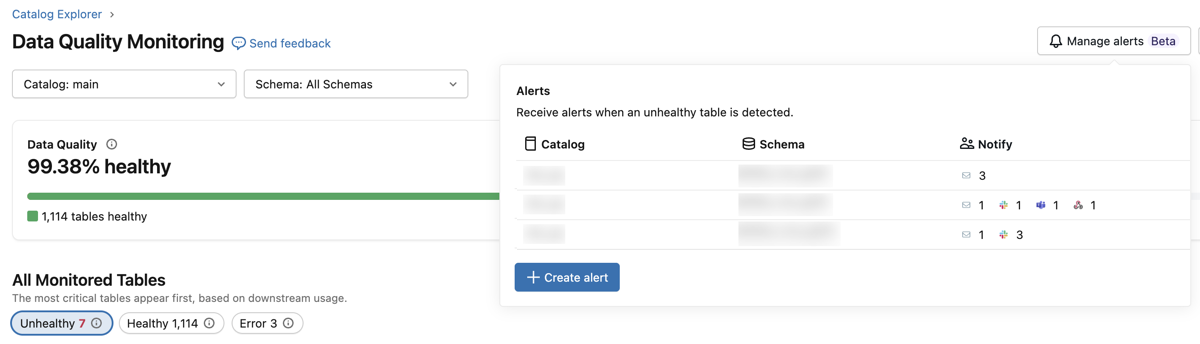
- In the upper-right corner of the page, click Manage alerts. A popover opens showing your existing alert rules, including the catalog, schema, and notify targets for each rule.
From this popover, you can create a new alert rule, select an existing alert to edit its scope and notify targets, or delete the alert.
Create an alert
To create an alert:
-
In the upper-right corner of the Data Quality Monitoring UI, click Manage alerts to open the alerts popover.
-
Click Create alert.
-
Configure the alert rule:
- Catalog: Select the catalog to monitor.
- Schema: Select a specific schema, or select All Schemas to create a catalog-level alert that covers every schema in the catalog.
- Notify: Search for and select who to notify when a table becomes unhealthy:
- Workspace users are notified by email.
- Notification destinations send the alert to a Slack, Microsoft Teams, or webhook channel.
-
Click Save.