Access requests
The request for access (RFA) feature lets users request privileges for Unity Catalog objects from anywhere in Databricks. This page explains how access requests work, where users can request permissions, how requests are routed, and how requesters and reviewers track and review those requests. To configure destinations, see Configure access request destinations.
How does request for access (RFA) work?
RFA enables governed self-service access to Unity Catalog objects.
- Users request access to objects from wherever they work in Databricks. See How users can request permissions.
- Admins choose where to route access requests. This can be an assigned reviewer or a third-party tool. See How requests are routed.
- Requesters, reviewers, and metastore admins track request status in Catalog Explorer. See Track access requests.
- Reviewers approve or decline requests. They provision access via direct grant or group membership. See Review an access request.
How users can request permissions
When a user attempts to interact with a Unity Catalog object they don't have permissions on, they can request access from several in-product surfaces: Catalog Explorer, SQL editor and notebooks, dashboards, Genie One, and Genie Agents. You can also submit requests using the REST API.
Users can request access for themselves, a service principal, another user, or a group.
When a user requests a privilege such as SELECT, Databricks automatically checks prerequisite privileges (USE CATALOG and USE SCHEMA). If any are missing, Databricks generates additional requests and routes them to the parent objects' approvers.
Catalog Explorer
Users with the BROWSE privilege can navigate the catalog tree, open an object's page, and request additional privileges. If the user doesn't have the BROWSE privilege, they can be sent a direct URL to the object's page where they can request access.

SQL editor and notebooks
When a query or command fails with an INSUFFICIENT_PERMISSIONS error, the error message includes a Request access option that pre-fills the request with the referenced tables.

Dashboards
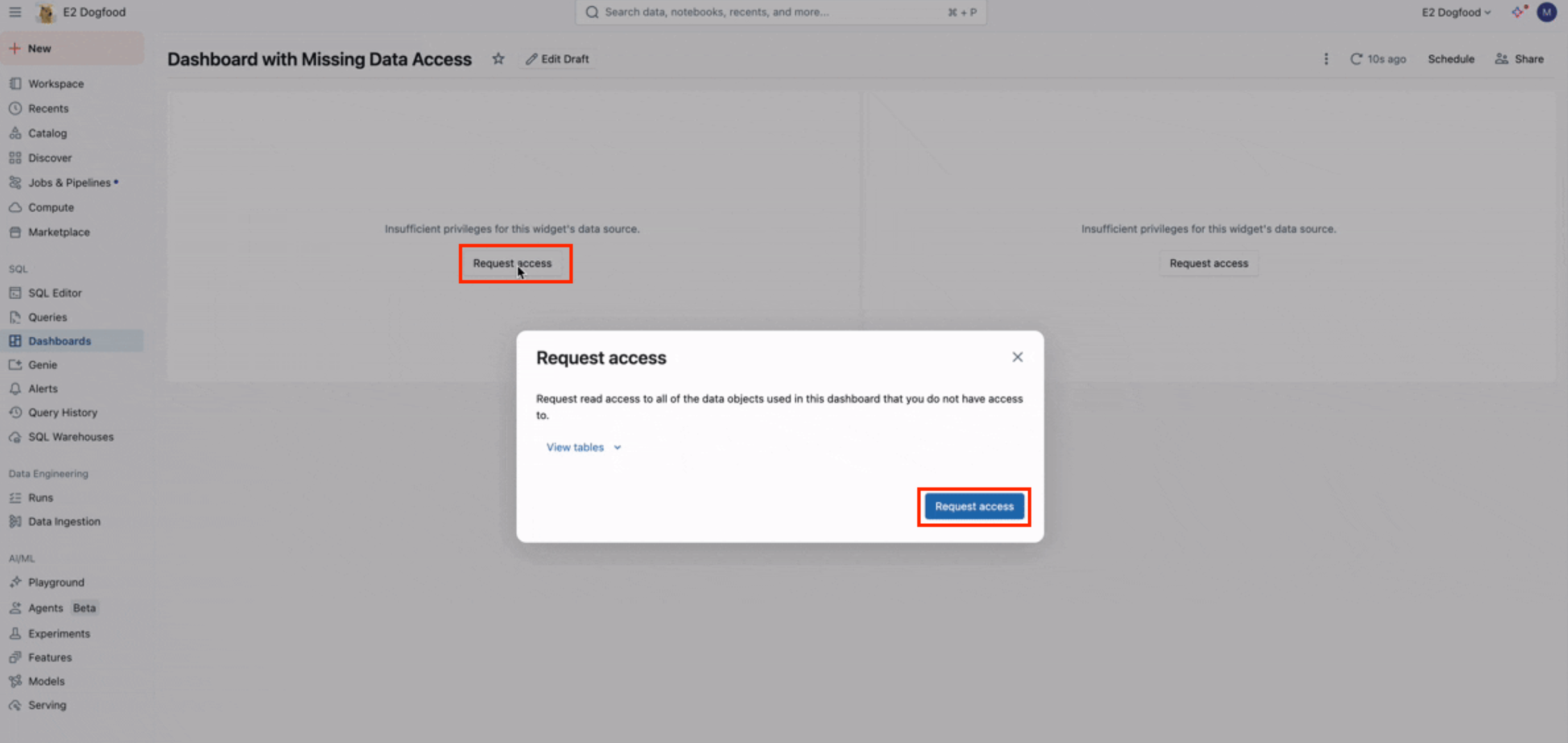
When a dashboard runs without embedded credentials and the user lacks access to the underlying datasets, the widget surfaces a Request access modal.
Genie One
When Genie One needs to read a table the user doesn't have access to, it helps the user file the request for access. By default, Genie One prepares a SELECT request on the user's behalf. If an admin configured a redirect URL, Genie One shows the link.

Genie Agents
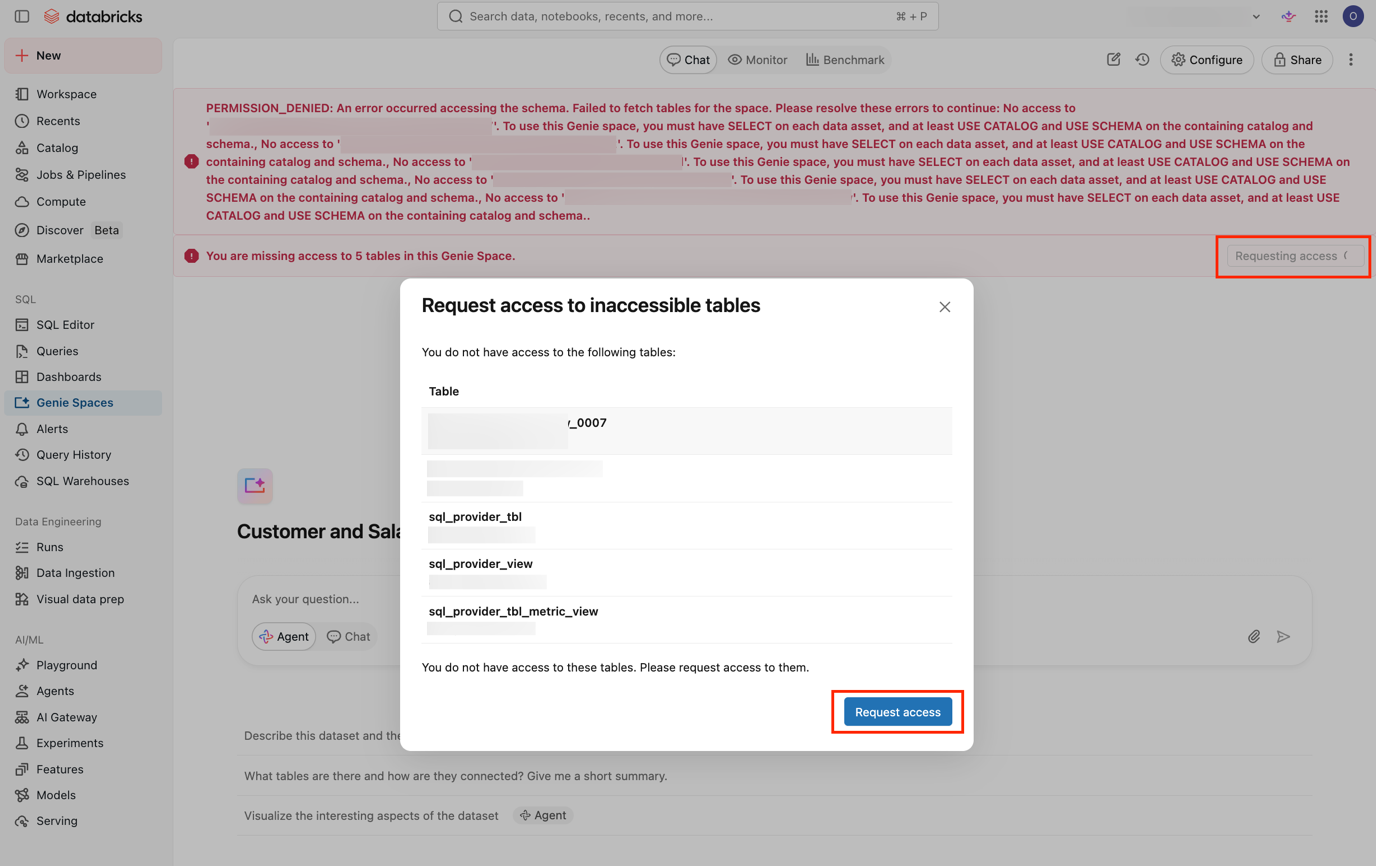
When a Genie Agent connects to data sources that the user lacks permissions on, the agent displays a PERMISSION_DENIED banner with a Request access modal for the inaccessible tables.
REST API
To submit access requests programmatically, use the Create access requests API. A single call can request permissions for multiple principals and objects.
The API reference lists the request for access APIs under two headings. Request For Access covers creating access requests. Access Request Destinations covers getting and updating where requests are routed.
How requests are routed
When users request access to an object in Unity Catalog, the request is sent to one or more configured destinations. If multiple destinations are configured on an object, the request is routed to all of them.
For the list of access request destinations and how they work, see destination types and how destinations are resolved.
What happens after a request is submitted
After a request is submitted, requesters can track its status, and reviewers can approve or decline it. A request stays open until a reviewer acts on it or it expires:
- After 3 days: Email reminders are sent to the original email destinations. Slack, Microsoft Teams, webhook, and redirect URL destinations don't receive reminders.
- After 7 days: Unanswered requests expire.
Track access requests
Requesters, reviewers, and metastore admins can track requests from the Requests page in Catalog Explorer. The Requests entry appears for users who have at least one incoming or outgoing request, and always appears for metastore admins.
- In your Databricks workspace, click
 Catalog.
 - On the Catalog Explorer homepage, click Requests.
- Select a view from the drop-down menu:
- My requests: Requests you submitted, including on behalf of groups or service principals, and requests others submitted for you. Available to any user.
- Review queue: The requests routed to you, available to any user whose email address is set as a destination. Provision or decline requests from this queue.
- All requests: A metastore-wide track record of every request and its current state. Available to metastore admins.

Databricks doesn't import approvals made outside of Databricks. Requests routed to an external system show as Managed externally.
Databricks retains tracked requests for 365 days from when they're submitted. Resolving a request doesn't reset this period.
For a record of every access request and destination configuration, see Request for access events in the audit log reference.
Review an access request
To review an access request, follow the link sent to your access request destination, or open the request from the Review queue on the Requests page. See Track access requests. Databricks checks that the reviewer has permission to grant access when they approve a request. However, any user who opens the review link and signs in to the workspace can decline it.

To grant the request, click Provision, and then select one of the following approval methods:
- Add principal to group(s): Use group membership to grant access. If your groups are identity provider-synced, you can still grant access this way, but the membership change doesn't sync back to your identity provider or close the request there.
- Grant privileges to principal: Grant the privilege directly. The principal can be a group.

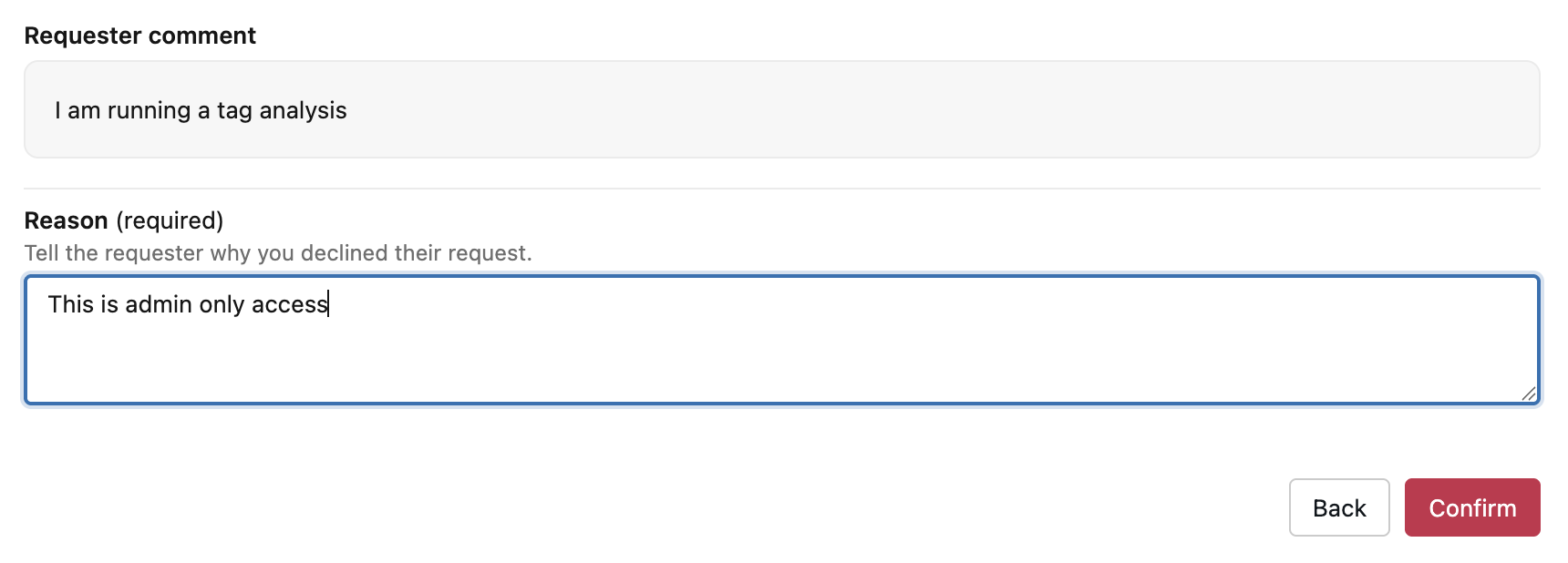
To decline the request, click Decline and enter a mandatory reason.
When a reviewer approves or declines a request, the requester and the user the request was made for receive a notification email.