Partner-powered AI features
The partner-powered AI features setting is being removed. For workspaces where the setting is enabled, the account and workspace toggles are already disabled. At a later date, Databricks will fully remove the setting from all workspaces and the API. Each workspace keeps its current setting value: if the setting is enabled, it stays enabled, and if it's disabled, it stays disabled. Removing the toggle doesn't change any setting values.
Until then:
- If partner-powered AI features are enabled, the toggle is disabled and you can no longer turn off the setting in the settings page.
- If partner-powered AI features are disabled, the toggle is still available and you can enable the setting.
- You can still use the Settings API to enable or disable the setting.
After the setting is removed, to change this setting, contact your Databricks account team.
The partner-powered AI features setting controls whether some features are powered by models hosted by a partner provider. By default, this setting is enabled for all workspaces that do not have a compliance security profile (CSP) enabled. For CSP workspaces, this setting is disabled by default.
Enabling this setting gives users access to more features. You can manage this setting at the account or workspace level, subject to the removal timeline described above.
When enabled, features that use this setting are currently powered by Azure OpenAI service, OpenAI on Databricks, or Anthropic on Databricks.
Even when the setting is enabled, some features continue to use a Databricks-hosted model, such as Genie Code Autocomplete. For the hosting provider used by each feature, see the table below.
When the partner-powered AI features setting is disabled, AI assistive features use Databricks-hosted models where available for workspaces in the Americas and Europe. For workspaces in other geographies, Databricks-hosted models require cross geography processing. Some features, such as Genie Code's agentic capabilities, are not available when the partner-powered AI features setting is disabled. Genie Code is still available without its agentic capabilities, using a Databricks-hosted model.
Hosting provider used when partner-powered AI features setting is enabled and disabled
The table below lists the features that are affected by the partner-powered AI features setting, and which hosting provider each feature uses when the setting is enabled and disabled.
Feature | Hosting provider when partner-powered AI features is enabled | Hosting provider when partner-powered AI features is disabled |
|---|---|---|
Databricks | Databricks | |
Azure OpenAI service, OpenAI on Databricks, and Anthropic on Databricks† | Feature is not available | |
Azure OpenAI service and OpenAI on Databricks | Databricks for non-CSP workspaces. | |
AI/BI dashboard AI-assisted visualizations and companion Genie Agents (Public Preview) | Azure OpenAI service | Feature is not available |
Azure OpenAI service and OpenAI on Databricks | Feature is not available | |
OpenAI on Databricks and Anthropic on Databricks† | Feature is not available | |
OpenAI on Databricks and Anthropic on Databricks† | Chat in Genie One is not available. Users can still access Genie One and interact with data assets. | |
Genie App Builder | Feature is not available | Feature is not available |
Azure OpenAI service | Databricks | |
Azure OpenAI service | Users must specify model to use | |
Azure OpenAI service | Feature is not available |
* These features are not AI assistive features, but require the partner-powered AI features setting.
† Anthropic on Databricks uses endpoints hosted by Databricks within the Databricks security perimeter.
‡ When partner-powered AI features are disabled, the Databricks-hosted models that power Genie Code are available in CSP workspaces with the HIPAA compliance standard. Other compliance standards are not supported.
For more information on AI assistive features, see Databricks AI assistive features trust and safety
For an account: Enable partner-powered AI features
The toggle is being removed at a later date. Until then, the following steps let you enable the setting if it's currently disabled. If partner-powered AI features are already enabled, the toggle is disabled but can be configured through the Settings API. After the setting is removed, to change this setting, contact your Databricks account team.
The partner-powered AI features setting is enabled by default. However, account admins can disable the setting for all workspaces within an account. Account admins can also enforce the setting for the entire account.
Enabling or disabling partner-powered AI features for your account is captured as an account event in audit logs. See Account-level authentication events.
-
As an account admin, log in to the account console.
-
Click Settings.
-
Click the Feature enablement tab.
-
For the Enable partner-powered AI features option, select On.
-
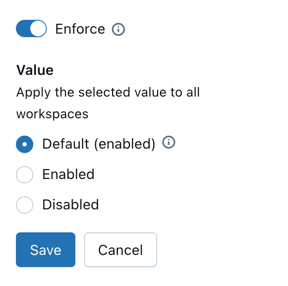
Prevent workspace overrides with the Enforce setting:
When partner-powered AI features are disabled, Databricks-hosted models continue to power AI assistive features when available.
For a workspace: Enable partner-powered AI features
The toggle is being removed at a later date. Until then, workspace admins can enable the setting if it's currently disabled. If partner-powered AI features are already enabled, the toggle is disabled, but can be configured through the Settings API. After the setting is removed, to change this setting, contact your Databricks account team.
If your account admin enables partner-powered AI features including Genie Code, it is enabled by default in workspaces.
To enable partner-powered AI features in a workspace if they're currently disabled:
- Click your username in the top bar of the Databricks workspace > Settings.
- In the left pane under Workspace admin, click the Advanced tab.
- Click the toggle On for Partner-powered AI features.
When partner-powered AI features are disabled, Databricks-hosted models continue to power AI assistive features when available.